
Batch traceability in manufacturing is the ability to track the full path of raw materials, semi-finished goods, and finished products at every stage of movement: from material receipt to production, transfer, write-off, return, and sale.
Traceability makes it possible to determine which specific raw material batches were used to manufacture a product, in which products a particular material batch was used, which documents recorded its movement, and what remaining balance of that batch is currently available.
For a manufacturing company, this has practical value in day-to-day operations. If a defective raw material batch is identified, you can quickly determine exactly which products it was used in and to whom those products were shipped. If a customer raises a complaint about the quality of a finished product, you can identify which raw material batches were used to make it and which supplier provided that material. In addition to quality control, traceability helps analyze actual material usage, monitor inventory balances, verify the accuracy of production operations, and make informed management decisions.
In Skynum, traceability is implemented through batch accounting. Each batch has a unique number, and the system creates links between supply, production, transfer, write-off, return, and sales documents. These links are the basis for traceability reports.
Batch settings
To work with batches, go to Settings → Parameters → Batches.
This section defines the rules for automatic batch write-off, displaying batches in reports, manual batch selection in documents, and manual batch number entry during supply and production.
- Batch accounting method — determines the rule the system uses to automatically choose a batch for write-off if the user does not specify one manually. Available methods: FIFO, LIFO, highest price from batches in stock, and lowest price from batches in stock.
- Display batches in reports — determines whether reports on balances and turnover will include batch-level detail. If enabled, reports can analyze movement and balances not only by item, but also by specific batches.
- Batch selection in documents — allows the user to manually choose a specific batch in a document line. If no batch is selected, the system uses the “Automatically” value and writes off the batch according to the configured batch accounting method.
- Manual batch number entry in production — allows you to manually assign a batch number to finished goods in the “Production of Goods” document. The batch number is specified separately for each item line.
- Manual batch number entry in supply — allows you to manually assign a batch number in the “Supplier Receipt” and “Stock Receipt” documents. This makes it possible to record the supplier’s actual batch number or another external identifier.
How batches work in the system
At the supply stage, the company can manually record the supplier’s batch number or allow the system to create an internal number automatically. At the production stage, you can also assign your own batch number for each finished goods line or use an automatically generated system number.
If the user does not enter a batch number manually in supply or production documents, the system automatically assigns an internal batch number. This means the company can operate fully automatically or combine automatic batch creation with manual entry only where it is really needed.
A batch in the system is always recorded at the item line level. This means that one document line forms one batch, even if the line contains several units of goods or products.
During transfers, write-offs, sales, or returns, the system either selects a batch automatically according to the configured batch accounting method or allows the user to manually choose the required batch from the available balances.
As a result, a complete movement chain is formed: from a specific raw material batch to a specific finished goods batch, and then to a sales document, return document, or another operation. This chain is the basis of traceability reports.
This makes it possible to fully control which batches are received into stock, which batches are created in production, which are transferred between warehouses, and which are written off, shipped to the customer, or returned to the supplier.
Batch accounting methods
The batch accounting method is used when the system must independently determine which batch to write off. The choice is always made from the batches available in stock at the moment the document is posted.
- FIFO — the batch received earliest is written off first. This is the most common approach for raw materials, goods with expiration dates, and accounting scenarios where the natural order of stock usage matters.
- LIFO — the batch received latest is written off first. This method is used less often, but it may match the actual logic of certain warehouses or internal accounting rules.
- Highest price from batches in stock — the system writes off the batch with the highest cost among the available balances. This can be used in certain management scenarios where a more conservative valuation of inventory or margin is needed.
- Lowest price from batches in stock — the system writes off the batch with the lowest cost among the available balances. This approach is also used in certain management accounting models.
Manual batch selection in documents
If the “Batch selection in documents” option is enabled, a batch selection field appears in item lines. This allows the user to independently determine which batch should be written off, transferred, returned, or sold.
The batch selection field is available in the following documents: Write-off, Revaluation, Disassembly, Transfer, Goods Delivery Note, Return to Supplier, and Sales Return.
By default, the field is set to “Automatically”. In this mode, the system selects the batch in the same way as when the option is disabled — according to the chosen batch accounting method. If the user selects a batch manually, the system uses that batch instead of automatic selection.
The list displays only those batches that match the conditions of the current line: matching the item, modification, expiration date, warehouse, and having an available balance.
An additional restriction applies to the “Return to Supplier” and “Sales Return” documents. If the document is created based on the original document, the system will not allow selecting a batch that was not present in that original document. If the return document is created separately, without a link to the original document, the batch can be selected from the list of available balances.
Manual batch number entry
In Skynum, the batch number can be entered manually both during supply and during production, depending on the enabled settings. This allows the use of both internal system batch numbers and actual supplier batch numbers, manufacturer series, boiling/batch numbers, shift numbers, or production series.
If the “Manual batch number entry in supply” option is enabled, you can specify your own batch number for each item line in the “Supplier Receipt” and “Stock Receipt” documents.
If the “Manual batch number entry in production” option is enabled, you can specify your own batch number for each finished goods line in the “Production of Goods” document.
After enabling the relevant settings, the “Batch code” field appears in the item line of the document, where you can enter your own batch number.
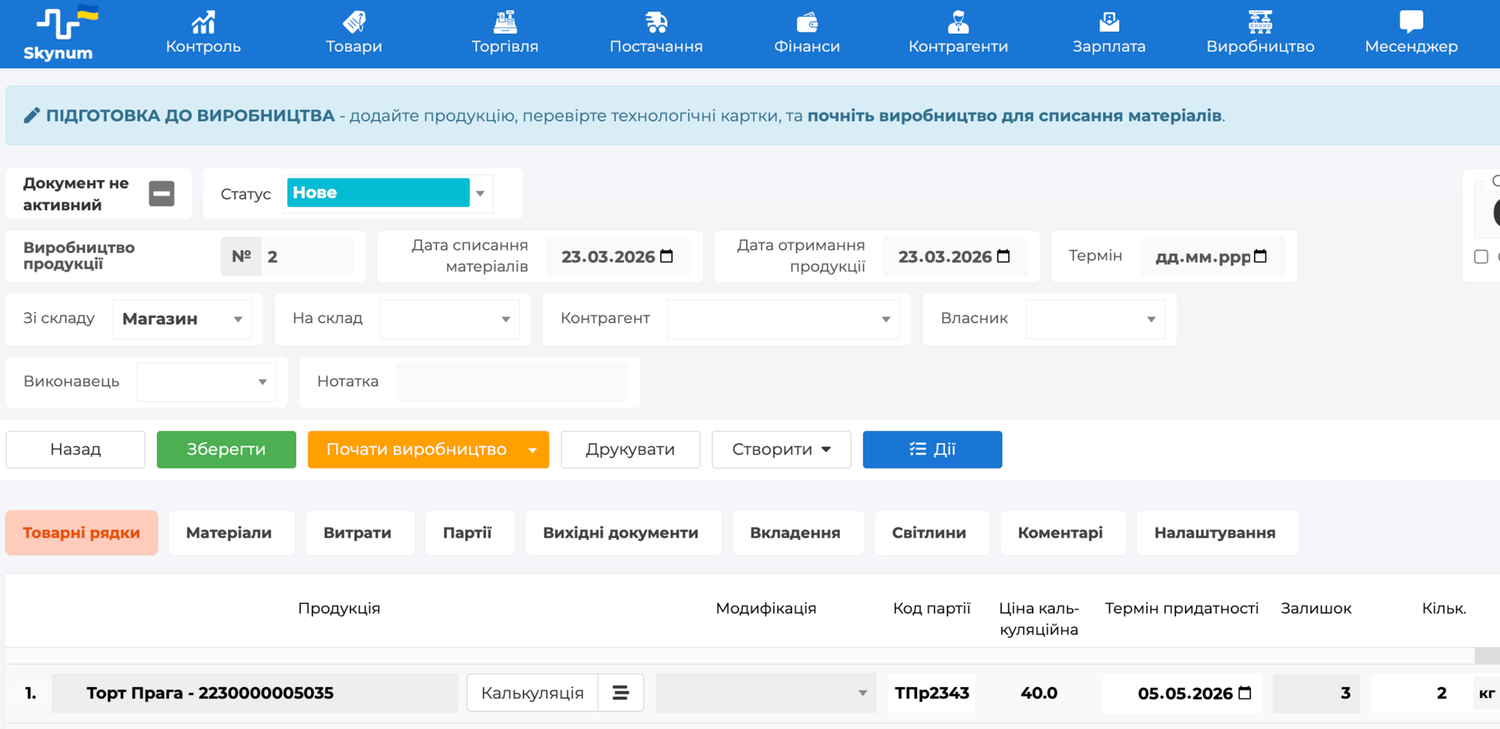
The batch number must be unique across the entire database and all documents. If you try to use a batch number that already exists, the system will not allow the document to be saved and will show an error.
How to view the item batch code
To work with traceability reports, it is important to be able to quickly find the required batch code. The batch code in the system may be generated automatically or entered manually, depending on the batch accounting settings.
- Open the item card.
- Go to the “Turnover” tab.
- Enable the “By batches” switch.
- The batch code will be displayed in the “Batch” column.
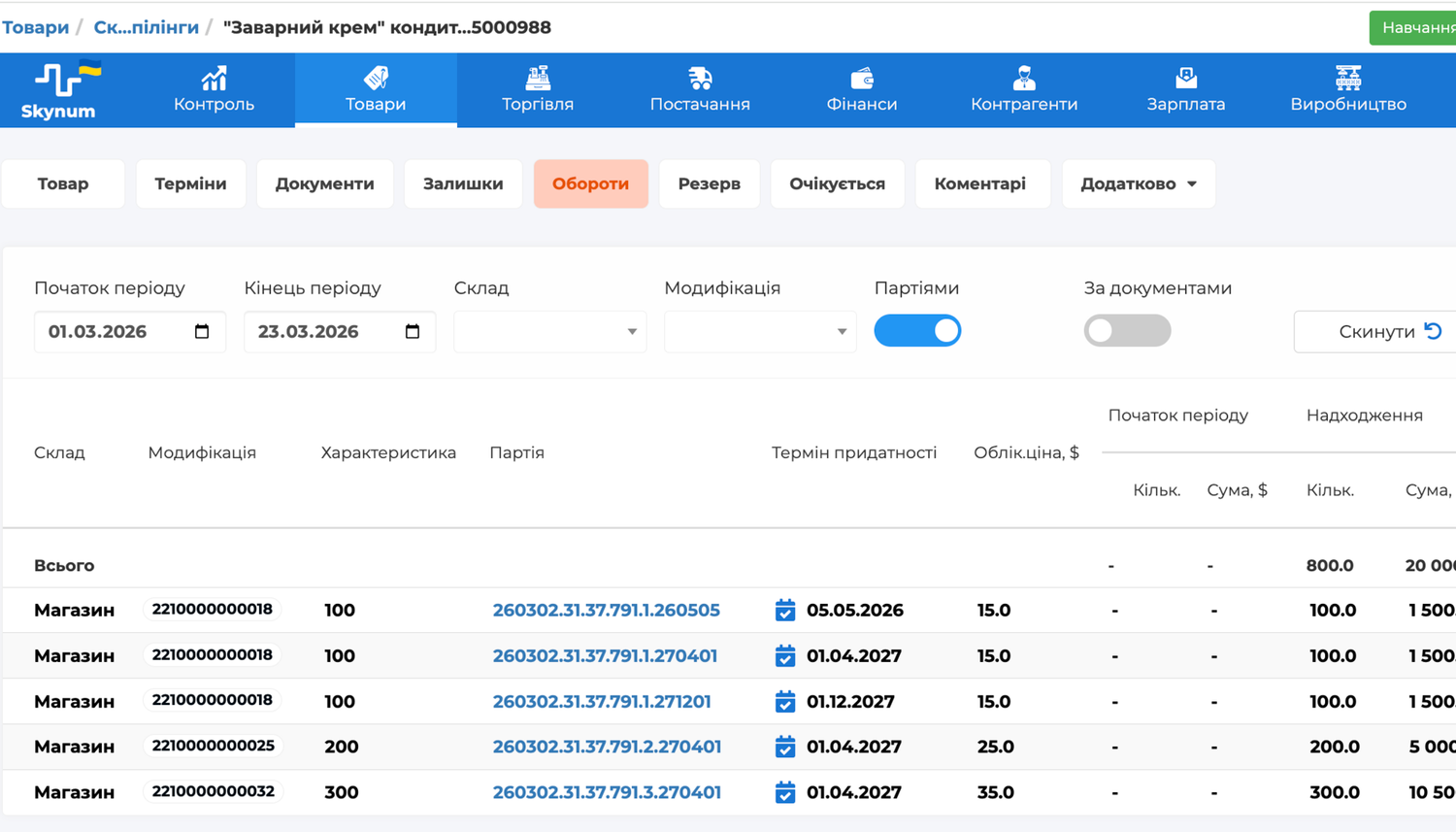
Structure of the automatically generated batch code
The automatically generated batch code consists of information blocks separated by dots.
The first three blocks contain data from the receipt document:
- the document date in YYMMDD format;
- the system document type;
- the document number.
Then the code may contain:
- a unique system item code;
- a modification code, if used;
- an expiration date in YYMMDD format — for items with a shelf life.
Traceability and production reports
All reports related to production and batch traceability are located in the “Production” section. They help plan purchases, control production output, analyze batch movements, check product cost, and quickly identify the causes of quality issues. If needed, report results can be exported to Excel.
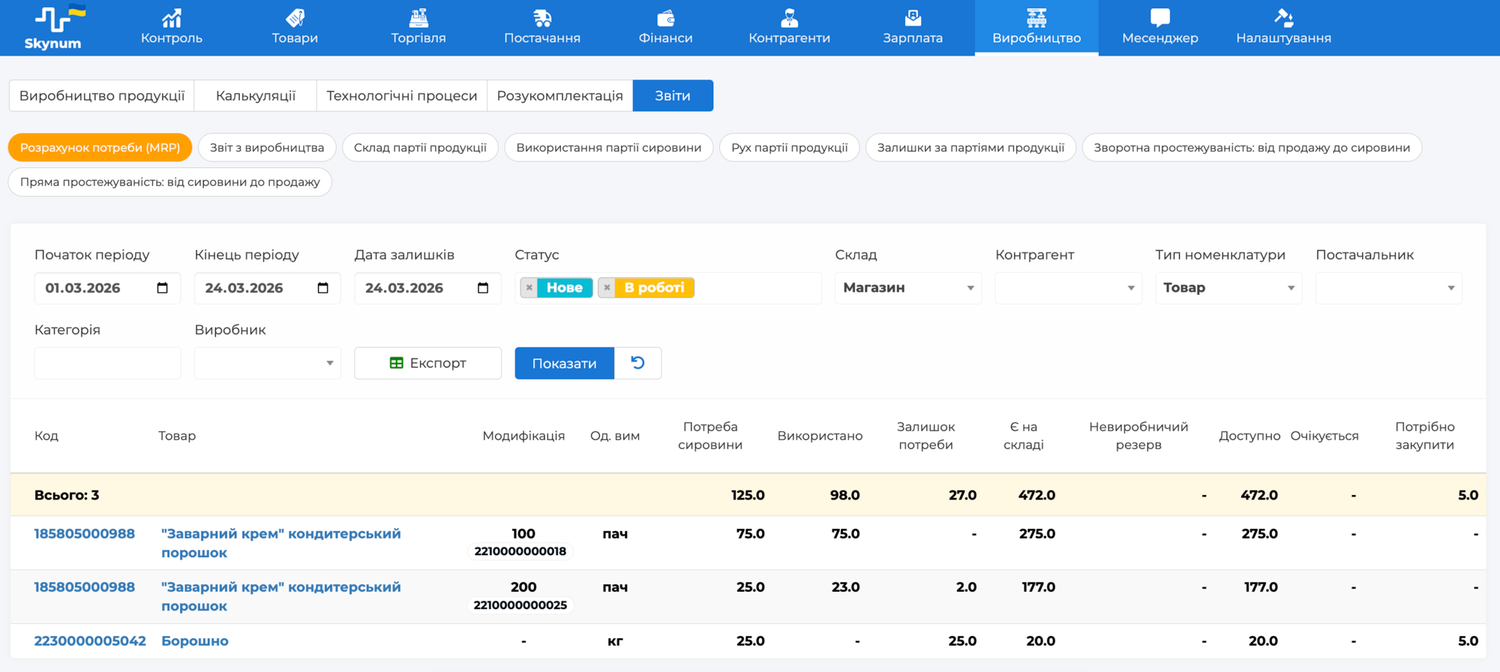
1. Report “Requirements Planning (MRP)”
This report is used for purchase planning and ensuring that production has the necessary raw materials. It helps you understand in advance which materials and in what quantities are missing for the production documents within the selected period.
To generate the report:
- Specify the start and end of the period for which production documents should be taken into account.
- Set the inventory date on which the system should analyze raw material stock balances.
- Select the document statuses to include in the report.
- Use additional filters if needed.
- Click the “Show” button.
The practical value of this report is that it helps you identify shortages before production stops, rather than reacting after the fact. For a production manager or purchaser, it is one of the basic planning tools that connects production demand with actual stock balances.
2. Production report
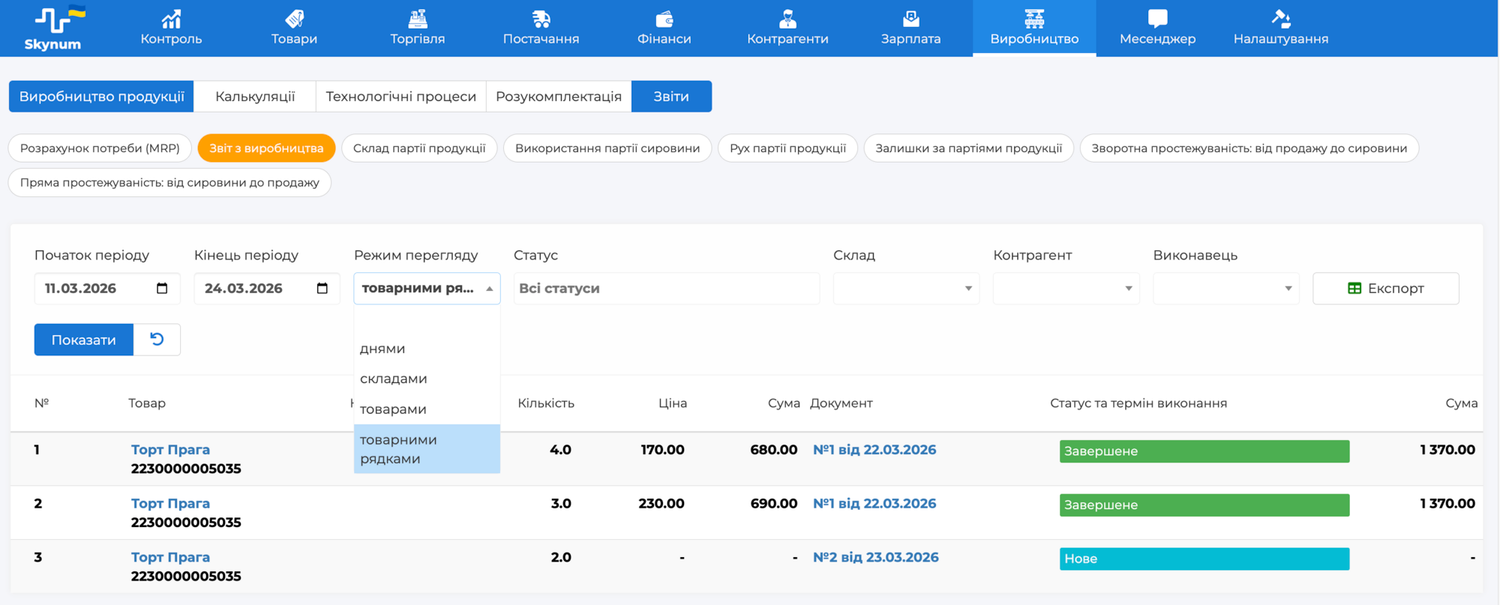
This report is used for operational control over what exactly was produced during the selected period. It provides a general picture of production activity: which documents were created, which warehouses were involved in output, which goods were produced, and in what volume.
To generate the report:
- Select the period for which you want to review production documents.
- If necessary, set filters by document status, warehouses, counterparties, and performers.
- Select a convenient view mode: by days, by warehouses, by goods, or by item lines.
- Click the “Show” button.
In practice, this is useful for daily monitoring of production operations, reconciling actual output with the plan, analyzing workload by warehouse or direction, and verifying that all production operations are properly documented. It is a basic overview report that is convenient to start with when analyzing a production period.
3. Report “Finished Goods Batch Composition”
This report answers the question: what exactly a specific finished goods batch was made from. It is needed when the starting point of the analysis is an already produced batch and you need to understand its composition in detail.
To generate the report:
- Enter the finished goods batch code in the “Search” field.
- Click the “Show” button.
As a result, the report will display the list of raw materials, the quantity used in production, the stock receipt composition of the finished goods, and the production document. This report is especially useful if there is a quality claim regarding a finished product, if compliance with a recipe must be checked, or if actual material write-off needs to be analyzed. Product, raw material, and document names contain hyperlinks to the corresponding records.

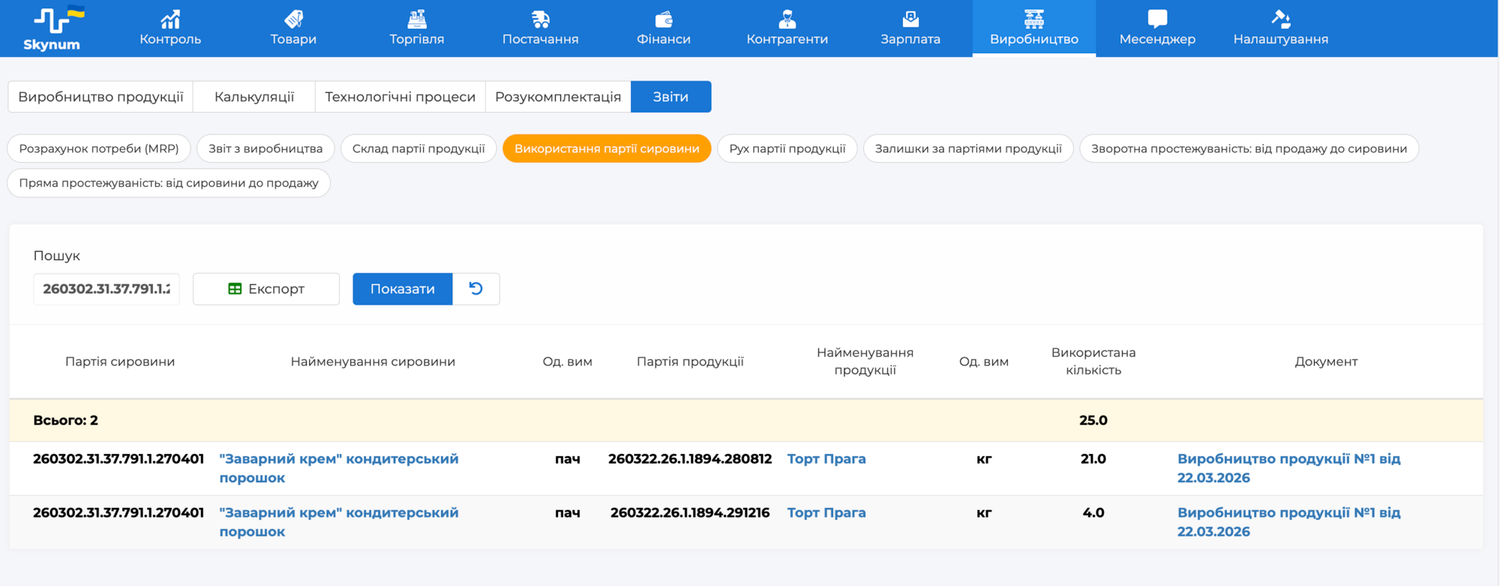
4. Report “Raw Material Batch Usage”
This report shows which specific products used a particular raw material batch. It is especially important in situations where the issue starts not with the finished product, but with the material itself.
To generate the report:
- Enter the raw material batch code in the “Search” field.
- Click the “Show” button.
The report displays the list of products in which the raw material was used, the quantity used, and the document under which the raw material was written off. This report helps quickly assess the scale of consequences if a supplier reports a defective batch, a certificate discrepancy is found, or there are doubts about the quality of a specific material.
5. Report “Finished Goods Batch Movement”
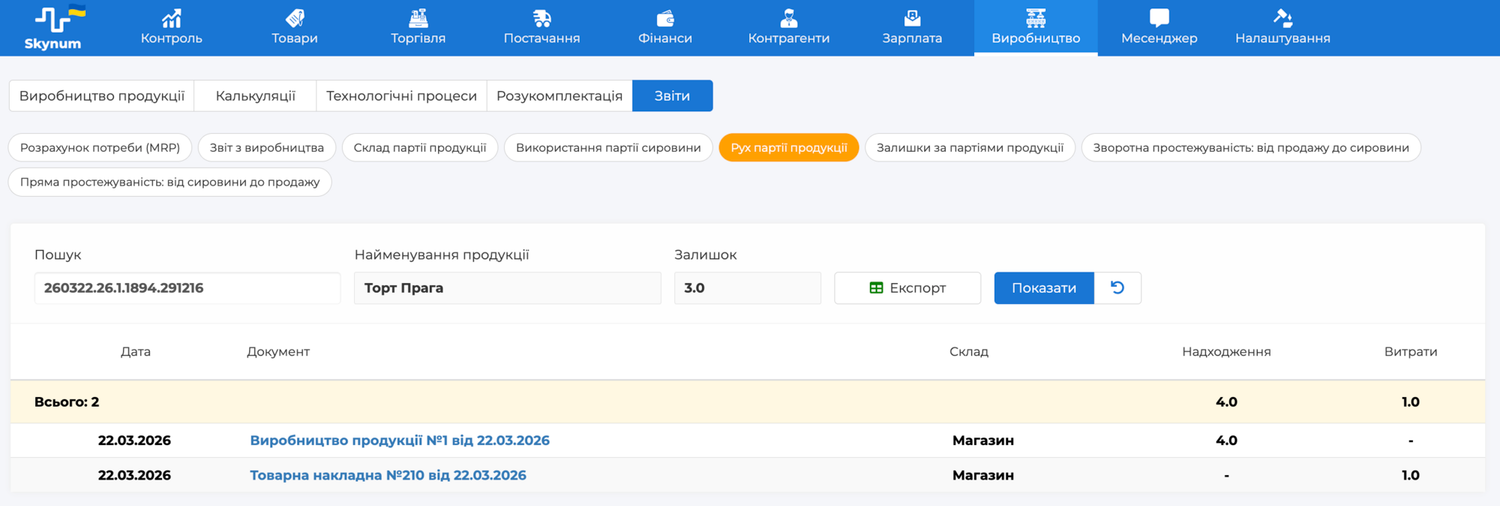
This report is used to see the full life cycle of a specific finished goods batch. Unlike reports that show composition or usage, this one focuses specifically on batch movement.
To generate the report:
- Enter the finished goods batch code in the “Search” field.
- Click the “Show” button.
The report displays the list of all related documents, batch movement — receipt, transfer, write-off, and other operations — as well as the current balance of the batch. This report is useful for оперативный контроля остатков? Need translate: operational control of balances, investigating discrepancies for a specific batch, checking its history, and finding all related operations. In essence, it is the movement passport of a specific batch in the system.
6. Report “Balances by Batch”
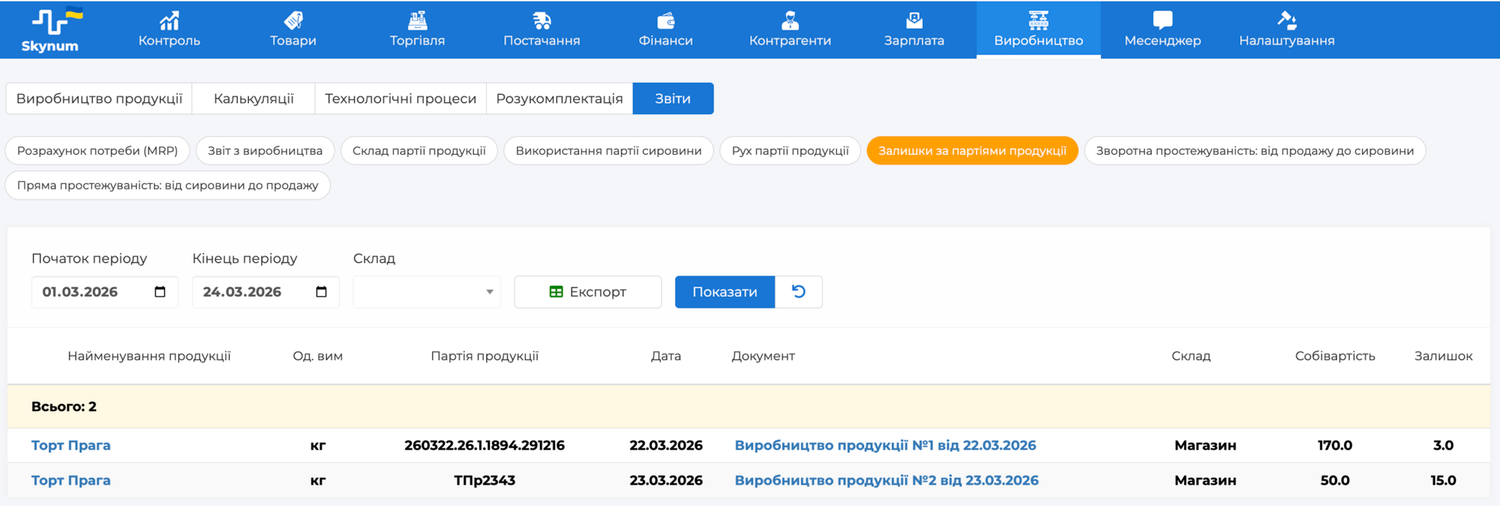
This report is intended to control which finished goods batches remain in stock. It provides not just the total balance by item, but also detailed information by individual batches.
To generate the report:
- Select the required production period.
- Set additional filters if needed.
- Click the “Show” button.
The report displays products, finished goods batches, production documents, receiving warehouse, product cost, and batch balance. It is especially useful for shelf-life control, cost analysis, shipment management, and checking which batches are still available for sale.
7. Report “Backward Traceability: from Sale to Raw Materials”
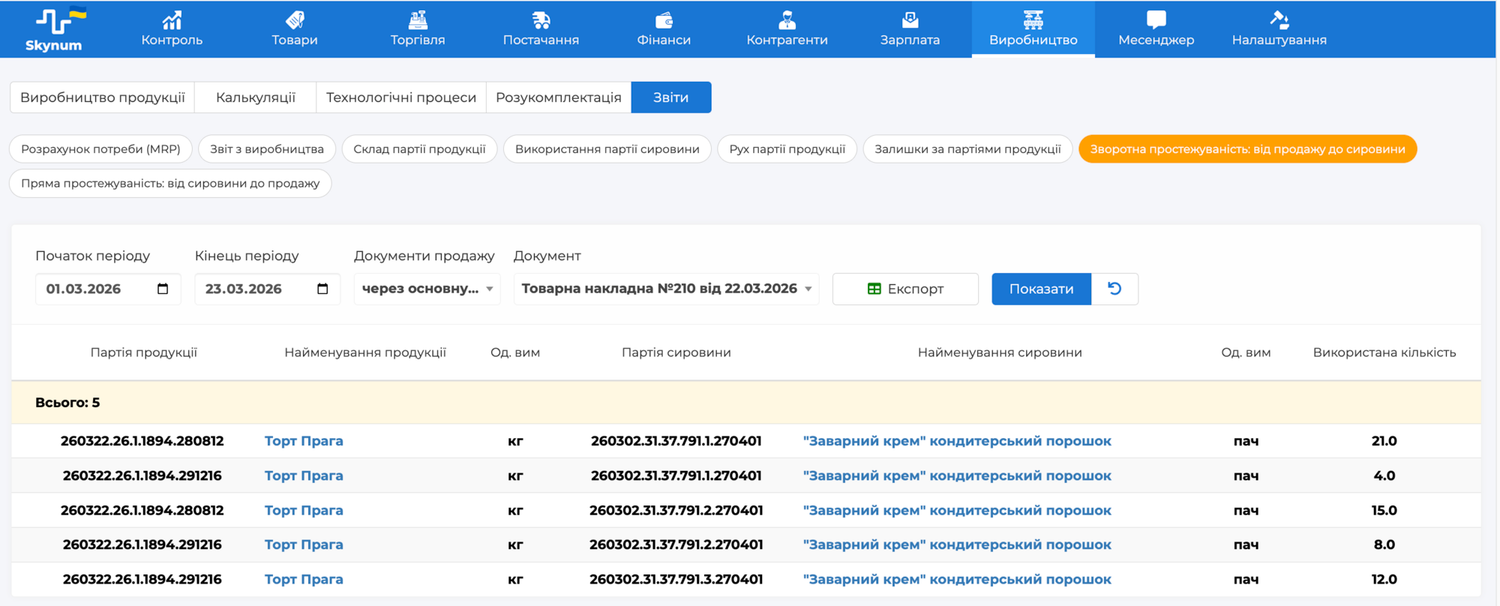
This is one of the most important reports for real traceability work. It answers the question: which exact raw materials were used to manufacture products already sold to a customer. The starting point here is the sales document, and the report then consistently shows the product batches and raw material batches behind that sale.
To generate the report:
- Select the period in which the sales document was created.
- Specify the sales type.
- Select the required document from the list.
- Click the “Show” button.
Two sales type options are available: goods delivery note through the main system and retail sale through the Skynum.Cashier app. The report displays the sold products, corresponding product batches, raw material batches, and the quantity of raw materials used. This report is critically important in situations where a problem is discovered after the sale — for example, when a customer returns a product, a quality complaint is received, or an internal investigation must be carried out quickly for a specific shipment.
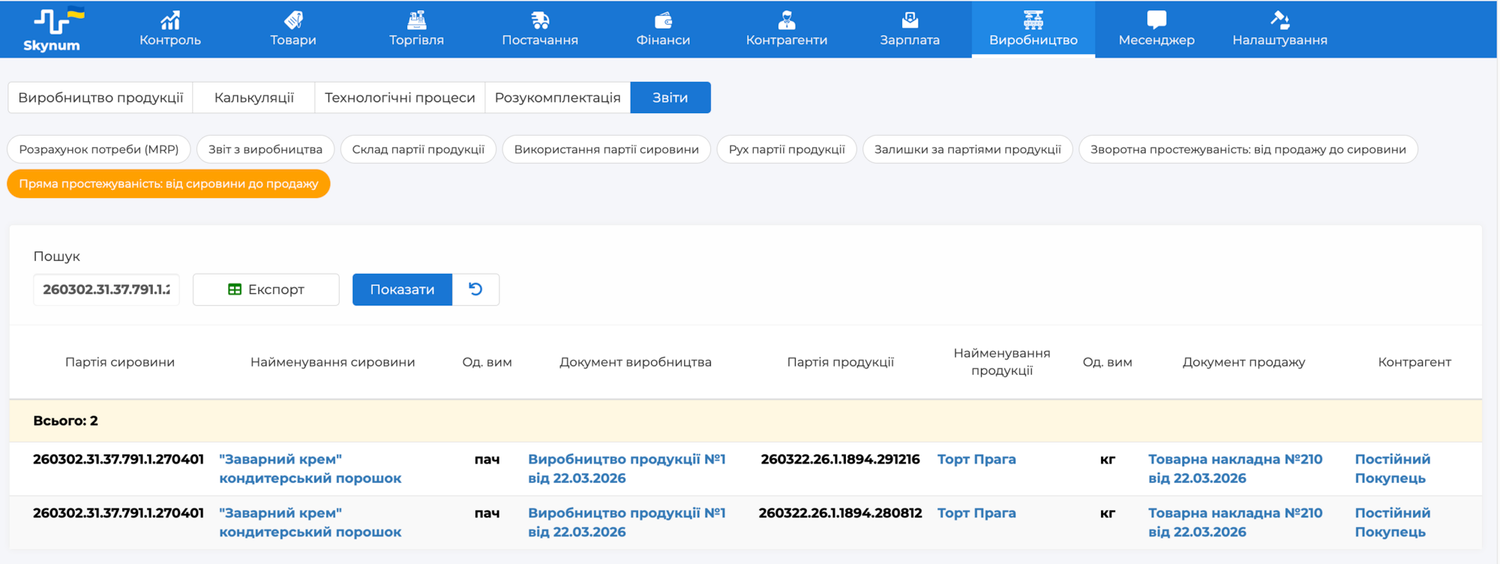
8. Report “Forward Traceability: from Raw Materials to Sale”
This report shows where exactly a specific raw material batch ended up — in which products, through which production process, in which sale, and to which counterparty. It is the main tool for situations where the problem starts with the material and you need to evaluate its consequences across the entire chain.
To generate the report:
- Find the raw material batch code in the “Turnover” tab of the raw material card.
- Enter this code in the “Search” field.
- Click the “Show” button.
The report allows you to determine whether the batch was used in production, which finished goods batches it entered, whether it remained in stock, or whether it has already been sold to customers. If a raw material is used in a semi-finished product, and the semi-finished product is then used in finished goods, the report will show the sale of the finished goods rather than the semi-finished product. To view the movement of the semi-finished product itself, enter its batch in the “Search” field as if it were a raw material batch code. In this case, the semi-finished product is treated as a raw material relative to the finished goods.
Traceability in Skynum
Batch accounting and traceability reports in Skynum make it possible to get a complete picture of the movement of raw materials, semi-finished goods, and finished products at every stage — from supply to sale.
This allows you to control which batches arrived in stock, which were used in production, which remain available, as well as which products a specific raw material entered and to which customers the corresponding finished goods batch was shipped.
This functionality is especially important for manufacturing companies that need transparent accounting, quality control, accurate material write-offs, and the ability to respond quickly to claims, deviations, or risks associated with specific batches.
Using batch accounting settings and traceability reports, you can:
- Plan purchases based on actual production demand.
- Control product output and batch movement.
- Track the origin of finished goods.
- Analyze which products used a specific raw material batch.
- Determine which raw material batches formed a product.
- Manage automatic or manual batch write-off.
- Assign your own batch numbers during supply and production.
- Quickly find related documents and operations.
As a result, batch traceability helps not only maintain accurate records, but also make more informed management decisions, reduce operational risks, and improve control over production processes.