Ringostat is an IP telephony and call tracking service. The Ringostat integration in Skynum connects calls with your customer base: during an incoming call the manager sees the customer card, conversations are stored in the log with recordings and UTM tags, and missed calls automatically become callback tasks.
This article is about connecting Ringostat. To learn what telephony can do once connected — the call card, log, analytics and tasks — read the separate overview: telephony in Skynum.
Why You Need the Ringostat Integration
Once set up, Skynum receives every call event from Ringostat and uses it in your work:
- Incoming call card with customer data before you pick up the handset.
- Log of all calls with recordings and the operator.
- Call tracking UTM tags in every call and conversion of calls into orders by source.
- Automatic callback tasks for missed calls.
- One-click calling from the counterparty card, log or task.
- Smart routing: a regular customer's call goes to their responsible manager first.
- Call history on the Communications tab of the counterparty card.
The setup has three parts: copy the keys in Ringostat, create the integration and match employees in Skynum, then configure webhooks in the Ringostat account.
What to Prepare in Ringostat
- An active Ringostat account with a connected number.
- Employees' SIP accounts that already receive calls.
- Access to the Ringostat API and Webhooks 2.0 sections.
- Access to the Virtual PBX section, if you plan to use smart routing.
Copy two values:
- Log in to your Ringostat account.
- Open Integration → Ringostat API.
- Copy the Auth-key. If there is no key yet, generate it on this page.
- Copy the Project id.
In Skynum, the Auth-key goes into the Token field, and the Project id into the Project ID field. Do not share the Auth-key in correspondence or screenshots: it grants programmatic access to your Ringostat project.
Employee Lines
In the Ringostat employee directory, each employee can have several lines: a workstation SIP, a mobile app SIP and a regular phone number. Add all the lines the employee actually uses. During routing and one-click calling, Ringostat rings all of the employee's SIP lines at once — they answer wherever is convenient. The phone number remains a fallback for working without a SIP app: as long as the employee has at least one SIP line, the personal phone does not ring.
How to Connect Ringostat in Skynum
Open Settings → Integrations and go to the Telephony category. Then click Add integration and select Ringostat.
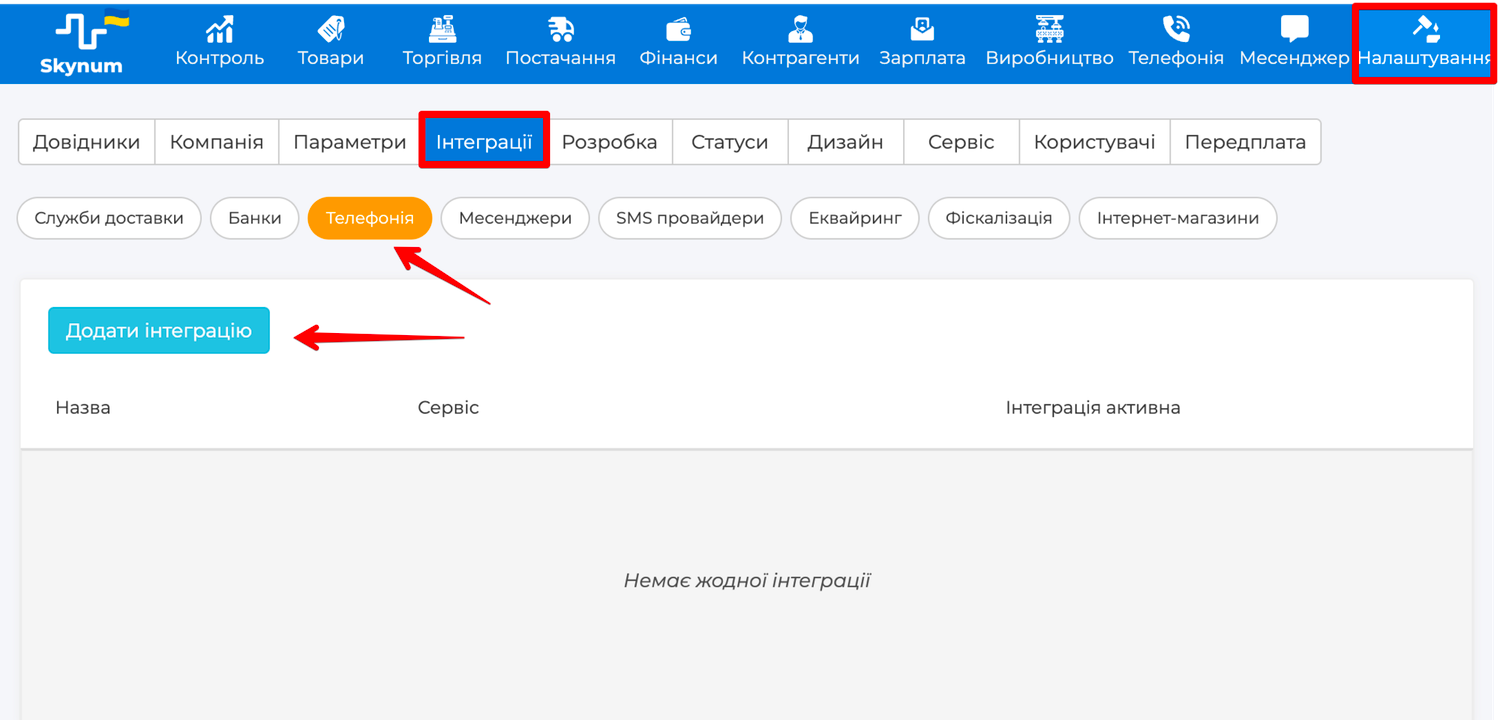
The integration settings page will open; fill in the following fields:
- Integration name — the internal name in Skynum. Name it so it is clear which Ringostat number or project this is.
- Integration active — enables receiving calls through this integration.
- Default — check it if you have several telephony integrations: one-click calling goes through the default integration.
- Automatic task for missed call — enabled from the start: for every missed incoming call Skynum creates a callback task. Turn it off if you do not need this scenario.
- Project ID — the Project id value from the Ringostat API page.
- Branch, legal entity — fill it in if the number serves a specific branch; an empty field means the company's shared telephony.
- Token — the Auth-key value from the Ringostat API page.
After saving, the Webhook URL (paste into your telephony account) field appears at the bottom of the page. Copy this address in full.
One address for everything: the same Webhook URL is used both for all five call event webhooks and for the smart routing step in Ringostat.
API Mapping: Skynum Users and Ringostat Lines
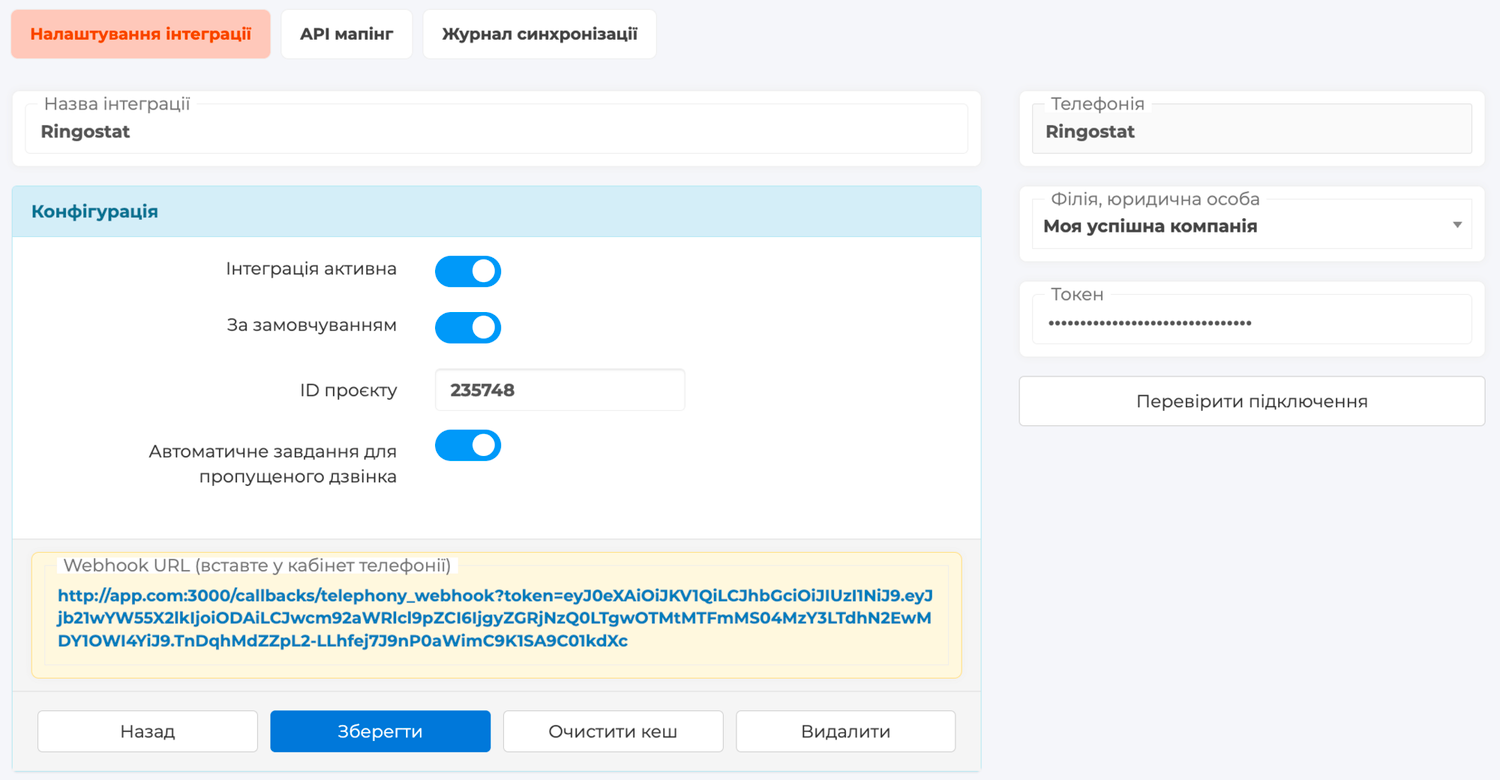
For Skynum to know which employee answered or made a call, match users with their lines:
- Open the API mapping tab in the integration.
- In the Telephony employees section, select all of each user's Ringostat lines. If the list is empty, click Load from Ringostat.
- Save the mapping.
For outgoing calls, the employee's first SIP line from the Ringostat directory is used.
Call Event Webhooks in Ringostat
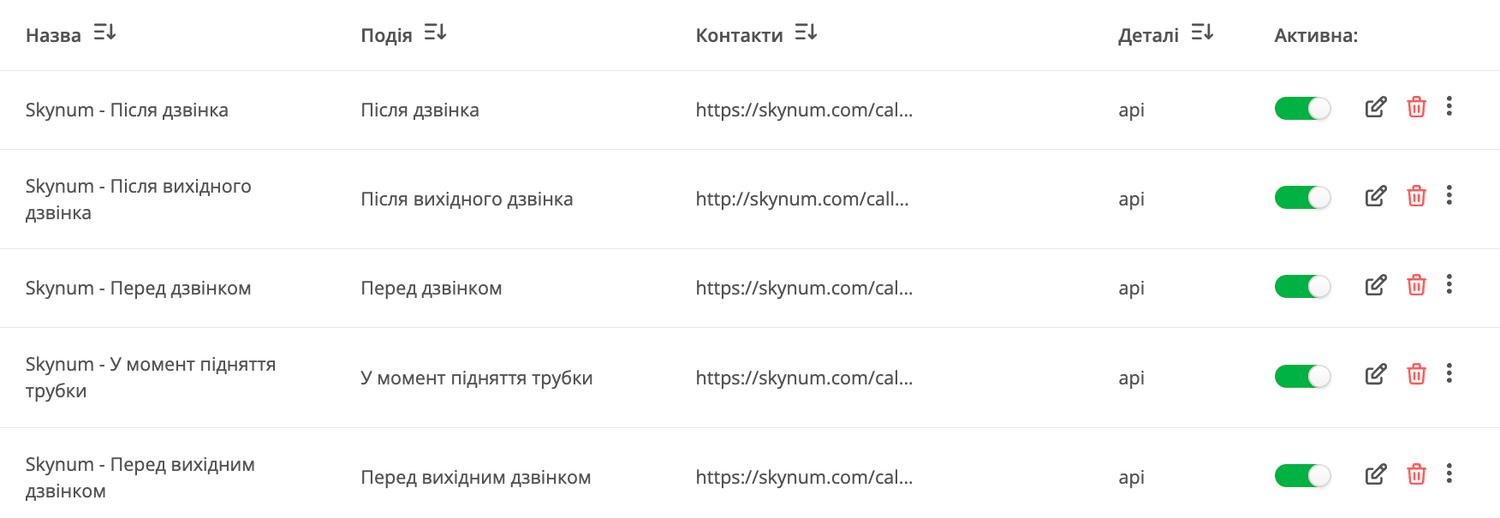
Webhooks tell Skynum about the start, answer and end of a call — thanks to them the call card and log work in real time. You need five webhooks, one per event: Before call, Before outgoing call, At pickup, After call and After outgoing call.
For each of the five events:
- In your Ringostat account, open Integration → Webhooks 2.0.
- Click Add event, give it a clear name and select the event you need.
- Add an HTTP action with the POST method.
- In the Destination field, paste the Webhook URL copied from Skynum.
- Add a Content-Type header with the value application/json and select the json sending format.
- In the Request body block, click Add all parameters.
- Save and activate the event.
As a result, you should have 5 webhooks added:
Smart Routing in Ringostat
Smart routing directs a known customer's call to their responsible manager first. If you do not need routing, you can skip this section — everything else works without it.
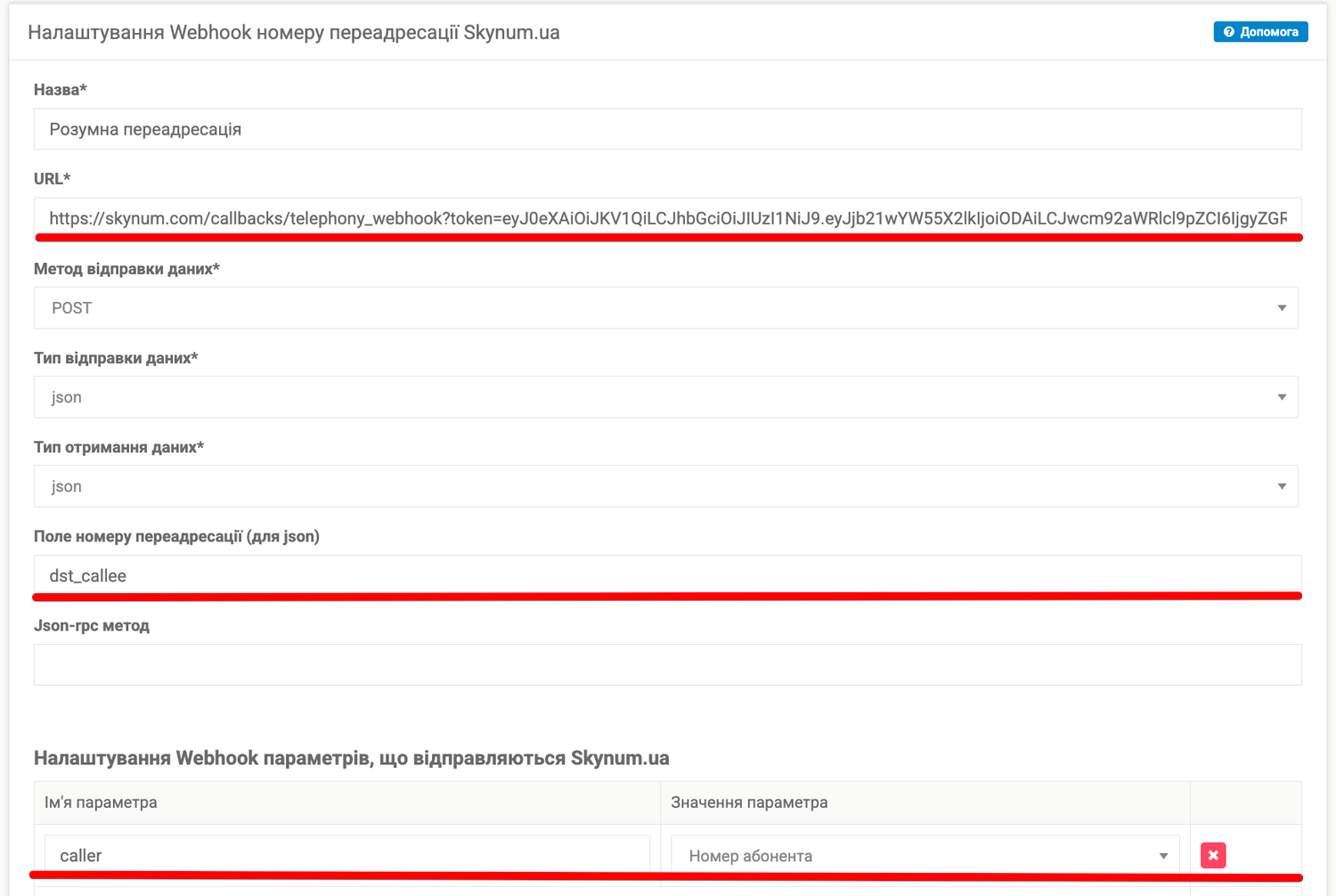
First, create a Webhook number — it passes the caller's number to Skynum and receives the responsible manager's lines:
- In your Ringostat account, open Settings → Virtual PBX → Webhook number.
- Click Add forwarding Webhook number and give it a clear name.
- In the URL field, paste the Webhook URL copied from Skynum.
- For Data sending method, select POST.
- For Data sending type and Data receiving type, select json.
- In the Forwarding number field (for json), enter dst_callee.
- Add the caller parameter and select the Caller number value for it.
- Leave the Json-rpc method field empty and save.
Then add it to the active forwarding scheme:
- Open Settings → Virtual PBX → Forwarding.
- Open the scheme that already serves your number and the branch you need by days and hours.
- Add the Webhook number destination, select the setting you created and place it first.
- Right after it, keep the regular destination — the one calls went to before the integration.
- Set the waiting time and save the scheme.
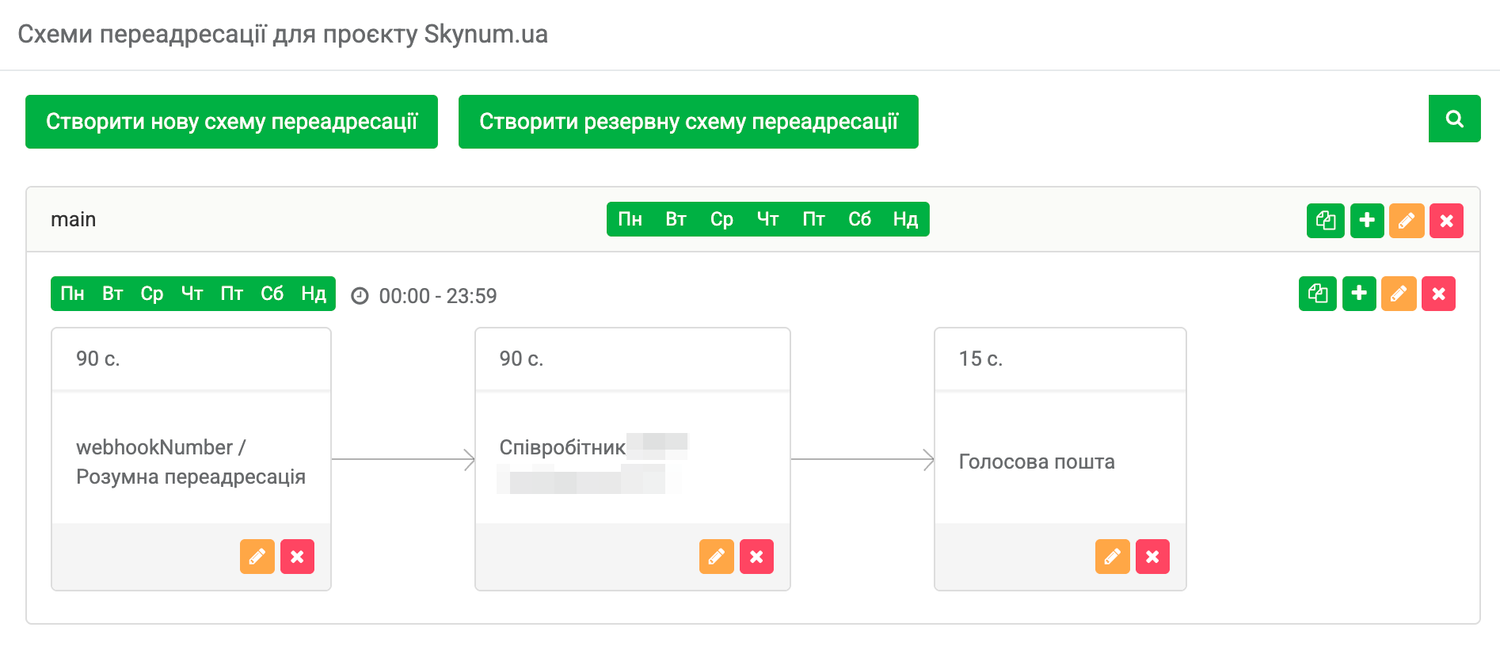
Important: after the Webhook number, the scheme must have a regular destination — an employee, department or queue. It is what handles a call from an unknown number, a customer without a responsible manager, or when the manager did not answer.
If Skynum identified the responsible manager, Ringostat rings all of their work SIP lines at once. If the manager did not answer or there is no responsible manager, the call moves to the next destination in the scheme — call control always stays with Ringostat.
Working with Calls
When a customer calls, a call card appears in the corner of the Skynum screen: customer name, contact person, debt, open orders. The manager greets the customer by name before the first sentence, and an unknown number turns into a new counterparty or is linked to an existing one right from the card.
Every conversation is stored in the Telephony log with the operator, an audio recording and call tracking UTM tags. From the call card the manager adds a note about the agreement, creates a task or places an order right away — it keeps its link to the call, so analytics shows not only the conversion of conversations into sales but also which advertising sources bring calls and orders.
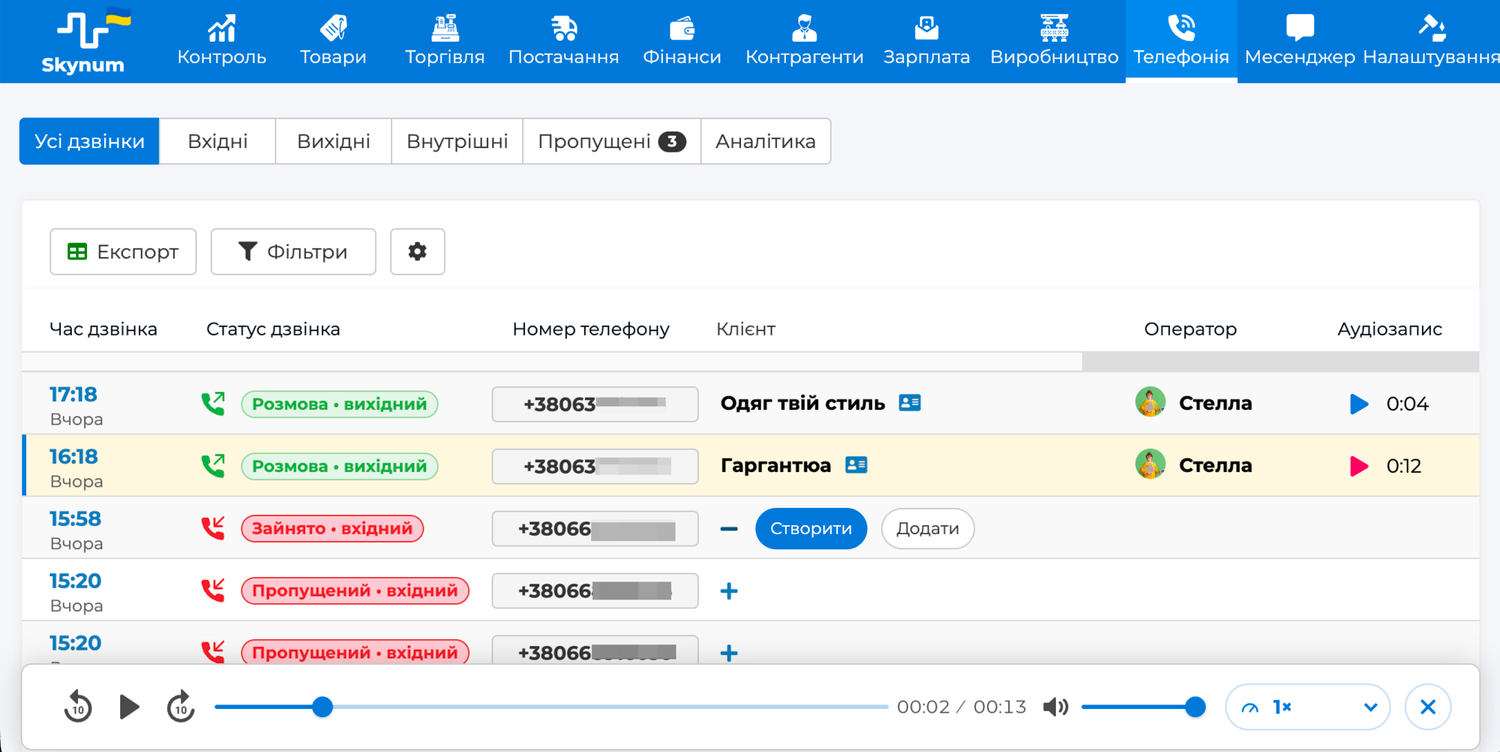
A missed incoming call automatically becomes a callback task — for the responsible manager or in the shared queue of unassigned tasks. Repeated calls from the customer are attached to the same task, and it closes automatically as soon as the conversation takes place.
One-click calling needs no separate settings in the Ringostat account. Once employees are matched in API mapping, the manager clicks a number in the counterparty card, log or task and chooses Call: first their workstation rings, and after picking up the handset Ringostat dials the customer.
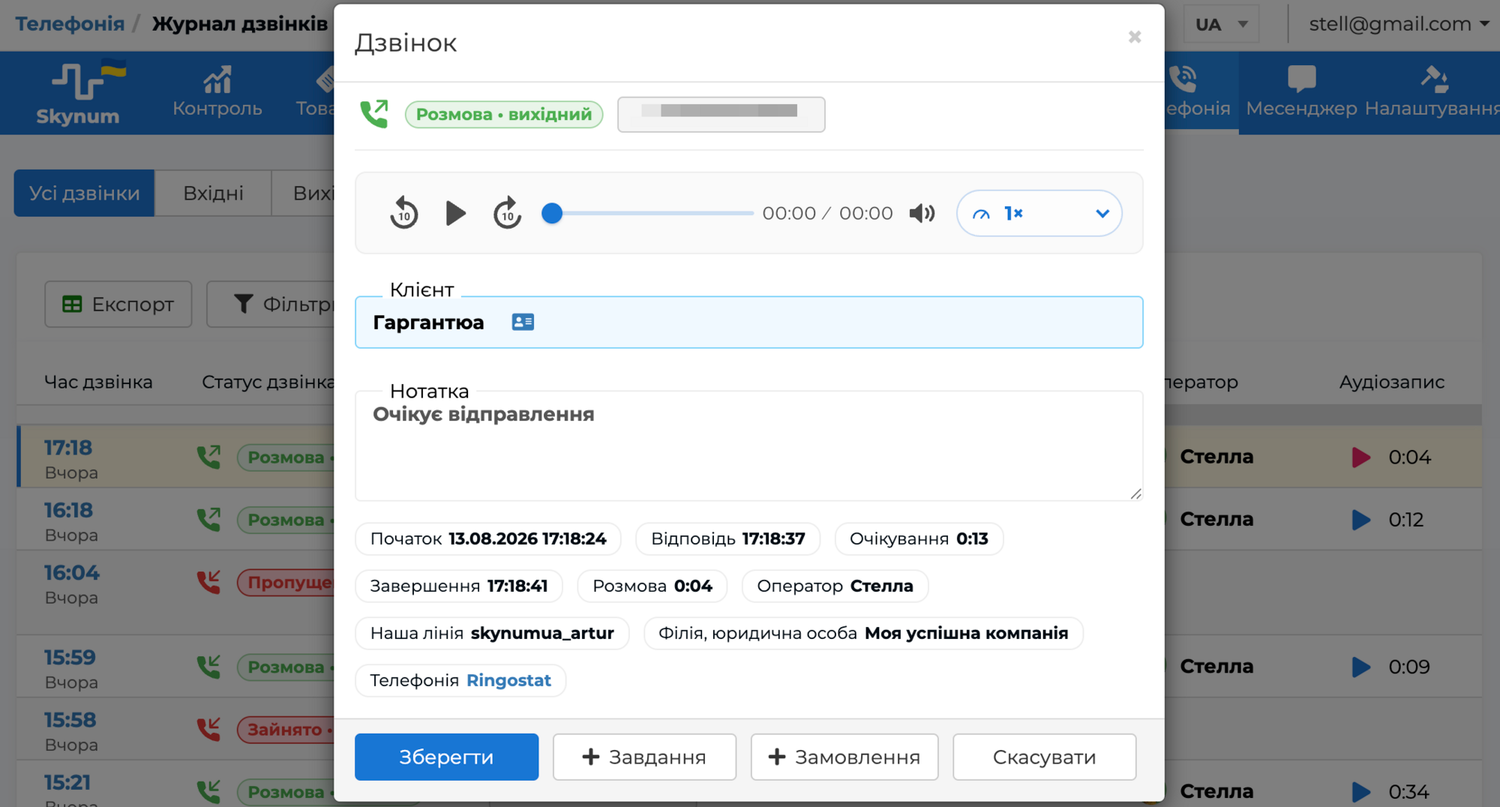
More about the call card, log, missed call tasks and analytics — in the overview telephony in Skynum.
Checking After Connection
- Call the company number from a mobile phone.
- Check that an incoming call card appeared in Skynum, and after the call ended — an entry in the Telephony → Call log with the operator and audio recording.
- Do not pick up the test call — make sure a callback task was created.
- Open a counterparty card, click the number and choose Call — check the outgoing call.
- If smart routing is configured, separately test a call from a customer with a responsible manager, from an unknown number, and with the responsible manager unavailable.
Summary
To connect Ringostat you need the Auth-key and Project id, matched employee lines and five call event webhooks pointing to one Webhook URL. Smart routing is enabled by placing the Webhook number first in the active scheme — always with a fallback destination after it. The step-by-step guide with all fields is in the Skynum documentation.