
Accruing the salary is half the job. Then the money has to be paid out: to some by card through the bank, to some in cash from the cash desk, to one person earlier than everyone else because they are leaving. Then the taxes have to be paid and you need to make sure that after all this nobody owes anyone anything. This is where amounts get lost in spreadsheets: the advance was paid but not taken into account in the calculation; the November salary was paid in December and nobody remembers which month it belongs to.
In Skynum the payment is a continuation of the calculation. The advance and payroll payment statements collect the people and the amounts themselves, every paid statement and every cash order becomes a payment in the Finances section, and the system creates the tax payments itself with the amount the budget expects right now. You choose whom to pay and how; Skynum calculates the amounts.
Simple rule: the advance is paid before the month's calculation is confirmed, the salary — after. Skynum will not let you do it the other way round.
This article continues the series on salary in Skynum. How to hire employees and get to the first payout is covered in Salary: from the first employee to the payout. Here is everything about the money: how the advance is calculated, how a statement travels to payment, how to pay a salary to one person, what debts at the month boundary mean, and how to pay taxes.
How money moves through the month
Every month the payments go in this order:
- Advance in the middle of the month. An advance statement for everyone, or a cash order for one person.
- Calculation at the end of the month. The advance paid goes into the calculation and reduces the amount to be issued.
- Salary after the calculation is confirmed. A payroll payment statement or a cash order.
- Taxes after every payment. Skynum creates a payment for each tax itself — you only check and activate.
Statements and taxes are on the Salary → Payrolls tab: Advance statements, Payroll Payment Statements and Tax payment, always within the selected accounting month. Cash orders are in the Finances section.
How much to pay as an advance
The advance in Skynum is already calculated; nothing needs to be set up. In a new company the advance is the salary for the working days from the 1st to the 15th according to the timesheet, after withholding personal income tax and the military levy. An administrator with a salary of 21,000 in a month with 21 working days, 10 of which fall in the first half, receives 7,700: 10,000 accrued, 2,300 of taxes withheld. A cashier paid 800 per shift, with 8 shifts up to the 15th, receives 4,928.
The advance calculation method is set in Salary → Configuration → Parameter, the Advance calculation method field — one for the whole company. There are three methods:
- For the time actually worked — the default in a new company: salary for the working days from the 1st to the 15th according to the timesheet. Administrator: 10,000 accrued, 7,700 in hand.
- Advance before taxes (Gross) — a percentage of the salary is accrued and taxes are withheld from it. 50% of 21,000: 10,500 accrued, 8,085 in hand.
- Advance after taxes (Net) — the percentage of the salary is the amount in hand, and taxes are calculated on top of it. The same 50%: exactly 10,500 in hand.
If in your company the advance is a percentage of the salary, choose gross or net and set the percentage in the Advance percentage from salary by default field.
If one person needs an advance different from what the timesheet gives, do it with a cash order — how is described below. With gross and net, an individual can have their own percentage or a fixed amount: open their card, the Payrolls tab, the Аванс (advance) rule; for a fixed amount, in the To calculate the amount use field choose Amount from current rule, enter the amount and set 100%.
Advance statement
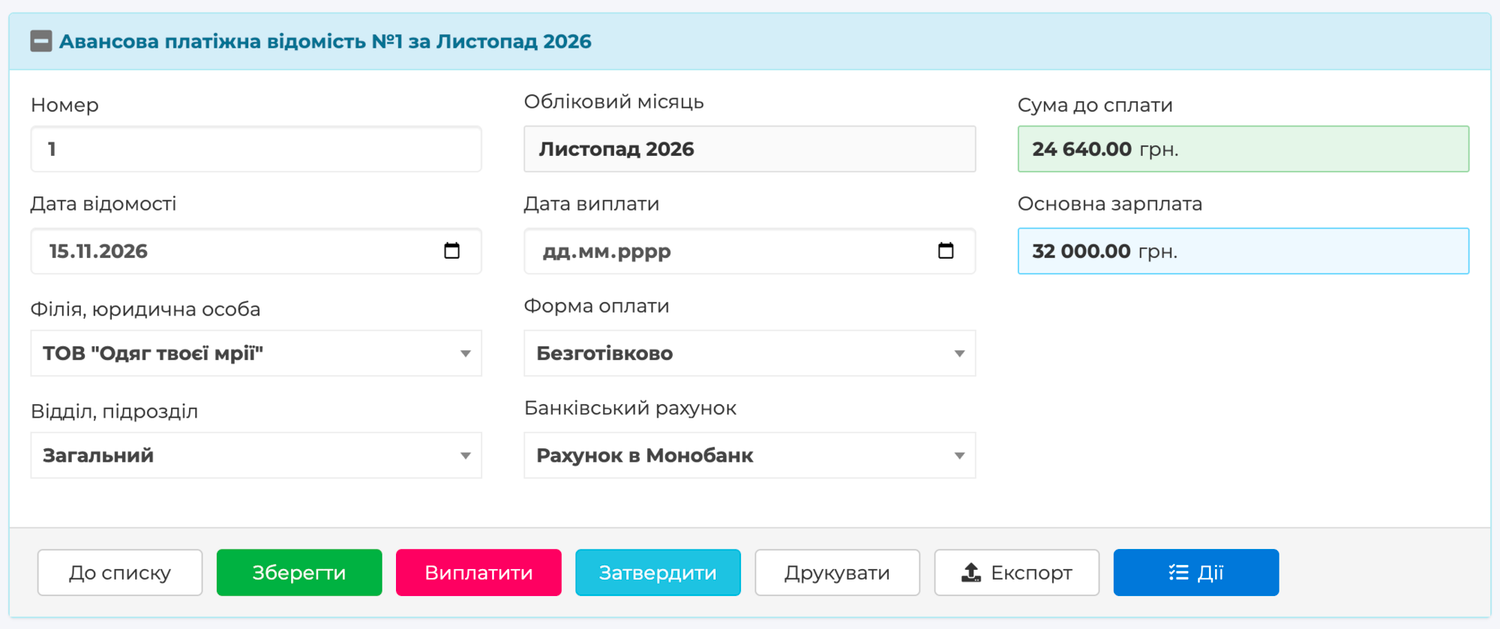
Open Payrolls → Advance statements and click Create statement. Specify the branch, the Payroll Payment Statement date and the Date paid, choose the Payment Method — non-cash or in cash — and, depending on it, the Bank account or the Cash desk. If there are several departments, choose the department as well. Save. Skynum adds to the statement everyone who is paid the way you chose — by card or in cash — and calculates each person's advance.
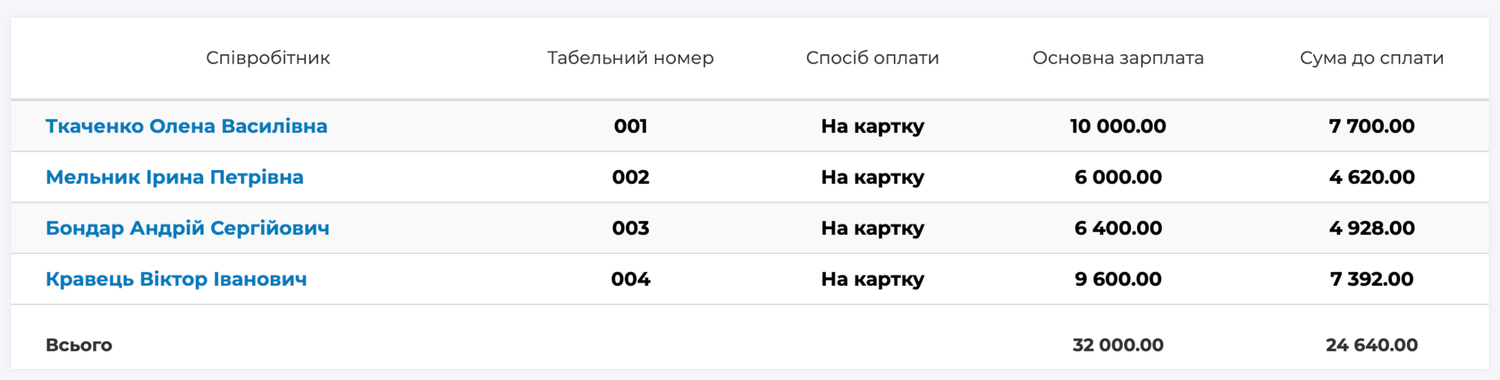
You see the list of employees. Next to each is the accrued advance and the Amount to be paid: how much to hand out after withholding personal income tax and the military levy. Only taxes are withheld from the advance; alimony and other deductions Skynum withholds in the month's calculation. The amounts in the statement are not edited — Skynum calculates them itself. If someone needs a different advance amount, pay it with a cash order, as described below.
One statement — one payment method. If some people are paid by card and others in cash, create two statements: a non-cash one with an account and a cash one with a cash desk. Likewise, create a separate statement for each department if there are several. If someone is missing from the statement, check the payment method in their card and the Аванс rule on the Payrolls tab.
Pay the advance
If you hand out the money right away, click Pay. The statement is marked as paid, an "Advance payroll sheet" payment appears in Finances → Cash or Bank, and in the month's calculation everyone's advance shows as already paid.
If the money will be paid later — the statement goes to the cashier or the bank — click Approve. After that the amounts cannot be changed, but the payment date, account or cash desk can. Once the money has been paid, click Pay. The Return to draft button returns an approved statement to draft; Action → Delete deletes a draft.
Send the statement to the bank
For a non-cash statement the Export button builds a file for your bank: Privat24, Ukrsibbank, Pumb, as well as Oschadbank, Raiffeisen and Universal in the iBank2 format, or a Standard Excel table. Upload the file to the bank client, and once the bank has made the payment, click Pay in the statement. For a cash statement the export gives the standard table straight away.
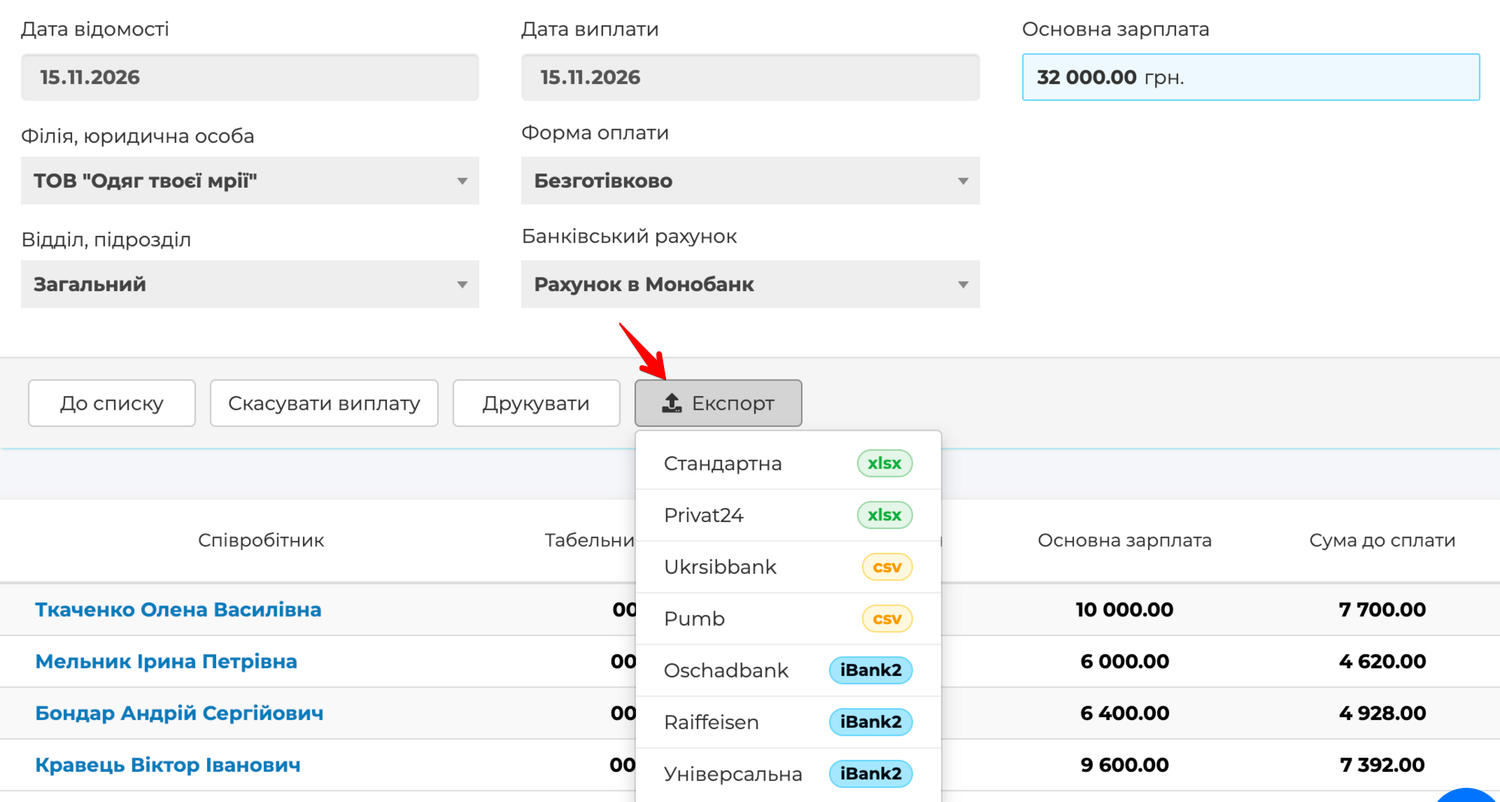
The file is built from the cards, so check the details before the first payment:
- In the employee's card — IBAN, tax number, timesheet number and bank.
- In Setting → Directories → Banks — the bank's MFO code; Pumb requires it.
- In the branch card — the current account, bank and EDRPOU code; they go into the iBank2 file as the payer's details.
If the bank rejected the file, the most common reason is an empty detail. Fill it in and export the file again; the statement does not need to be recreated.
Hand out cash against signature
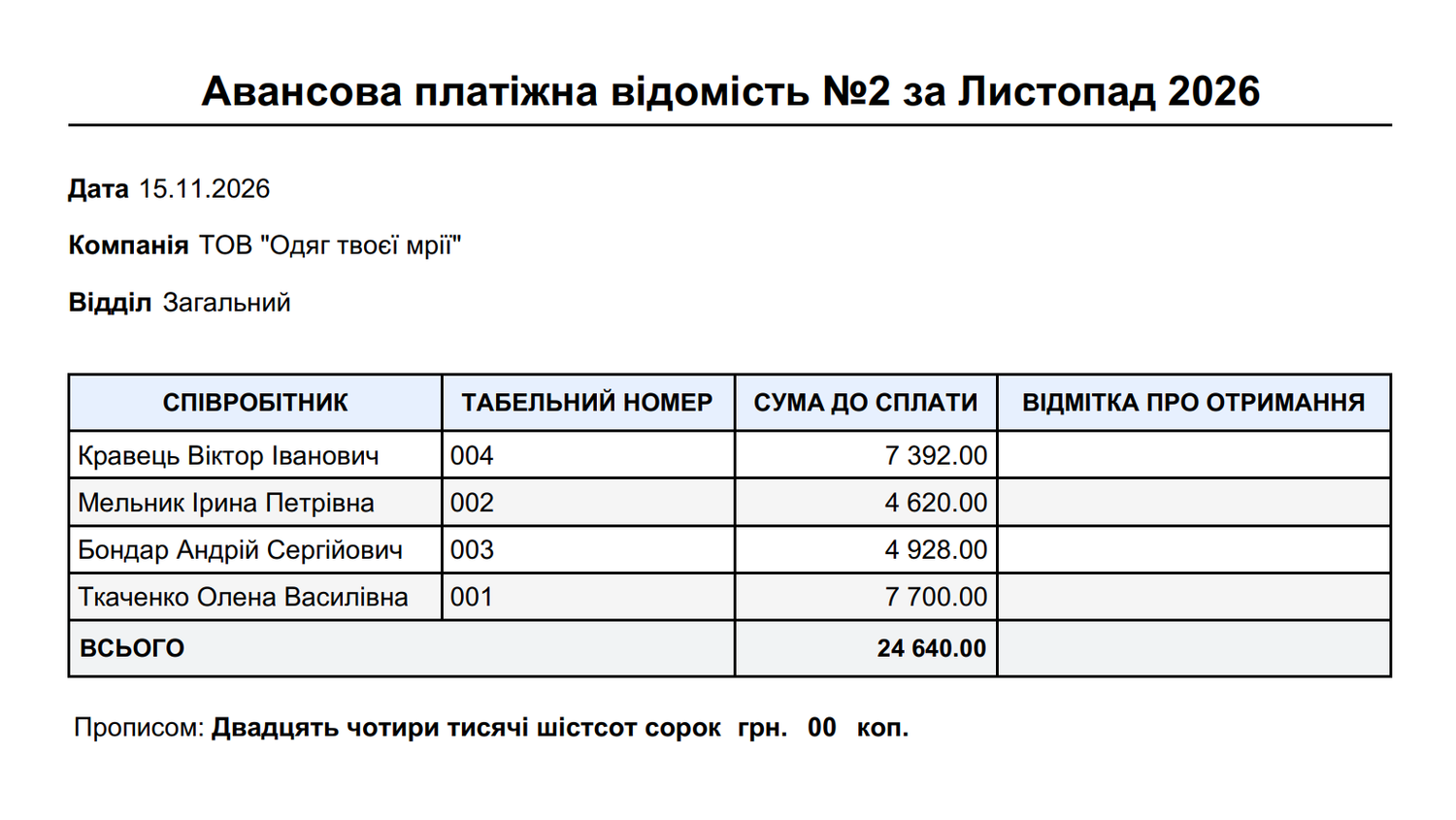
For a cash statement click Print — Skynum builds the payroll sheet: company, department, date, and for each employee the timesheet number, the amount to be paid and a box for the receipt signature, plus the total and the amount in words. The cashier hands out the money against signature.
Payroll payment statement
Create the payroll payment statement after you have confirmed the month's calculation on the Paysheets tab. If someone's calculation has not been confirmed yet, Skynum will not create the statement.
Open Payrolls → Payroll Payment Statements, click Create statement, specify the branch, the Payroll Payment Statement date, the Date paid, the Payment Method and the account or cash desk, and save.
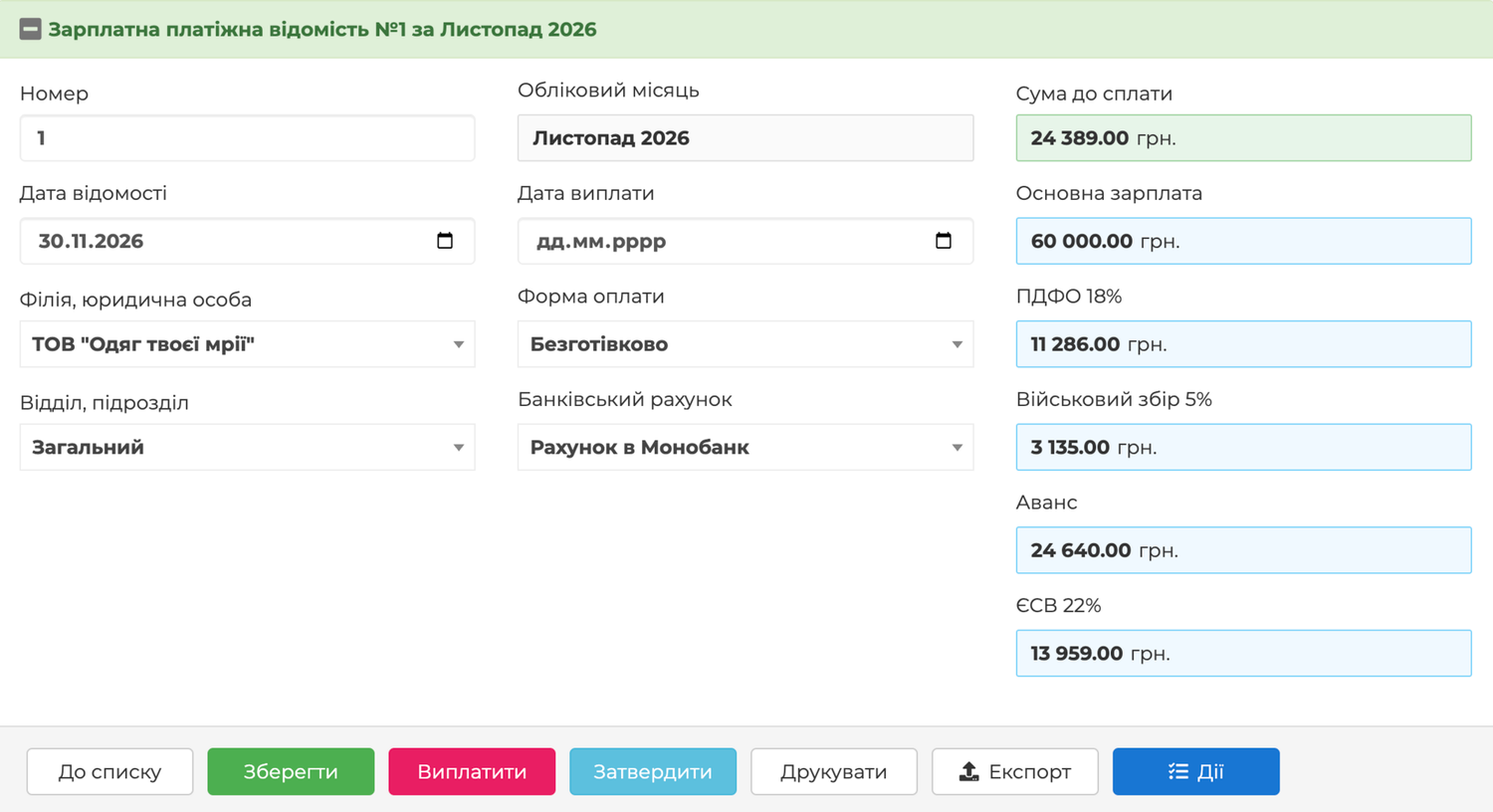
Skynum adds everyone with the chosen payment method to the statement; each person's amount is To be issued from their calculation. If part of someone's salary has already been paid with a cash order, the statement shows the remainder. Then the same steps: the bank file or printing, Approve if needed, and Pay.
After the payment, the Paysheets tab shows that the salary has been paid and the company's debt to the employee is closed. A "Salary payroll sheet" payment stands in Finances → Cash or Bank.
Paying one person with a cash order
When one person needs money outside a statement — an advance in a different amount than the rule gives, or a salary for someone who is leaving — issue an outgoing cash order:
- Open Finances → Cash and click New Payment → Outgoing.
- In the Payment type field choose Settlements with employees, then the employee.
- In the Accounting month field choose the month the payment belongs to.
- For an advance, turn on Advance to employee; for a salary, leave it off.
- Enter the amount and a date within the accounting month, save and click Activate.
You enter the amount of an advance order yourself — the advance rule does not apply here. Skynum activates a salary order only after the calculation is confirmed, and for no more than the amount not yet paid; if you enter more, it tells you the amount exceeds what is available.
All payments by orders are collected in the Salary → Reports → Direct payments report: period, type — advance or salary, employee, cash desk, amount. This answers the question "why is the amount in the statement smaller than the amount to be issued": the difference is the orders.
Debts at the month boundary
The Paysheets tab has Debt at the beginning of the month and Debt at the end of the month, each split into Employee and Company. They read as follows:
- Employee debt — the person has been paid more than has been accrued so far. Before the calculation is confirmed, the advance paid stands here, and that is normal.
- Company debt — the company owes the person. After the calculation is confirmed, the amount to be issued appears here, and after a statement with a payment date in the same month is paid, it disappears.
If the November salary was paid on 5 December, the company's debt at the end of the month remains in the November calculation: on 30 November the money had not been paid yet. It carries over to December as the debt at the beginning of the month and is closed there by the payment. The Turnovers report behaves the same way.
Taxes
Taxes are remitted with every payment: on the advance — on the day of the advance, on the salary — on the salary day. Skynum creates the payments itself. Open Salary → Payrolls → Tax payment, click Create payments, choose the account you pay from, and click Create. Three payments appear — for personal income tax, the military levy and the unified social contribution — each with its recipient institution, today's date and the amount the budget expects as of today. Check the amounts and click Activate payments.
The payment amount is the taxes on all confirmed calculations and paid advances minus what has already been paid. That is why taxes are paid twice a month: after the advance and after the salary.
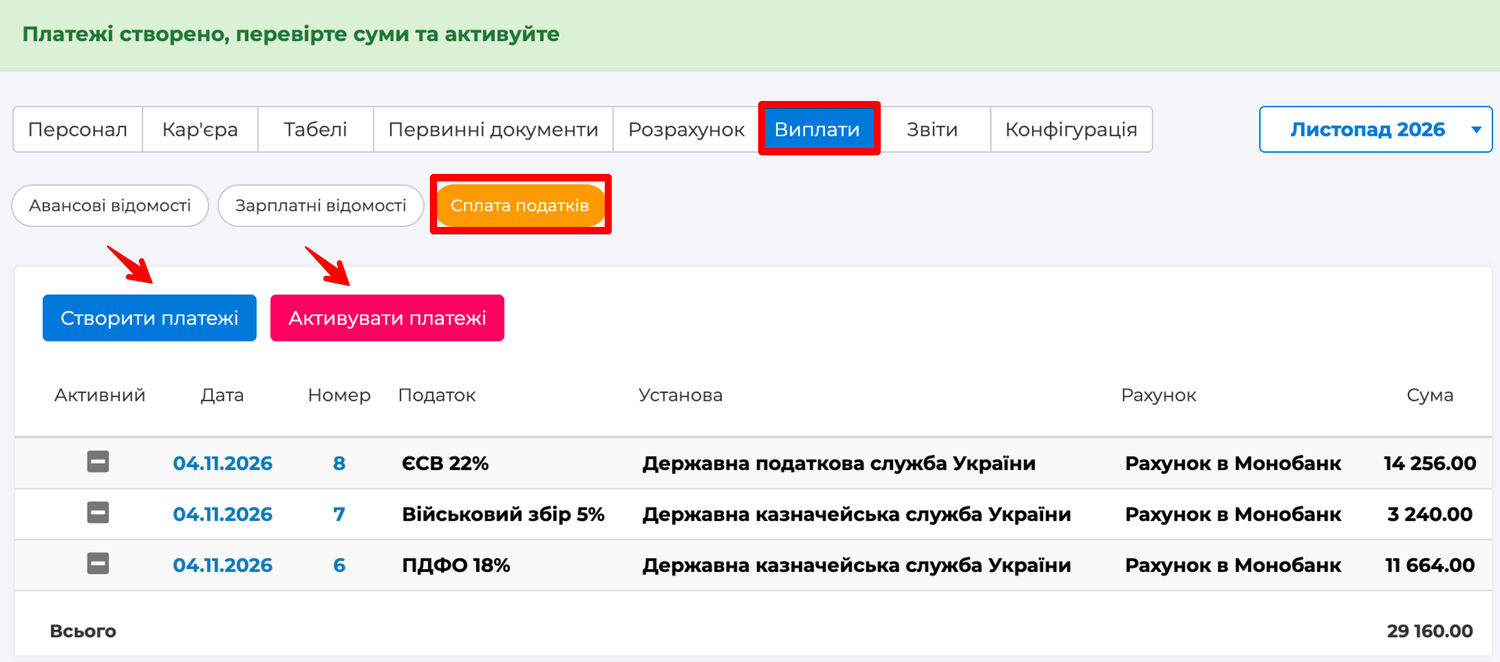
The amounts are easy to check against the calculation: personal income tax and the military levy are the employees' deductions, and the unified social contribution is a separate amount next to each of them. If you click Create payments again, Skynum replaces the month's unactivated payments with new ones at the current amounts — there is no doubling. The payments are also visible in Finances → Bank as outgoing payments of the Payroll taxes and fees type.
Alimony and other deductions
Alimony, union dues and other contributions are deducted from the salary by a rule in the employee's card. Open their card, the Payrolls tab, click Add and choose the deduction, for example Аліменти (alimony). In the rule, specify the recipient in the Will be sent to field, the base in the To calculate the amount use field, and the Percentage, for example 25% of the accruals after deductions. Skynum deducts this amount once a month, in the salary calculation; such deductions are not taken from the advance.
After the calculation is confirmed, the deducted amount becomes the company's debt to the recipient — the person or organisation from the rule. Open the recipient's card in the Counterparties section: the debt is shown as Our debt.
Remit this amount with an ordinary payment: in Finances → Bank or Cash click New Payment → Outgoing, choose the Debtors and creditors type, the recipient and the debt amount, save and click Activate. The debt is closed — the recipient's card shows no debt.
Check that there are no debts
Once the advance, salary and taxes for the month have been paid, open the Salary → Reports → Turnovers report. For four areas — taxes, mandatory payments, the unified social contribution and salary — it shows the debt at the beginning of the month, what was accrued and paid during the month, and the debt at the end. When everything has been paid within the month, there are no debts at the end.
If something needs to be cancelled
The Cancel payment button cancels a statement's payment: the statement returns to draft, where it can be recalculated or deleted. An advance payment can be cancelled while the month's calculation is not confirmed; a salary payment — while the next month's calculation is not confirmed. If the calculation has already been confirmed, first cancel the confirmation on the Paysheets tab, then the payment.
A cash order is deactivated in Finances. The same rule applies to an advance order: while the month's calculation is confirmed, cancel the confirmation first.
How it works in real life
Everyone by card, one in cash
The company pays everyone by card, and the security guard asked for cash. The accountant sets the Payment Method in his card to In cash. In the middle of the month she creates two advance statements: a non-cash one with an account — containing the administrator, the accountant and the cashier — and a cash one with a cash desk containing the guard alone. For the first she exports the bank file and clicks Pay after the funds are credited; the second she prints, the cashier hands out the money against signature, and the accountant clicks Pay as well. Both payments are visible in Finances → Bank and Cash, and in the month's calculation everyone has their advance.
Salary on the 5th of the next month
The company pays salaries on the 5th of the next month. At the end of November the accountant confirms the calculation, creates a payroll payment statement with a payment date of 5 December and clicks Approve. In the November calculation the company's debt at the end of the month equals the amount to be issued — as it should. On 5 December the statement is paid, and in the December calculation this debt stands at the beginning of the month and is closed by the payment. The Turnovers report for December shows the same.
Settlement on dismissal
The administrator leaves on 19 November and needs the money on the dismissal day. After the dismissal record and the compensation document, the accountant opens his November calculation and confirms only it — the calculation card has its own Activate button. To be issued: 6,160 — 18,000 accrued, 4,140 of taxes withheld, the advance of 7,700 already paid. This amount is paid with a cash order of the Settlements with employees type dated 19.11. When the payroll payment statement is created at the end of the month, the administrator is no longer in it — his amount was paid by order, and the Direct payments report shows this.
Practical rules
- Fill in the IBAN, tax number and bank in the cards before the first non-cash statement — the bank file is built from them.
- Put the real payment date in the statement: it determines in which month the debt is closed.
- Advance — before the calculation is confirmed, salary — after; taxes — after every payment.
- Make payments outside a statement with orders, not by editing the statement: this way they are visible in the Direct payments report.
- When closing the month, look at Turnovers: there should be no debts at the end of the month except those you deliberately carried over to the next one.
Summary
Salary payment in Skynum is a few buttons backed by complete accounting. Statements fill themselves in, the bank file is ready in a second, taxes are paid in two clicks, and every hryvnia paid to an employee or to the budget is immediately visible in finances and in the Turnovers report. The salary no longer has to be reconciled with the cash desk and the bank: they are in one system and cannot diverge.