SMS-fly has been on the Ukrainian messaging market since 2008. Connect it to Skynum — and you will be able to send SMS and Viber messages to customers right from a customer card or document. The phone number is filled in automatically, nothing to copy.
Below is only the SMS-fly setup. The overall messaging logic of Skynum is described separately: SMS messaging in Skynum.
SMS-fly integration features
Once connected, SMS-fly powers:
- Single messages from a customer card, document, or payment.
- Bulk campaigns for customer groups, selected counterparties, and custom numbers.
- Viber messages with a photo and a link button.
- Templates with variables — the customer name, document number, and amount are inserted into the text automatically.
- Automatic SMS via triggers — for example, after an order status change.
The delivery status of every message is visible on the campaign card, and the sending history is collected on the Communications tab of the customer card.
Connecting takes a few minutes: first the API key in your SMS-fly account, then the integration in Skynum.
What to prepare in SMS-fly
- An active SMS-fly account.
- A registered SMS sender name — your customer will see it instead of a phone number.
- A separately registered Viber name if you need the Viber channel.
How to get the API key:
- Log in to your SMS-fly account.
- In the top menu, open Налаштування API (API Settings).
- Turn on the HTTP протокол (HTTP protocol) switch.
- Copy the API key that appears on the page. In Skynum it goes into the Token field.
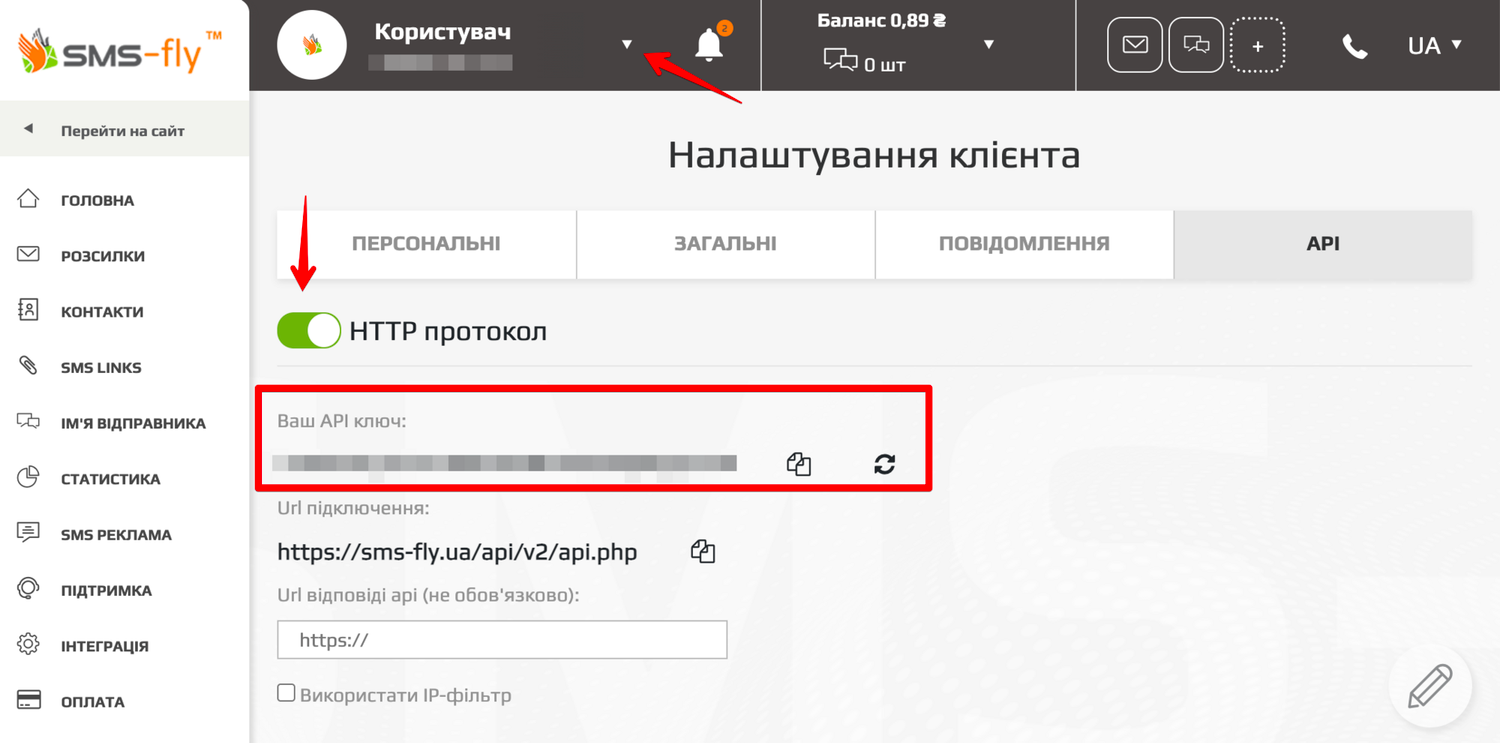
Do not share the key in chats or screenshots: it grants programmatic access to your SMS-fly account.
How to connect SMS-fly in Skynum
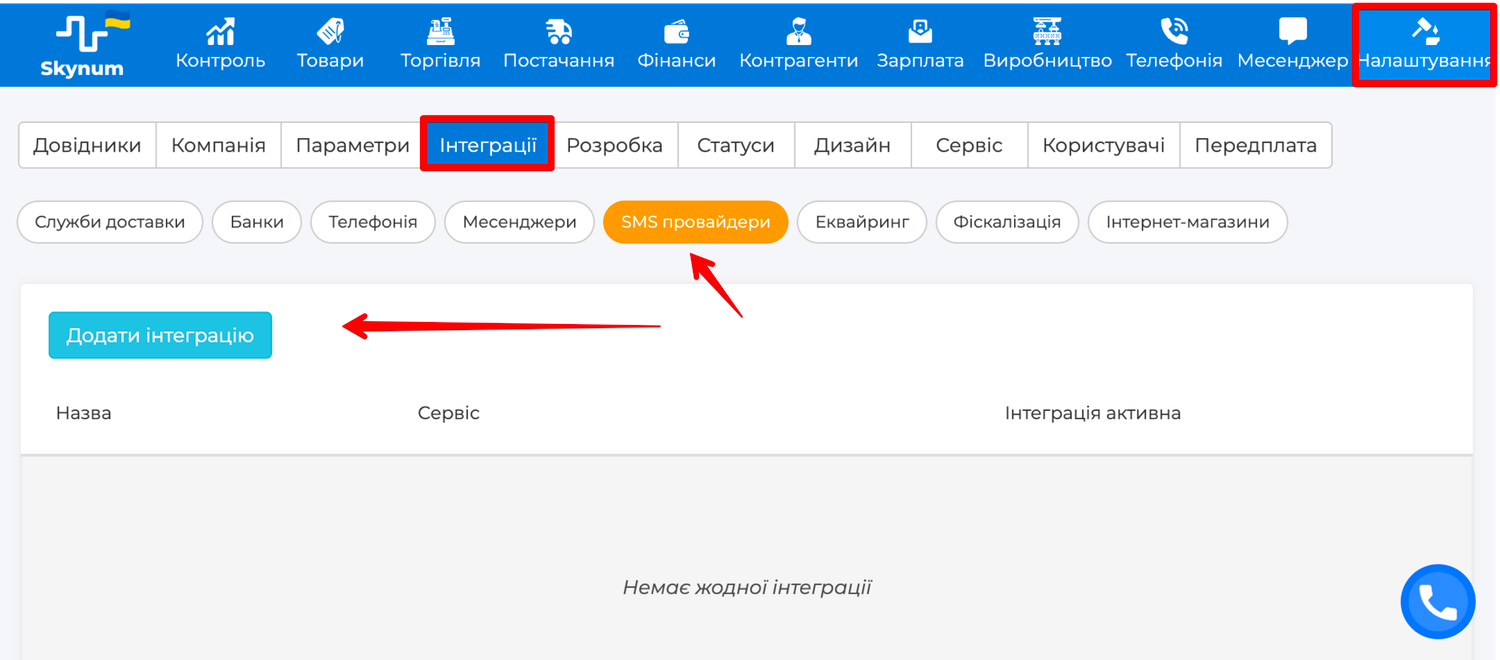
Open Settings → Integration, go to the SMS providers category, and click Add Integration. Select SMS-fly from the list of services.
A new integration form will open. Fill in the fields:
- Integration name — how this integration will appear in Skynum lists; it helps to include the channel, for example "SMS-fly service SMS".
- Integration Active — the switch without which sending will not work.
- Channel — SMS, Viber, or Viber + SMS.
- SMS alphaname and Viber alphaname — the sender names from your SMS-fly account, each for its own channel.
- Token — that same API key.
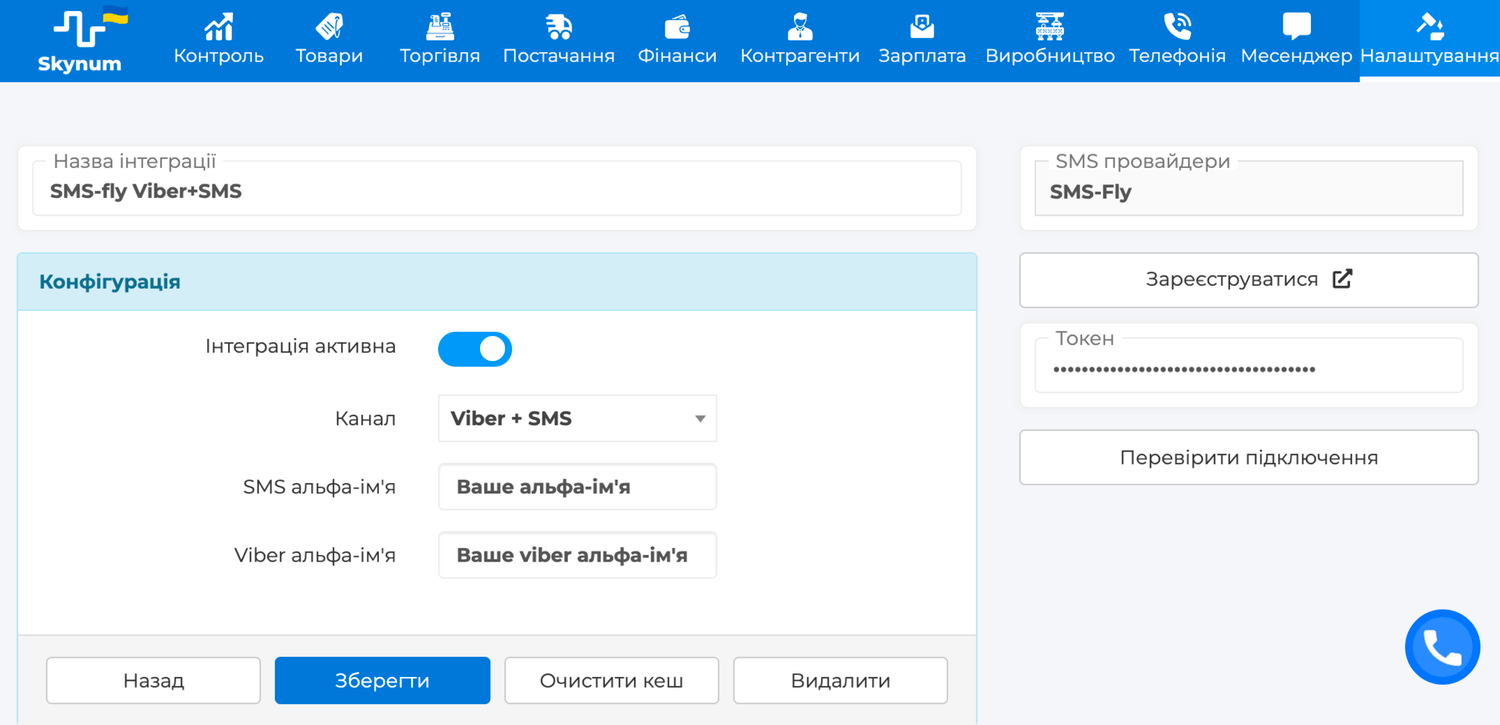
Important: enter the sender name exactly as it is registered in your SMS-fly account — character by character, with no extra spaces and the same letter case. If the name does not match, SMS-fly rejects the sending with a sender error.
Save the entered data and click Check Connection. The green message Connection successfully verified means the key is accepted and you can send.
Sending channels
The Channel field has three options:
- SMS — a regular text message that reaches any phone.
- Viber — a messenger message: long text, an image, and a link button.
- Viber + SMS — Viber first, and if delivery fails, a regular SMS is sent.
The channel is set in the integration itself — it cannot be changed in the sending form. If you need different channels, create a separate SMS-fly integration for each and pick the right one in the Provider field when sending.
First message
The fastest way to make sure everything works is to send an SMS to yourself. Create a campaign in Counterparties → SMS, select the SMS-fly integration, and enter your own number in the Custom numbers field. In a moment, a message from your company name will appear on your phone, and the status on the campaign card will change to Delivered.
After that, it is ready for everyday work: a message to a customer — via the Action → Send SMS button on their card or document, bulk campaigns — in the Counterparties → SMS section. Set up triggers for routine notifications — they send themselves after an event in the system.
A full breakdown of these scenarios is in the overview SMS messaging in Skynum.
Summary
To connect SMS-fly you need the API key from the Налаштування API (API Settings) section of your account, a selected channel, and exact sender names. Every integration field is described in the Skynum documentation.