With Skynum you do not need a separate service to text a customer. Open their card or order, click a button — and the SMS is on its way under your company name. The customer name, order number, and amount are inserted into the text automatically.
SMS messaging features in Skynum
- Single messages from a customer card, document, or payment.
- Bulk campaigns for customer groups and custom numbers.
- Scheduling for the day and time you need.
- SMS, Viber, and RCS channels — depending on the connected messaging service.
- Variables — customer and document data are inserted into the text automatically.
- Templates — ready-made texts with a photo and a button.
- Triggers — automatic messages after an event in the system.
- Delivery statuses for every recipient and resending of undelivered messages.
Where to start
First, connect a messaging service. It takes a few minutes: you need a token from the service account, a sending channel, and your company sender name. Here are the step-by-step guides:
- AlphaSMS integration — SMS, Viber, and RCS.
- TurboSMS integration — SMS and Viber.
- SMS-fly integration — SMS and Viber.
Next, check your customer cards. For a message to go out, the card must have a phone number and the Allow send SMS permission.
And send the first SMS to yourself: enter your own number in the Custom numbers field. You will see the message through your customer's eyes without bothering anyone.
An SMS to one customer
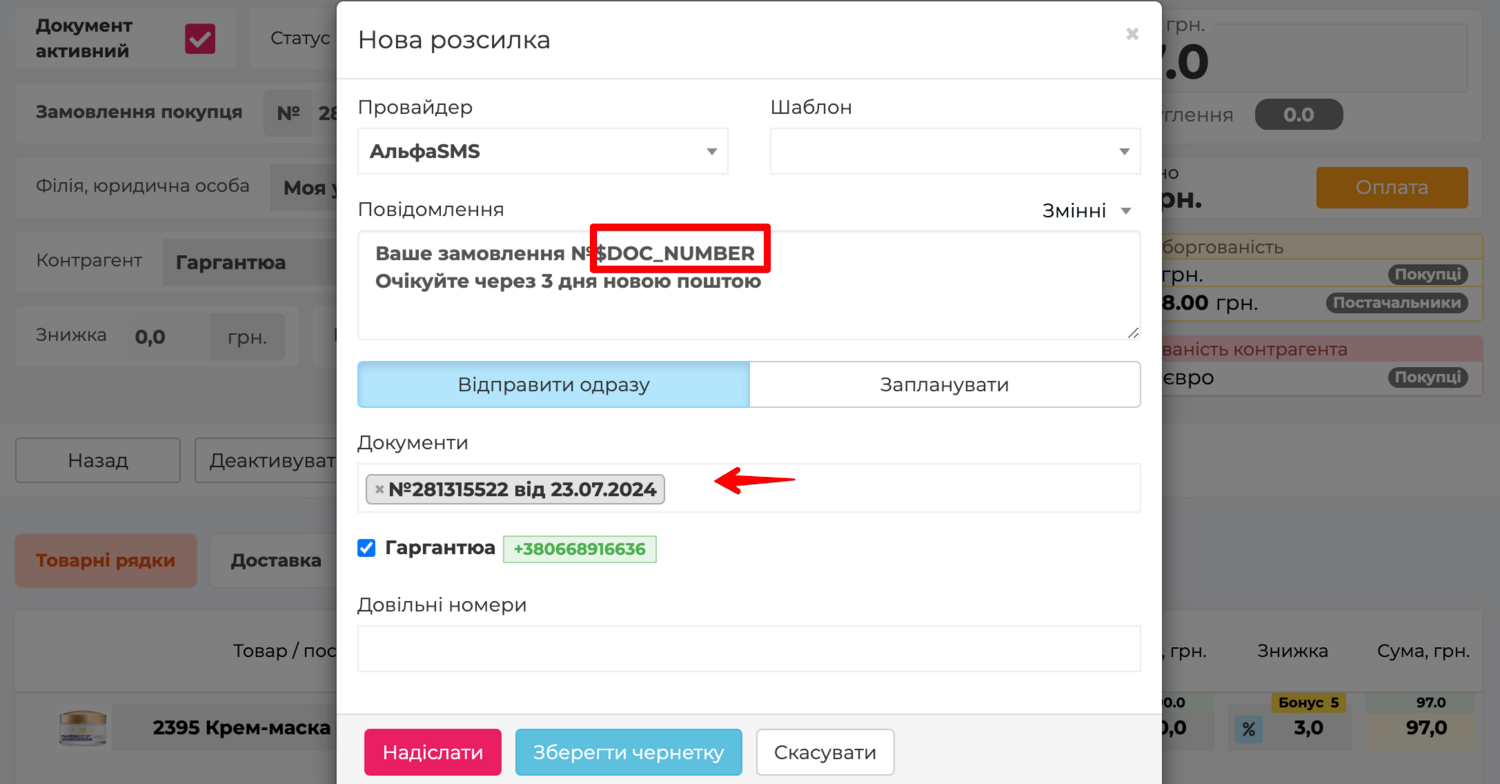
Open the customer card and click Action → Send SMS. Select the integration in the Provider field, write the text, and click Submit. The customer's number is already filled in. Need a different number? Enter it in the Custom numbers field.
An SMS is sent from a document or payment the same way. It is even handier: the text can use document data — the number, the amount, and more.
One SMS fits 70 Cyrillic characters, or twice as many in transliteration. Write in Ukrainian or transliteration: Latin-only text may be treated by the mobile operator as international messaging, and your sender name may get blocked.
You do not have to send right away. Save a draft, or click Schedule and set the day and time.
Bulk campaigns
A bulk campaign is created in the Counterparties → SMS section with the New mailing button.
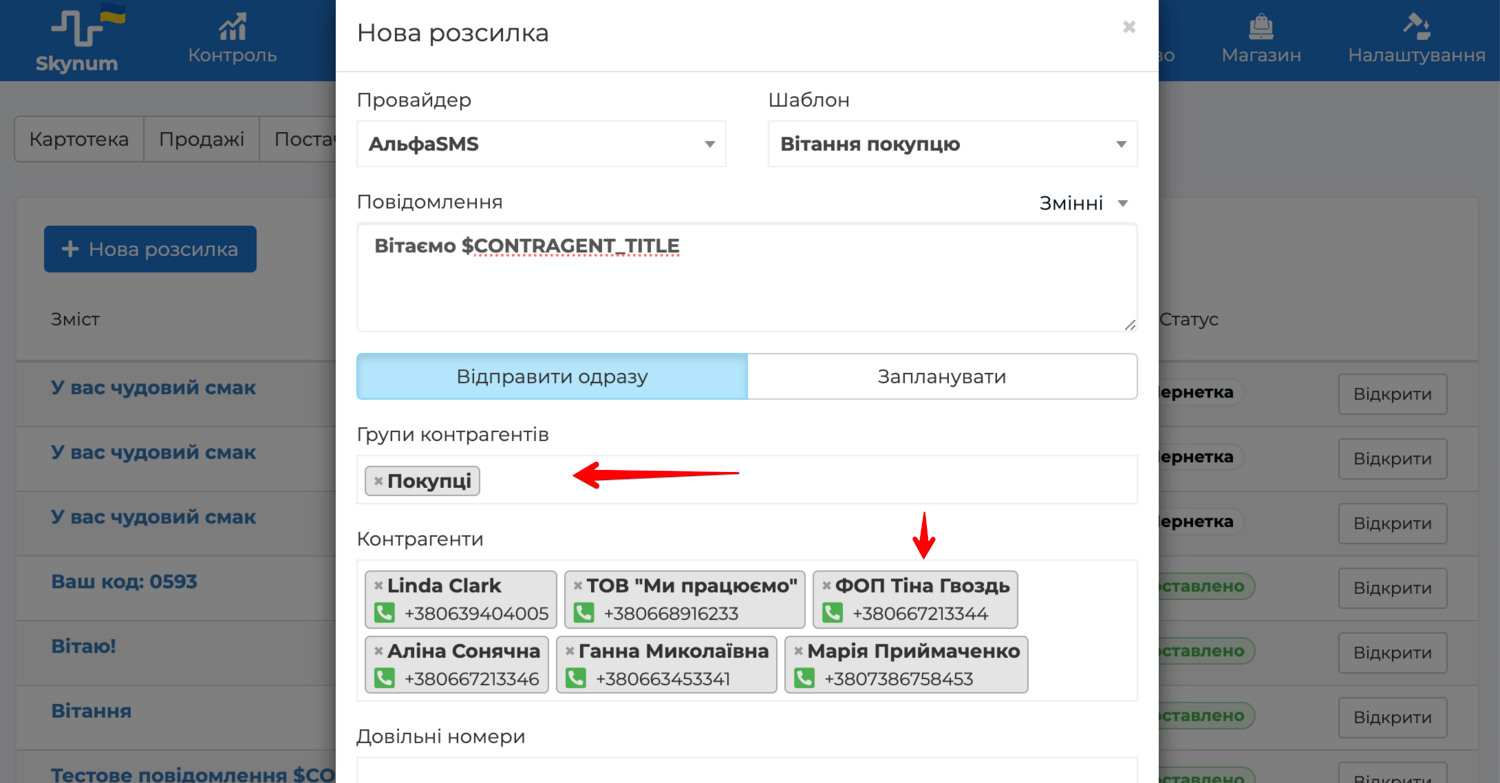
Recipients can be added in three ways at once: customer groups in the Groups of counterparties field, individual customers in the Counterparties field, and any phone numbers as a list in the Custom numbers field. If a number ends up on the list twice, it will receive only one message.
Do not rush to click Submit. Save a draft and review the text and the recipient list once more: after sending, the messages go to real people and are charged to your balance.
Variables
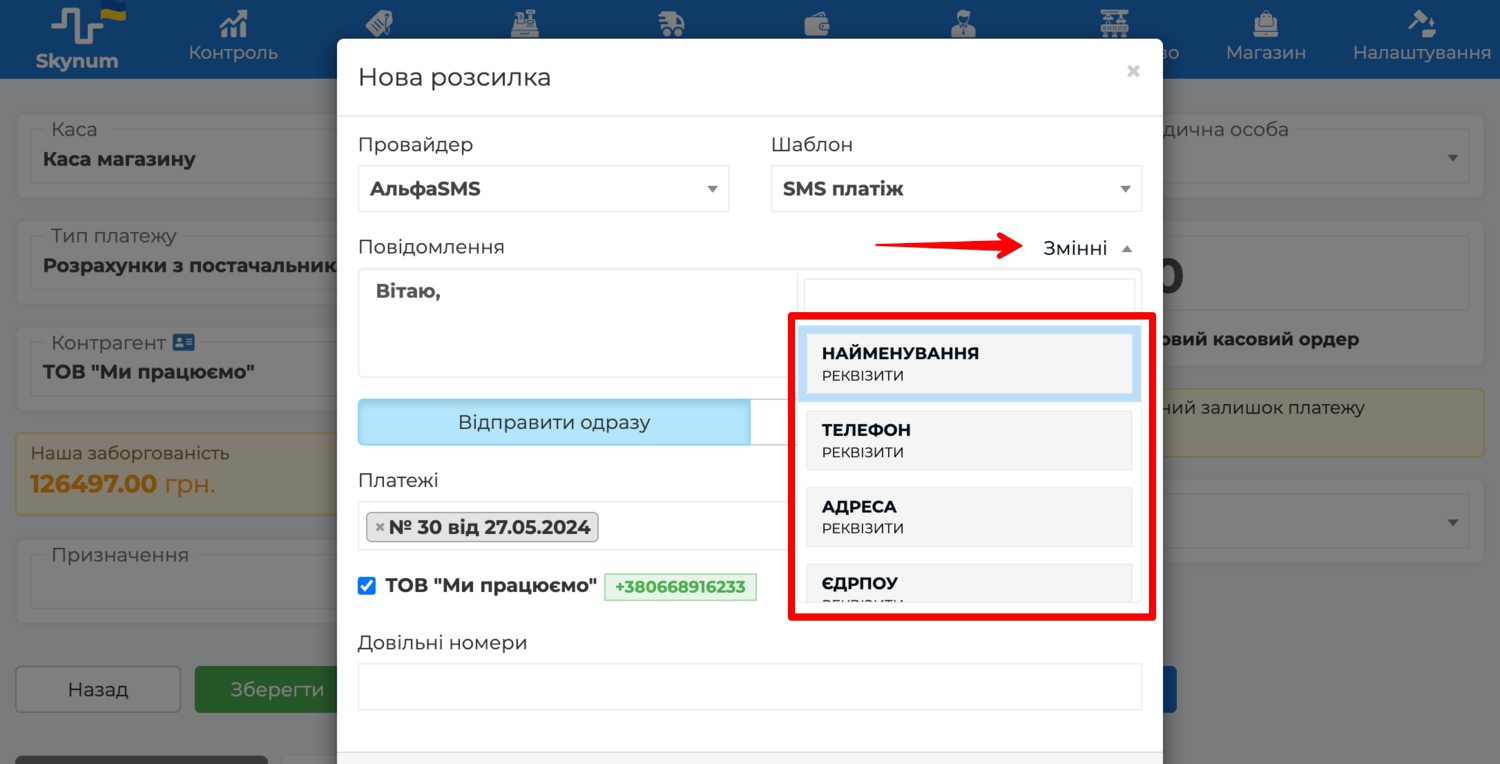
A variable is a spot in the text where the system inserts the data of a specific recipient. Click the Variables button and pick one — it appears in the text as a word with a $ sign.
You write one text for everyone:
$CONTRAGENT_TITLE, your order No. $DOC_NUMBER is ready for pickup.
And every customer gets their own:
Maria Kovalenko, your order No. 1204 is ready for pickup.
A variable must not be edited: add a character or remove a letter, and the substitution will not work. The set of variables depends on where you send from: a payment offers payment data, an order offers order data.
Templates
There is no need to write the same text every time. Create a template: open Settings → Link → Template Wizard and click New Template. Mark it as an SMS template and choose the object type — an order, a payment, or a counterparty.
In the editor, the variable list is on the left and the text is on the right. Viber and RCS have separate tabs: longer text, a link button, and an image.
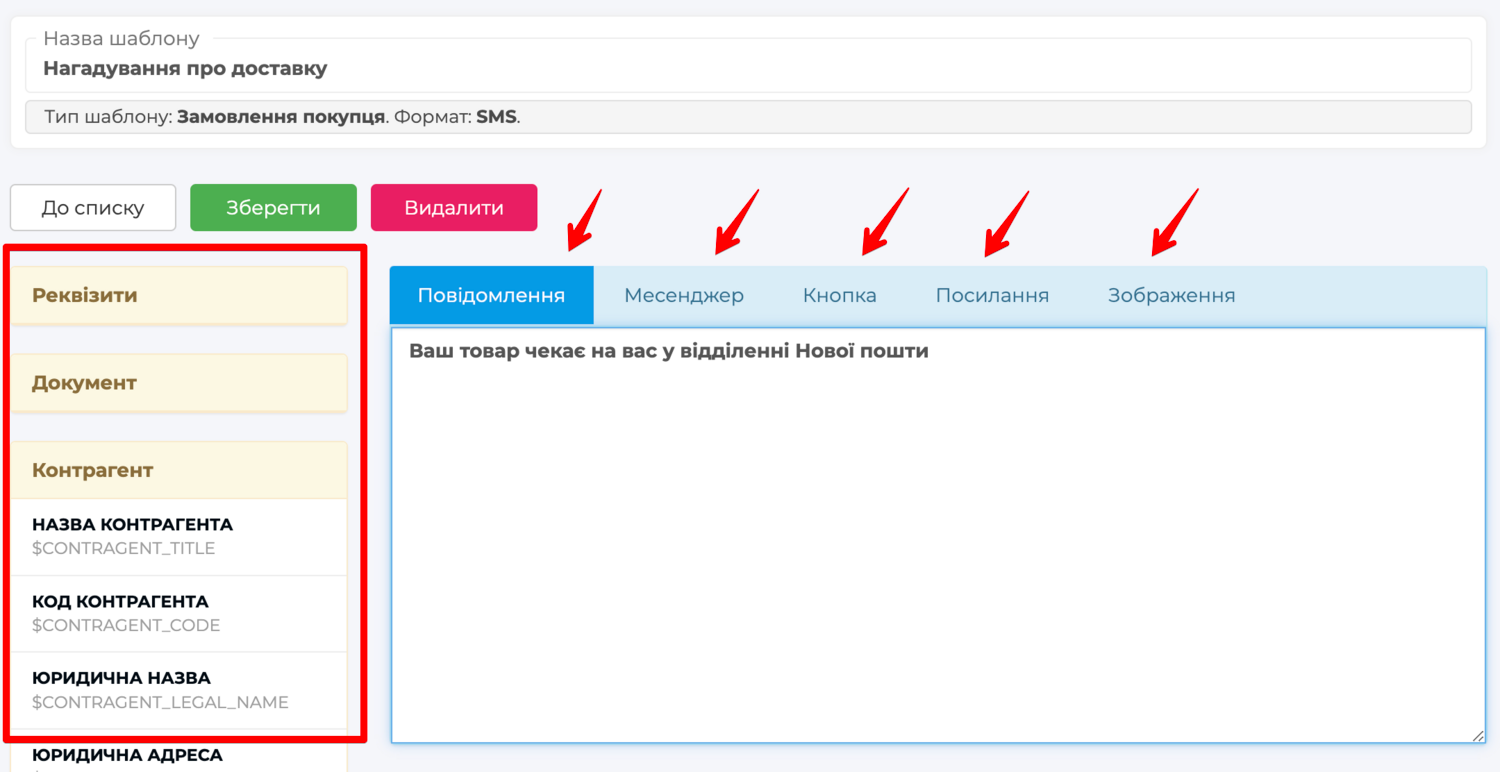
Now in the sending window just pick the template — the text and photo fill in by themselves. You can tweak them before sending.
Triggers
A trigger sends a message on its own, without a manager. The parcel arrived at the pickup point — the buyer knows right away. The order is reserved — the customer gets a confirmation.
Open Settings → Triggers and click Add trigger. Define the event: what changed (for example, Delivery), which property (Status), and to what value (Delivered). In the Automatic action field select Send SMS and the message template.
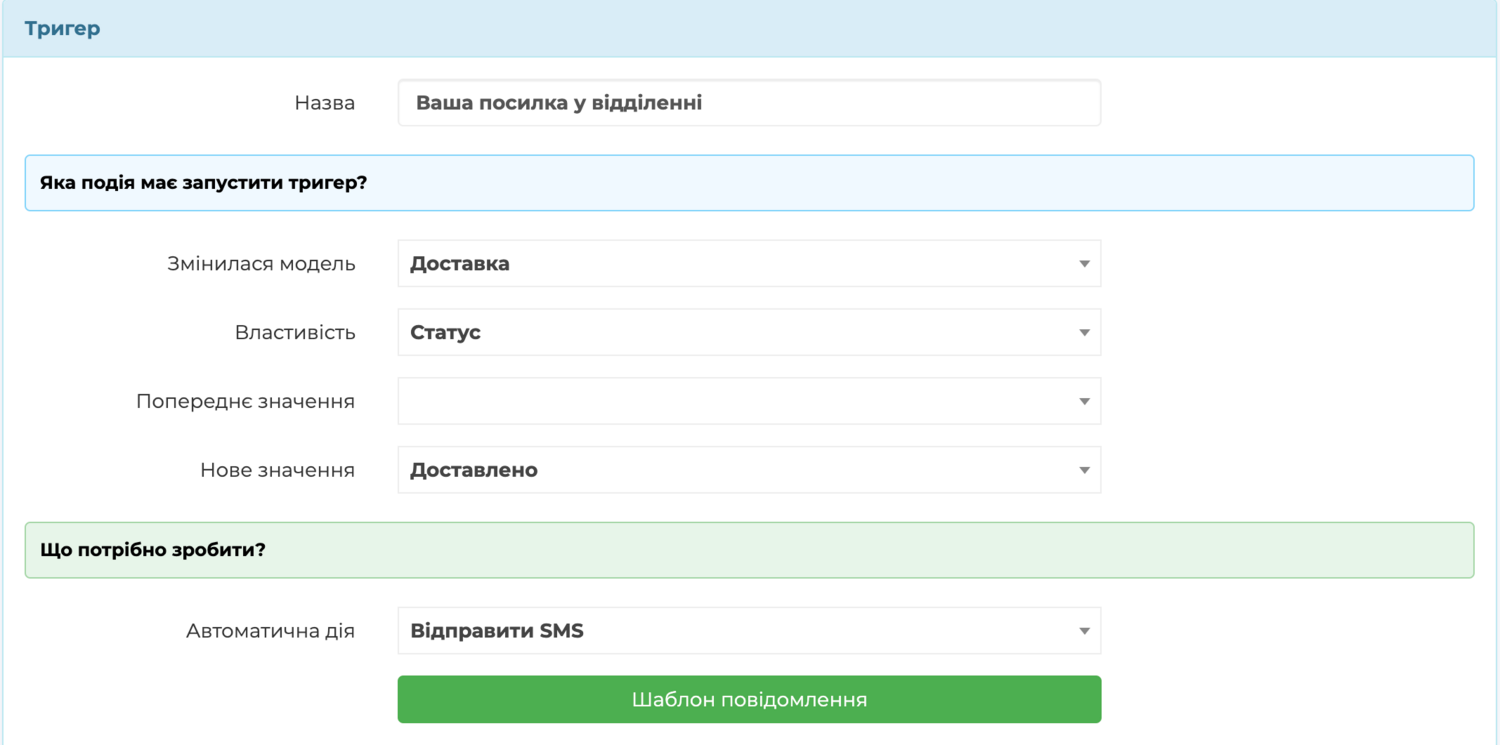
A message created by a trigger appears in Counterparties → SMS and is sent after 30 seconds. That pause is your chance to delete a mistaken sending. The delay can be longer too: for example, remind about a payment in three days.
Delivery statuses
After clicking Submit you can close the page — sending runs in the background.
Open the campaign card, and for every recipient you will see what happened to their message: delivered, read in Viber, still on its way, or an error with the reason.
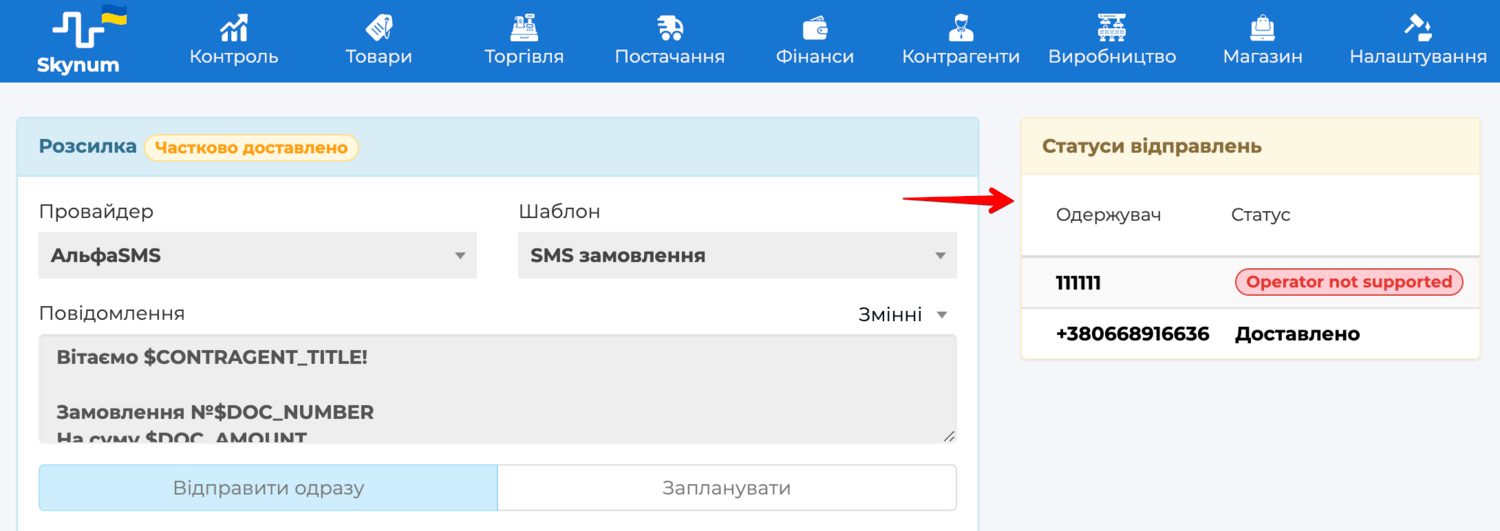
Some messages did not arrive? Fix the reason — for example, the number on the customer card — and click Resend. Only the undelivered ones will go out again. Those who already received the SMS will not get a second one.
History on the customer card
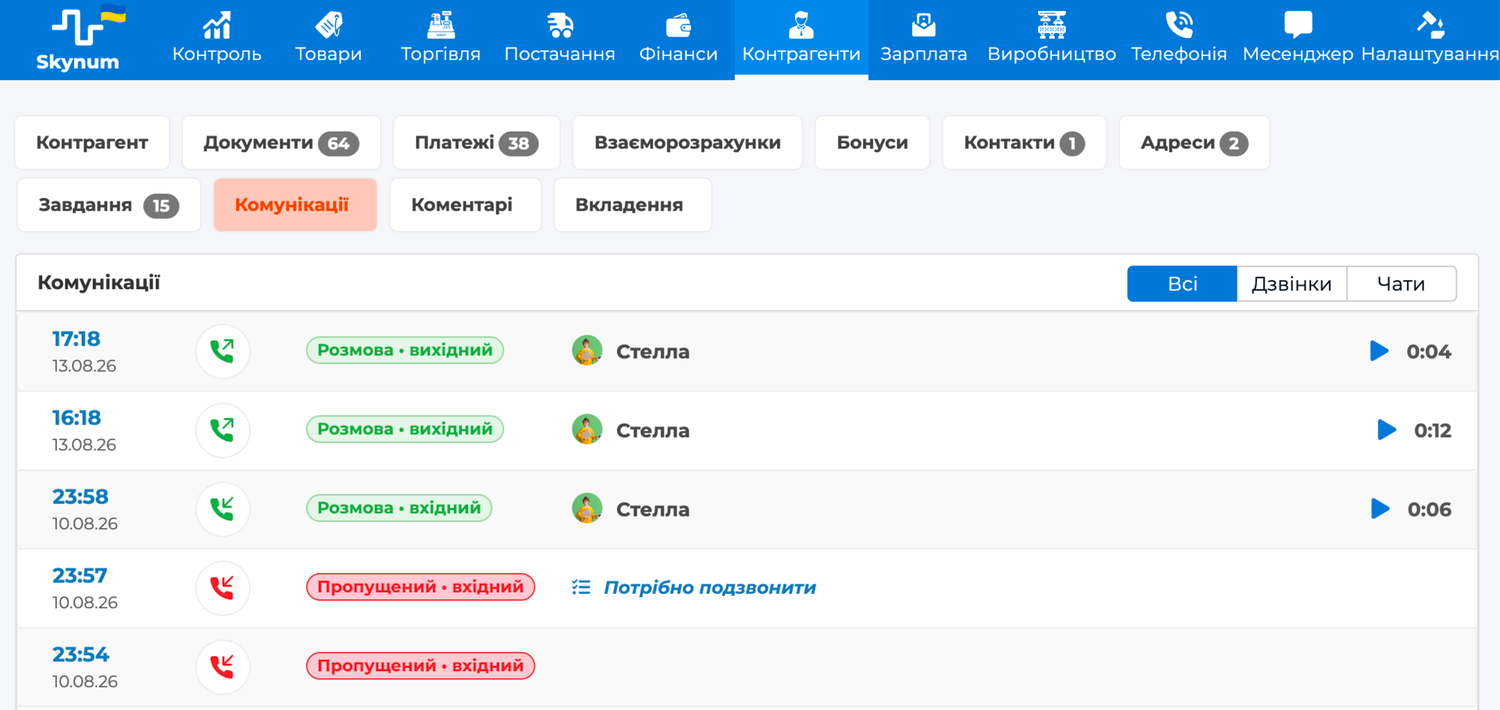
Everything you sent to a customer is stored on their card, on the Communications tab — next to calls and messenger conversations. Before a call, the manager recalls in a minute what the customer was told and whether the message arrived.
Summary
Connect a messaging service and create templates — from then on, messages go out from cards, documents, and triggers, and the delivery of each one stays under control. Step-by-step guides for every topic are in the SMS messaging documentation section.