TurboSMS is a Ukrainian SMS and Viber messaging service. Once connected, you send messages right from Skynum — from a customer card, order, or payment — and immediately see whether each one was delivered.
This article covers connecting TurboSMS. To see everything messaging can do — from templates with variables to automatic triggers — check the overview SMS messaging in Skynum.
TurboSMS integration features
Once set up, all Skynum messages go out through TurboSMS:
- SMS from where you work — from a customer card, order, or payment; the phone number is filled in automatically, and variables add the document number and amount to the text.
- Bulk campaigns for customer groups, selected counterparties, and custom numbers, with scheduled sending.
- Automatic notifications via triggers — about an order status change or a parcel arrival.
- Viber messages with long text, a photo, and a link button.
- Delivery status for every message and sending history on the Communications tab of the customer card.
Connecting takes two steps: get a token in your TurboSMS account and create an integration in Skynum.
What to prepare in TurboSMS
- An active TurboSMS account.
- A registered SMS sender name (alphaname) — the signature your customer sees instead of a phone number.
- A separate Viber name if you plan to use the Viber channel: the SMS name does not work in the messenger.
How to get the token:
- Log in to your TurboSMS account.
- Open the Шлюз (API) → Налаштування API menu (API Gateway → API Settings).
- Check the HTTP API box and save the settings.
- Copy the token that appears after saving. In Skynum it goes into the Token field.
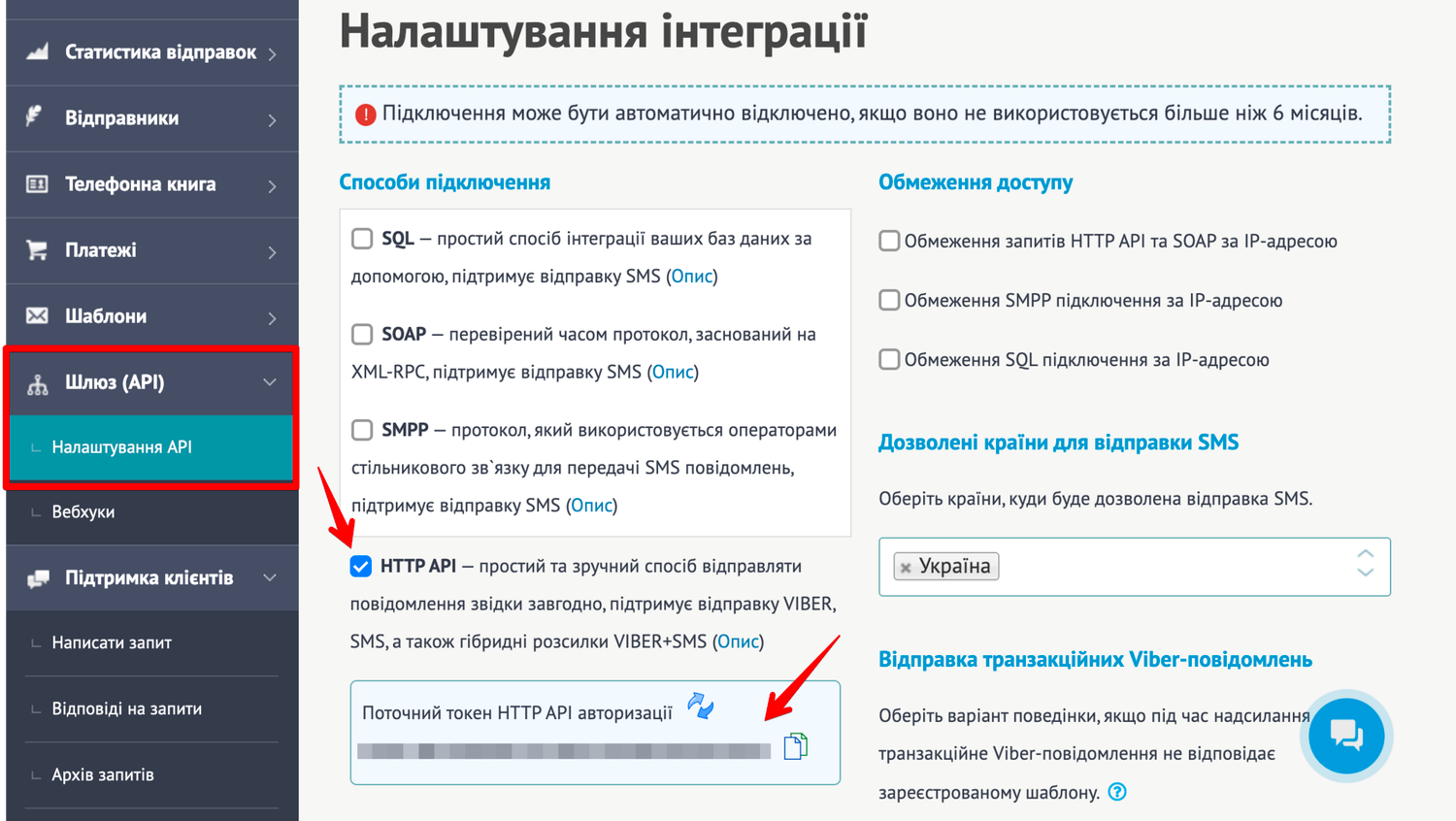
Do not share the token in chats or screenshots: it grants programmatic access to your TurboSMS account.
How to connect TurboSMS in Skynum
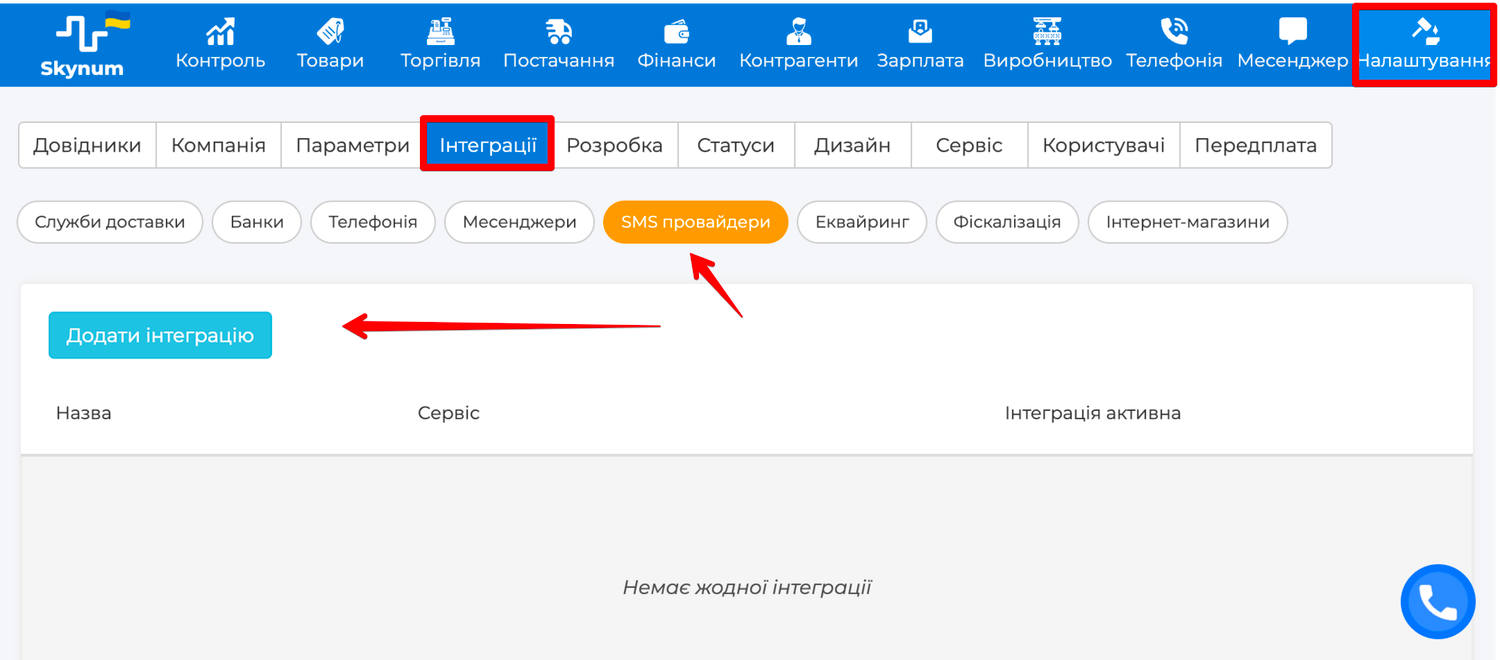
Open Settings → Integration and go to the SMS providers category. Then click Add Integration and select TurboSMS.
The integration settings page will open — fill in the fields:
- Integration name — an internal name in Skynum. Make it clear which account and channel this is, for example "TurboSMS Viber + SMS".
- Integration Active — enables sending through this integration.
- Channel — SMS, Viber, or Viber + SMS.
- SMS alphaname — the sender name for SMS.
- Viber alphaname — the Viber sender name, if the channel includes Viber.
- Token — the HTTP API token from your TurboSMS account.
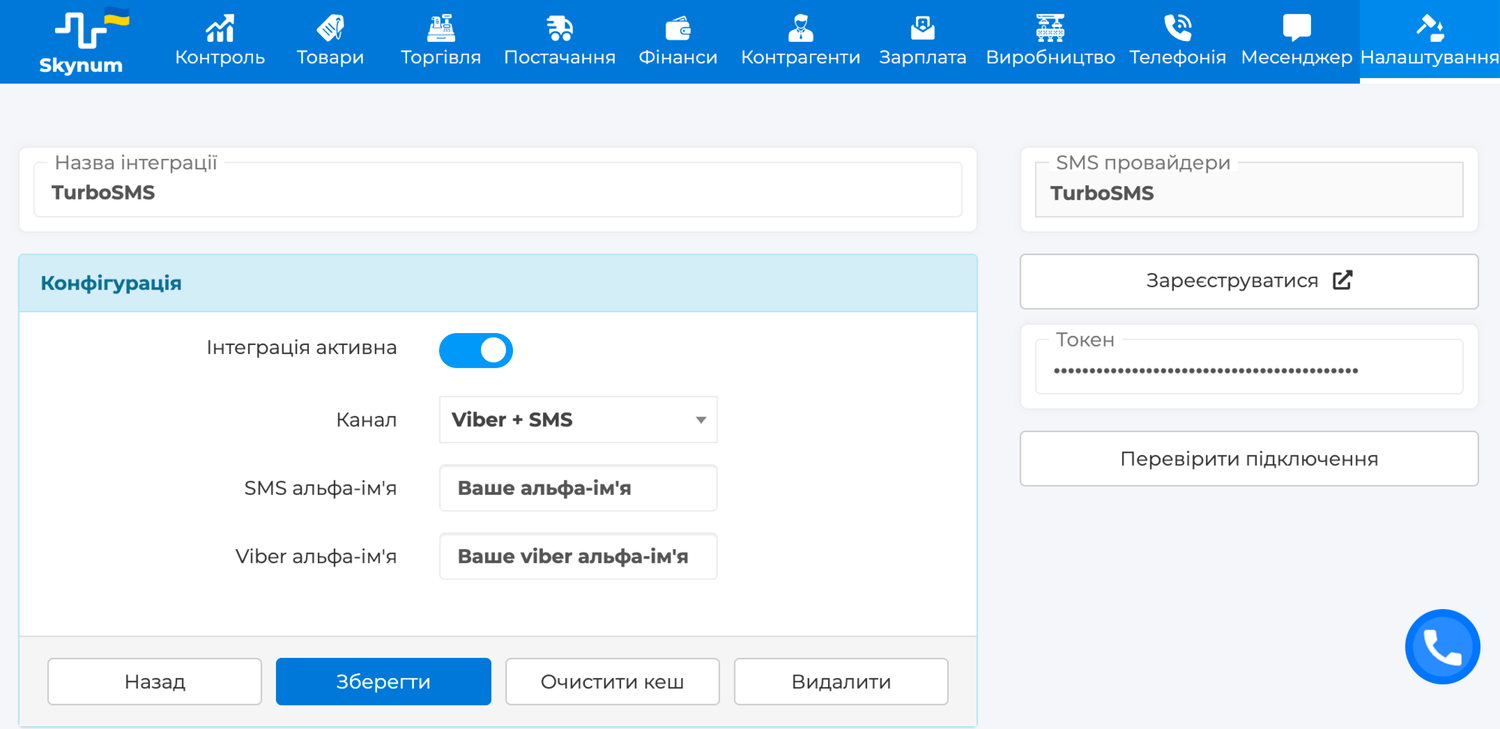
Save the integration and click Check Connection. On success Skynum shows Connection successfully verified — the integration is ready to work.
Sending channels
The Channel field offers SMS, Viber, and Viber + SMS.
Viber + SMS is delivery insurance. The message goes to Viber first. If it does not get through, the customer receives a regular SMS. You never pay twice for one message.
The channel is chosen once — when the integration is created.
If you need to send SMS and Viber separately, create two TurboSMS integrations. Then, when sending, you pick the preferred way in the Provider field.
First messages
Send a test SMS to your own number: in Counterparties → SMS, create a new campaign with the TurboSMS integration, enter your phone in Custom numbers, and click Submit. Within a minute, the message with your company's sender name should be on your screen, and the status on the campaign card should change to Delivered.
[Screenshot: campaign card with delivery statuses for each recipient]
Then move on to real scenarios:
- An SMS to a customer from their card or order — the Action → Send SMS button.
- A bulk campaign for a customer group — the Counterparties → SMS section.
- A trigger that notifies the buyer about an order status change on its own.
How each scenario works and how to safely resend undelivered messages — in the overview SMS messaging in Skynum.
Summary
The whole TurboSMS setup is an HTTP API token from your account, a channel choice, and registered sender names. A detailed guide to every field is in the Skynum documentation.