
An ERP system records facts: an order has been created, a payment has been received, goods have arrived, and an agreement has been reached with a counterparty. But every fact may require a next action — check a payment, approve a document, investigate a discrepancy, or prepare a shipment.
Tasks in Skynum connect ERP data to the team's work. Every assignment has a specific action, executor, due date, status, and a link to the object it concerns. Employees see their plans in one list, while managers understand what is already in progress, what is planned for today, and who is responsible for the result.
A simple rule: if a specific person must perform the work and the result needs to be monitored, create a task.
What the task workflow looks like
Work on a task goes through five clear stages:
- Record the action. Describe the result that needs to be achieved.
- Add context. Link the work to a document, payment, counterparty, or conversation.
- Assign responsibility. Select an executor, start time, and due date.
- Work in one card. Clarify details in comments and open the linked object.
- Record the result. Click Complete when the work is finished.
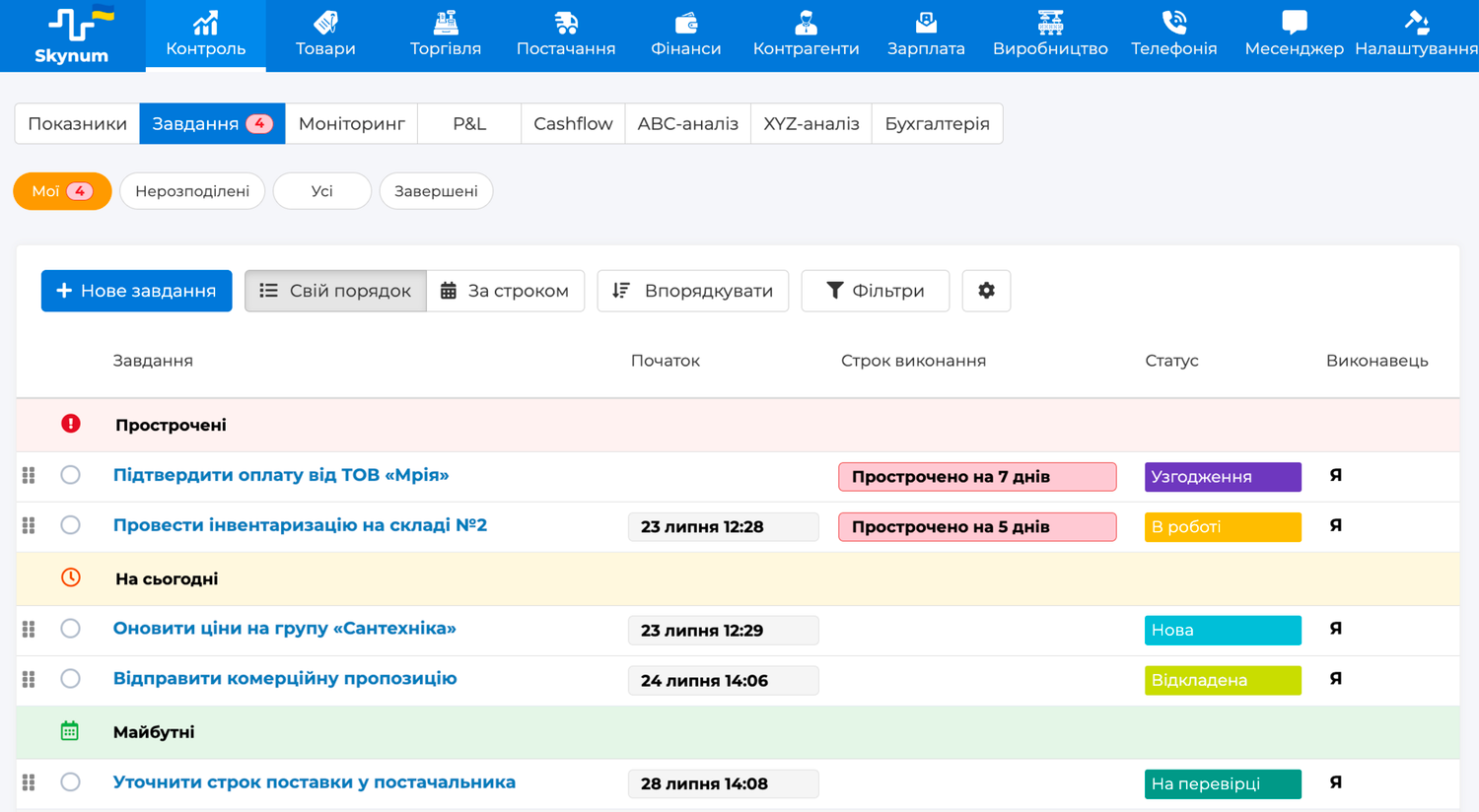
For daily work, open Control → Tasks. This section contains the company's personal, unassigned, shared, and completed tasks within the user's access permissions.
Create tasks where the work arises
You can create a standalone task using the New task button in Control → Tasks. This option is suitable for internal work that is not linked to a specific record: prepare a report, conduct an inventory check, or order packaging materials.
If an assignment concerns a specific operation, it is better to create it directly from the work object. In Skynum, you can do this from:
- A document or payment — open the Tasks tab.
- A counterparty card — open the customer's or supplier's tasks.
- A messenger conversation — use the Create task action.
A task created this way retains a link to the subject of the work. The executor immediately understands the context and can open the relevant document, payment, counterparty, or conversation without an additional search.
How to write a clear task
The title should describe an action rather than a topic. Compare:
- Dream customer — it is unclear what needs to be done;
- Confirm payment from Dream LLC — the action and expected result are clear.
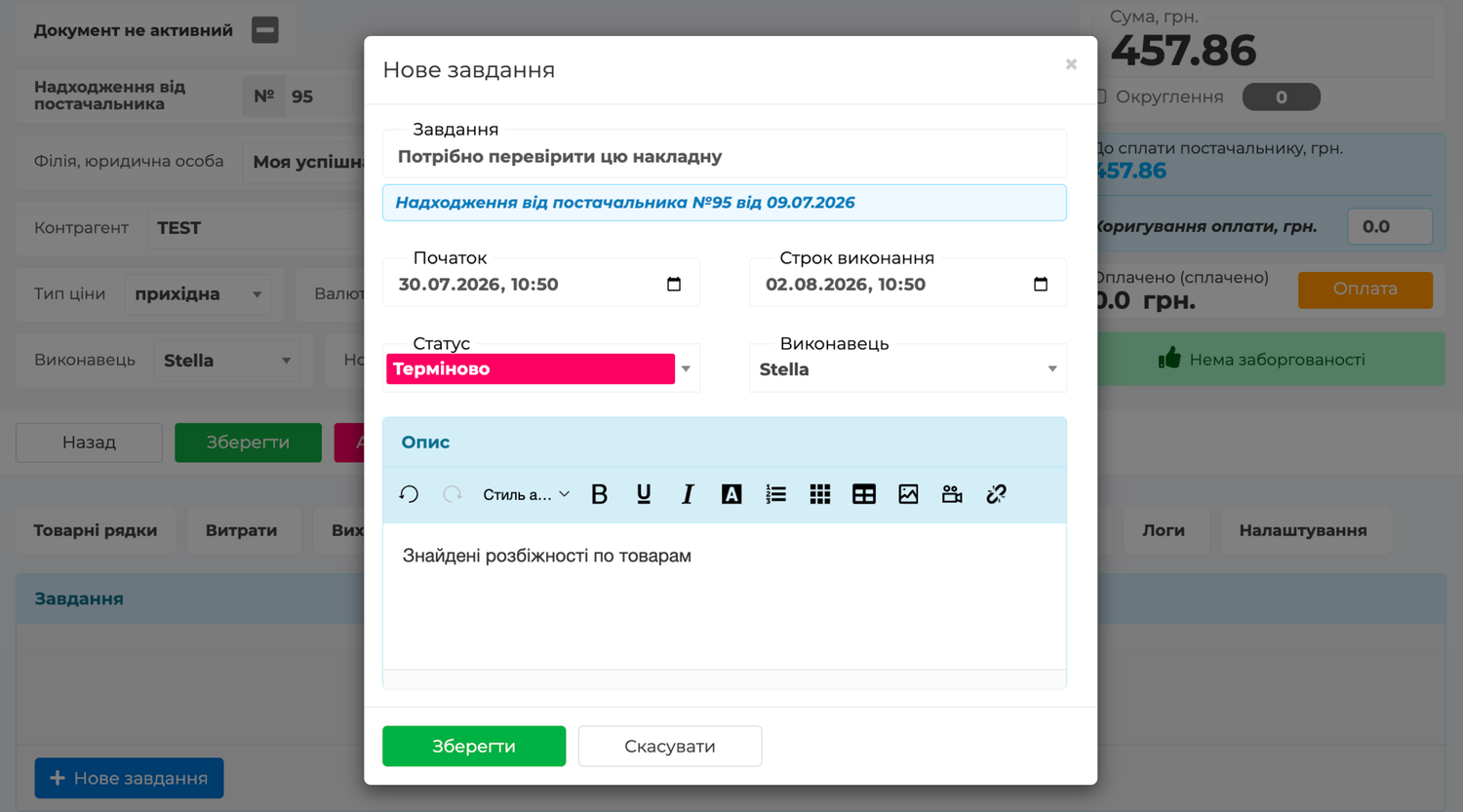
The form contains the following fields:
- Task — a short name for the action;
- Start time — when the work should begin;
- Status — a company-configured designation such as a stage, category, or priority;
- Due date — when the result is required;
- Executor — one responsible user;
- Description — conditions, the expected result, and important details.
If you do not change the executor, the new task is assigned to you. To give it to another employee, select a user in the Executor field. To send the work to the shared queue, clear this field before saving.
How tasks support daily ERP workflows
Order payment control
A manager is waiting for payment for customer order No. 1042. Instead of sending a separate message to the accountant, the manager creates a task from the document: Check payment receipt for order No. 1042, selects a finance specialist as the executor, and sets a due date.
The executor receives a notification, opens the task on the My tab, and goes directly to the linked order. After checking the payment, the executor records the result in a comment and completes the task. The manager sees the result without additional clarification, and the action history remains next to the order.
Checking a goods receipt
A discrepancy between the expected and actual product quantities is found in a goods receipt document. The responsible user creates the task Check discrepancies in the goods receipt from the document, assigns it to a warehouse employee, and specifies in the description which items need to be checked.
The warehouse employee opens the document from the task card, checks the products, and leaves a summary in a comment. Everyone works with the same object, so the document number, product list, and verification result are not scattered across different communication channels.
Preparing manufacturing
Before manufacturing begins, the team needs to verify that the correct materials have been selected and that the document is ready for work. On the Tasks tab of the Manufacture of Goods document, the responsible user creates the task Check materials for manufacturing product No. 44, assigns a production employee, and sets a due date before the planned start.
The executor opens the manufacturing document directly from the task, goes to the Materials tab, and checks the process flow charts, composition, and quantity of raw materials. The executor records the result in a comment and completes the task. The document, products, materials, due date, and responsible person remain in one work context, so manufacturing can begin based on verified data.
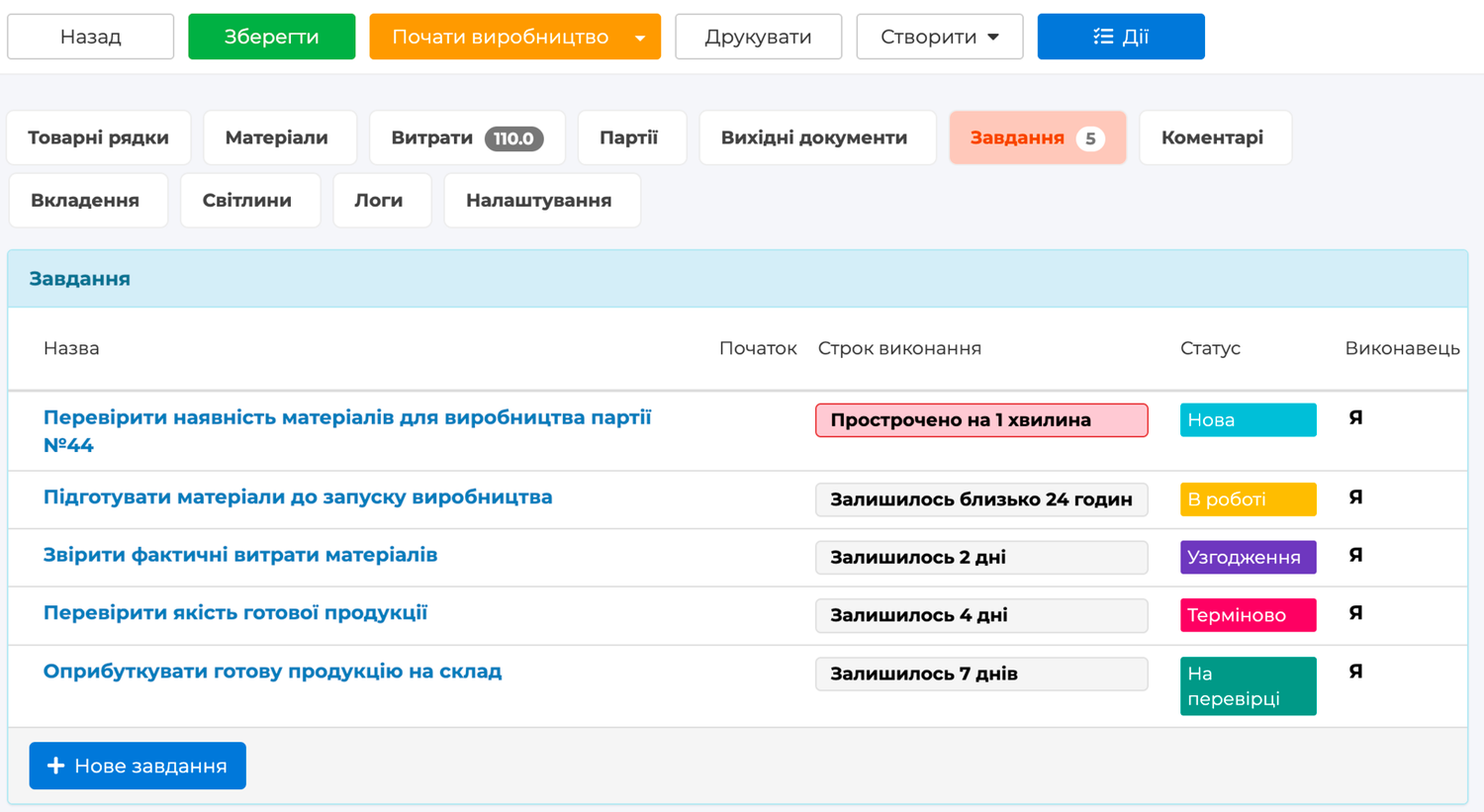
The main advantage: a task does not work separately from the accounting data — it works together with it. The employee sees the action, due date, and responsible person, and can open the document, payment, or counterparty with all current data in one step.
What the executor sees every day
The My tab is the employee's primary work list. Open tasks are automatically divided into four groups:
- Overdue — the due date has already passed;
- Today — the work should begin or be completed today;
- Upcoming — the start time or due date falls on a later day;
- No due date — neither the start time nor the due date is specified.
If the start time is set for later today, the task already appears in the Today group. This allows employees to see their entire daily plan in the morning instead of waiting for a specific hour.
The counter next to My shows the amount of current work: tasks that should already have started and tasks due today or earlier. Employees immediately see their workload, while the groups help them begin the day with the most relevant actions.
Tabs for personal and team work
- My — open tasks where you are the executor.
- Unassigned — the shared queue of open tasks without an executor.
- All — all open company tasks available to you.
- Completed — completed tasks that you have permission to view.
The unassigned queue is useful for work that any team member can take: check a new request, process an inquiry, or verify a document. Open the Unassigned tab and click Take. You become the executor, the task moves to My, and its owner receives a notification.
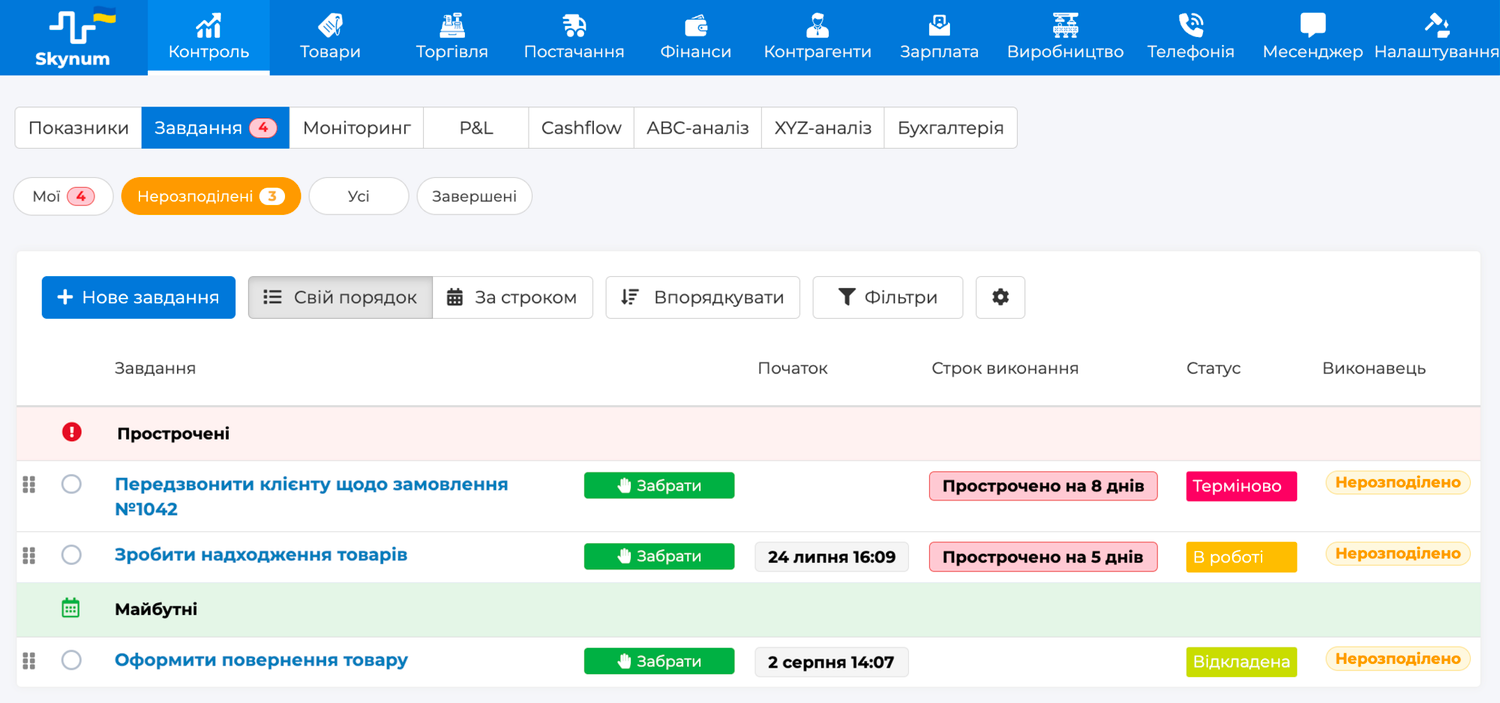
The queue protects the team from duplicate work: only one user can take an unassigned task. The task then gets an executor and leaves the shared queue.
Sorting and prioritizing tasks
There are two ways to organize work in the list.
My order allows you to drag tasks manually within one group. Place the most important work at the top. The manual position is shared: if you change it on the All tab, it is preserved in other lists where the task appears.
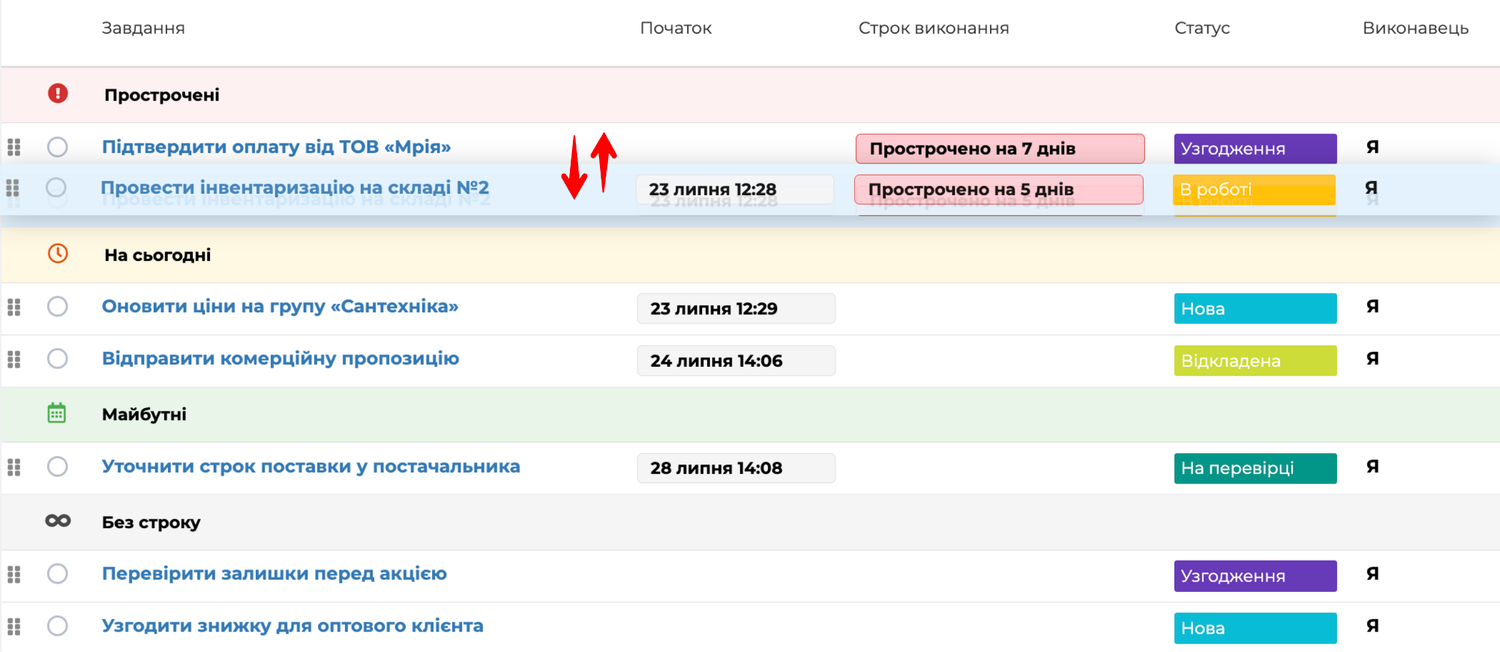
By due date automatically sorts tasks by date. This mode is suitable for objective due date control, while manual prioritization remains available in My order.
Arrange by due date works differently: it rewrites the manual order of the current filtered list by due date once. Use it when you want the date-based order to become the new basis for further manual planning.
Search and filters
When there are many tasks, use filters for the due date, owner, executor, and status. Search checks both the title and description, so use words that make the work easy to find: a customer name, document number, or specific action.
Table settings allow you to add columns for the subject, source, owner, creation time, update time, or completion time. A manager can build a compact list for daily work, while a team leader can create a broader overview for monitoring the team.
Comments and notifications
A task is part of a broader workflow in which the team discusses a situation next to ERP data, addresses a comment to the right colleague, and turns a decision into an action that can be monitored. Learn more about the complete approach in Collaboration in Skynum.
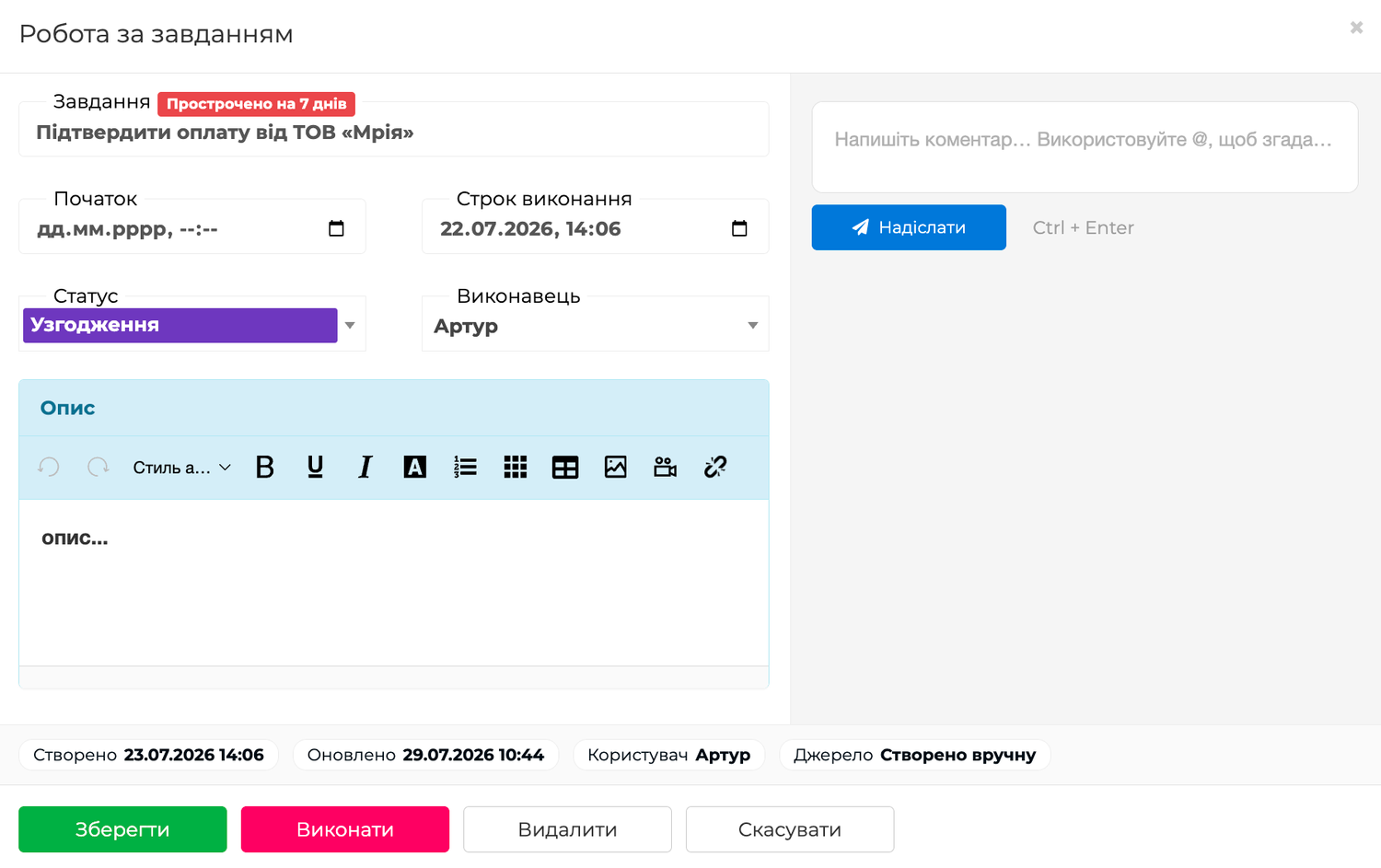
Comments keep clarifications and results next to the task. New comments appear above earlier ones, and you can submit text using the Submit button or Ctrl + Enter.
To continue a specific part of the discussion, click Reply under the relevant comment. Its author receives a targeted notification, and the reply keeps a link to the original comment. To involve another colleague, enter @, start typing a name, and select a user from the list.
A regular comment notifies the task owner and executor, except for the author. If the same user is simultaneously the recipient of a reply, a mentioned colleague, or a task participant, Skynum shows them one notification. It appears while they are working without a page refresh, and the counter next to the bell updates immediately. Clicking it opens the task card at the relevant comment, so there is no need to search through the history.
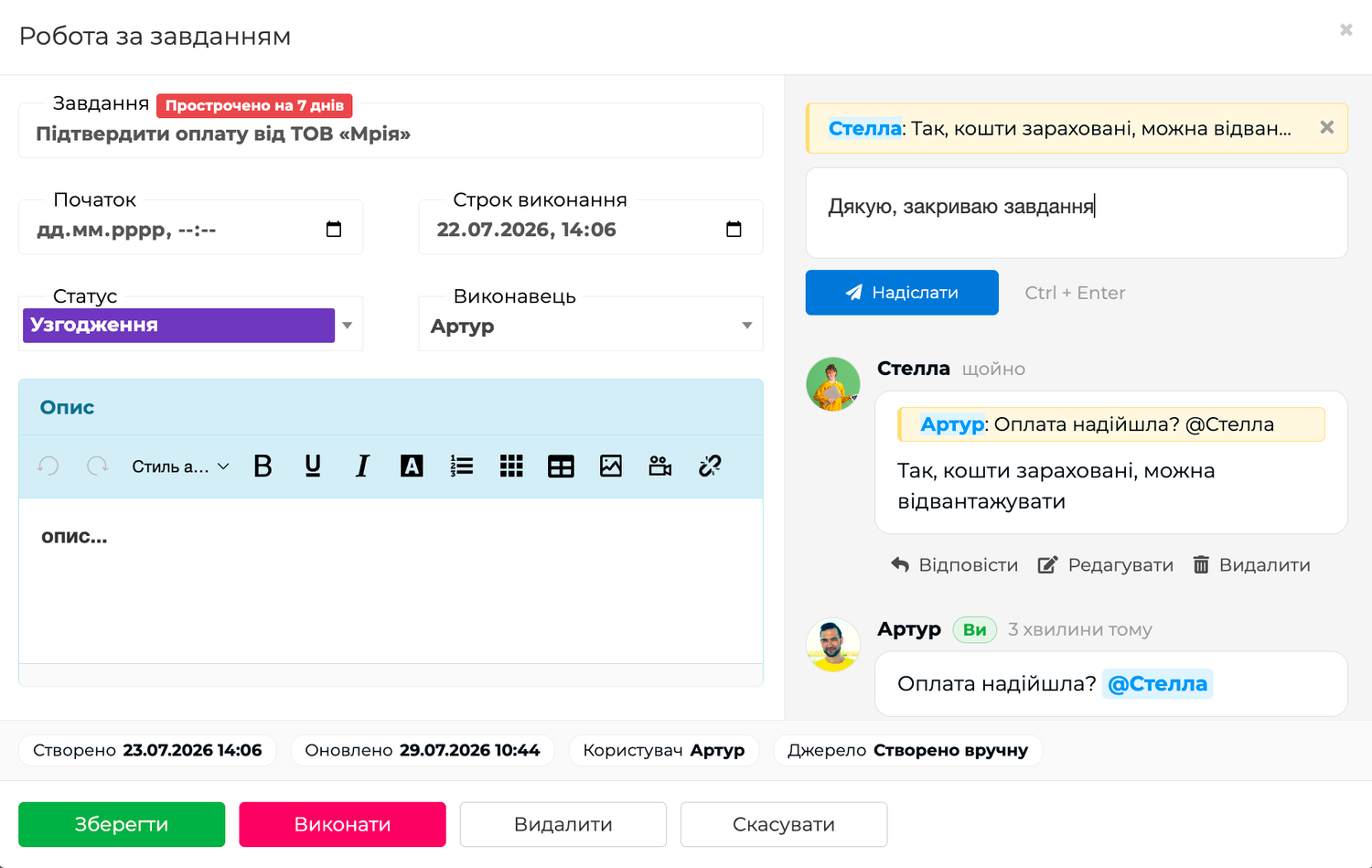
Do not duplicate structured data in comments: change the due date in the Due date field, the responsible user in the Executor field, and the configured label in the Status field.
Notifications are also sent when:
- A task is assigned or reassigned to a user.
- An employee takes work from the shared queue.
- A task is completed.
- A task is reopened.
Status as a stage, label, or priority
The Status field can be adapted to the team's working process. The company creates its own values and configures their colors and order. A status can therefore represent:
- A process stage — “New,” “In progress,” or “Pending approval.”
- A category or label — “Payment,” “Warehouse,” or “Customer work.”
- A priority — “Urgent,” “High,” or “Planned.”
Each task has one such designation. If statuses are used as stages, you can configure the allowed transitions between them. If they are used as priorities or labels, their colors help distinguish tasks quickly in the list.
Completion is recorded separately with the Complete button. This allows the team to use statuses freely according to their business meaning, while Skynum independently records the exact work result and moves the task to Completed. To continue the work, open the task on this tab and click Reopen.
How to prepare tasks for your team
Define a few simple rules before launch:
- Decide what statuses represent: a stage, category, or priority.
- Agree on who creates and assigns tasks.
- Configure who sees only their own work and who sees the entire team.
- Decide which assignments enter the unassigned queue.
- Define when an employee should click Complete.
Configure statuses in Settings → Statuses → Tasks. Configure permissions in Settings → Users → Company Roles, on the Coordination tab in the Tasks row.
For viewing and editing, you can grant access only to the user's tasks, to tasks they own or that are assigned to them, or to all company tasks. Creation and deletion permissions are configured separately.
Seven rules for a useful task
- Start the title with an action: check, approve, compare, prepare.
- Keep one responsible person. If work moves between roles, create separate tasks for separate results.
- Set a due date only when there is a real deadline. A task without a due date is better than an arbitrary date.
- Create the task from the work object when the executor needs a document, payment, counterparty, or conversation.
- Agree on one meaning for statuses so that the team interprets stages, labels, or priorities consistently.
- Record the summary in a comment when the owner or colleagues may need it.
- Close the work with the “Complete” button so that the open task list remains current.
Start with one process
For implementation, select one recurring process: payment control, receipt verification, or document approval. Agree on titles, due dates, responsible people, and the moment of completion, then extend the approach to other teams.
Detailed step-by-step instructions covering all fields, filters, and access rules are available in the Tasks section of the complete Skynum documentation.
Summary
Tasks in Skynum connect a person's work to the operational context of the ERP. Employees see what they need to do today, open the relevant document, payment, or counterparty immediately, discuss details in one place, and record completion. The team gets a clear path from data and agreements to a controlled result.