
Automatic fiscalization of online orders is needed when an online store or marketplace sends a paid order to Skynum, and the company wants to create a fiscal receipt and send it to the buyer without manually creating a payment.
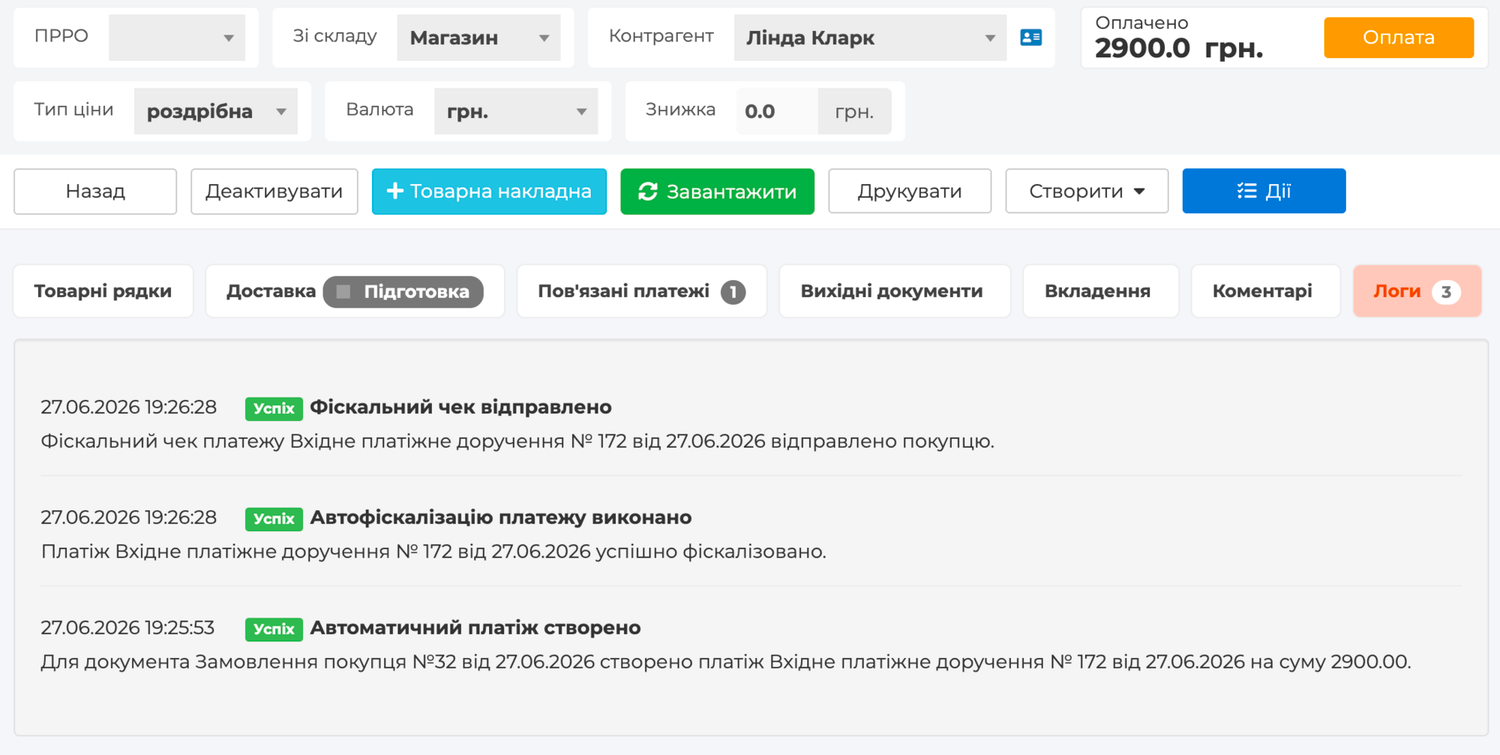
In this scenario, Skynum first creates or updates a Customer order, then creates a related incoming payment for the payment amount from the online store, and when Payment fiscalization is enabled, fiscalizes this exact payment.
Important: an online order is not fiscalized directly. The fiscal receipt is not created because the order was loaded, the goods were reserved or the status changed. The related payment created by Skynum from the payment amount received from the online store is fiscalized.
How automatic fiscalization works
Automatic fiscalization of online orders combines three parts: order import, financial payment and fiscal receipt. This removes the need to manually transfer payment information from the store or marketplace account into the ERP.
- The online store or marketplace sends the order to Skynum.
- Skynum creates or updates the Customer order.
- The integration determines the payment amount and external payment method.
- Using the mapping on the API mapping tab, Skynum finds the corresponding Skynum payment method.
- If Create a related payment for the payment amount is enabled, Skynum creates an incoming payment for the order.
- If Payment fiscalization is enabled, Skynum starts fiscalization of the created payment through the selected PRRO for fiscalization.
- After successful fiscalization, Skynum sends the receipt to the buyer if the fiscal service settings and the buyer contacts allow it.
As a result, the sale has the correct ERP structure: an order with products, a separate payment with a financial channel and a fiscal receipt for the actual payment.
What to configure before launch
Before automatic fiscalization, you need to prepare not only the fiscal service, but also payment methods. They connect the external payment with the cash desk or bank account in Skynum.
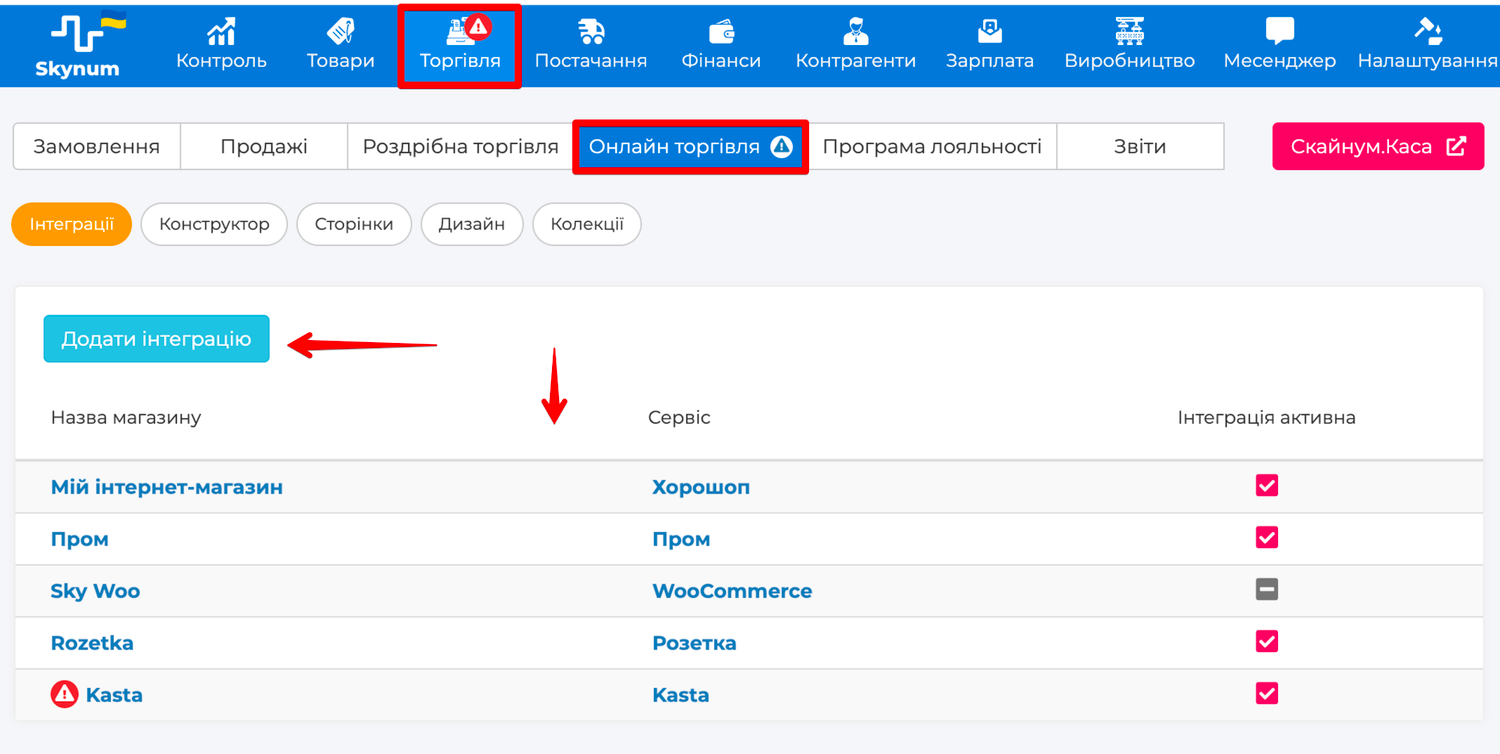
- An online store or marketplace integration is connected in Settings → Integrations → Online stores.
- Order synchronization is enabled.
- Products from the online store are correctly matched with Skynum products.
- Payment methods are created in Skynum for the channels received from the online store: for example LiqPay, WayForPay, NovaPay, PayPal, RozetkaPay or bank transfer.
- Each payment method is linked to a cash desk or bank account.
- On the store integration API mapping tab, external payment methods are mapped to Skynum payment methods.
- In the fiscal integration on the API mapping tab, Skynum payment methods are mapped to fiscal service payment types.
- A PRRO for fiscalization is selected for automatic fiscalization.
More about fiscal integrations: Checkbox integration and Vchasno.Kasa integration.
Online store integration settings
Open Settings → Integrations → Online stores, select the required integration and go to the Integration settings tab. In the Orders block, check the import, payment and fiscalization parameters.
- Order synchronization active — enables automatic loading of orders from the online store or marketplace.
- Synchronization interval — determines how often Skynum checks for new or changed orders.
- Ignore orders before date — does not import old orders before the selected date.
- Create a related payment for the payment amount — creates a separate incoming payment for the order if the integration sent the payment amount and payment method.
- Payment fiscalization — starts fiscalization of the created payment.
- PRRO for fiscalization — the fiscal service through which the receipt for the payment will be created.
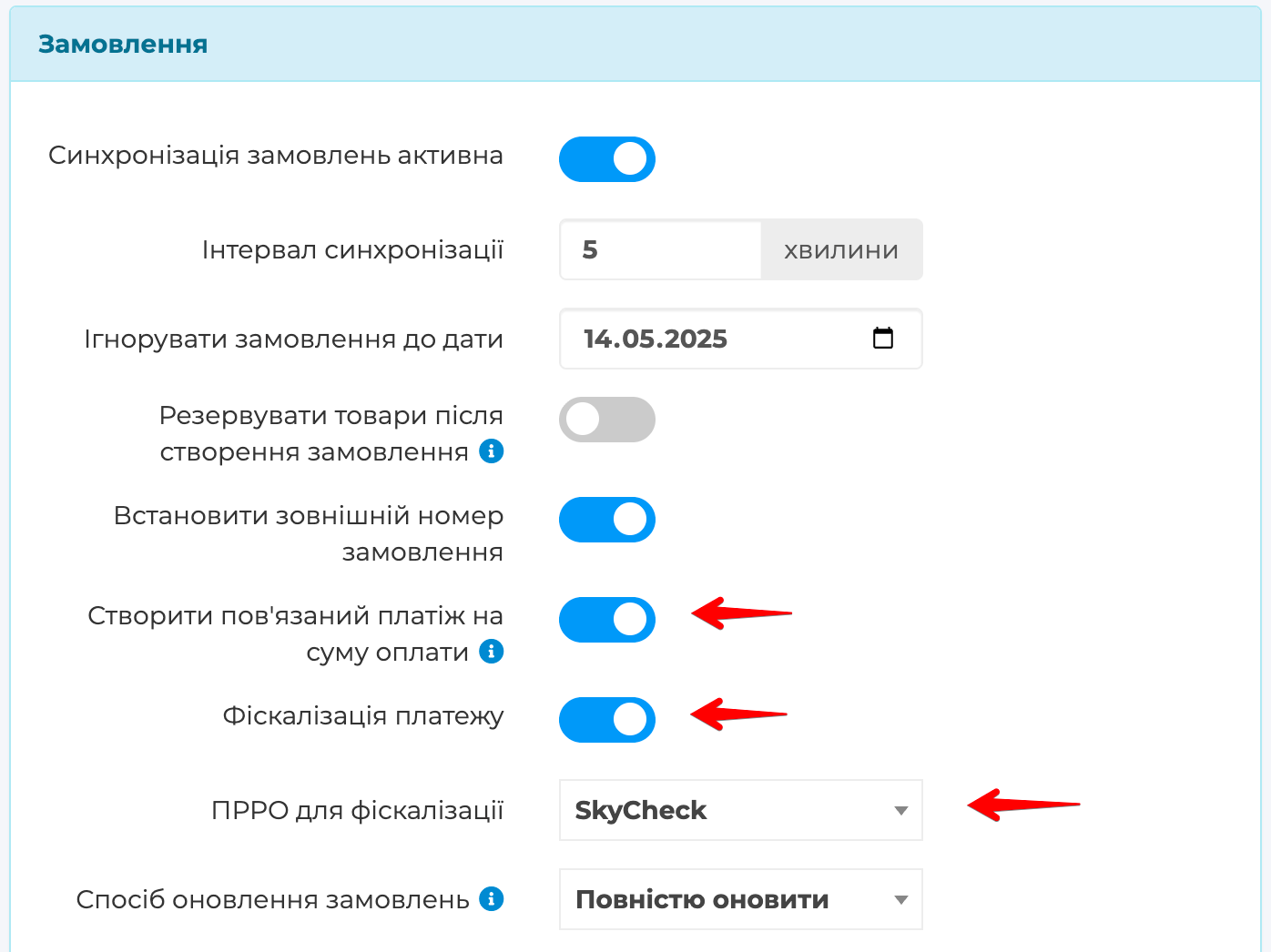
The Create a related payment for the payment amount parameter is the basis of automatic fiscalization. If it is disabled, Skynum will not create a payment, so the automatic fiscal receipt for the payment will not start.
Payment API mapping
On the API mapping tab, you need to map external online store payment methods to Skynum payment methods. This tab contains the Payment section.
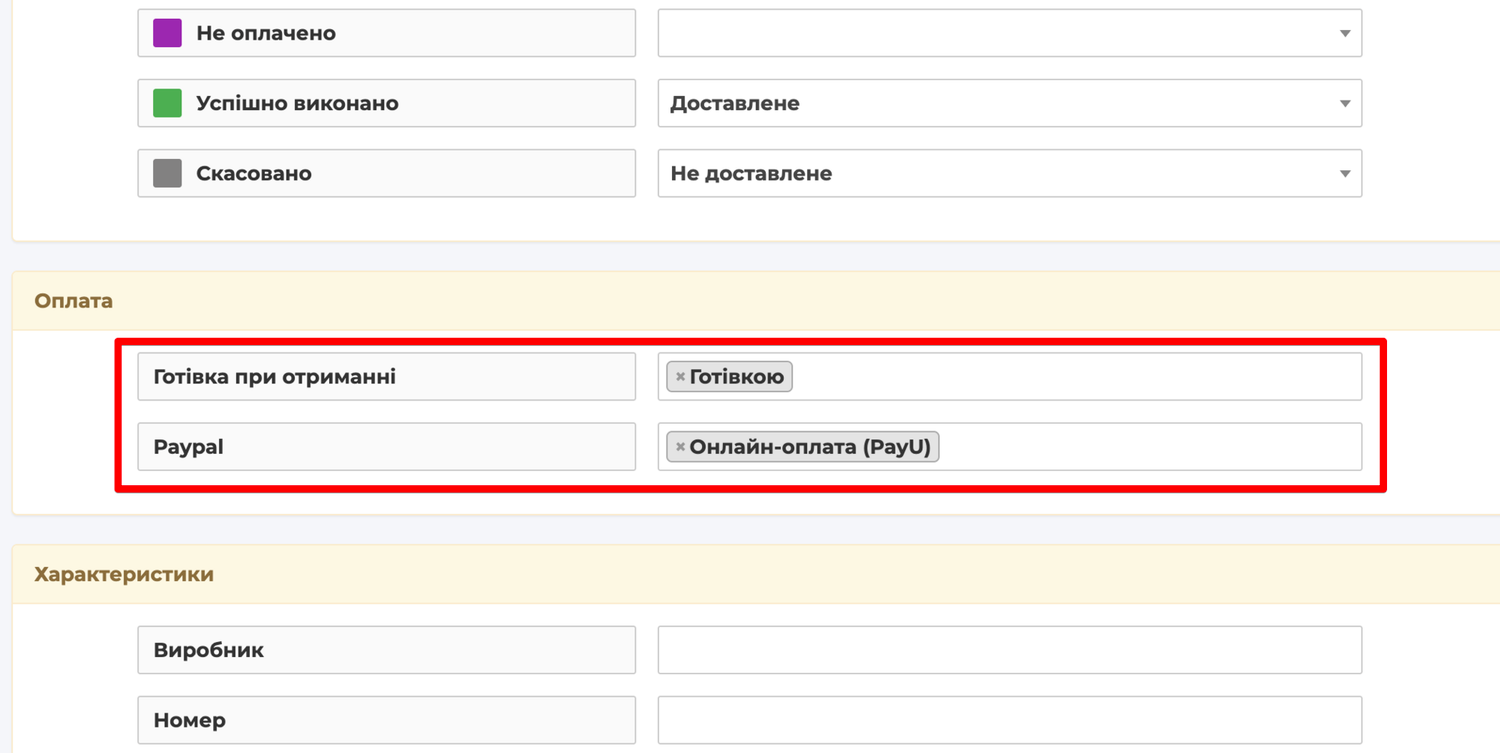
For example, the online store can send payment methods such as Cash on delivery, Paypal, LiqPay, WayForPay or other values. For each such value, select the corresponding Skynum payment method.
- Cash on delivery can be mapped to the Skynum payment method that leads to the required cash desk.
- Paypal or another online channel can be mapped to the Skynum payment method that leads to the required bank account.
- If the external payment method is not mapped, the automatic payment will not be created.
After that, separately check the mapping in the fiscal integration: Settings → Integrations → Fiscalization → your PRRO → API mapping → Payment methods. This is where the Skynum payment method is converted into the payment type in the fiscal receipt.
When Skynum creates an automatic payment
An automatic payment is created only when Skynum can clearly understand the amount, payment method and order to which the payment must belong.
The payment is created if:
- the online store sent a payment amount greater than zero;
- the order was successfully imported as a Customer order;
- the external payment method is mapped in the Payment section on the API mapping tab;
- the Skynum payment method has a cash desk or bank account;
- the order has not yet moved into work processing where payments are already managed by a manager;
- manual payments or several related payments have not yet been added to the order;
- the order is not canceled and was not sent as a return;
- the payment amount is not greater than the unpaid remaining amount of the order.
If Skynum has already created an automatic payment for the same amount, repeated import does not duplicate the payment. If the store sent a different payment amount, Skynum can rebuild the automatic payment only until this payment has been used in fiscalization.
If the payment has already been fiscalized or is in fiscal processing, Skynum does not automatically change it during repeated import. The fiscal receipt has already become part of the sales history, so changing such a scenario must be handled through the fiscal process, not by overwriting the order from the integration.
How automatic payment fiscalization works
If Payment fiscalization is enabled in the integration, Skynum starts fiscalization after the automatic payment is created or rebuilt.
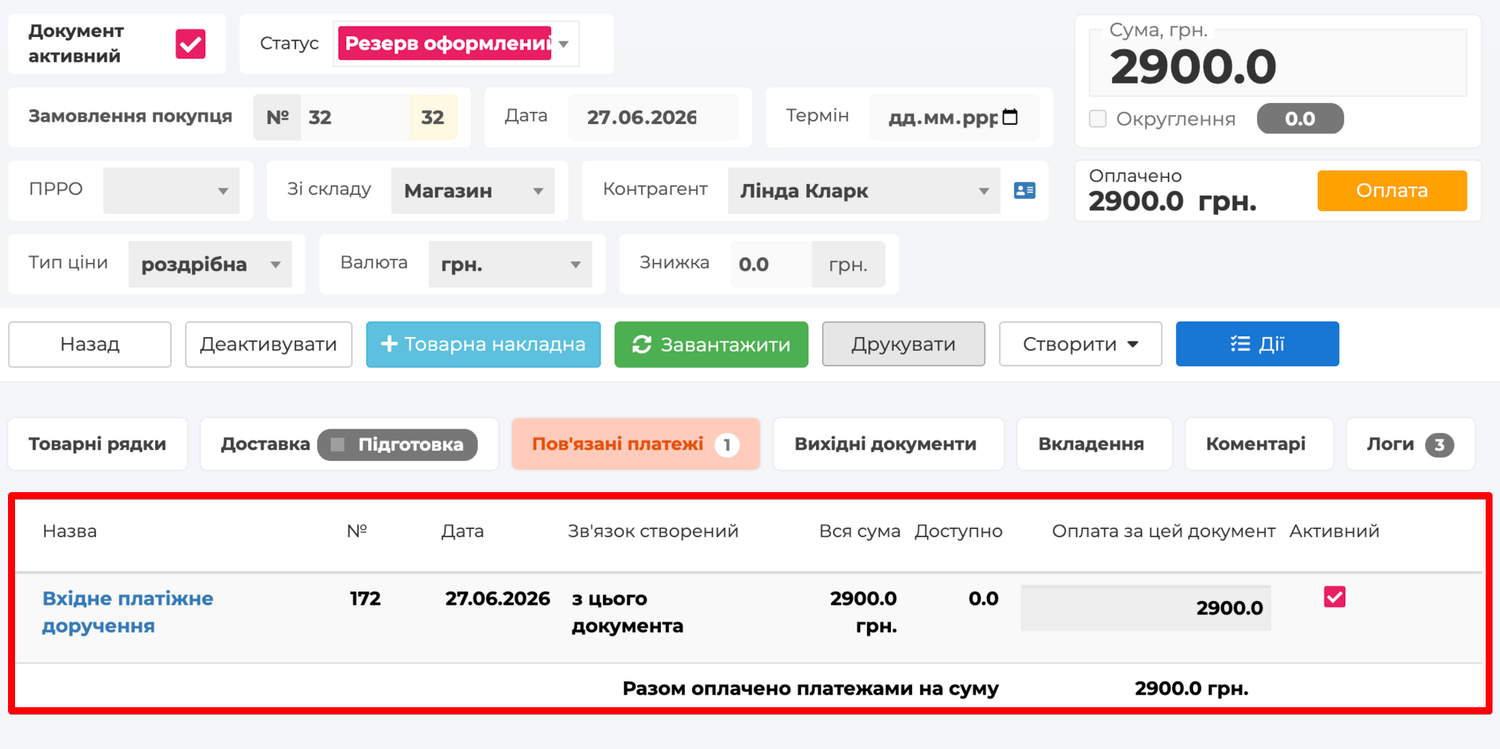
If the payment already existed with the correct amount, repeated synchronization does not start fiscalization again.
Fiscalization uses the general Skynum payment mechanism. If the fiscal service did not confirm the result in time or a technical error occurred, Skynum performs limited automatic retries of the same fiscalization. Retries do not create a new payment and do not duplicate the receipt.
If the problem is related to settings, for example no PRRO for fiscalization is selected, payment method mapping is not configured, or products do not have the required tax groups, the payment remains created. Fix the settings and start payment fiscalization manually.
Prepayment, full payment and final settlement
An automatic payment from the online store can be a full payment or a partial payment for the order.
For example, an order for UAH 3,000 is fully paid online. The integration sends a payment of UAH 3,000, Skynum creates a related payment for UAH 3,000 and fiscalizes it as the full settlement for this order.
Another example: an order for UAH 10,000 has an online payment of UAH 2,000. Skynum creates a payment for UAH 2,000. If this payment is fiscalized, it becomes a prepayment in the fiscal chain. The remaining UAH 8,000 can later be closed by a sales delivery note, a related payment or Nova Poshta cash on delivery.
More about complex scenarios: prepayments, final settlement and fiscalization and Nova Poshta cash on delivery.
If several sales delivery notes are planned from one online order, do not fiscalize the payment in the order through an automatic payment. In this scenario, the order must remain an aggregator, and each sales delivery note is fiscalized separately as an independent sale.
How the receipt is sent to the buyer
After successful fiscalization, Skynum can automatically send the receipt to the buyer. For this, the fiscal service must allow sending through the required channels, and the buyer must have correct contact details.
Automatic sending uses the counterparty contacts in the payment: phone and email. If there are no contacts or they are incorrect, fiscalization is not rolled back. The receipt remains created, and the sending error is recorded in logs.
For SMS receipt delivery, the SMS service must be connected directly in the fiscal service. Skynum sends the delivery command for an already fiscalized receipt, and the actual delivery is performed by the fiscal service.
Where to check the result
After synchronizing a paid order, check the result in several places.
- In Trade → Orders, a Customer order must be created or updated.
- The order must have a related incoming payment for the payment amount from the online store.
- The payment must have the correct Payment method, cash desk or bank account.
- If Payment fiscalization is enabled, the payment must have a fiscal status and receipt.
- In the integration card on the Synchronization log tab, successful order downloads or errors that need to be fixed are visible.
Rules of correct automatic fiscalization
Automatic fiscalization works with data received from an external service, so Skynum protects the financial and fiscal history from ambiguous actions.
- The payment is fiscalized, not the order. The order contains products and the sales context, but the settlement operation goes through the related payment.
- The external payment method must be mapped. Without mapping, Skynum does not know through which cash desk or bank account to create the payment.
- The Skynum payment method must be mapped in the fiscal service. Otherwise, the fiscal receipt will not receive the correct payment type.
- Manual payments are not mixed with the integration's automatic payment. If a manager has already created payments manually, the automatic scenario stops to avoid duplicating the payment.
- A fiscally locked payment is not rebuilt automatically. If the receipt has already been created or fiscalization is in progress, repeated import must not silently change the payment amount.
- A canceled or returned external order does not create a new automatic payment. Such situations must be handled through statuses, returns and fiscal rules.
Quick check before launch
- The online store integration is active.
- Order synchronization active is enabled.
- The Ignore orders before date date is filled in.
- Create a related payment for the payment amount is enabled.
- For automatic fiscalization, Payment fiscalization is enabled.
- A PRRO for fiscalization is selected.
- The Payment section is filled in on the API mapping tab.
- Skynum payment methods have a cash desk or bank account.
- Taxes and payment methods are filled in the fiscal integration.
- A test paid order creates a related payment.
- The test payment is successfully fiscalized and, if needed, sends the receipt to the buyer.
Summary
Automatic fiscalization of online orders in Skynum is built around the correct financial object: the payment. The online store sends the order and payment amount, Skynum creates a related incoming payment, fiscalizes it through the selected PRRO and sends the receipt to the buyer.
This keeps the ERP logic clean: the order is responsible for products and the sales context, the payment is responsible for payment, and the fiscal receipt is created for the real settlement operation. For the business, this means fewer manual actions, lower risk of duplicating payment and a transparent fiscal history of online sales.