A month rarely goes to plan. Someone is sick for three days, someone goes on vacation from the 23rd, the security guard leaves halfway through a shift, and a new salesperson is hired on the 16th. Each of these events changes the salary, and in spreadsheets these are exactly what breed mistakes: days not deducted, a vacation counted twice, a full month paid to someone who worked half of it.
In Skynum all of this is recorded in the timesheet: next to each employee are all the days of the month, and you can see when the person worked, when they did not, and why. The timesheet is built from the work schedule automatically, you mark absences right in it, and the salary calculation takes the days worked from the timesheet — nothing has to be recalculated by hand.
Simple rule: the timesheet is already filled in from the schedule — you only mark who was away. Each mark is also a document at once: a vacation, a sick leave or an absence.
This article continues the series on salary in Skynum. How to hire employees, create the first timesheet and get to the payout is covered in Salary: from the first employee to the payout. Here is everything about the timesheet: the schedule, the marks, absences, short days, corrections and the month boundary.
Work schedule
A work schedule is a calendar for the year in which every day is either a working day with a number of hours or a day off. Skynum fills the timesheet from it. Schedules live in Salary → Configuration → Graphs, and a company already has four: a five-day week of 8 hours, a six-day week, and two shift schedules — 8 and 12 hours — in which every day is a working day and each shift worker's days off are marked in the timesheet. You assign a schedule to an employee in their card when hiring. For a new year the schedules are extended automatically.
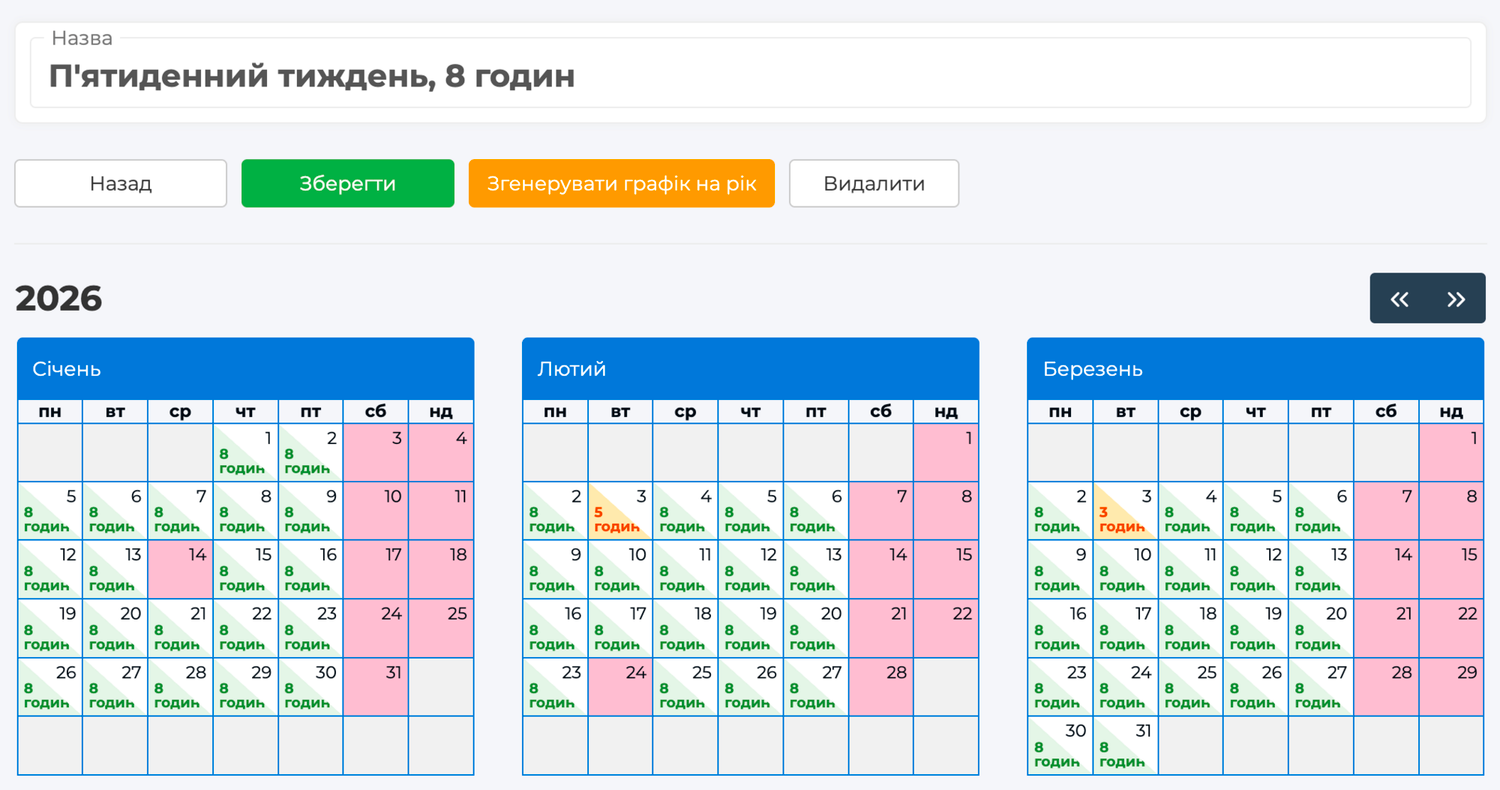
To create your own schedule, for example a four-day week, click Add a working time schedule, enter a name and save. Then click Generate calendar, specify the year, tick the working days of the week and enter the hours for each — and click Confirm. You see the calendar of the year: working days with hours, days off highlighted in colour. Now this schedule can be assigned to an employee.
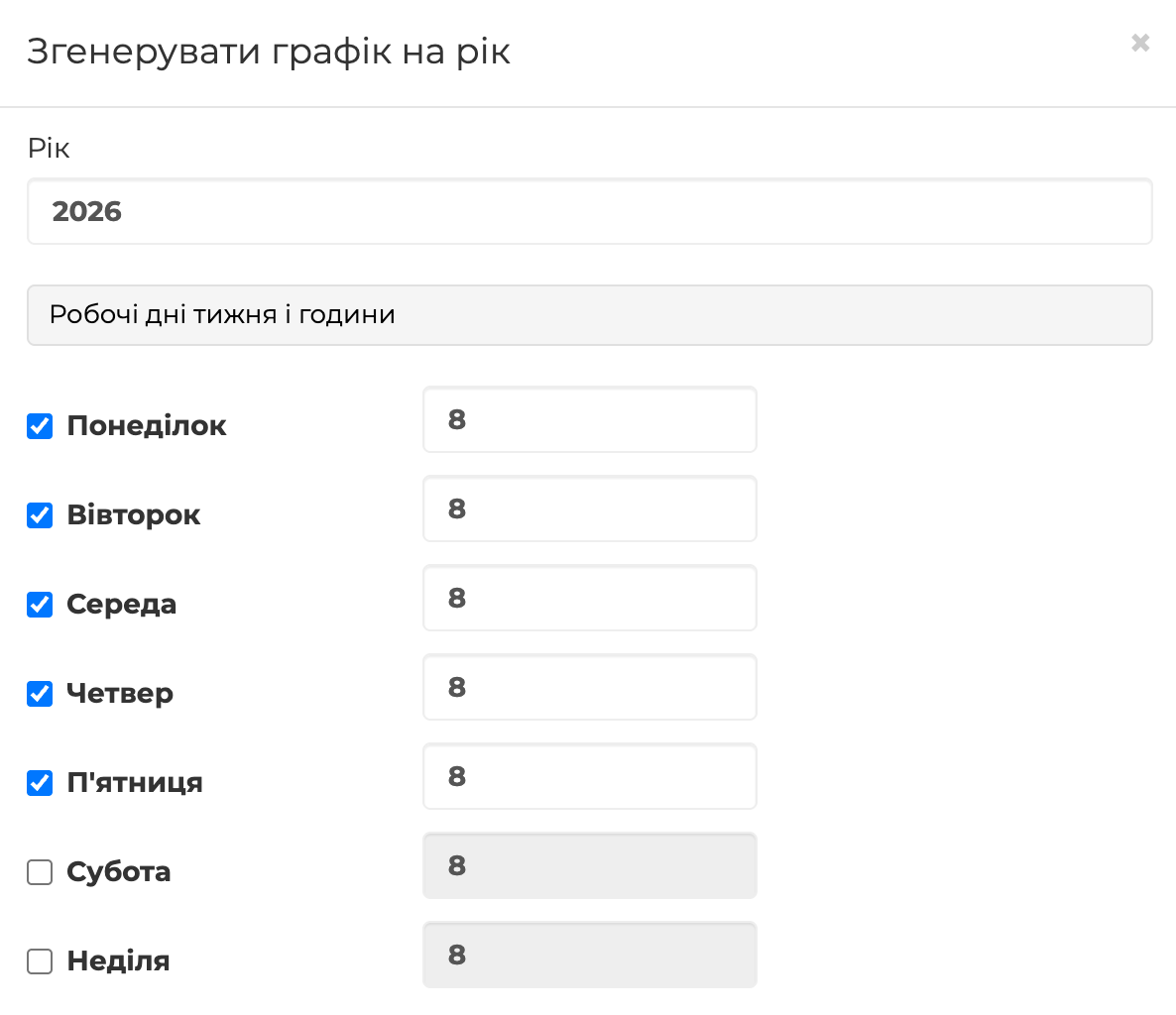
Any day of the schedule can be changed: click it in the calendar, set the Day type — working day or day off — and the Duration of the working day, and save. This is how you mark a public holiday on which the company does not work, or a shortened day before it: the schedule is generated from the weekly pattern, so it knows nothing about holidays. A changed day is highlighted in the calendar. The change applies to everyone who works on this schedule, and only to months for which no timesheet has been created yet — in an existing timesheet the day is changed in the timesheet itself.
Tip: when you start and before the first timesheet of each new year, open every schedule you use and mark the public holidays on which the company does not work. To open the next year in advance, click Generate calendar and specify that year.
How to keep the timesheet for shift workers and pay per shift or per hour is described in Daily and hourly pay.
Timesheet for the month
The timesheet is the record of working time for the month: next to each employee are all the days of the month, and for each day you can see whether the person worked, how many hours, and if not — why. The salary calculation takes the days worked from the timesheet, which is why the timesheet is created before anything else in the month.
Select the accounting month in the header of the Salary section, open Timesheets and click Create. In the window leave the period as the whole month, specify the branch, and leave By department and Employee empty — the timesheet is created for everyone. Click Confirm — and you see the month's timesheet for all hired employees.
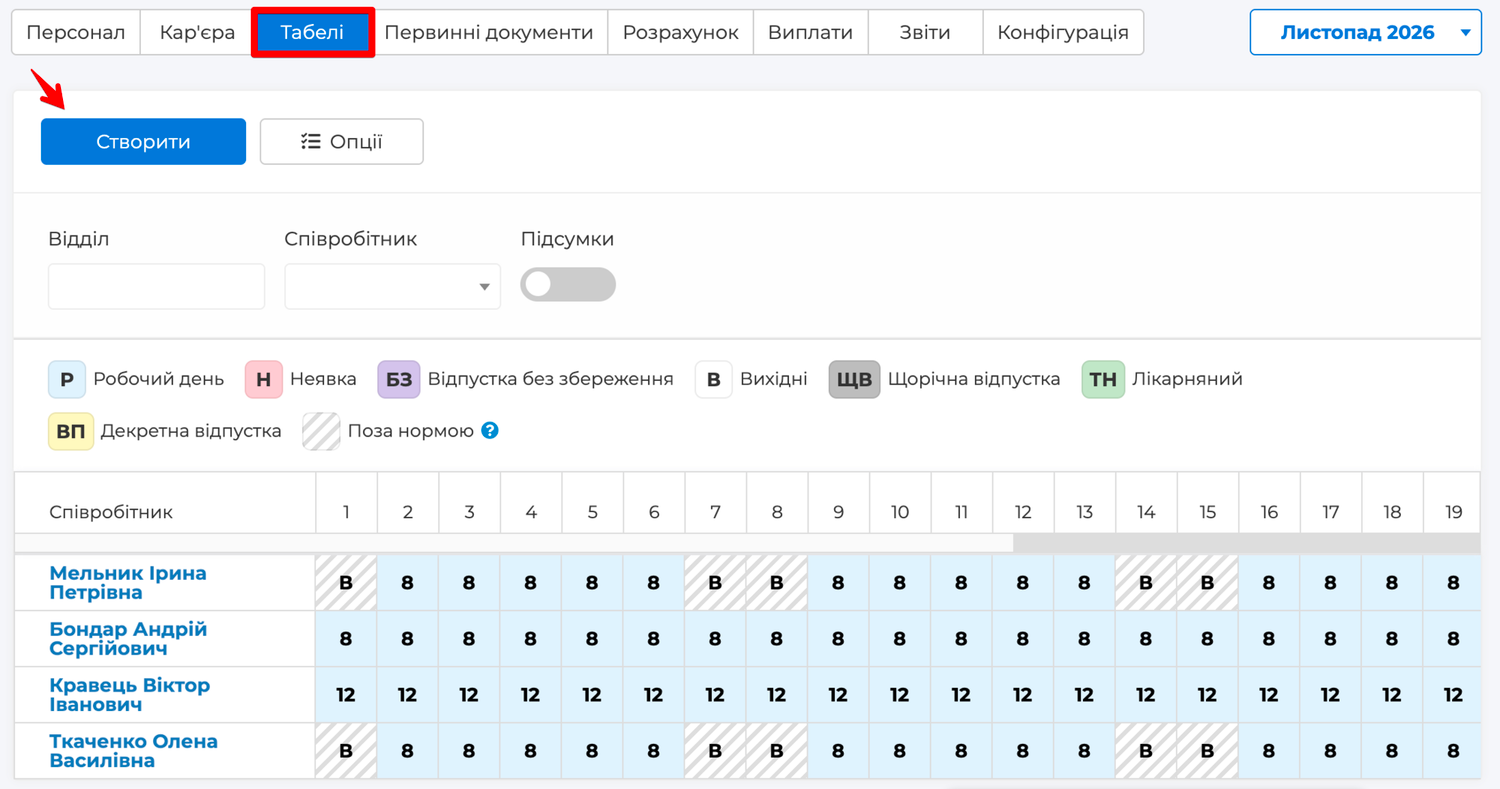
Next to each employee are all the days of the month. A working day shows the number of hours from the schedule, a day off shows O, and a dash is a day when the person was not yet with the company or had already been dismissed. The marks for vacations, sick leaves and absences are explained by the legend above the timesheet; they appear once you start marking absences.
Mark the shifts
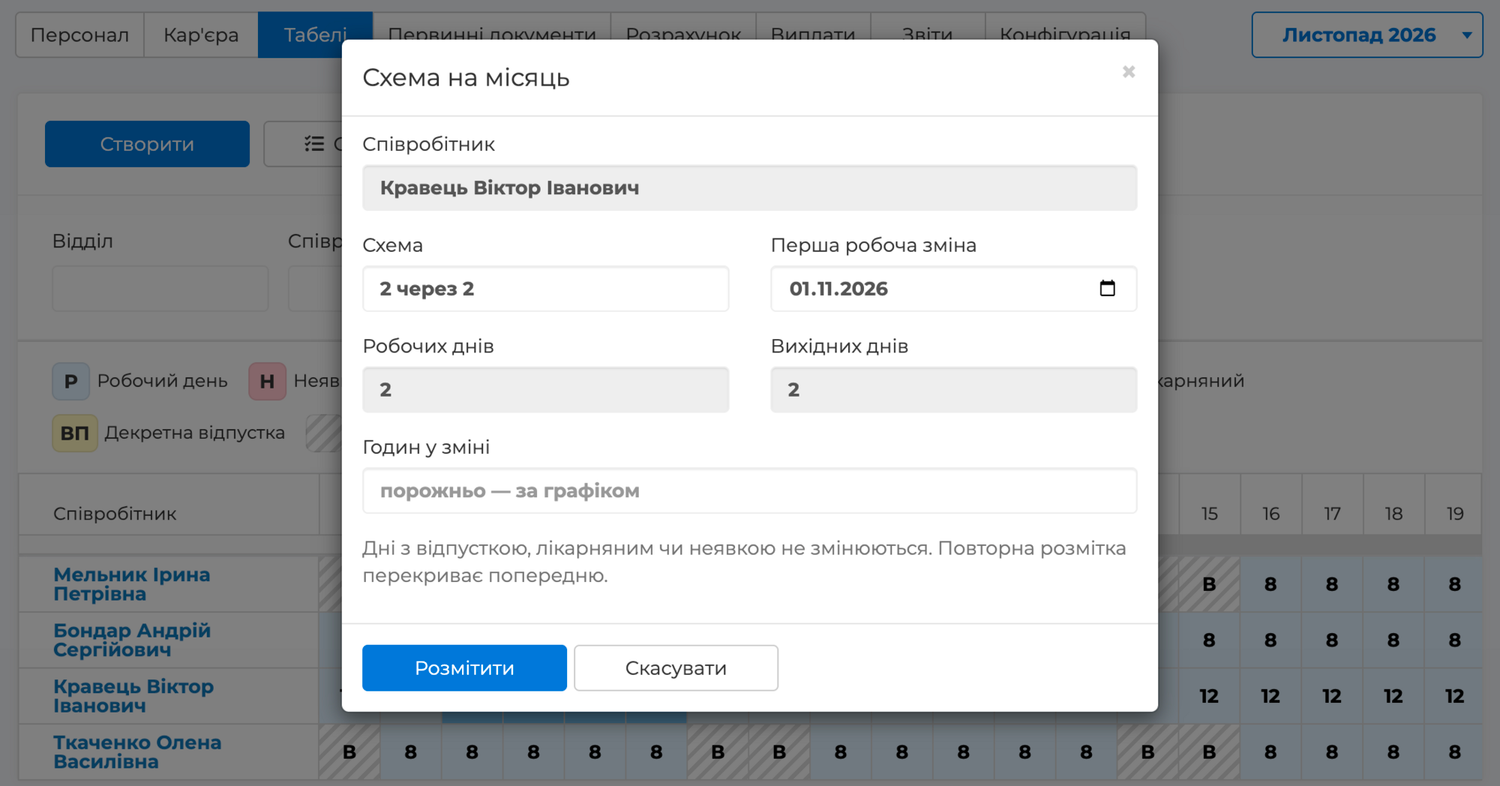
For employees on shift schedules, all days are working days right after the timesheet is created — each of them has their own days off. Mark them with a pattern: click any day next to the name, and on the panel above it click the calendar button — Month pattern. In the window choose the Pattern: "2 on / 2 off", "3 on / 3 off", "Every other day", "5 on / 2 off" or "Custom" — then enter how many working days and how many days off in a row. Specify the First working shift — the day to count from — and, if the shift differs from the schedule, Hours per shift. Click Apply — and the whole month for this employee is marked: working shifts with hours, days off in between. Days that already have a vacation, sick leave or absence are left untouched by the pattern; applying a pattern again overrides the previous one.
Outside the norm
Some days in the timesheet are hatched. These are days outside the norm, and only salaried employees have them. A monthly salary is pay for all the working days of the month — say, 21. A day off is not one of those 21 days, so whatever happens on a day off — a sick leave, a holiday — the salary does not change. These are the hatched days: they do not count. When you turn a working day into a day off with the O button, it also becomes hatched and drops out of the 21 days — the month's salary stays whole. Daily and hourly pay have no hatching: there you pay for each day or hour worked, and there is no monthly norm.
Timesheet views
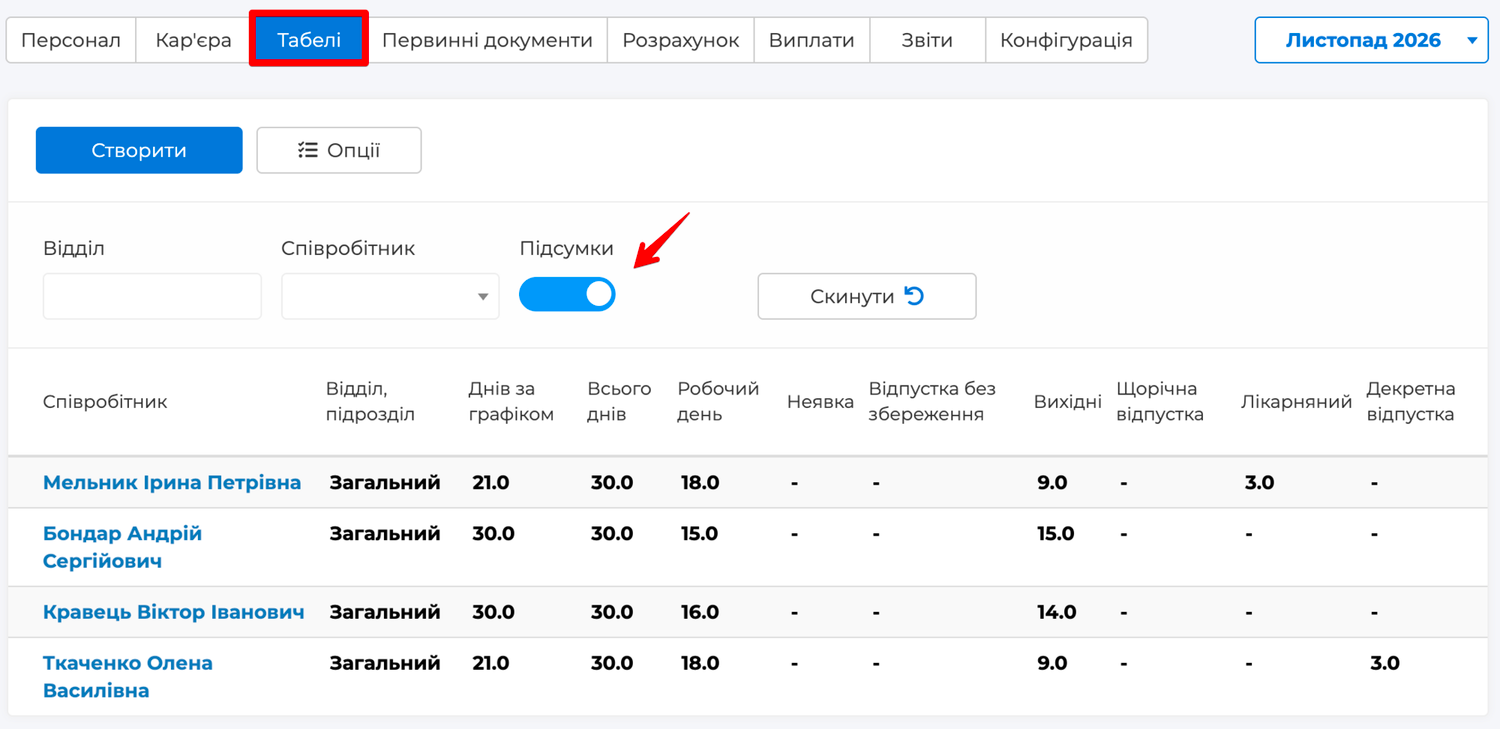
The timesheet has two views. After creation it is open by days — the calendar of the month in which you mark absences. Turn on Totals — and the same timesheet shows the month's figures for each employee: days by schedule, days worked, on vacation, on sick leave, absences. This view is handy for checking the month before calculating the salary.
If an employee is hired after the timesheet has been created, nothing needs to be done: their days appear in the timesheet automatically — from the hire date to the end of the month, with dashes before that day.
The created timesheet is the plan according to the schedule. From here on, during the month you do one thing in it: mark who was away and why.
Mark who was away
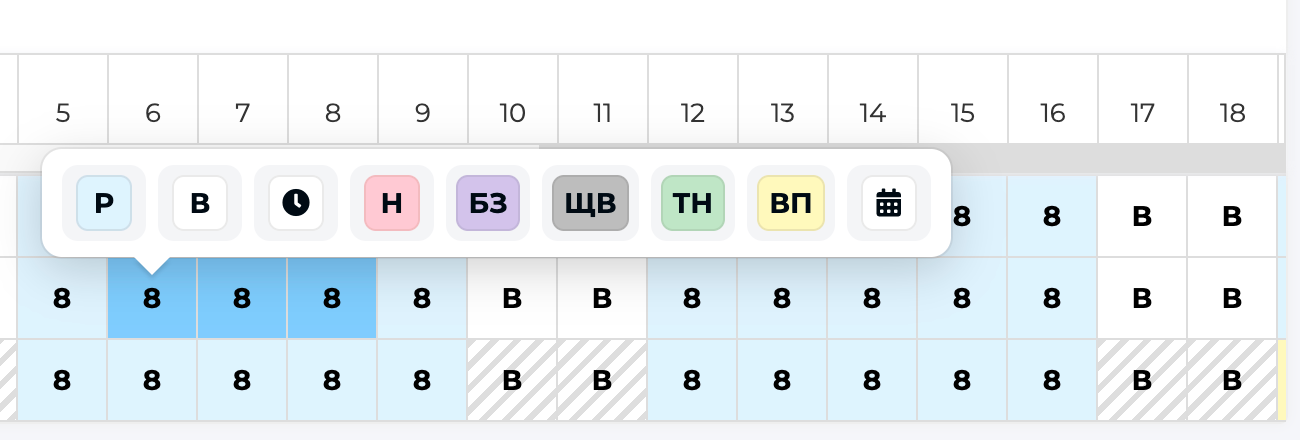
Drag the mouse across the days of absence next to the name — from the first to the last; for a single day, just click it. The same button panel appears above the selection. The buttons are labelled the same way as the marks in the timesheet: WR, O, AB, UL, AL, SL, ML; two more have a clock and a calendar. Hover over a button to see its full name. What to click:
- AL — annual leave. A window opens: enter the Day price — the average daily earnings, which the accountant determines (why it is the accountant is explained below) — and click Save.
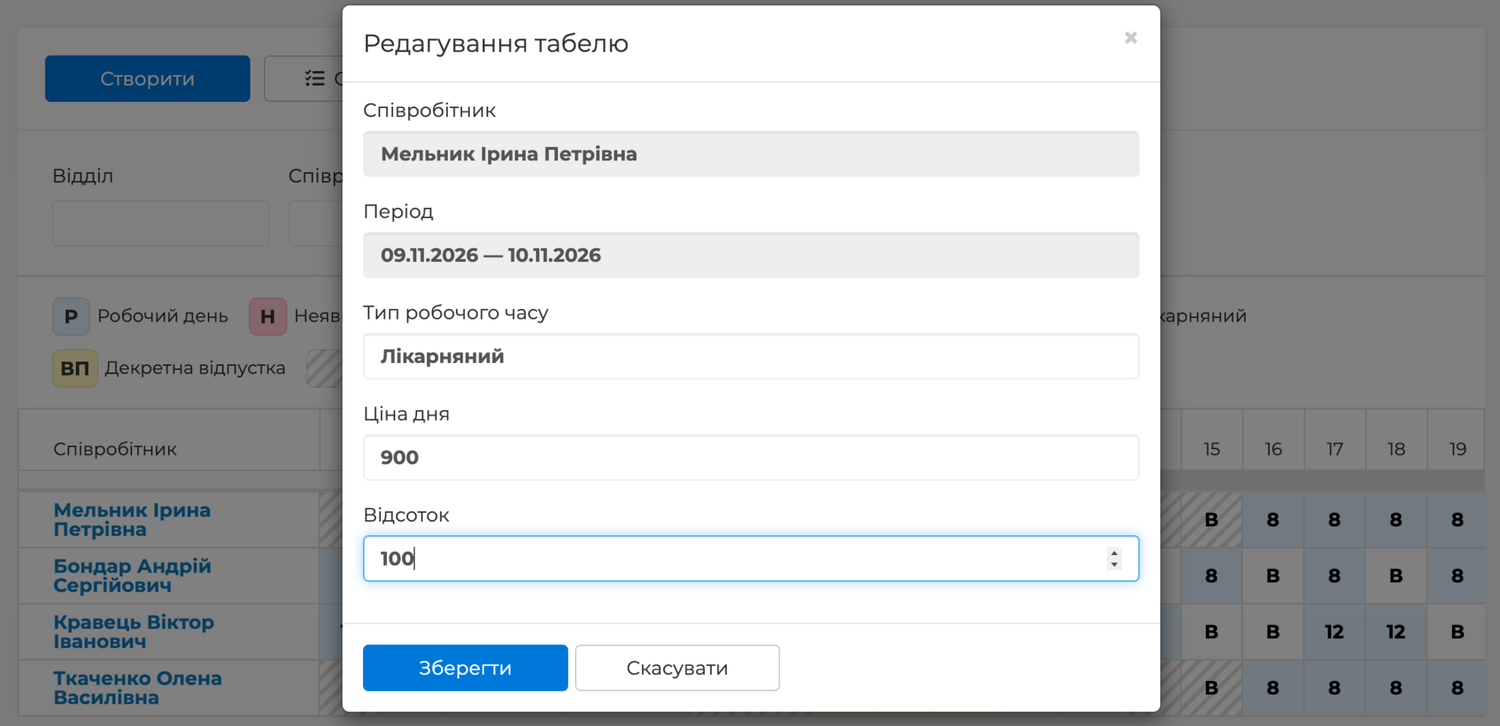
- SL — sick leave. The window has Day price and Percentage: the percentage is taken from the employee's card, the % of accrual of sick leave field, and can be changed here.
- ML — maternity leave. Day price and percentage as well.
- UL — unpaid leave and AB — absence. They apply at once, with no window: these days are not paid.
- O — day off. Turns the day into a day off: this is how you mark a holiday missing from the schedule, or a day on which a shift worker did not come in. WR restores the working day according to the schedule.
- The clock button — Hours worked. Enter the hours if the person worked a short day: the day stays a working day.
Skynum creates the document — a vacation, a sick leave or an absence — and takes it into the salary at once, while the marks appear on these days in the timesheet. The document with its number, dates, day price and amount is on the Primary documents tab: there it can be opened and printed.
Skynum does not calculate the day price for vacation and sick leave itself, and there is a reason. By law, the average daily earnings for vacation pay are taken from payments over the previous twelve months (Procedure No. 100), and for sick pay — from the average earnings over the same period taking the insurance record into account (Procedure No. 1266), and both have exceptions: periods without earnings, bonuses, indexation. For a new company or a recently hired employee this history lies outside Skynum, and in small companies the day price is often simply agreed upon. So the accountant enters it, and everything after that — days, amount, taxes, payout — is calculated by the system.
Every absence is a document
A vacation, sick leave or absence in Skynum is a primary document with a number, dates, day price and amount. When you mark days in the timesheet, Skynum creates such a document itself and activates it at once — that is why a mark in the timesheet goes into the salary. The marks on the days are the days of that document.
The same document can also be created manually — handy for an HR officer who needs a document with a number and dates. On the Primary documents tab choose the type — Labor leave, Sick leave, Maternity leave, Unpaid leave or Absence — click New Document, specify the department, the employee, the start and end dates, and for paid types the day price and percentage, then click Activate. Skynum counts the days itself, and the same marks appear on those days in the timesheet as after marking in the timesheet. A document can only be activated for a month for which the timesheet has already been created.
The result is the same, so work wherever is more convenient. There is no need to reconcile the timesheet and the documents: a change in one is immediately visible in the other.
How an absence changes the salary
Skynum counts vacation, sick leave and maternity leave in calendar days, as the law requires: a week from Monday to Sunday is seven days. An absence is counted only on the days when the person was supposed to work according to the schedule. In the month's calculation it looks like this:
- Paid absence — vacation, sick leave, maternity leave. The days of absence come out of the basic salary, and a separate accrual appears instead: days × day price × percentage. An administrator with a salary of 21,000 in a month with 21 working days was sick from Monday to Wednesday, day price 900, percentage 100: basic salary 18,000 for 18 days, sick pay 2,700 for three days.
- Unpaid absence — absence or unpaid leave. The days simply come out of the basic salary: the same administrator with one day of absence — basic salary 20,000 for 20 days.
If a sick leave covers days off, the calendar days are visible at once: sick from Thursday to Wednesday is seven days of sick pay, 6,300, while only five working days come out of the basic salary: 16,000 for 16 days.
From vacation and sick pay Skynum withholds personal income tax and the military levy and accrues the unified social contribution — just as from salary. Maternity pay is exempt from personal income tax and the military levy; the company pays only the unified social contribution on it.
After every change in the timesheet the amounts are updated as soon as you click Calculate on the Paysheets tab.
Vacation across two months
In the timesheet you can only select days within a month, so a vacation or sick leave that runs into the next month is recorded with a document. A vacation from 23 November to 6 December: in the accounting month of November open Primary documents → Labor leave, click New Document, specify the employee, the start date 23.11, the end date 06.12 and the day price, and click Activate. There is one document for all fourteen days, and it belongs to November — the month in which it starts.
In the November timesheet the days from the 23rd to the 30th get the AL mark and reduce the November salary; vacation pay for all fourteen days is accrued in November. When you create the December timesheet, the days from 1 to 6 December are already marked in it and reduce the December salary. No day is counted twice.
If something needs correcting
If a person returns from vacation early, select the days they work in the timesheet and click WR: the document is shortened, the vacation pay is recalculated, and the working days return to the basic salary. To change the day price or the percentage, open the document in Primary documents, click Deactivate, correct it and activate again.
If the calculation for this month has already been confirmed, the timesheet and the documents are locked. First cancel the confirmation on the Paysheets tab, then make the correction — and confirm the calculation again.
A bonus is not a timesheet matter
A bonus, an extra payment or a one-off deduction is not entered in the timesheet: it is a Payroll order document in Primary documents. Choose the accrual, click Fill in so that all employees get into the document, enter the amounts, remove those who should not be there, and activate. The timesheet does not change — a separate line with the amount appears in everyone's calculation. The order applies only in its own month; permanent accruals are set by calculation rules in the employee's card.
How it works in real life
Sick leave in the middle of the month
The administrator brings a sick note for the 9th–11th. The accountant selects these three days in the timesheet, clicks SL, enters the day price 900 — the percentage is already there from the card — and saves. The SL mark appears on the three days, a "Sick leave" document for 2,700 appears in Primary documents, and the month's calculation shows a "Лікарняні" (sick pay) line of 2,700 and a basic salary of 18,000 for the remaining days.
Left halfway through a shift
The security guard works 12-hour shifts and is paid 100 per hour. Today he left after the eighth hour. Neither a vacation nor an absence is needed here: in the timesheet, click this day, click the clock button and enter 8 instead of 12. For this shift 800 goes into the calculation instead of 1,200. For a salaried employee such a day remains a full working day — for a monthly salary, days matter, not hours.
Did not show up for a shift
The cashier is paid 800 per shift and did not show up on Monday without notice. In the timesheet, click AB on this day — and the shift is not paid: the calculation is 800 less. If it later turns out the reason was valid, the day is restored with the WR button or recorded as unpaid leave — the "Absence" document disappears and the right one appears instead.
A new salesperson hired on the 16th
The month's timesheet has already been created, and on the 16th a new salesperson is hired. The HR officer creates the card with a start date of the 16th — and their line appears in the timesheet at once: dashes before the 16th, working days according to the schedule from the 16th. In the month's calculation they get the salary for 11 days worked out of 21.
Returned from vacation early
The accountant was granted a two-week vacation, from the 9th to the 22nd, with a day price of 700: vacation pay 9,800. In the second week she came back to work. In the timesheet, select the days from the 16th to the 22nd and click WR. The "Labor leave" document is shortened to the 9th–15th, the vacation pay becomes 4,900, and the working days return to the basic salary.
A holiday missing from the schedule
The company does not work on a public holiday, it was not marked as a day off in the schedule, and the timesheet has already been created. In the timesheet, select this day for every employee and click O. The day becomes a day off: for salaried employees it leaves the norm and does not reduce the salary, and for daily and hourly workers it is not paid — they did not work.
A bonus for everyone for the month
At the end of the month everyone is to receive a bonus. In Primary documents a Payroll order is created with the Премія (bonus) accrual, Fill in is clicked, the amounts are entered and the order is activated. This does not touch the timesheet: a "Премія" line appears in everyone's calculation.
Practical rules
- First the timesheet, then the absences: a vacation or sick leave can only be recorded in a month for which the timesheet has already been created.
- A vacation or sick leave that runs into the next month is recorded with one document in the month it starts.
- Determine the day price for vacation and sick leave according to the average salary rules or by agreement within the company — Skynum then calculates the amount, taxes and payout itself.
- A short day is a working day with fewer hours, not an absence.
- Before confirming the calculation, check the timesheet Totals against what actually happened: after confirmation, any correction starts with cancelling the calculation.
Summary
The timesheet in Skynum is a ready-made calendar of the month built from the schedule, in which you only mark who was away. Vacations, sick leaves, absences and short days are recorded once, with a few clicks in the timesheet — and become documents with dates and amounts that the salary calculation picks up itself. Salary for days worked, vacation and sick pay for calendar days, taxes on every amount — Skynum calculates all of it without your involvement and shows which days make up each figure.