Not everyone works nine to six, five days a week. Cashiers alternate every other day, security guards work a 24-hour shift followed by two days off, a helper comes in for a few hours. A monthly salary does not suit such people: they have to be paid for the number of days or hours they actually worked. In spreadsheets that means counting everyone's shifts by hand every month, and arguments when the figures do not add up.
Skynum has two payment types for this — Daily and Hourly. You set a rate per day or per hour and mark in the timesheet when the person worked. Both the advance and the month's salary are the rate multiplied by the days or hours worked from the timesheet.
Simple rule: the rate lives in the career, shifts and hours live in the timesheet. First mark the shifts in the timesheet, then create the advance statement: Skynum calculates both the advance and the salary from the timesheet.
This article continues the series on salary in Skynum. How to hire employees with any payment type and get to the payout is covered in Salary: from the first employee to the payout; everything about the timesheet — in Timesheet. Here is how pay per day and per hour differs from a monthly salary: the schedule for shifts, what exactly the timesheet counts, and what the calculation and the advance look like.
How it differs from a monthly salary
A monthly salary is pay for the month: a salaried employee has a norm of working days, and a day off or a holiday does not reduce the salary. Daily and hourly pay have no norm: you pay exactly for what was worked. A day off in such an employee's timesheet only means "did not come in", and nothing is accrued for that day. So for them the timesheet is not a plan but a fact: the days and hours the person worked are what they get paid for.
Daily pay is the Daily rate multiplied by the days worked. Hourly pay is the Hourly rate multiplied by the hours worked. Vacations, sick leaves and all other rules — taxes, advance, statements — work the same way as for a monthly salary.
To pay per day or per hour you need three things: a schedule for shifts, a rate in the employee's career, and shifts marked in the timesheet. Step by step below.
Step 1. A schedule for shifts
The schedule defines which days of the week are working days and how many hours they contain. For shift workers the company already has two schedules — "Позмінно, 8 годин — вихідні відмічаються в табелі" (shift, 8 hours — days off are marked in the timesheet) and "Позмінно, 12 годин — вихідні відмічаються в табелі" (shift, 12 hours). In them all seven days are working days: the schedule does not know on which days a particular shift worker comes in — you mark their days off in the month's timesheet. What a schedule is, how to create one and how to mark holidays is described in Timesheet.
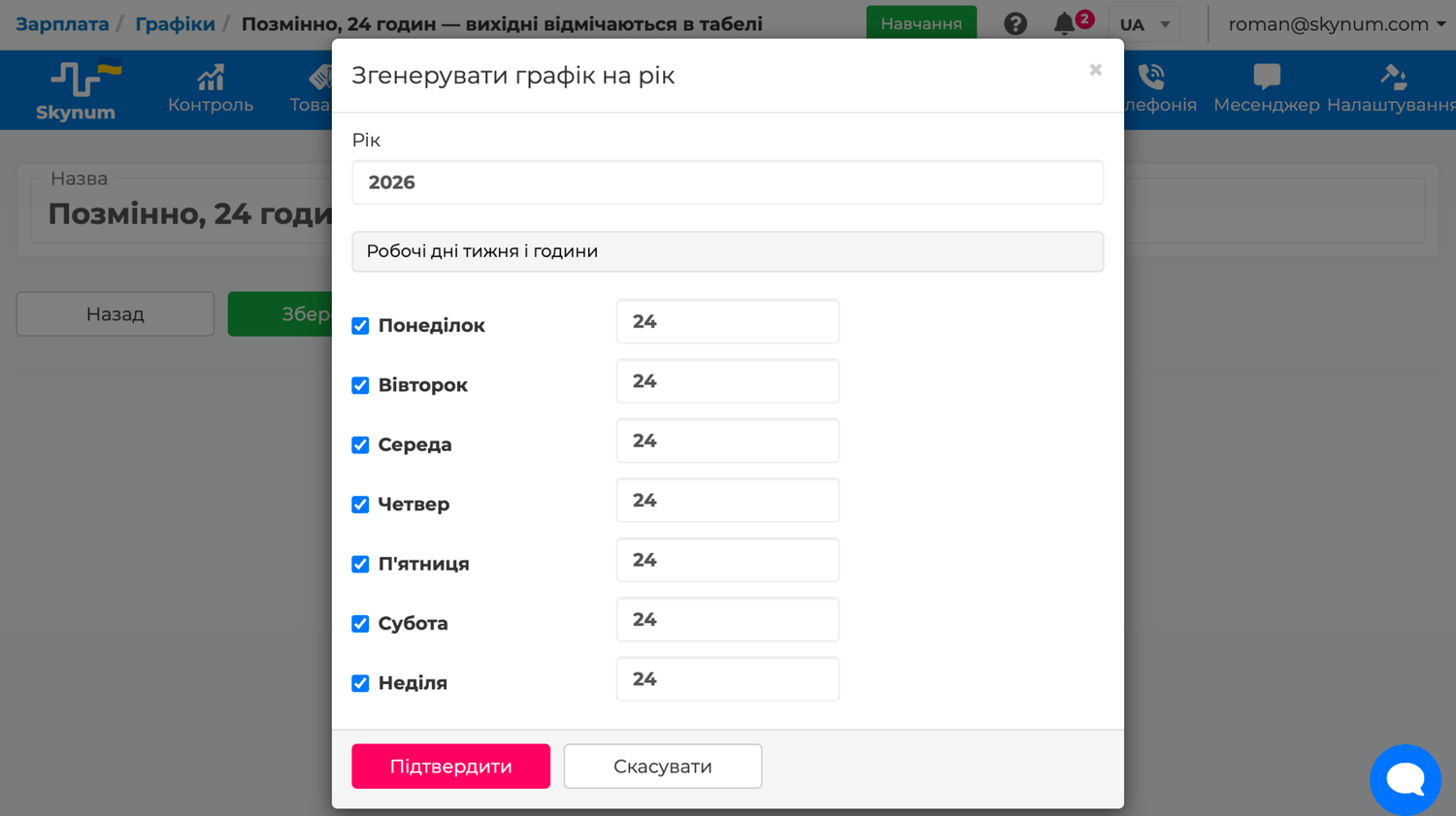
If a shift is neither 8 nor 12 hours — for example a 24-hour shift for security — create your own shift schedule: in Salary → Configuration → Graphs click Add a working time schedule, name it, for example "Shift, 24 hours", and save. Then click Generate calendar, tick all seven days of the week, enter 24 for each and confirm. This is done once: for the following years the schedule is extended automatically.
For those who come in on fixed days of the week — only Saturday and Sunday, or three days a week — create the schedule the same way, but tick only those days. Then the days off are already in the timesheet, and the month does not need to be marked.
Step 2. The rate in the career
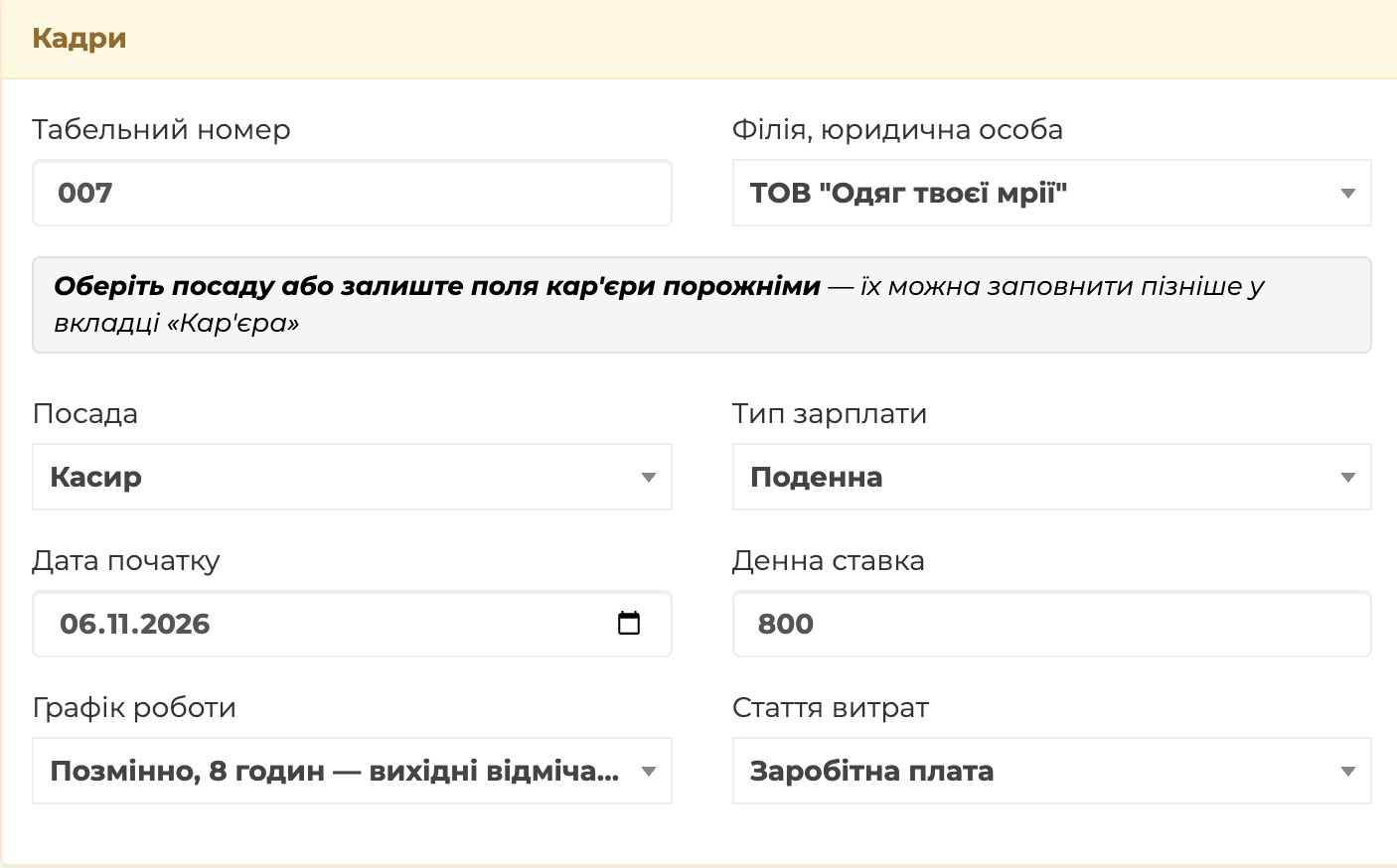
Hire a new employee as usual with the New employee button. Under the HR heading, in the Payment Type field, choose Daily or Hourly. Below, enter the rate: for daily pay in the Daily rate field, for example 800 per shift; for hourly pay in the Hourly rate field, for example 100 per hour. In the Work Schedule field choose the shift schedule.
If the person already works on a monthly salary, their record is not changed — the switch is recorded as a new entry. In the card, on the Careers tab, click Add career move, choose the Salary change type, the date from which the new pay applies, the Daily or Hourly payment type, the rate and the shift schedule. Months before this date are calculated on the salary, after it — on the rate. How the career works is described in HR events.
Taxes and the advance rule appear in the card automatically, as for salaried employees.
Step 3. Mark the shifts in the timesheet
Create the month's timesheet as for everyone. For a shift worker all days are working days — mark their shifts: click any day next to the name, on the panel click the calendar button Month pattern, choose a pattern — "Every other day", "2 on / 2 off" or your own — specify the First working shift and click Apply. Skynum marks the whole month: working shifts with hours, days off in between.
If the person came in on a day that was not their shift, or on the contrary did not come in, select the day and click WR or O on the panel. If a shift turned out longer or shorter, click the day, click the clock button and enter the actual hours. Daily pay counts days, so hours affect hourly pay only.
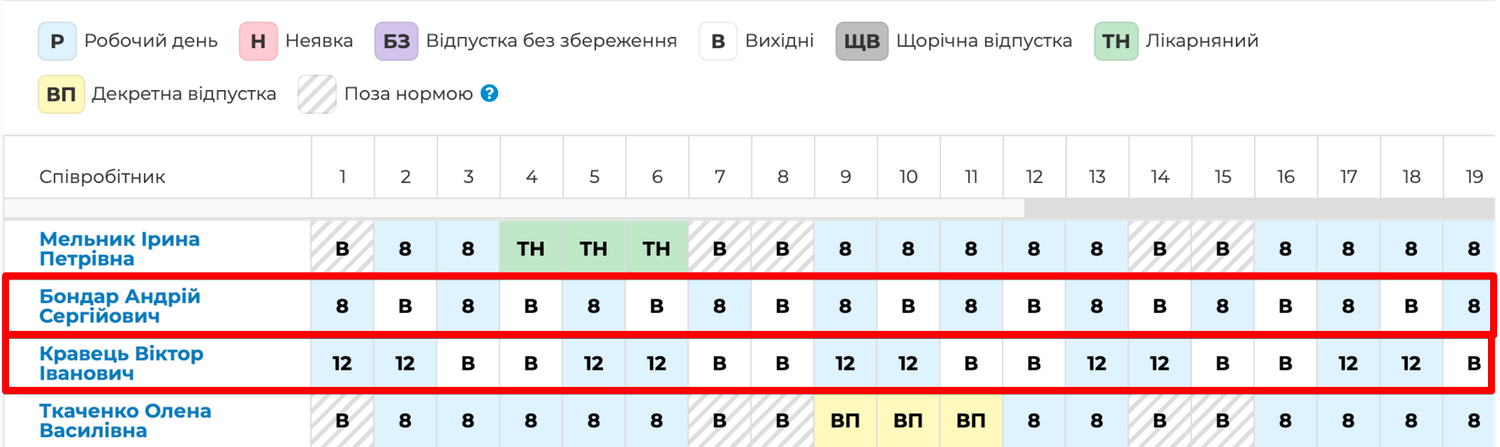
Turn on Totals to see how many days each person worked. The hours worked are visible in the employee's calculation: on the Paysheets tab click the name — the days and hours stand next to the basic salary.
What the calculation shows
On the Paysheets tab click Calculate — Skynum takes the basic salary from the timesheet:
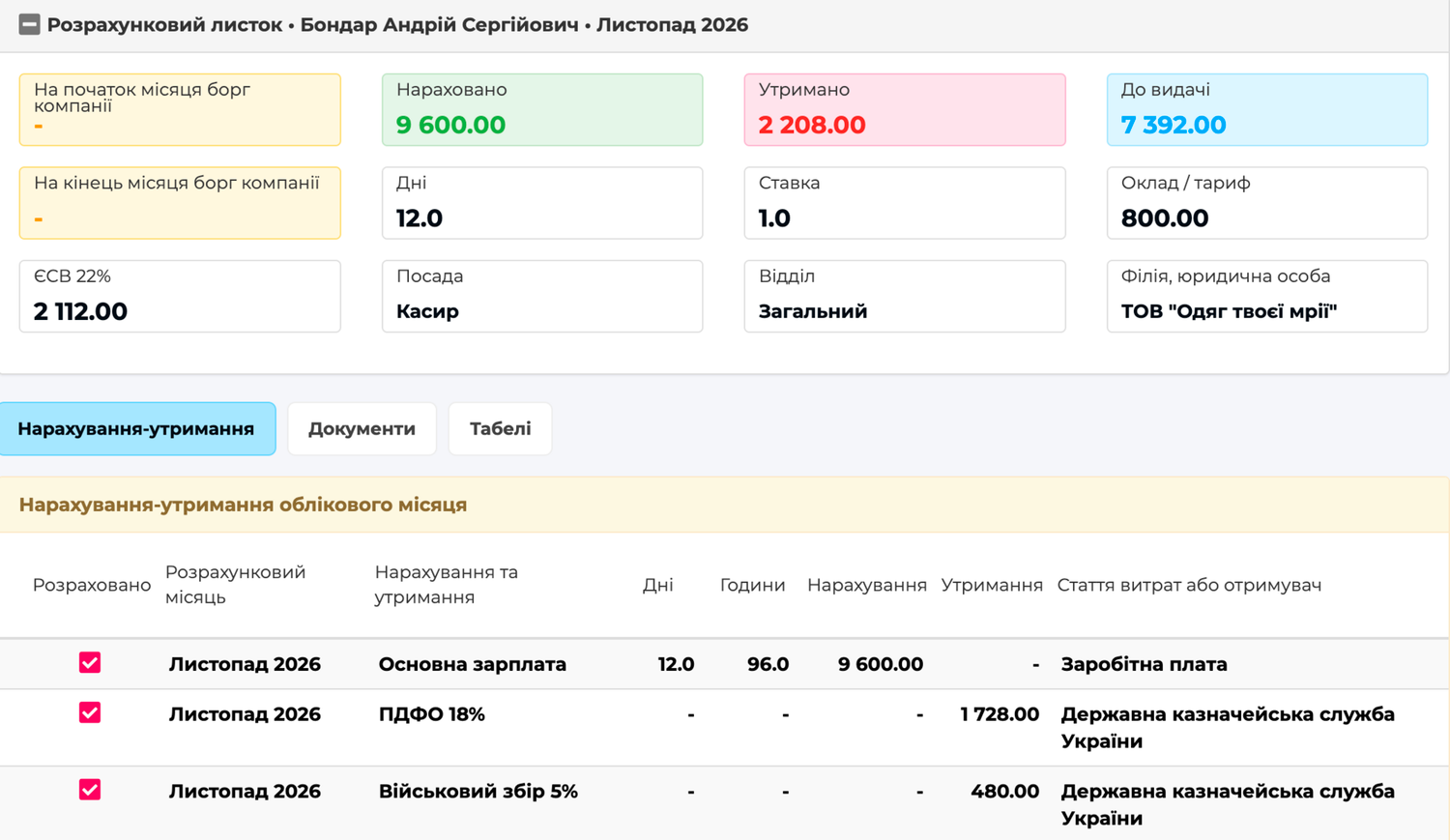
- Daily. A cashier with a rate of 800 works every other day: 15 shifts in November — basic salary 12,000.
- Hourly. A security guard with a rate of 100 works 2 on / 2 off in 12-hour shifts: 16 shifts, 192 hours — basic salary 19,200. If one shift lasted 14 hours, that is another 200.
A vacation or sick leave is counted as for everyone: for calendar days at the day price, as a separate line. The cashier was sick from Monday to Friday, and three of those days were his shifts: basic salary 9,600 for 12 shifts, sick pay for five days at the day price.
Taxes are the same: personal income tax and the military levy are withheld from the accrued amount, and the company pays the unified social contribution on top.
The advance with daily and hourly pay
In a new company the advance method is "for the time actually worked": the advance is the rate multiplied by the shifts or hours from the 1st to the 15th according to the timesheet. A cashier with 8 shifts up to the 15th gets 6,400 before taxes, a guard with 96 hours — 9,600.
Important: first mark the shifts in the timesheet — at least up to the 15th — and only then create the advance statement. Until the shifts are marked, all of a shift worker's days are working days, and the advance will be calculated for every day from the 1st to the 15th.
If the company uses the gross or net method — a percentage of the salary — set a fixed advance amount for such employees: in the card, on the Payrolls tab, open the Аванс (advance) rule, in the To calculate the amount use field choose Amount from current rule, enter the amount and set 100%. Advance methods and statements are described in Salary payment.
Payment with daily and hourly pay
From here on, daily and hourly pay are no different from a monthly salary. At the end of the month check the timesheet Totals against actual attendance, click Calculate on the Paysheets tab and confirm the calculation with the Activate button. The To be issued amount is the rate multiplied by shifts or hours, minus taxes and the advance paid. Create a payroll payment statement or pay the money with a cash order — just as for everyone else.
How it works in real life
Two cashiers every other day
A shop has two cashiers, each working every other day in 8-hour shifts, paid 800 per shift. Both have Daily in their career, a daily rate of 800 and the "Позмінно, 8 годин — вихідні відмічаються в табелі" schedule. In the November timesheet the accountant marks both with the "Every other day" pattern: the first one's first shift is on the 1st, the second one's on the 2nd. The first has 15 shifts, the second has 15. Calculation: 12,000 and 12,000, without a single manual count of shifts.
Security: 24 hours on, two days off
A security guard works a 24-hour shift followed by two days off, at a rate of 60 per hour. In the career — Hourly and his own "Shift, 24 hours" schedule. In the November timesheet he is marked with the "Custom" pattern: 1 working day, 2 days off — giving 10 shifts, 240 hours, basic salary 14,400. One shift he worked 12 hours instead of 24: the accountant clicks that day, clicks the clock button and enters 12 — the calculation shows 228 hours, 13,680.
Switching from a monthly salary to weekend days
From 1 December a salesperson comes in only on Saturday and Sunday, and it is agreed to pay him 1,000 per day. The accountant creates a "Saturday and Sunday, 8 hours" schedule — ticks only on these two days — and adds a Salary change record in the career from 1 December: the Daily type, a daily rate of 1,000, the new schedule. November is calculated on the salary, December by days: in the timesheet only Saturdays and Sundays are working days, and nothing needs to be marked.
Came in on someone else's shift
A cashier covered for a colleague on his day off. In the timesheet the accountant clicks that day and clicks WR — the day becomes a working day with the hours from the schedule, and the calculation has one more shift. For the colleague, that day is marked O.
Practical rules
- Shift workers get a shift schedule with the real shift length; those who come in on fixed days of the week get a schedule with those days.
- First the shifts in the timesheet, then the advance statement: the advance is calculated from the timesheet.
- Correct actual hours in the timesheet, not in the schedule: the schedule is the template, the timesheet is the fact.
- Before the calculation, check the timesheet Totals against actual attendance.
Summary
Pay per day or per hour in Skynum needs no separate record of shifts: the schedule gives the template for the month, the pattern marks the shifts in a second, the timesheet records the fact, and the calculation, advance, statements and taxes work for such an employee the same way as for a monthly salary. What a person worked is what they get, and every shift is visible in the timesheet.