
HR events do not happen often, but each of them touches money. The salary was raised — from which date do you calculate the new way? The person was transferred to another department — whose payment sheet do they go into this month? Someone was dismissed on the 19th — how much to accrue, and how to keep them out of next month? In spreadsheets the answer depends every time on who managed to fix what, and past months are quietly rewritten.
In Skynum working conditions are not edited but appended. Every employee has a card — who they are and how to pay them — and a career: a history of dated records, each describing the position, department, salary and schedule from a certain day. A new event is a new record. The salary calculation for any month takes the record that applied at the time, so past months stay as they were calculated.
Simple rule: any change in working conditions is a new career record with the date it takes effect. Old records are not edited.
This article continues the series on salary in Skynum. How to hire the first employees and get to the payout is covered in Salary: from the first employee to the payout; vacations and sick leaves — in Timesheet. Here is everything that happens to a person after hiring: raise, transfer, dismissal, return, and how to add many people at once.
Hiring
A new employee is hired on the Salary → Personnel tab with the New employee button. The card holds the last name, first name, patronymic, tax number and timesheet number; under the HR heading — the working conditions: start date, position, schedule, payment type and salary or rate; and under the Payroll calculation heading — how to pay: payment method, bank and IBAN, sick leave percentage. Save — and the first record, Recruitment, appears in the employee's career with everything you entered under HR. Step by step, with examples for a monthly salary, pay per shift and pay per hour, this is described in Salary: from the first employee to the payout.
If the working conditions have not been agreed yet, leave the fields under the HR heading empty and save the card: the person is in the list, but gets into the timesheet and the calculation only after the first career record. Add it once the conditions are known, on the Careers tab of the card, with the Add career move button and the Recruitment type.
The timesheet number is visible in payment sheets, the timesheet and bank files, so agree on a single format — for example 001, 002 — before adding the first people.
If the employee works in Skynum themselves — issues receipts, creates invoices — link their card to the user account: in Setting → Users open the user and select the card in the Employee field. Without this, the percentage of sales will not work.
Career: the history of working conditions
Open the Careers tab in the employee's card. Here is the history of their work in the company: dated records, each answering the question "on what conditions does this person work from such-and-such date". The first record is Recruitment; it appeared when you saved the card. Each later event — a raise, a transfer, a dismissal — adds a new record, and the previous one gets an end date. For every record you can see the start date, the movement type, the department, the position and the salary, and the Active mark shows which record applies now. So at any moment you can see what happened to the person and under which conditions each month was calculated.
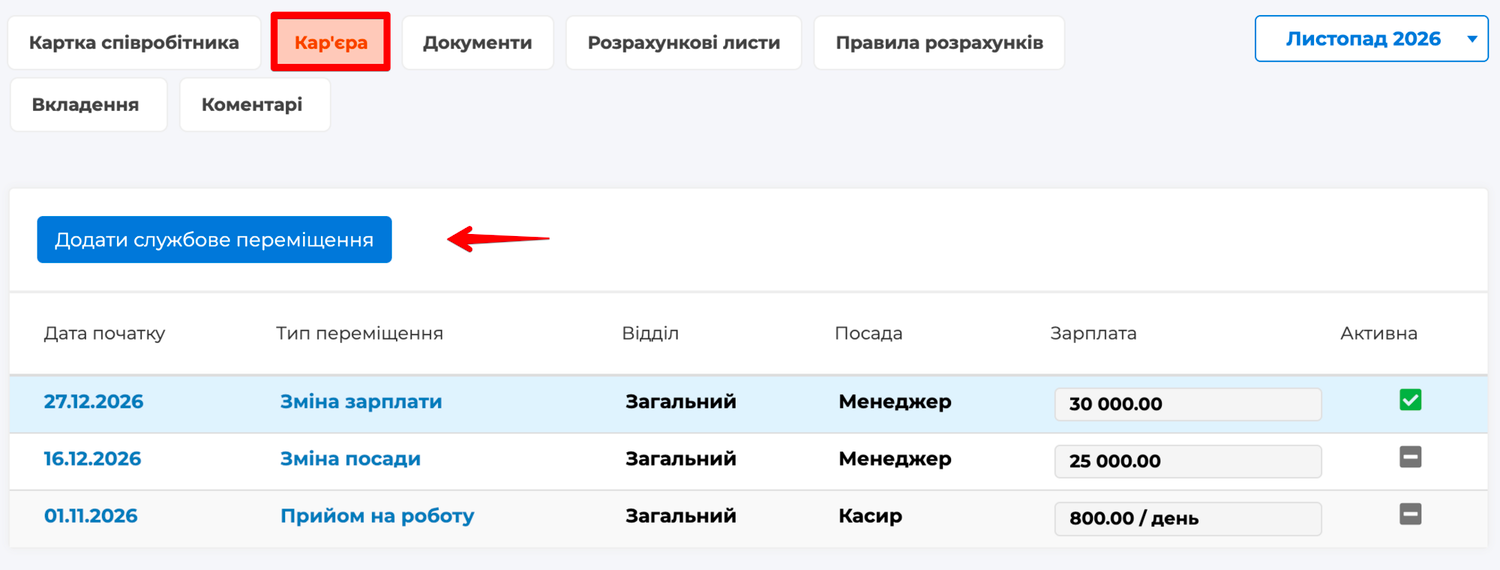
The overall list of moves for all employees is on the Salary → Careers tab: there you can see whose record is currently in force, with filters by department, employee and date.
Record an event as a new entry
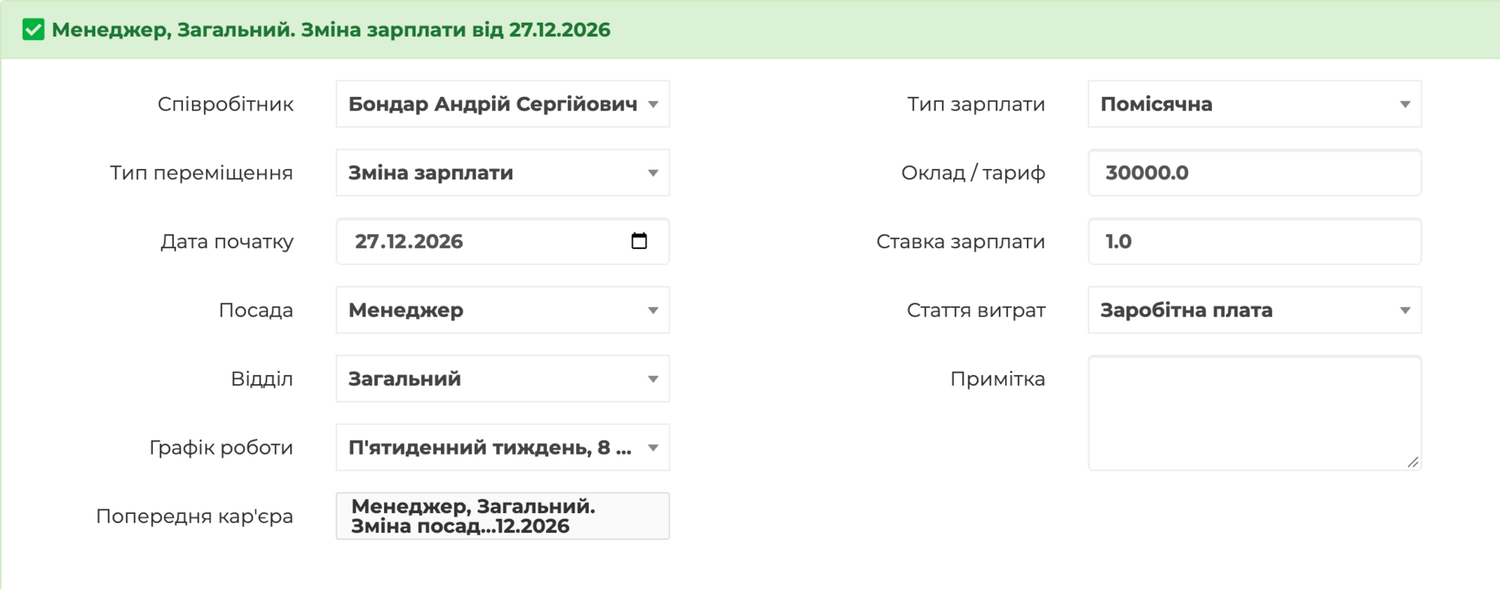
To record a raise, a change of position, a transfer or a dismissal, click Add career move — the form for a new record opens. Fill in:
- Movement Type — what happened: Salary change, Change of position, Transfer to another department or Dismissal.
- Start Date — the day from which the new conditions apply.
- Job Position, Department, Work Schedule, Expense — are carried over from the previous record; change only what has changed. The department and the expense item are shown only when the company has several.
- Payment Type and the amount: Salary/tariff for monthly pay, Daily rate or Hourly rate for daily and hourly pay; piecework has no amount. For monthly pay there is also the Salary Rate — 0.5 for half-time.
Save — and Skynum closes the previous record with the date of the new one. From this day the timesheet and the calculation take the new conditions, and the months before it stay on the old ones.
What can be corrected
The career is the basis of timesheets and calculations, so its past is protected. The date, position, department, salary or schedule can be corrected in the last record — as long as there is no confirmed calculation and no activated documents for its period. Likewise, only the last record can be deleted: the previous one becomes active again. A new record is added only after the last one, and two records on the same date are not allowed.
If an error is found in a record whose period already has a confirmed salary, first cancel the confirmation of the calculations for those months on the Paysheets tab, then correct the record and calculate the months again. Skynum will not change conditions that a confirmed salary relies on, and will tell you which month is in the way.
Dismissal
In the employee's card, on the Careers tab, add a career move with the Dismissal type and the dismissal date — the last working day. The position, department, schedule and salary are carried over; save. The dismissal day still counts as worked, dashes appear in the timesheet from the next day, and the person no longer gets into next month's timesheet. In the month's calculation the basic salary is accrued up to and including the dismissal day.
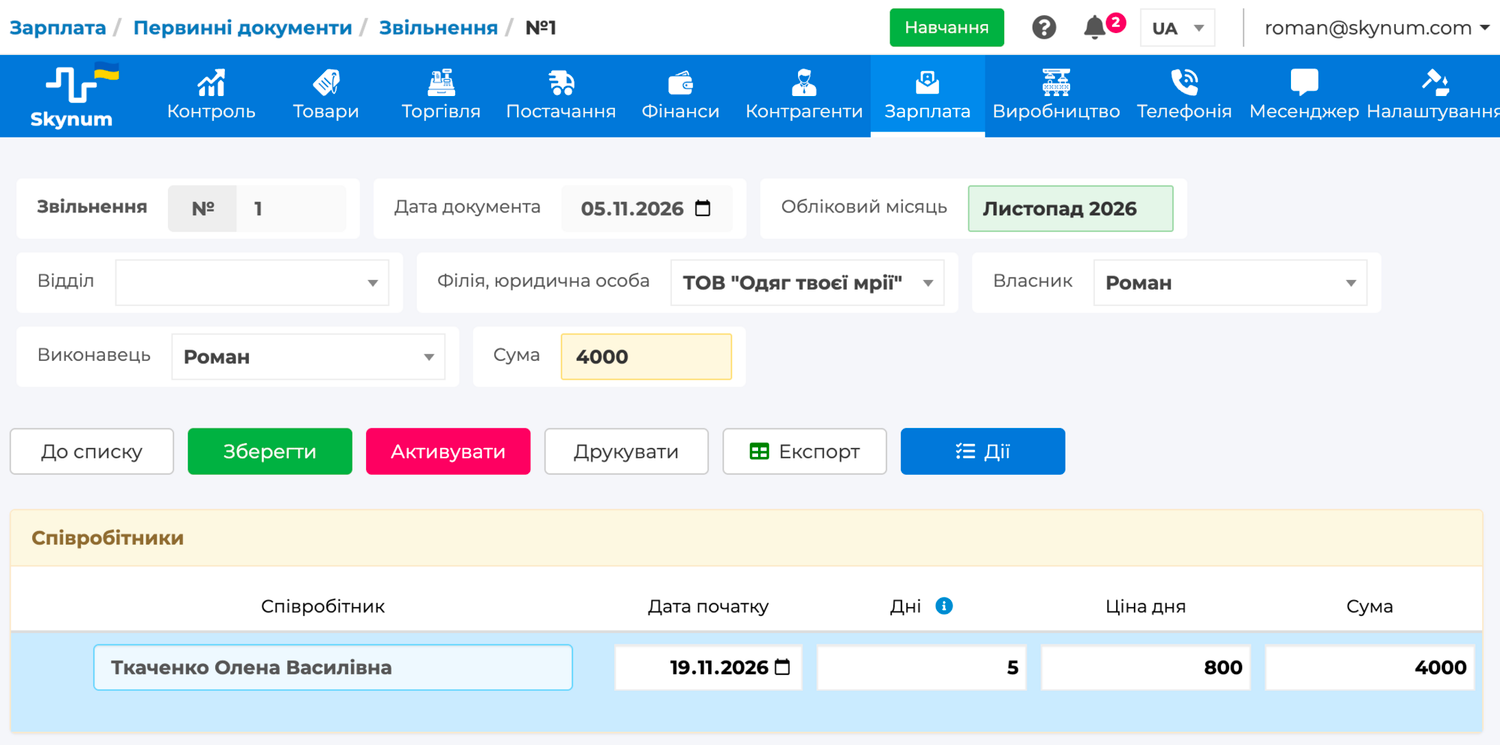
Compensation for unused vacation is recorded with a document: in Salary → Primary documents, on the Dismissal tab, click New Document, select the employee, enter the dismissal date in Start Date, the number of unused vacation days in Days, the Day price — and activate. In the month's calculation the amount from the document appears as a separate line.
Skynum does not count the days in this document from dates, and there is a reason: the vacation balance depends on all the person's years of work — from the hire date, including the time before Skynum, minus the days already used — so the accountant determines it from HR records. The day price is the average daily earnings, as for vacation. The amount, taxes and payout are calculated by Skynum.
The dismissed employee can be paid on the dismissal day with a cash order, without waiting for the sheet for everyone; how to do it is described in Salary payment.
The Dismissal record is the last one in the career. If the person comes back, a new card with a new timesheet number is created for them; the old one keeps the history of the previous employment.
When there are many employees
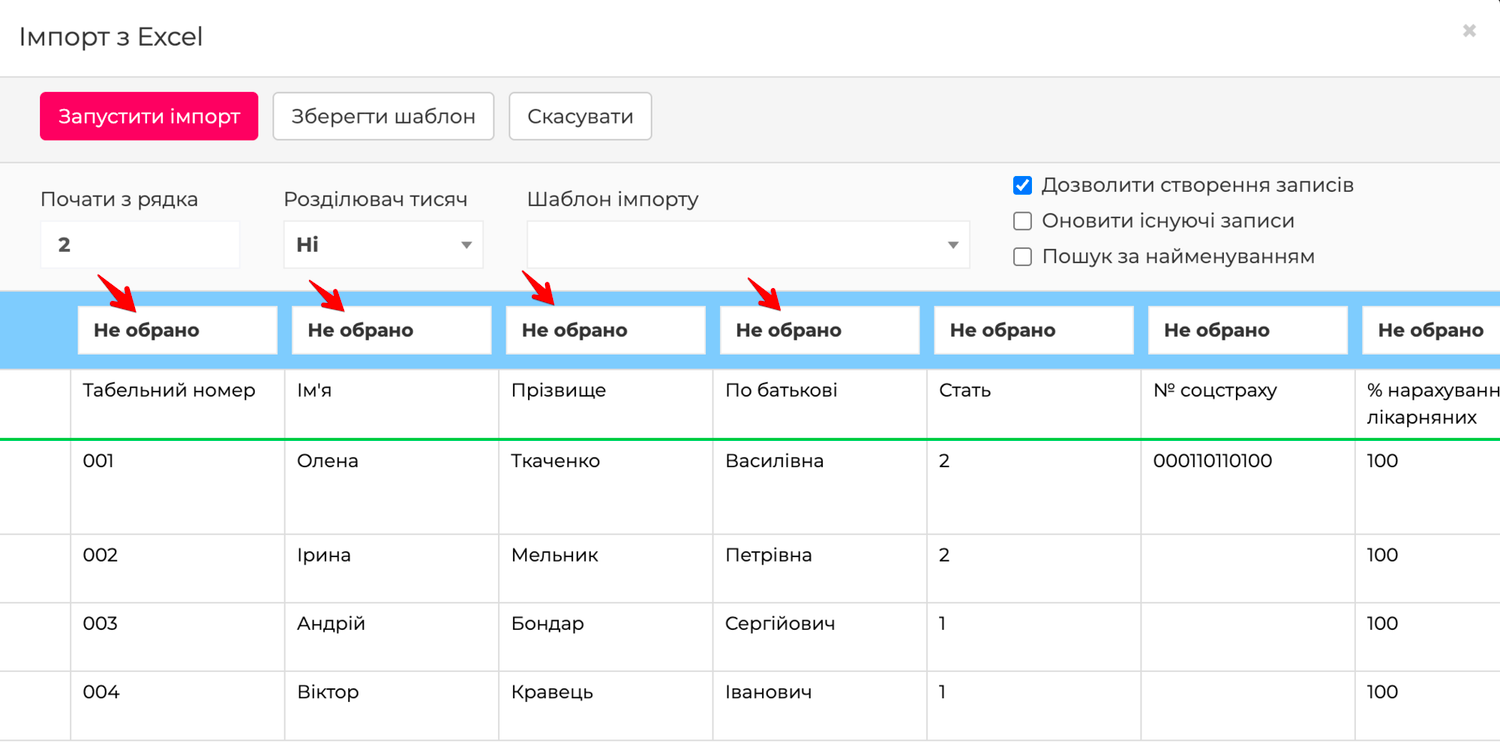
The list of employees can be imported from Excel: on the Personnel tab open Options → Import, upload a file or paste a table from the clipboard, choose above each column which card field it fills, and click Run Import. The import accepts the timesheet number, last name, first name and patronymic, phone, gender, date of birth, address, social insurance number, sick leave percentage, bank and IBAN — and creates the cards. The payment method and the working conditions — position, salary, schedule — are added to each person in the card: the working conditions with a Recruitment record on the Careers tab.
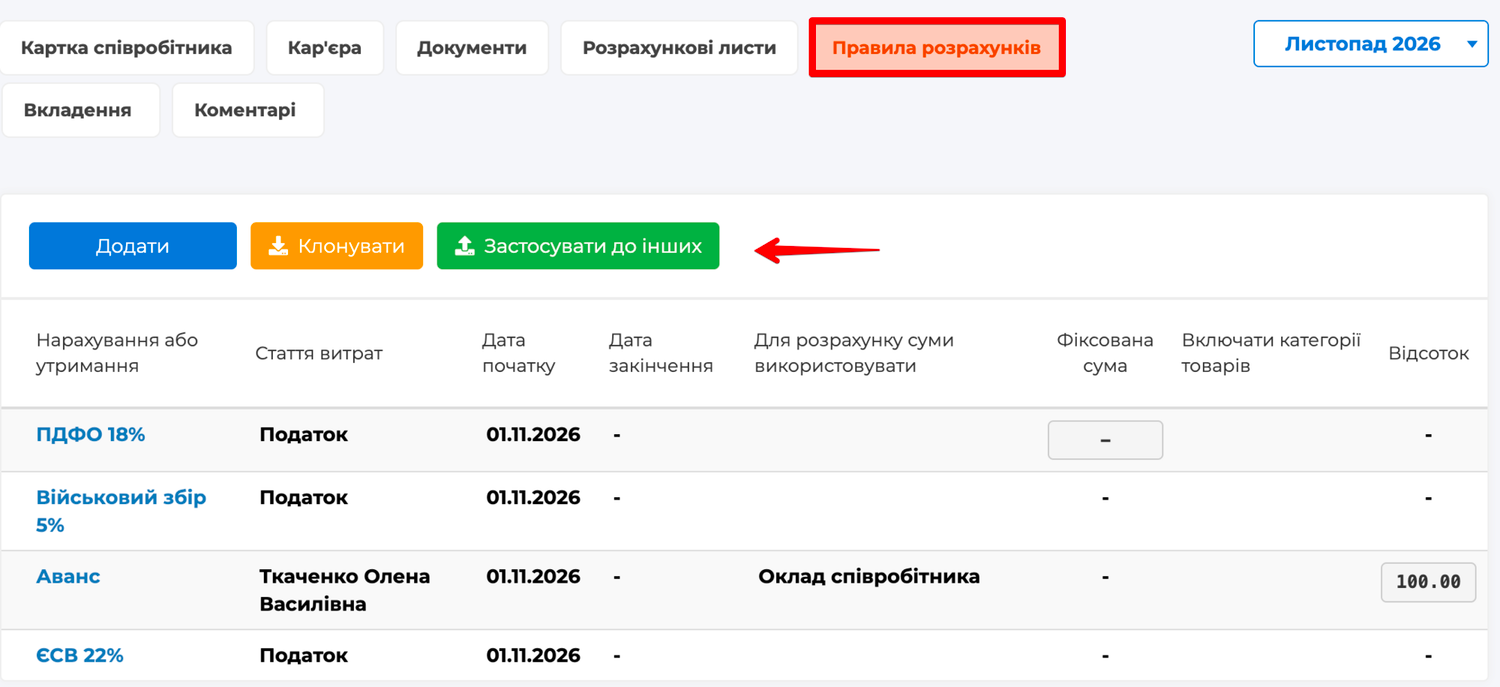
Calculation rules are not set up for each person by hand either. Set them up for one employee — say, an advance as a fixed amount — and on their Payrolls tab click Distribute to others: choose a department or specific people, and the rules are copied to them. The reverse path is the Clone button on the same tab in a new employee's card: you choose whose rules to take as the template. After copying, check the Start Date in the rules — it is set to today — and the recipient in alimony rules: the counterparty is not copied.
How it works in real life
A new salesperson hired on the 16th
A salesperson is hired from 16 November. The HR officer creates the card, enters the start date 16.11, the "Salesperson" position, the schedule and a salary of 16,800 under the HR heading — and saves. The November timesheet has already been created, so the salesperson's line appears in it automatically, from the 16th. In the November calculation they get the salary for 11 days worked out of 21 — 8,800. They get into the advance payment sheet only in December.
A salary raise from 1 December
The administrator's salary is raised from 21,000 to 24,000 from 1 December. On the Careers tab a Salary change record is added with the date 01.12 and the new amount — the position, department and schedule are carried over. November is calculated at 21,000, December at 24,000. Nobody recalculates anything.
Transfer to another department
The company has opened a warehouse, and from 1 December the cashier is transferred there as a storekeeper. The "Warehouse" department is added in Configuration → Departments, the "Storekeeper" position in Configuration → Job titles, and the cashier's career gets a Transfer to another department record dated 01.12 with the "Warehouse" department and the "Storekeeper" position. From December they are in the warehouse's timesheet and payment sheets, while the November sheet of the "Загальний" (General) department still includes them — in November they worked there.
Switching from a monthly salary to pay per shift
The accountant moves to two days a week, and it is agreed to pay her per shift. A Salary change record with a date, the Daily payment type, a daily rate and the "Позмінно, 8 годин" (shift, 8 hours) schedule — and the days she comes in are marked in the timesheet. How daily and hourly pay work is described in Daily and hourly pay.
Dismissal on 19 November
An administrator with a salary of 21,000 leaves on 19 November. The HR officer adds a Dismissal record dated 19.11, and the accountant creates a "Dismissal" document with compensation for 5 days of unused vacation at a day price of 800. From the 20th the timesheet shows dashes. The November calculation: basic salary 14,000 for 14 working days out of 21, and compensation of 4,000 as a separate line. The calculation is confirmed for this person separately and the amount is paid with a cash order on the dismissal day.
Return after six months
The same administrator comes back in May. The old card is not reopened — no career records are added after a dismissal. A new card is created with a new timesheet number and a start date in May. The history of the previous employment stays in the old card.
A mistake in the salary
In the cashier's new record 2,400 was entered instead of 24,000, and the December calculation has already been confirmed. On the Paysheets tab the confirmation of their December calculation is cancelled, the amount is corrected in the career record — it is the last one — then Calculate is clicked and the calculation is confirmed again. Had the calculation not been confirmed yet, correcting the amount would have been enough.
Practical rules
- Every change of conditions is a new dated record; do not edit old records.
- The most convenient date for a change is the first day of the month: the month is then calculated under one set of conditions from start to end.
- A dismissal is a career record dated the last working day; vacation compensation is a separate document.
- After copying rules, check the start dates and the recipients of deductions.
- Link the user who sells to the employee card — otherwise the percentage of sales will not be accrued.
Summary
HR records in Skynum are a card with details and a career as a history of dated records. Hiring, raises, transfers and dismissals are appended, not edited, so every month is calculated under the conditions that applied at the time, and no change rewrites a salary that has already been paid. Employees are imported from Excel, calculation rules are copied to a whole department, and a dismissal is closed in a single day: a record, a document and a cash order.