
In production people are paid for what they make: a sewn unit, an assembled product, a machined part. At the end of the month the foreman brings a list of who did what, the accountant multiplies quantities by rates and then splits amounts between those who worked on one product together. Lists get lost, rates go stale, and the product cost in the books has no idea how much salary is in it.
In Skynum piecework is part of production. The rate for each operation is set once, the product costing says how many operations a unit takes, and the production document calculates the cost of work for the whole batch itself. From it a piecework work order is created: the accountant distributes the amount among the workers, activates it — and each worker's share appears in their calculation. The cost of work is already included in the product cost.
Simple rule: rates and the datasheet are set once, and Skynum creates the work order from every production document. All you do is distribute the amount among the workers.
This article continues the series on salary in Skynum. How to hire employees and get to the payout is covered in Salary: from the first employee to the payout; the percentage of sales — in Percentage of sales in salary. Here is everything about pay for manufactured products: rates, costing, the work order and distribution among workers.
From the rate to the salary: five steps
From the price of an operation to the amount in a worker's salary there are five steps, and the first two are done once:
- Set the price of each operation: how much one assembly, one inspection, one packing costs.
- Enter in the product's datasheet how many such operations one unit takes. Now Skynum knows the cost of work per product.
- Record the production of a batch — Skynum multiplies the cost of work by the number of products and shows how much the workers are owed for this batch.
- Create a work order from the production document and distribute this amount among those who made the batch.
- Calculate the month's salary — each worker gets their share from the work order.
Step 1. Piecework rates
In Salary → Configuration → Piecework rates click Add piecework rate. Enter the Title of the operation — "Product assembly", "Inspection", "Packing" — the Price per operation and the Expense item to which piecework pay will be charged. Save and set up all the operations that make up the work on your products this way.
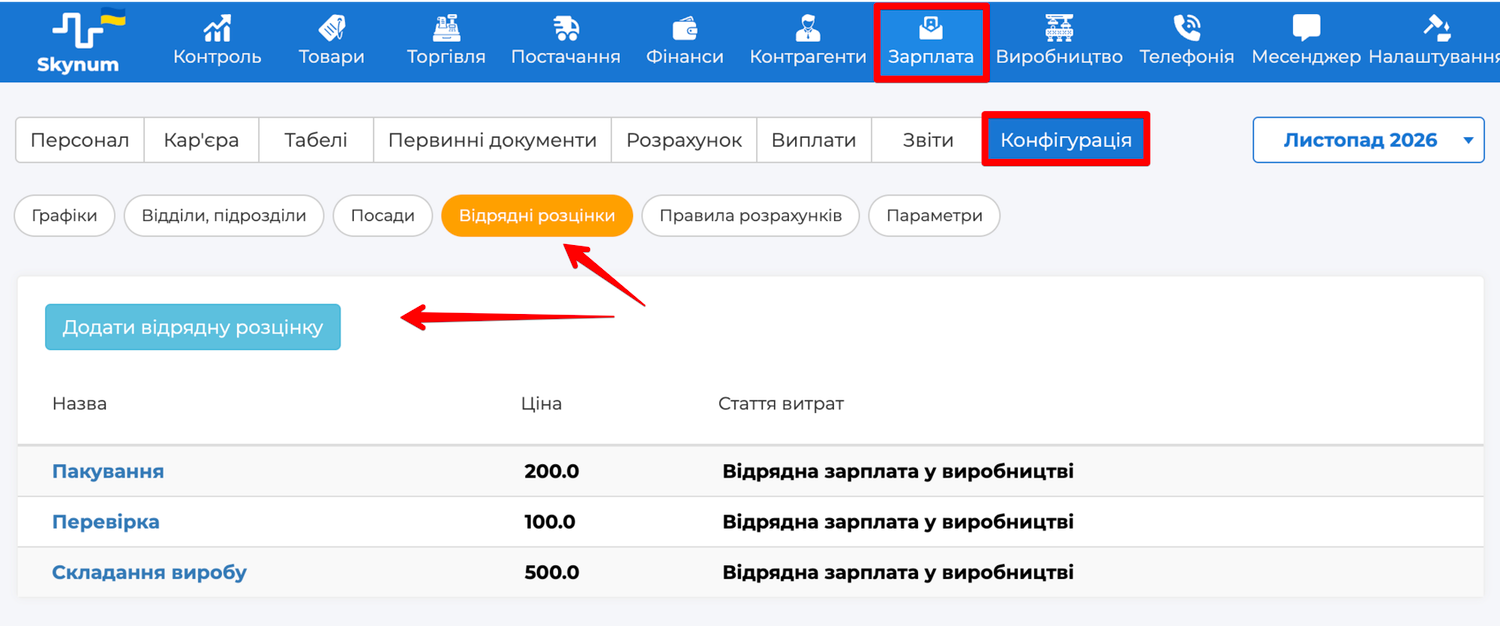
What counts as one operation is up to you: one part, one hour of work, one metre, a pack of ten. Skynum multiplies the price by the number of operations from the datasheet, so the unit can be anything — as long as the quantity in the datasheet is in the same units as the price.
It is worth having a separate expense item for piecework, for example "Piecework pay": the financial reports will then show what production itself costs, not salary in general. Create it in Setting → Directories → Expenditures with Employees as recipients — then it appears in the selection.
Step 2. Works in the product's datasheet
Works are set in the product's datasheet. A product here is an item with the Products type: only such an item is accepted by a production document.
- Open the item card, the Datasheet tab. The same list of datasheets is in Production → Calculations.
- In the Labor costs per unit block add each operation: choose the type of work at piece rates and enter the Quantity — how many times this operation is performed for one product. Skynum fills in the price from the rate and calculates the amount at once.
- Save — the product's Estimated price grows by the cost of work.
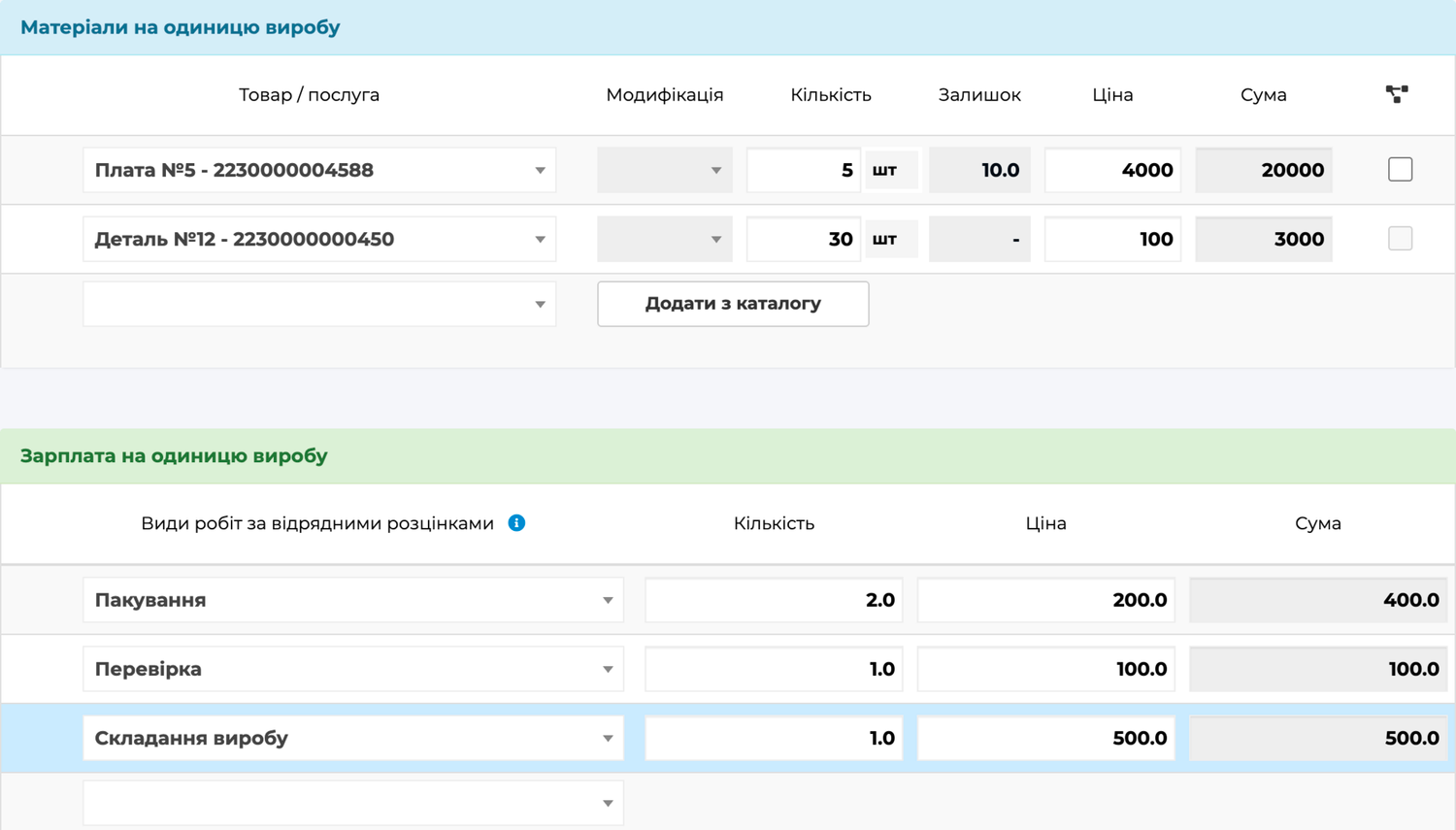
The datasheet is filled in once. When you add the product to a production document, Skynum copies its current datasheet into the document. If a particular batch needs different works, change them in the document itself — with the Calculation button next to the product; this affects only this batch, and the item's datasheet stays as it was.
Step 3. The work order from the production document
In the production document enter the number of products and open the Salary tab. It shows the cost of work for the whole batch: the cost of work per unit multiplied by the quantity.
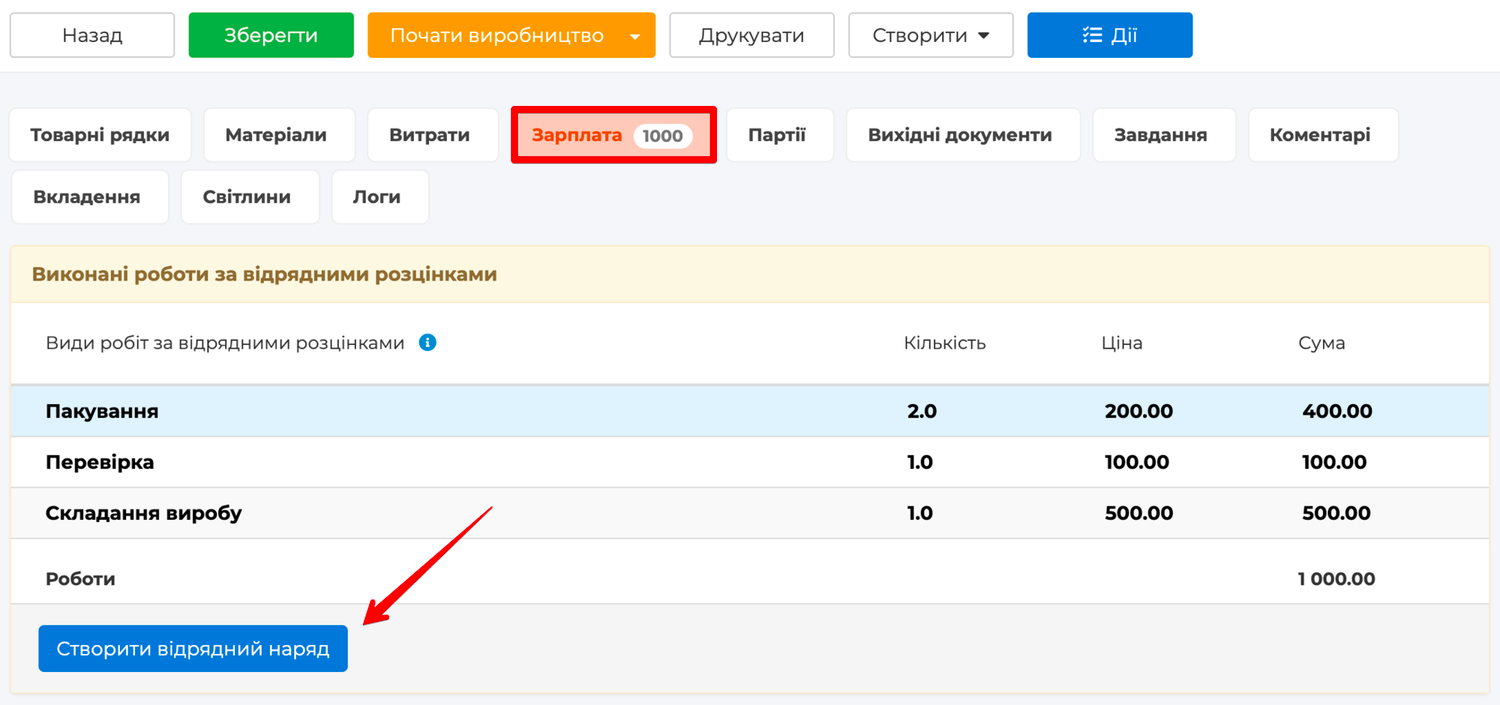
Click Create work order — Skynum creates the work order and shows a link to it in place of the button. Open the work order by this link or find it in Salary → Primary documents → Piecework order.
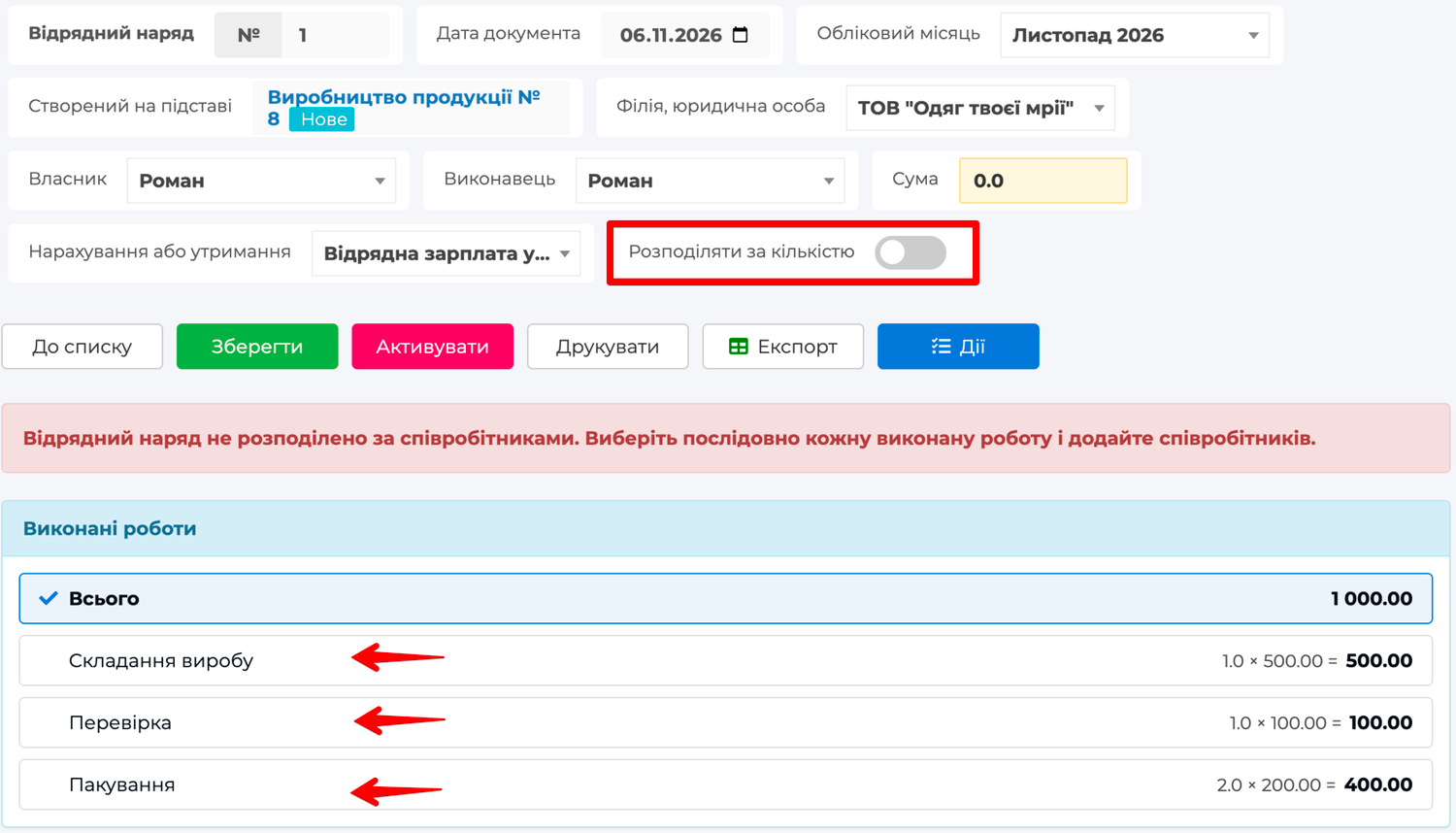
The work order shows which production document it was created from, the accounting month — which can be changed if the work is to be paid in another month — and the "Відрядна зарплата у виробництві" (piecework pay in production) accrual. The amount is zero for now: the works do not belong to anyone yet.
Step 4. Distribution among workers
Under the Work performed heading the work order lists all the operations from the production document — for each you can see how many times it was performed, the price and the amount, and above them the total cost of work for the batch. Until a worker is assigned to every operation, the work order reminds you with a message. Assign workers to each operation separately:
- Select an operation — the Employees list for this particular work appears below it.
- Add an Employee and enter the LPC — the labour participation coefficient. If one person did the work, leave 1.
- If several people did the work, add each of them with their own coefficient — the operation gets the Done by the brigade mark. This way a whole shift can do one operation: each gets their share by coefficient, and the amount of the operation does not change.
- Move on to the next operation and repeat.
Skynum splits the amount of an operation among its workers in proportion to the coefficient. "Product assembly" for 500 UAH was done by two people with coefficients 1.2 and 0.8: the first gets 300, the second 200. The coefficient is a weight, not a share: two people with coefficients 1 and 1 split the amount in half, just like two with 2 and 2.
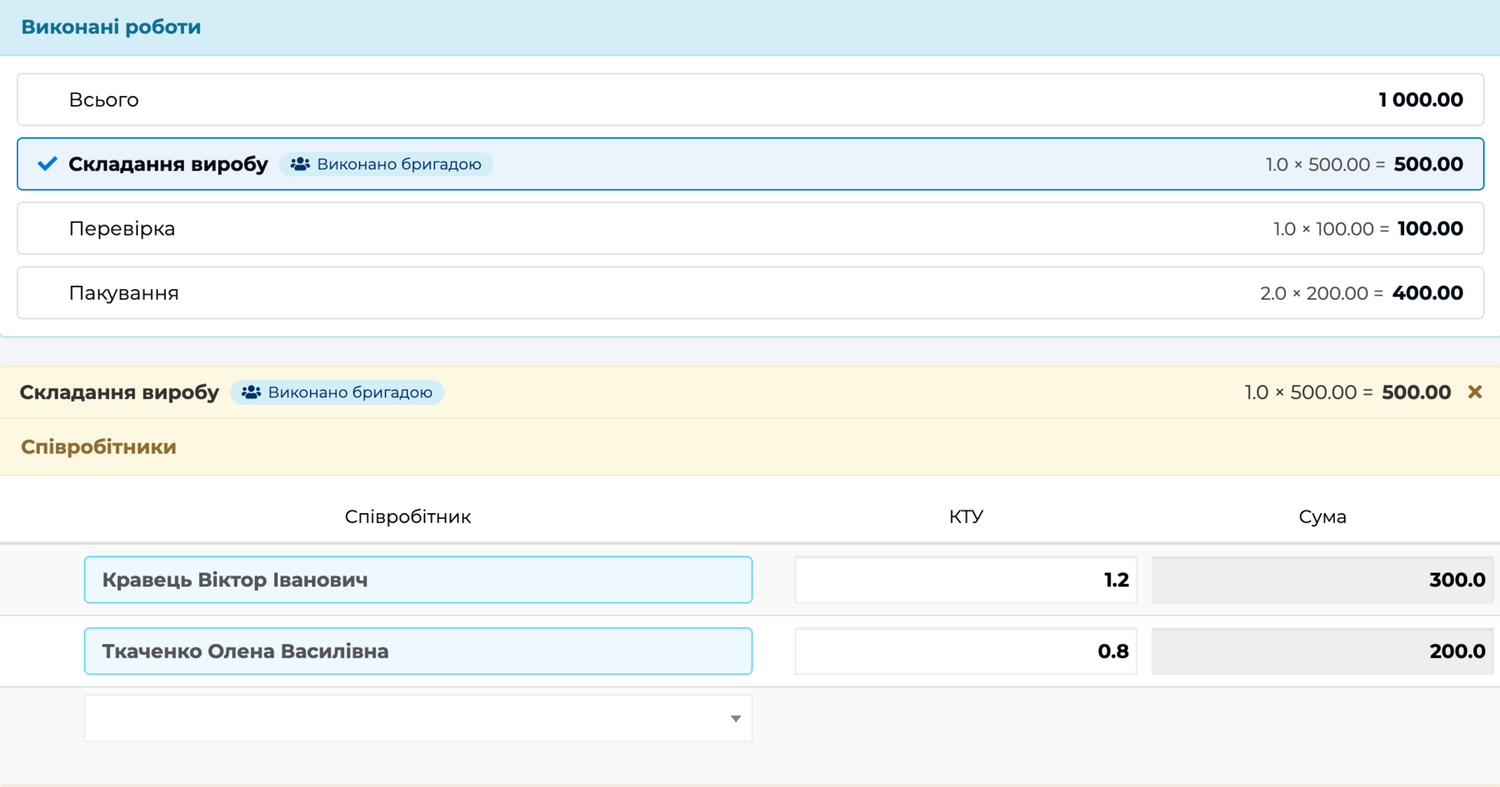
With each added worker the work order's Amount grows, and once all operations are distributed it equals the total cost of work. If an operation is skipped, the work order cannot be activated — Skynum replies that the work order amount has not been fully distributed. Then find the operation without workers and assign them.
When you know how many units each person made, you can enter quantities instead of coefficients. Turn on Distribute by quantity in the work order header — a Quantity column appears in the list of workers. Enter for each person how many units of the operation they did, and Skynum calculates the coefficients and amounts itself: "Product assembly" of 10 pieces for 500 UAH was done by two people, 7 and 3 — the first gets 350 UAH, the second 150. What you enter is saved as soon as you leave the field. On activation Skynum checks the distribution against production: the workers' quantities together must equal the quantity of the operation, otherwise the message names the operation and how much has been distributed.
Step 5. Activation and calculation
Click Activate — and the "Відрядна зарплата у виробництві" accrual with their share appears in each worker's calculation for the accounting month. It has no days or hours, and the expense item comes from the rate. No separate rule in the worker's card is needed: the work order itself is the basis for the accrual. If there is no timesheet yet for the month of the work order, Skynum stops the activation and names the employee without a timesheet: create the timesheet — the calculations the piecework amount goes into appear with it — and activate the work order again. The amounts themselves appear when you click Calculate on the Paysheets tab.
If the employee's payment type is Piecework, their salary consists of work orders and the percentage of sales. For everyone else the piecework amount is added to the basic salary. Taxes are withheld as from any other accrual, and under the "for the time actually worked" method the piecework amount is part of the advance if it is ticked among the advance accruals in Parameters.
The Salary → Reports → Work orders report shows, for each employee, the amount distributed to them in the month's work orders — including work orders not yet activated.
Social contribution in the product cost
The cost of work is already part of the product cost through the costing. But the company pays more for the work than the worker receives: the unified social contribution of 22% is accrued on the salary, and under Ukrainian accounting standard 16 social contributions on production workers' pay are as much a direct production cost as the pay itself. For the cost to be complete, the contribution has to follow the works into the costing.
Skynum does this itself — the parameter only has to be turned on once. In Salary → Configuration → Parameter find the Automatically include in the production cost the amount of social security contributions on wages provided for in the costing of the "Manufacture of Goods" document field, set Yes and save. From then on each product's costing shows the contribution amount next to the works, the product's estimated price already includes it, and the production document's Salary tab shows the works, the contribution and the total. Once production is completed, the contribution goes into the product cost together with the cost of work — with no separate expense item and no manual arithmetic. Works of 250 UAH per product give 55 UAH of contribution, and those 55 UAH appear in the costing by themselves. In the worker's calculation the contribution is accrued as usual: the parameter changes only the product cost.
The work order and production are always in step
While the work order is not activated, Skynum keeps it in line with production: every time you open the work order, the types of work and the amounts in it are refreshed from the production document, while the assigned workers and their coefficients are kept. If the number of products changed after you distributed the works, open the work order, check the amounts and activate. A work removed from the costing is removed from the work order together with its workers, so after changes in production check that all works are distributed.
Skynum will not activate a work order with stale amounts: it refreshes them and reports that production has changed and the amounts in the work order have been updated. Review the distribution and click Activate again.
After activation the protection works the other way: the work order locks production. While the work order is active, the number of products and the works in the costing cannot be changed, and the production document cannot be deleted — Skynum asks you to deactivate the work order first. To correct production, deactivate the work order, make the changes, open the work order, check the distribution and activate again. If only the workers or their coefficients changed, deactivate the work order, correct the distribution and activate. If the month's calculation has already been confirmed, first cancel the confirmation on the Paysheets tab.
How it works in real life
A batch with three operations
The workshop produces a batch of 20 products. The datasheet has three operations: assembly 50 UAH, inspection 40 UAH, packing 10 UAH, one of each per product. The production document for 20 pieces shows 2,000 UAH on the Salary tab. The accountant creates the work order, gives inspection to one worker and packing to another, and splits the assembly of 1,000 UAH between two workers with coefficients 1.2 and 0.8: 600 and 400. Activates — and each of the three gets their amount in their calculation.
One product — another month
Production was recorded on 30 September, but the work was finished on 2 October, and it was agreed to pay for it in October. In the work order the accountant changes the accounting month to October — and the amount goes into the October calculation, while September stays without it.
Auxiliary work as piecework
Cleaning the workshop after a shift can also be paid as piecework: a "Workshop cleaning, 1 hour" rate with a price, and in the product's datasheet the required number of hours per unit. Then this work goes into the work order together with the main operations and into the product cost, rather than into general expenses.
Practical rules
- A rate is per operation, not per product: this way the datasheets of different products are built from the same elements.
- Keep the rates up to date: a draft work order takes prices from the document's costing, and after activation they are fixed.
- Distribute the work order when the number of products in the document is final: after changes in production the distribution has to be checked.
- The work order's accounting month is the one in which you pay for the work; change it in the work order before activation if needed.
- First the timesheet for the work order's month, then activation: without a timesheet there are no calculations for the piecework amount to go into.
- The social contribution on piecework pay is added to the product cost by a parameter in the salary Parameters — turn it on once, and Skynum calculates the amount per unit itself.
Summary
Piecework pay in Skynum is not a separate record but part of production: rates and the datasheet are set once, every batch calculates the cost of work itself, the work order splits it among the workers by coefficient or by the number of units made, and the social contribution goes into the product cost together with the pay. Such a link between production and salary — with brigade distribution, distribution by quantity and protection against mismatches between the work order and the batch — is rare among accounting systems, and in Skynum it works out of the box. What is produced is what is accrued, and the product cost knows it.