The Facebook integration connects your company's page to Skynum. Messages and comments from the page arrive in Skynum, and the manager replies to customers right from there — with a private message, and to a comment also publicly under the post. And since your accounting is right there, during the conversation the manager immediately sees whether a product is in stock and its price, and creates an order from the chat.
What the Facebook integration gives you:
- Messages and comments in one chat. The manager sees both the customer's private messages and their comments under posts — the whole conversation in front of them.
- A question under a post becomes a sale. The manager sends the author of the comment a private message, and when the customer replies, sends a product with its price and creates an order.
- Someone responsible for every chat. Each conversation can be assigned to a manager, so you can see who is handling it.
- Conversations next to orders. Once the manager has linked a chat to a counterparty, the conversation is visible in the counterparty card together with their orders, payments, calls and SMS.
- Products from the Skynum catalog straight into the chat. The manager chooses a product, sees how much of it is in stock and sends the customer a photo with the price.
- Photos and files from customers do not get lost. Skynum immediately saves a copy of every file up to 20 MB, so it can be opened from the chat even six months later.
- How much Facebook earns. Skynum shows the revenue from sales via Facebook, the cost of goods sold and the profit.
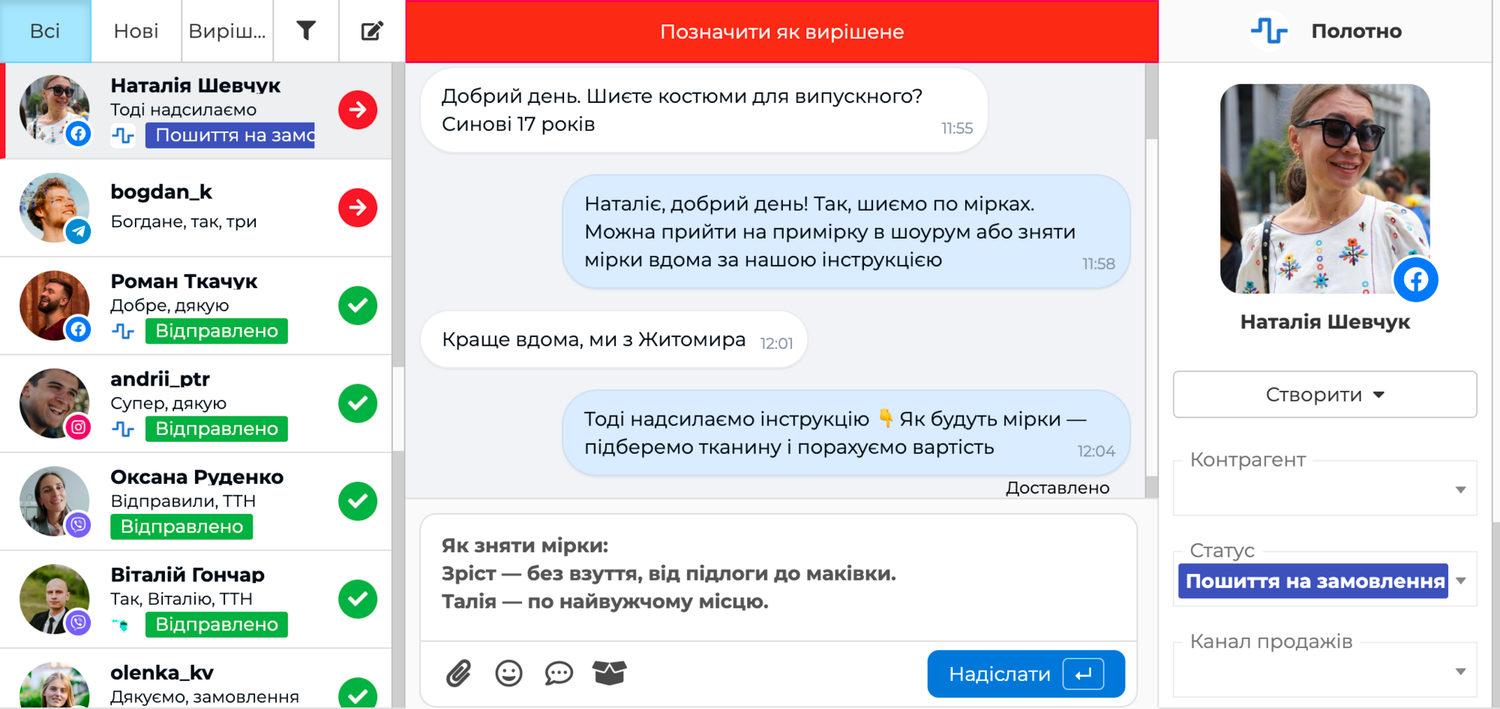
Facebook chats are handled in the Messenger section next to the chats of other channels: Instagram, WhatsApp, Telegram, Viber, the website chat and the Prom and Rozetka marketplaces. You reply to all customers from one window.
Quick replies, chat filters and statuses, orders and tasks from a conversation, the mini messenger on top of any section, the customer's calls and SMS — all of this works the same way for every channel and is described in the article Messenger.
Next, we will go through how to connect the page to Skynum, what comes from customers and what you can send them, and how to reply to comments under posts.
Important. You can connect a company page on Facebook, and only its admin can do this: during the connection, the admin logs in to Facebook with their own account.
Setting Up the Facebook Integration
In Skynum, open Settings → Integrations → Messengers, click Add Integration and choose Facebook in the list.
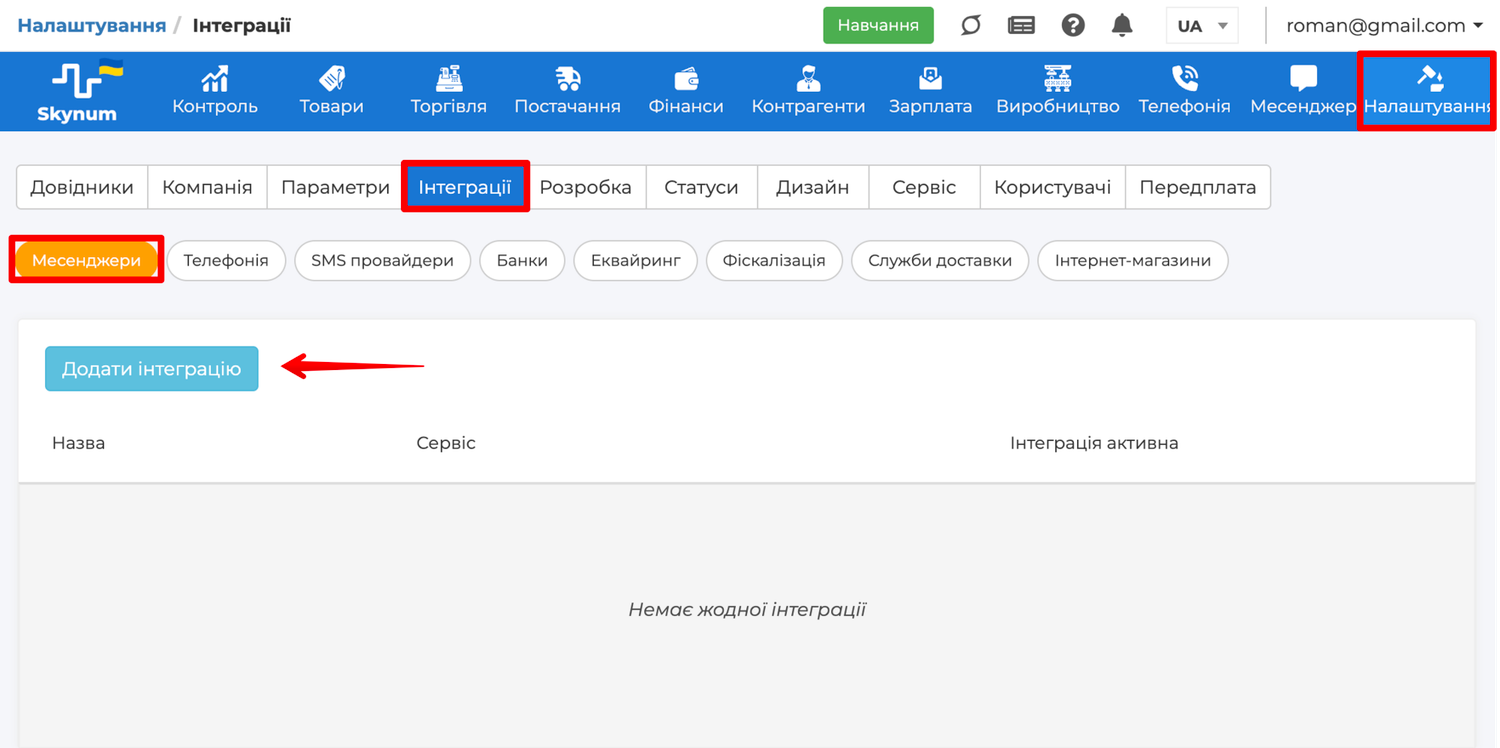
The form for a new integration opens. Fill in the fields:
- Integration name — any name, for example Facebook or the page name.
- Integration Active — turn it on, and messages will start arriving right after the page is connected.
- Sales channel — choose the channel that the page's chats and the orders from them will belong to. This way reports show how much the page has brought in.
- Pricing Type — choose the price at which the customer will see a product in the chat; the product goes into the order at the same price. The field already contains the pricing type chosen as the company default.
- Default Executor — (optional) the employee who becomes responsible for every new chat of the page.
- Notification sound — turn it on to hear a signal for every new message.
- Send notifications only to — (optional) choose the employees who will receive notifications. If the field is empty, everyone who works in the Messenger section receives them.
- Legal entity, branch — choose the branch or legal entity that the page's chats belong to: employees with access to it see these chats.
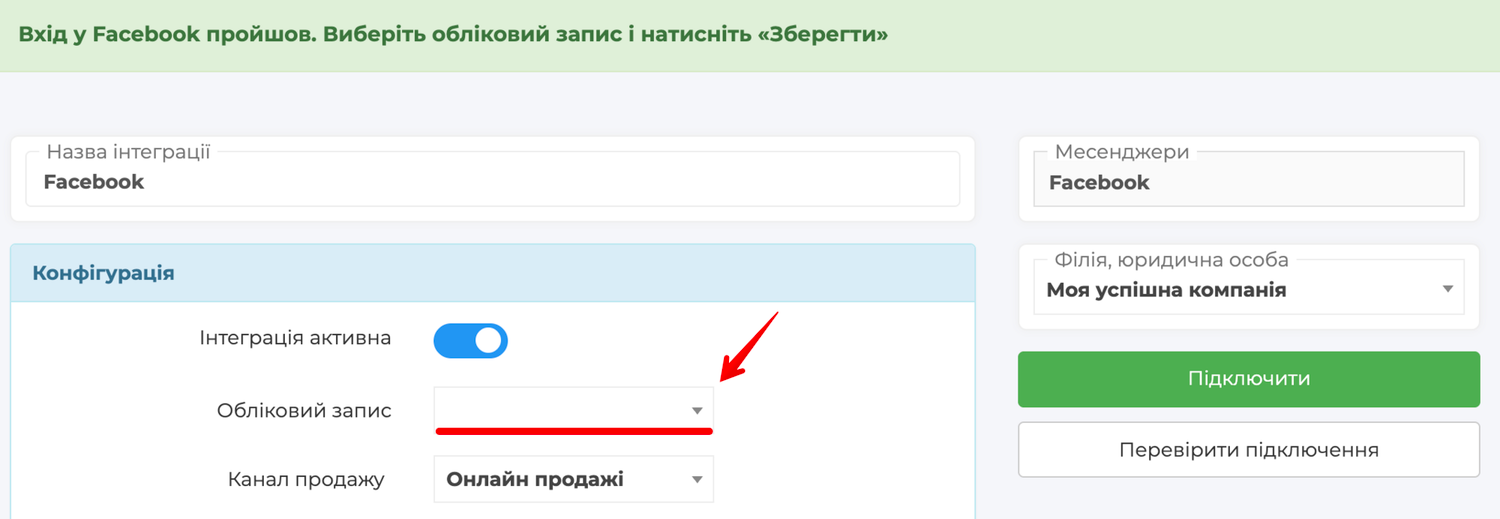
Leave the Account field empty: you will choose the page in it after logging in to Facebook.
Click Save — the Connect button appears in the integration.
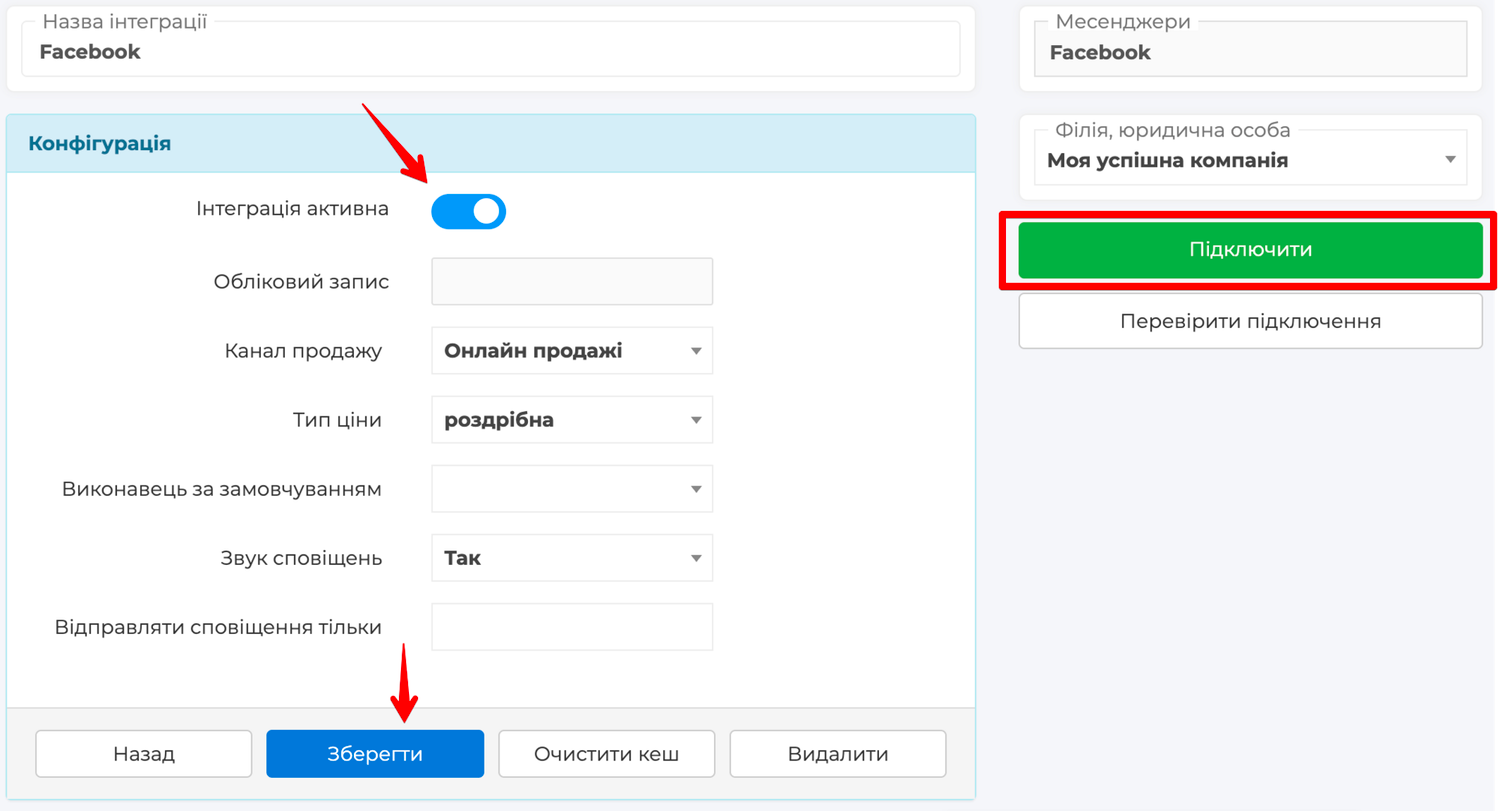
Connecting the Page
Click Connect — Skynum redirects you to the Facebook website. Log in to Facebook with your account. The login and password are entered on Facebook, so Skynum neither sees nor stores them.
If Facebook immediately offers to continue with an account that has no admin rights for the page, log out of it and log in with the page admin's account.
Facebook asks which Pages to grant access to. Select the Opt in to current Pages only option and, below it, the company page.
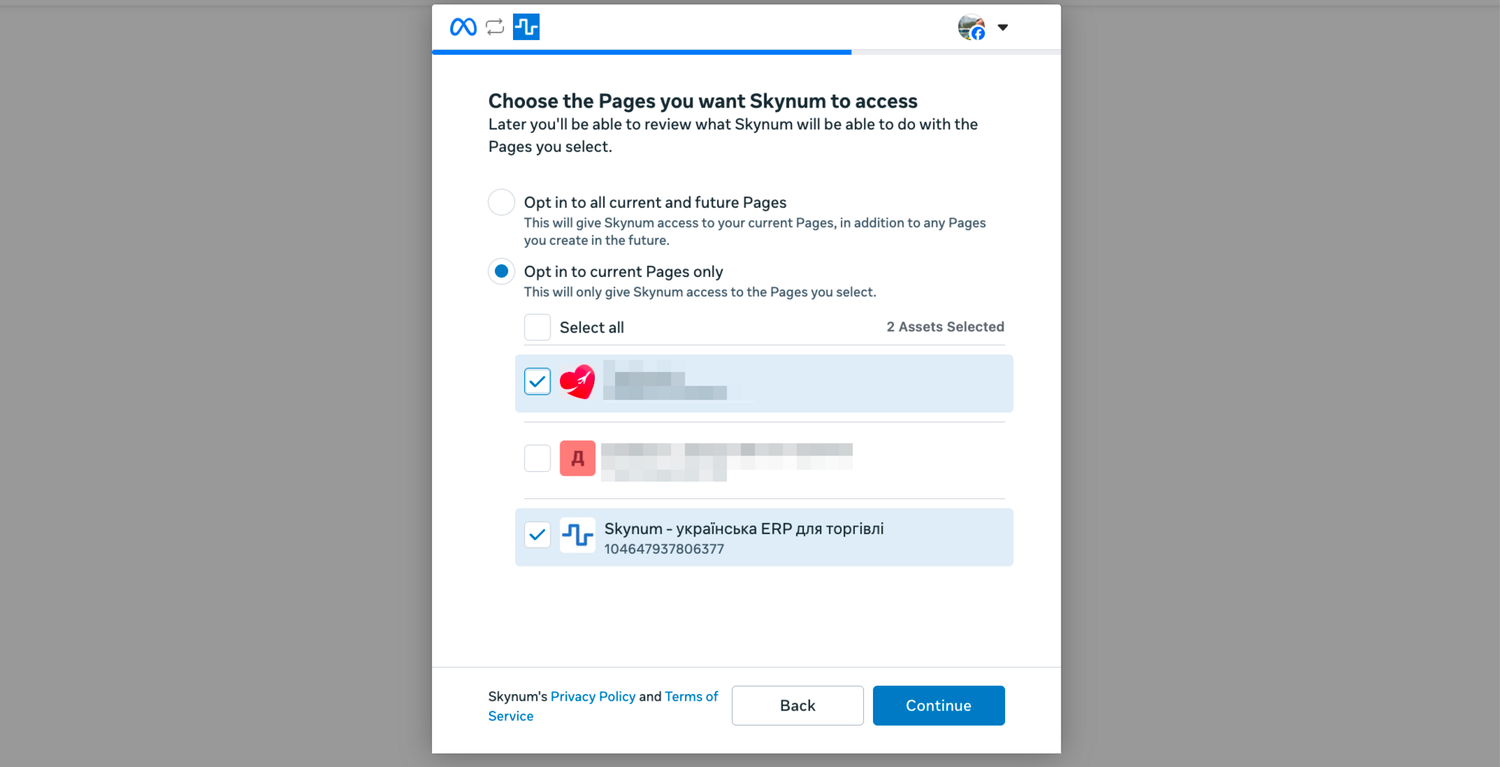
If this page has already been connected to Skynum from this account, Facebook offers to continue with it instead of choosing Pages. Click Continue.
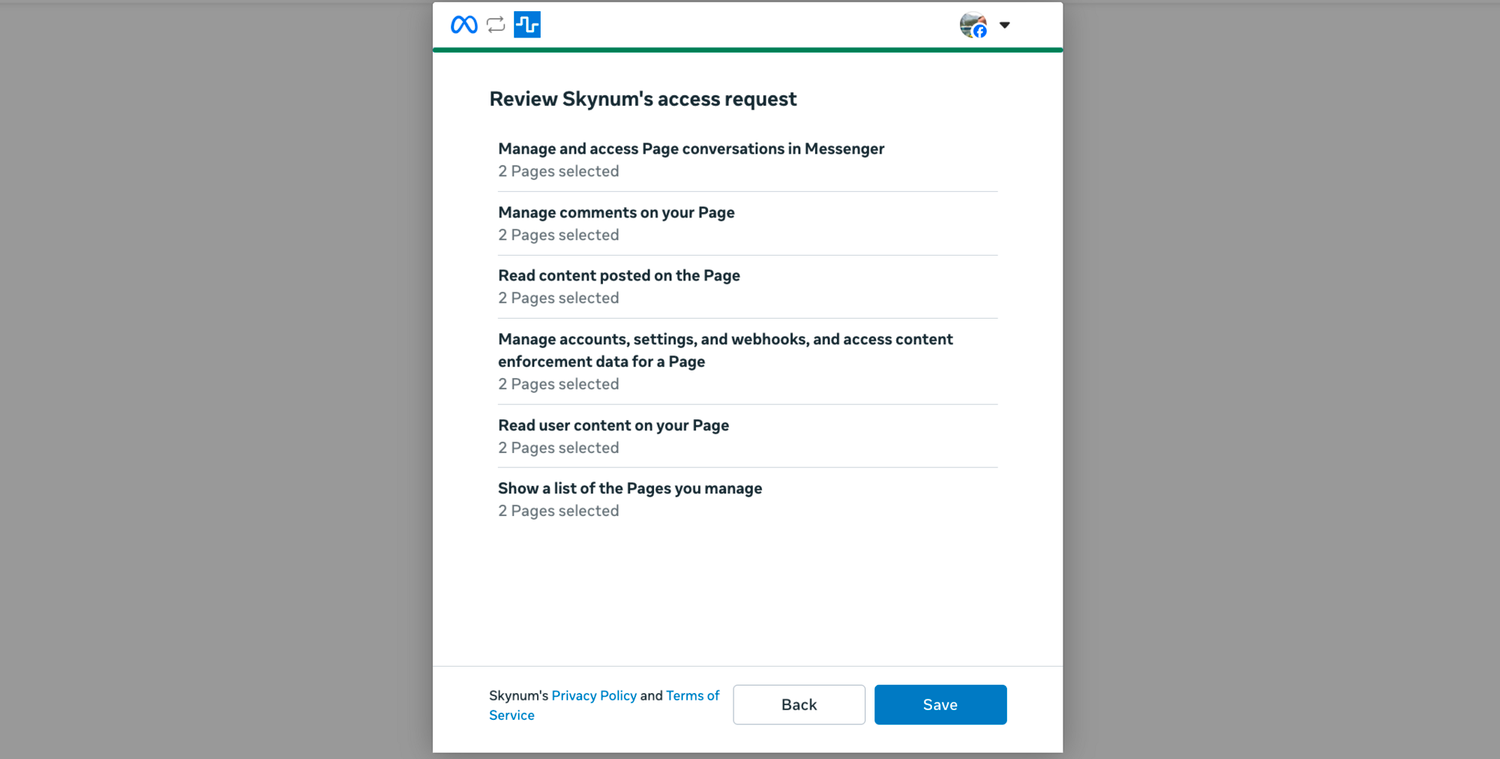
Next, Facebook shows what Skynum will get access to.
Important. Leave all permissions turned on, otherwise messages and comments will not reach Skynum.
Click Save.
Facebook returns you to the integration in Skynum. Choose your page in the Account field and click Save.
The name and photo of your page appear in the integration — the page is connected.
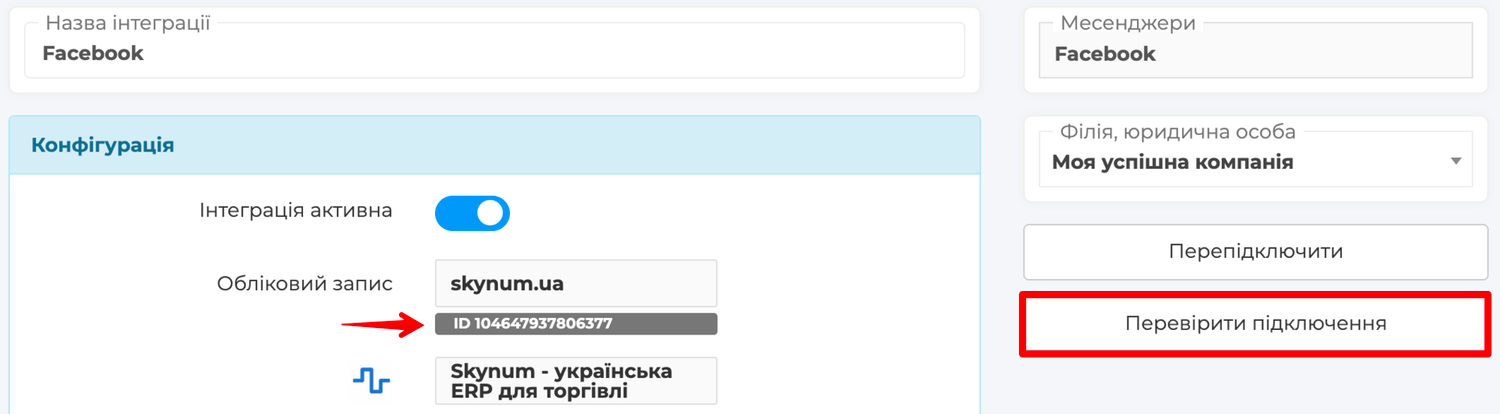
To make sure everything works, write to the page as a regular customer: open it from your personal Facebook account — on a phone or a computer — and send a message. In a few seconds it appears in Skynum, in the Messenger section.
Messages and comments sent earlier stay in Facebook. In Skynum, the conversation with a customer starts with the first message or comment after the connection.
Now you can start working. How to reply to customers, distribute chats among employees and sell from conversations is described in the article Messenger.
If the Company Has Several Facebook Pages
For each additional page, add a separate Facebook integration: fill in the fields, click Save, and then Connect.
This time Facebook offers to continue with the Pages already connected. Click Edit settings and select the new page. Then, as the first time, leave all permissions turned on and click Save. Facebook returns you to Skynum: choose the new page in the Account field and click Save.
Important. Do not clear the checkmarks from the Pages already connected, otherwise their messages and comments will stop reaching Skynum.
Conversations in Facebook
In Facebook, the customer starts the conversation — with a message to the page or a comment under its post. Everything they write appears in Skynum right away, and the manager's reply reaches them in Facebook.
If someone on the team replies to the customer in Meta Business Suite, this reply also appears in the Skynum chat, so the whole conversation is visible.
What Comes from the Customer
- Text messages, photos, videos, voice messages, documents and stickers.
- A reply quoting your message.
- A reaction from the customer: an emoji under your message.
- A comment under the page's post. There is a separate section about comments below.
If the customer edits a message, the chat shows the new text with a pencil icon.
Customers' files stay in the chat. Skynum immediately saves a copy of every photo, video or document up to 20 MB on its side. Even six months later, the manager can open from the chat a payment slip or a photo of the model the customer wanted to order.
The chat shows the customer's name and photo from Facebook. Facebook does not pass the phone number, so the manager links the chat to the customer manually: chooses them in the Counterparty field or creates a new one. After that, the conversation is visible in the counterparty card next to the customer's orders, payments, calls and SMS.
What You Can Send to the Customer
- Text up to 2000 characters.
- Photos.
- Files up to 20 MB (documents, videos or audio): the customer receives them with the same names as yours.
- A product from the Skynum catalog: click the button with the box icon — the catalog opens and shows the stock balance of each product. Choose a product, and the customer receives its photo with the price. Which price to send is set by the Pricing Type field in the integration.
- A reply with a quote: open the customer's message menu (three dots) and choose Reply.
- A ❤️ reaction: double-click the customer's message.
If you write text together with a file, the customer receives them as two messages in a row: first the file, then the text.
Each of your messages has a status under it: Sent — Skynum has passed it to Facebook; Delivered — the message has reached the customer; Seen — the customer has read it.
Comments Under Posts
Under posts, customers ask about the price, size or delivery times, and such questions are easy to miss among other comments. In Skynum, every such comment appears in the chat with its author, even if they have never written to the page before. Above the comment there is the Comment on the post label with the first words of the post; click it, and the post itself opens.
A photo attached to a comment is also visible in the chat. If the customer edits the comment, the chat shows the new text with a pencil icon, and if they delete it, the comment is crossed out.
You can reply to a comment with a private message or publicly under the post. Both actions are in the comment menu under the three dots.
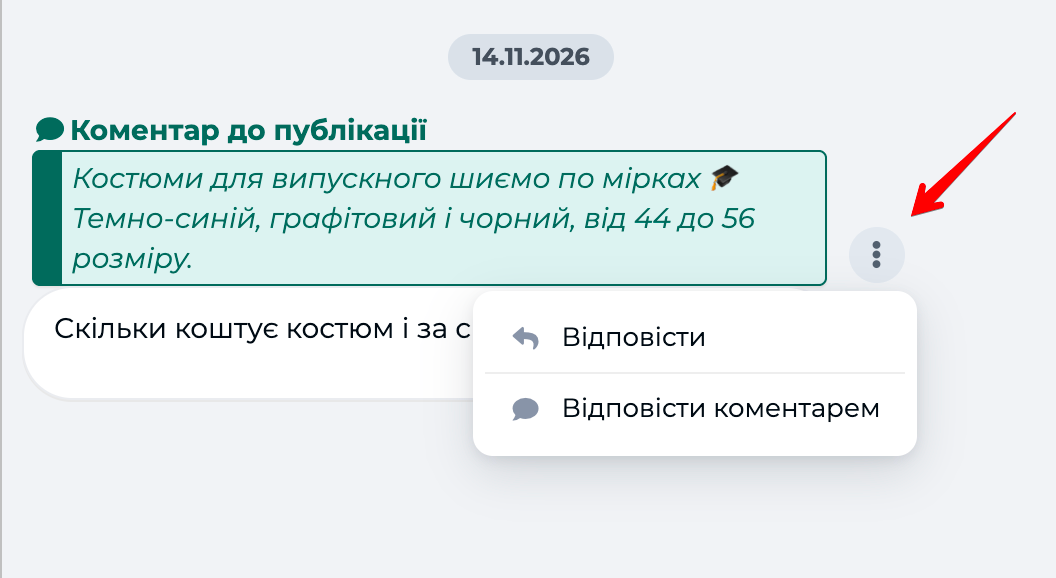
With a private message. Choose Reply and write the text. In Facebook, the customer sees your message and the comment you replied to. As soon as they write back, you can chat with them as in a regular conversation.
Important. You can send one private reply to each comment — within 7 days after the comment.
Publicly under the post. Choose Reply with a comment, write the text and send it — the reply appears under the customer's comment on the Facebook page and in the Skynum chat. Everyone who opens the post sees such a reply, so use public replies for general questions: about delivery, payment, availability. Under a post, you can send only text.
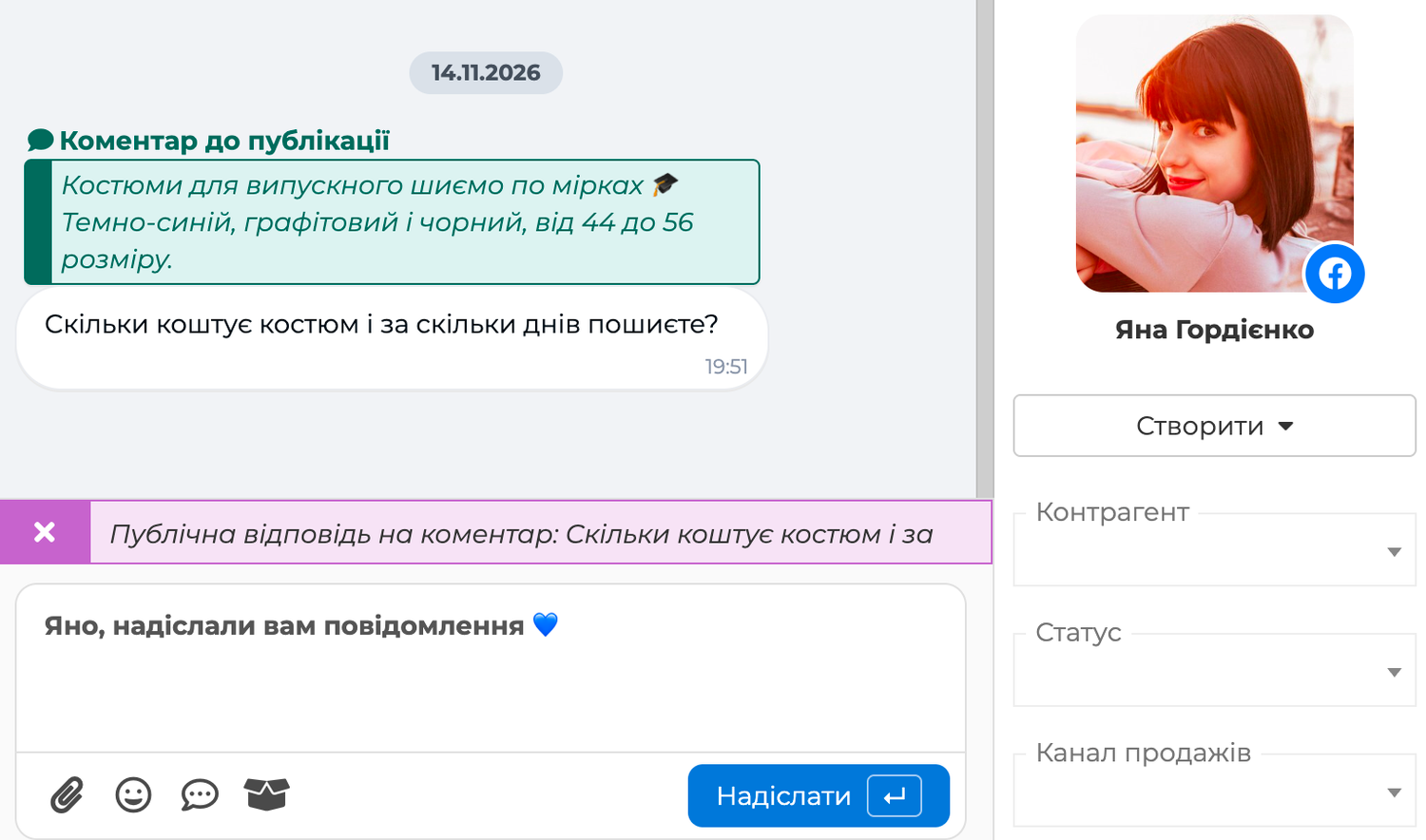
It works best to combine both ways. First send the customer a private message inviting them to talk, and reply briefly under the post, for example "We've sent you a message". When the customer replies, send the product with its price and create an order. Other readers see that the page replies, and only the customer receives the price and the order details.
All file formats and solutions to typical situations are collected in the Facebook Integration section of the help centre.
Summary
You have connected your Facebook page: messages and comments under posts now arrive in Skynum. How to work with chats every day is described in the article Messenger. Most importantly, conversations from Facebook are handled in the same place where you create orders, receive payments and see stock balances, and reports show how much your page earns.