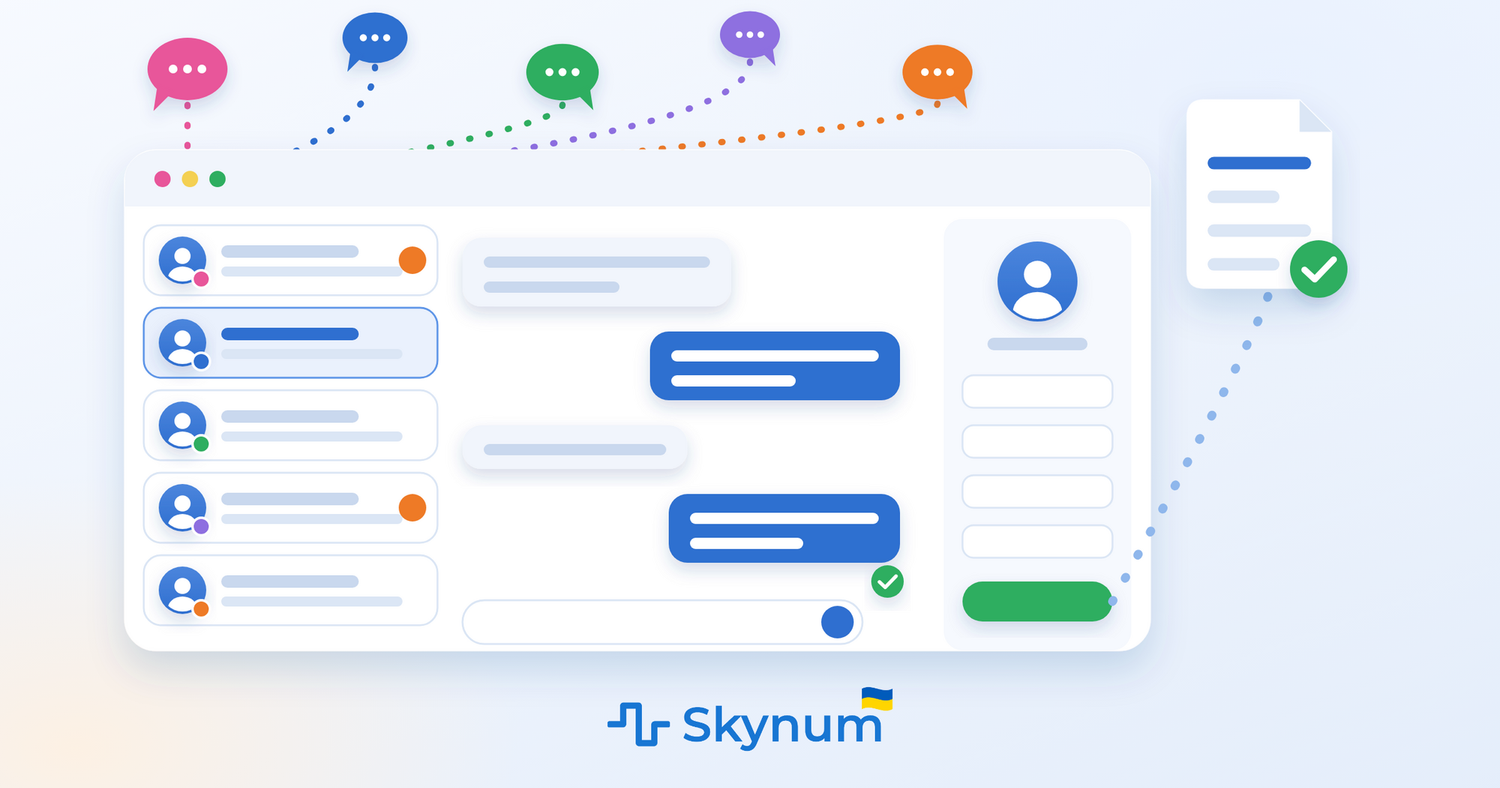
One customer asks about availability on Instagram, another writes on Viber to the store's number, a third asks a question on Rozetka. Each channel is a separate app on somebody's phone. Who has already replied? What was promised to the customer yesterday? Was the order agreed in the chat actually placed? While there are few inquiries, people keep all this in their heads. When there are dozens a day, some get lost — and the sales go with them.
There are hundreds of services that gather chats in one window. But a CRM with chats usually does not keep accounting, and an ERP with accounting does not talk to customers — so orders, payments, inventory and production stay in other programs. In Skynum, the messenger is part of the same system where you keep your accounting. In the chat, the manager sees who the customer is and what they have bought, and creates an order for them right there. If a week later the customer asks whether their item is ready, the manager checks the production stage without opening another program.
What the Skynum messenger can do:
- All channels in one queue. Instagram, Facebook, WhatsApp, Telegram, Viber, your own website chat, Prom and Rozetka — in one list, and the reply goes to the customer wherever they wrote.
- The customer is found automatically. Skynum links the conversation to a counterparty in your database by phone number.
- A product from your catalog goes straight into the chat. The name, features, price and photo are filled in automatically, and if you run an online store, a link to the product is added too. The catalog shows the stock balance.
- An order from a chat in one click. The customer, manager, sales channel and branch are already filled in.
- Conversations do not disappear. Skynum keeps customers' photos, videos and documents on its side, even after the messenger has deleted them.
- Chats, calls and SMS in one feed. The customer's card shows every conversation with them; you can call from a chat and write from a call.
- A queue with assigned managers. Every inquiry has an executor and a stage, and the head of the team sees each manager's queue.
- The first message comes from you. From the company number on Viber, Telegram or WhatsApp, you can write to a customer first.
Below is how to connect channels and how to work with conversations every day.
First, Connect Your Channels
Open Settings → Integrations → Messengers and click Add Integration. Choose a channel from the list:
- Instagram — messages to the company account's Direct, replies to its stories and comments under its posts. The manager replies privately in Direct or with a comment under the post.
- Facebook — messages to the company page in Messenger and comments under its posts.
- WhatsApp — the company number connected to WhatsApp Business officially, through Meta: Skynum has passed Meta's review as an official Tech Provider. On the phone, the number can keep working in the WhatsApp Business app — conversations are visible both there and in Skynum.
- Telegram bot — the company's bot that customers message privately. The bot can ask the customer to share their phone number.
- Telegram on the company number — the company's regular phone number in Telegram. You can write to a customer first from it.
- Viber bot — the company's official chat in Viber: the customer messages it just like a regular contact.
- Viber on the company number — the company's regular number in Viber that customers are already used to writing to. You can also write first from it.
- Prom and Bigl — conversations with prom.ua and bigl.ua buyers who write from a product page or from an order.
- Rozetka — buyers' questions to the seller and conversations about products and orders.
- Website chat — Skynum's own chat for your website: no third-party service, added with one line of code. A visitor writes from any page and leaves their contacts, and the manager sees which page the inquiry came from.
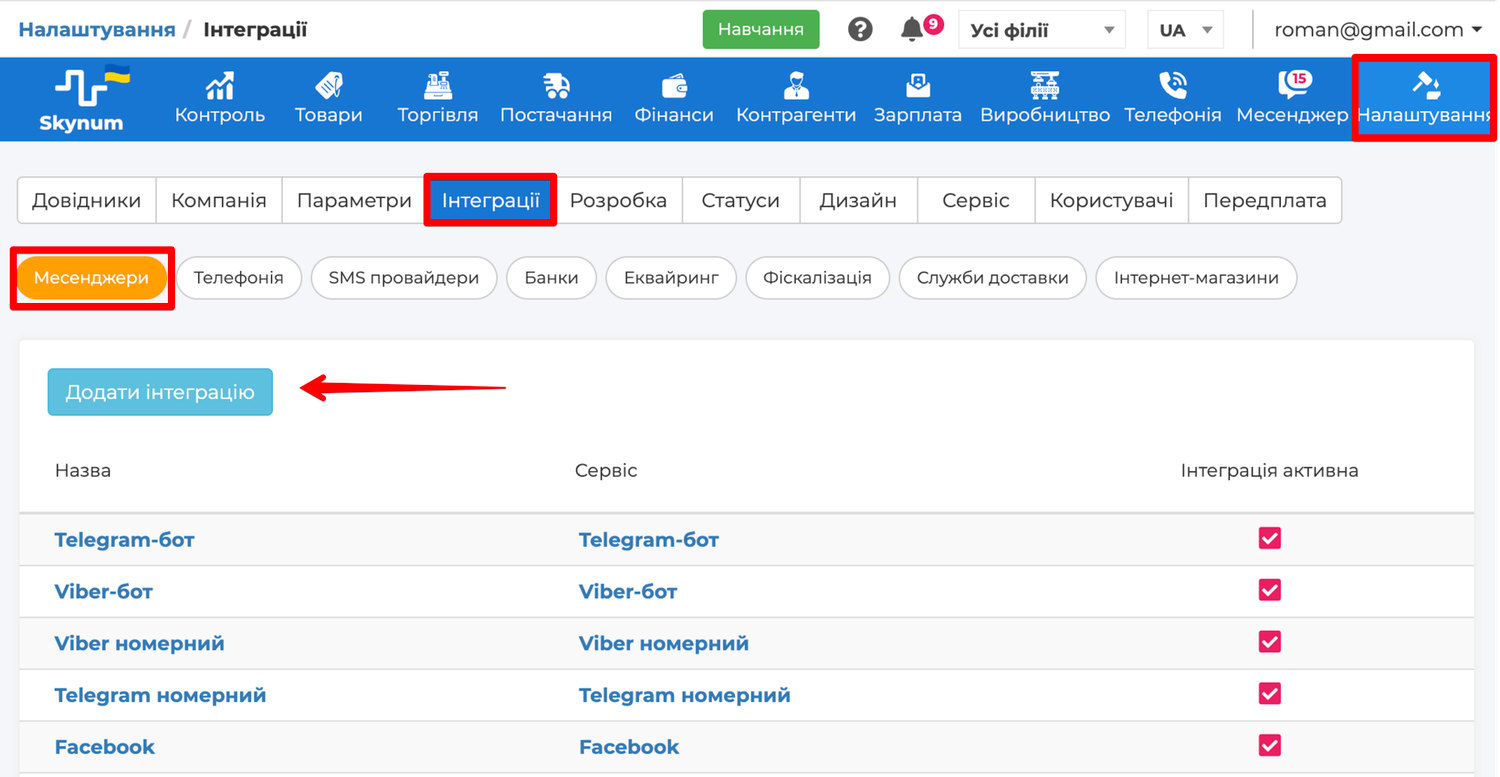
No plan limits the number of channels, so connect every channel where your customers write.
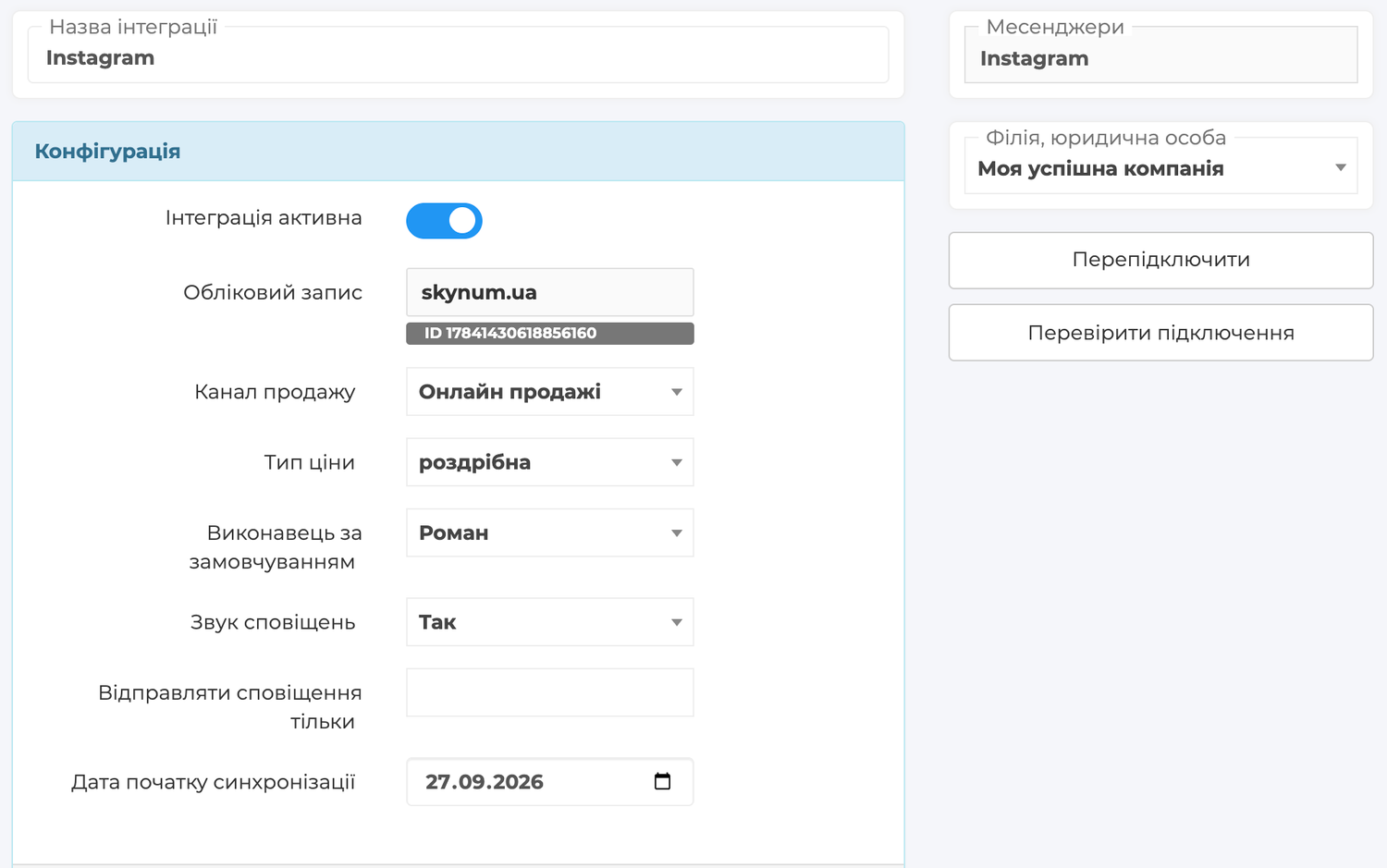
In the integration, you also set the rules for new conversations in this channel:
- Sales channel — the source under which the conversation and the orders from it appear in sales reports. This shows how many sales came from Instagram and how many from Rozetka.
- Pricing Type — the price at which the channel sells. This price appears in a product the manager sends from the catalog and in an order created from the conversation. This way a marketplace can sell at its own price and Instagram at the retail price. A new integration takes the company's sales pricing type.
- Default Executor — which manager replies to new inquiries from this channel.
- Notification sound — whether a sound plays when a customer writes.
- Send notifications only to — which users receive notifications. If the field is empty, everyone with access to conversations receives them.
- Legal entity, branch — which branch the channel's conversations belong to.
How Work with Inquiries Goes
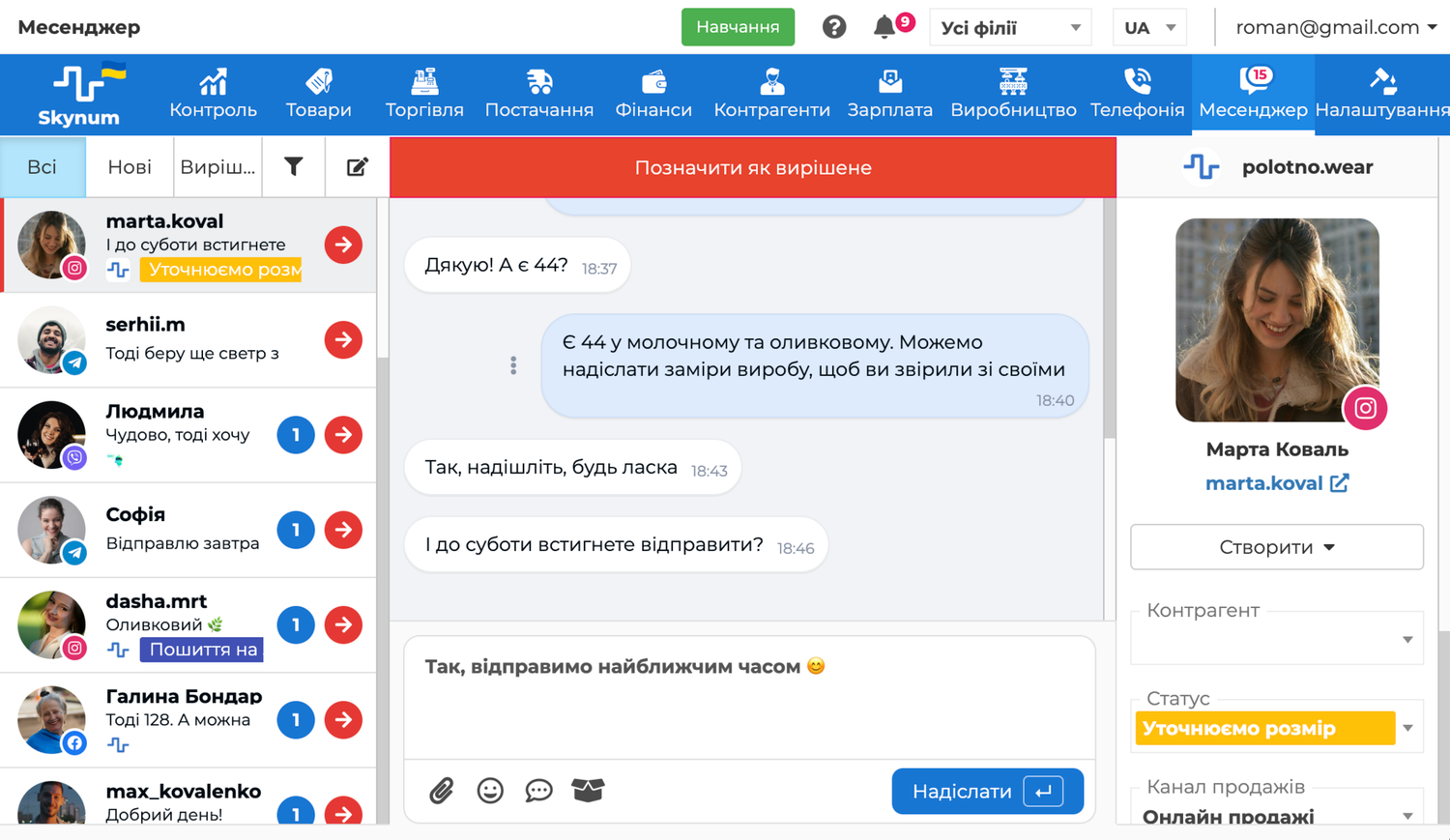
Once the channels are connected, all inquiries arrive in the Messenger section of the main menu. The section screen has three parts: on the left — the list of conversations with the All, New and Resolved tabs, in the middle — the open conversation, on the right — the customer panel with the Counterparty, Status, Sales Channel and Executor fields.
Whatever channel an inquiry comes from, working with it takes five steps:
- Open the New tab above the conversation list — it holds the customers waiting for a reply.
- Reply to the customer — the reply goes to the same channel they wrote to.
- Specify who the customer is: the conversation will appear in their card.
- Create an order or a task right from the conversation.
- Mark the conversation as resolved when the question is closed.
Simple rule: every customer waiting for a reply is in the New tab. Once you have replied and closed the question, mark the conversation as resolved. If the customer writes again, it goes back to New by itself.
Step 1. Open New Inquiries
When a customer writes, Skynum lets you know immediately: a sound plays on any page of the platform, if it is turned on in the integration, and outside the Messenger section a notification with the beginning of the message also appears. The number next to Messenger in the main menu shows how many conversations have unread customer messages.
Open the Messenger section and the New tab. Here are the conversations that are still being worked on, the most recent at the top. The icon on the customer's photo shows the channel they write from, and the number on a conversation shows how many of the customer's messages nobody has read yet. To find a specific customer or one manager's conversations, click the funnel button next to the tabs — the filters will open.
Step 2. Reply to Customers
Click a conversation, type your reply at the bottom and click Submit or press Enter — the customer receives it in the same channel they wrote to. Under your message you can see how it was delivered: Sent, Delivered, Seen. This way you know the customer has already read the invoice, and there is no need to ask again. If the messenger did not accept a message, the reason and a Retry button appear under it.
Next to the field where you type your reply there are four buttons:
- Paperclip — send a photo, document, video or audio up to 20 MB: an invoice, a product photo, instructions.
- Smiley — insert an emoji.
- Quick Replies — ready-made texts for frequent questions.
- Box — send a product from the catalog.
Other actions depend on the channel: in some you can quote a customer's message, react with ❤️ or edit a message you have already sent, in others you cannot. Skynum shows in a conversation only the actions its channel accepts, so the manager does not have to remember the rules of each messenger.
Conversations in Skynum stay complete forever. Social networks and messengers keep customers' files for a limited time, and in many chat services photos and videos from a conversation no longer open after a month. Skynum keeps every photo, video, audio and document from the customer in its own storage, and a story the customer replied to remains visible in the conversation even after it has disappeared from Instagram. A photo of a defect that the customer sent six months ago opens just as it did on the first day.
Step 3. Specify Who the Customer Is
The right panel of the conversation has the Counterparty field. Find the customer in your database. If the customer is writing for the first time, choose Create Counterparty in this field and fill in the card.
In many channels Skynum finds the customer itself — by phone number. If this number is recorded for one counterparty or their contact person, the conversation is linked to them right away, and the manager does not need to choose anything. The number comes with the customer's message in WhatsApp, on the company number in Viber and Telegram, in Prom and in conversations about an order on Rozetka. A Telegram bot can ask the customer to share their number, and the website chat can ask for contacts before the first message.
Once the customer is specified, the Orders list appears in the right panel — their orders with statuses. Any of them opens in one click, so when a customer asks "how is my order doing?", the manager answers without searching for it in the journals.
A linked conversation appears in the counterparty card next to their calls, orders and payments. Whichever manager opens the customer's card, they see what was discussed and agreed with the customer.
Step 4. Create an Order or a Task
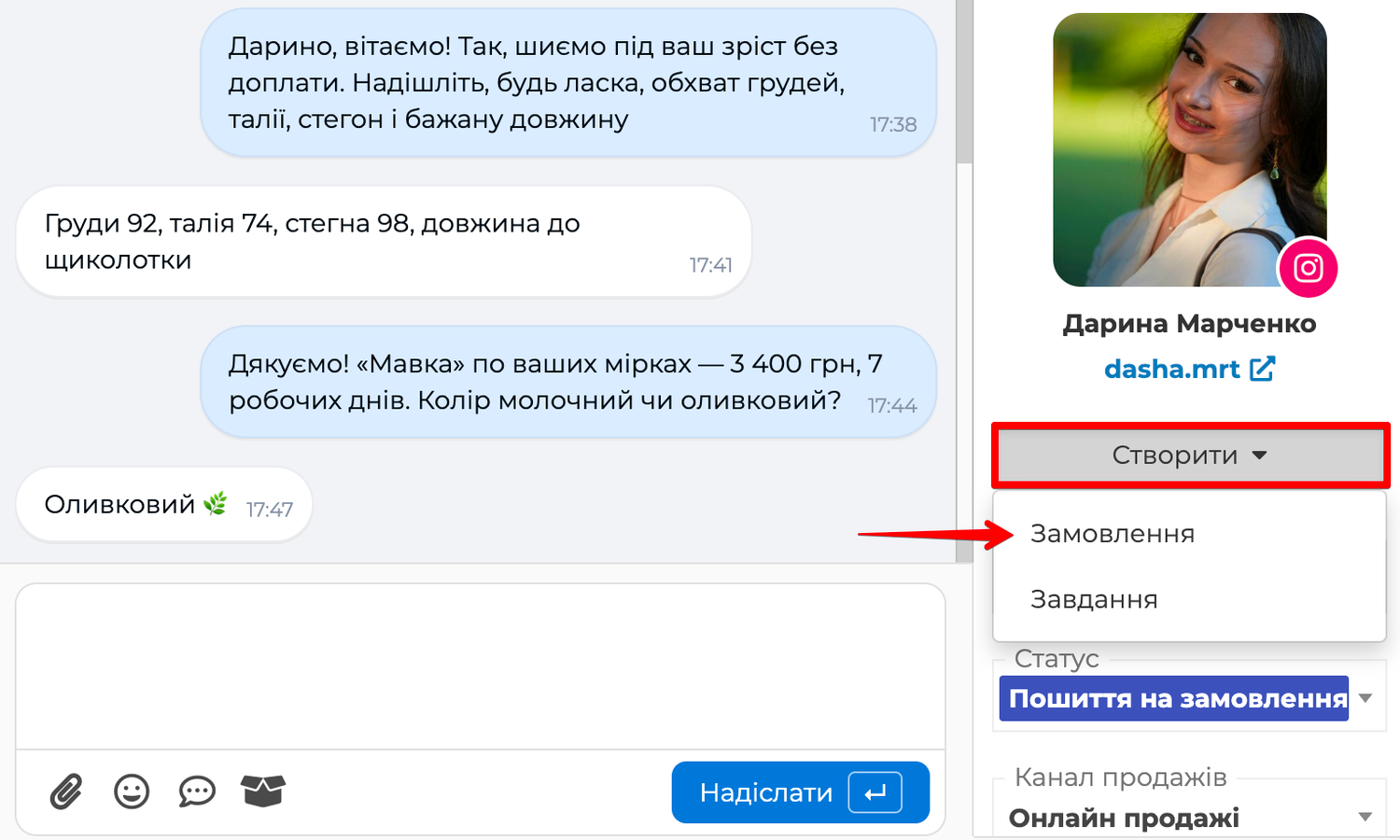
The customer has chosen a product — in the right panel, click Create and choose Order. Skynum creates a client order and opens it. The counterparty, executor, sales channel and branch in it are already the same as in the conversation, and the prices follow the integration's pricing type — the same prices as in the products the manager sent to the customer. Add products and quantities, and the order then follows the usual path: reservation, payment, shipment.
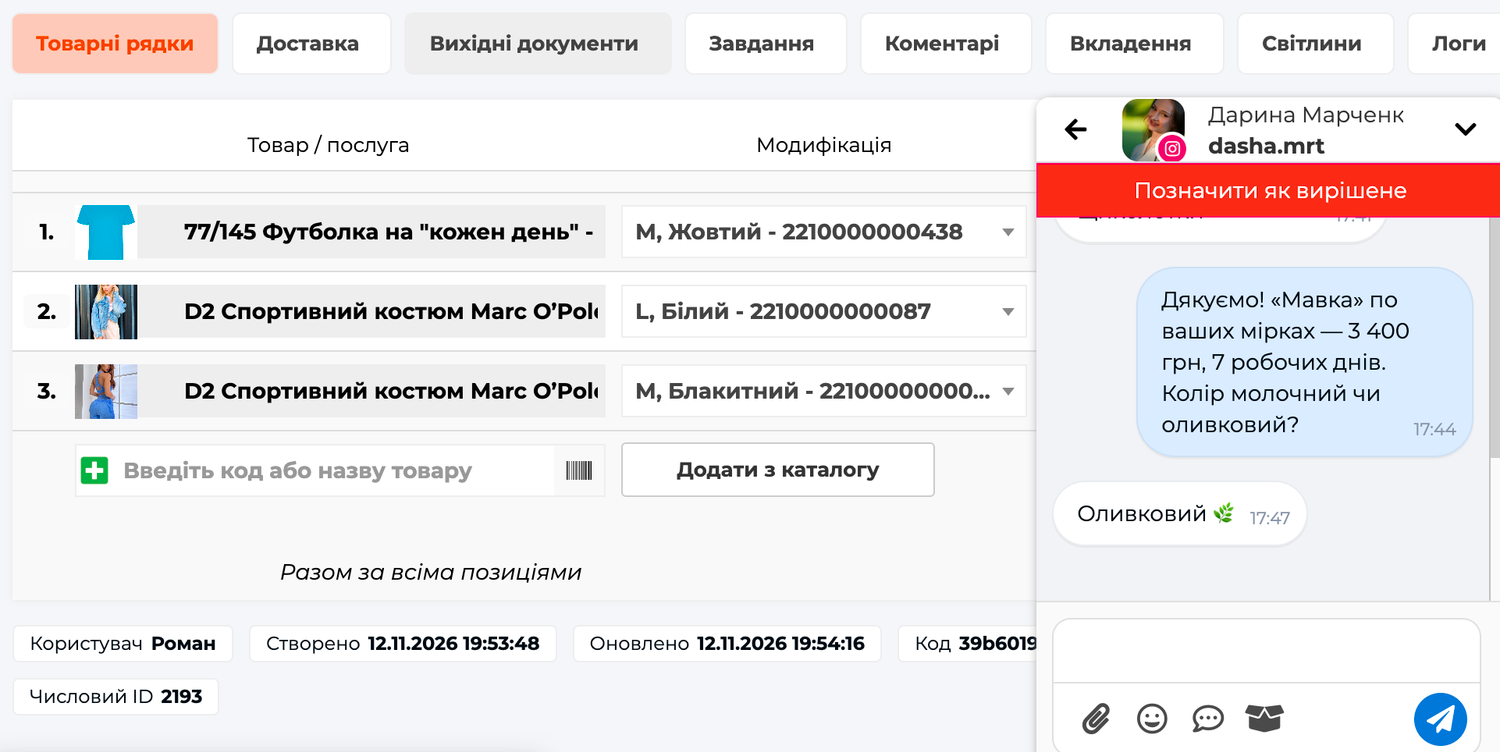
While you fill in the order, the conversation stays close at hand — in the mini messenger, the Messenger panel on top of the page. Expand it, and you can check the color or the delivery address with the customer without leaving the order. The mini messenger works the same way on any other page of the platform: in products, stock balances, documents.
If you need to get back to the customer later — call back, send an invoice, check a payment — click Create → Task. The task is linked to the conversation: the executor opens it and sees which conversation it came from. How to work with tasks is described in the article Tasks.
Step 5. Mark the Conversation as Resolved
When the customer's question is closed, click Mark as resolved in the conversation. The conversation moves to the Resolved tab and no longer takes up space in the queue of new ones. If the customer writes again, the conversation goes back to New by itself.
This way the New tab always shows the real queue: only those waiting for a reply. Do not mark a conversation as resolved while the order has not been placed or the payment has not been received — otherwise the inquiry will leave the queue before the work is done.
Quick Replies
For the same questions — payment details, delivery terms, opening hours — you do not need to type the reply every time. Save it once as a quick reply and insert it in one click.
- In the conversation, click the quick replies button — the one with a speech bubble next to the reply field.
- In the Quick Replies panel, click the reply you need.
The text appears in the reply field with its variables already filled in: the customer's name, if the conversation is linked to a counterparty, and your company's details. Add to the text if needed and send it.
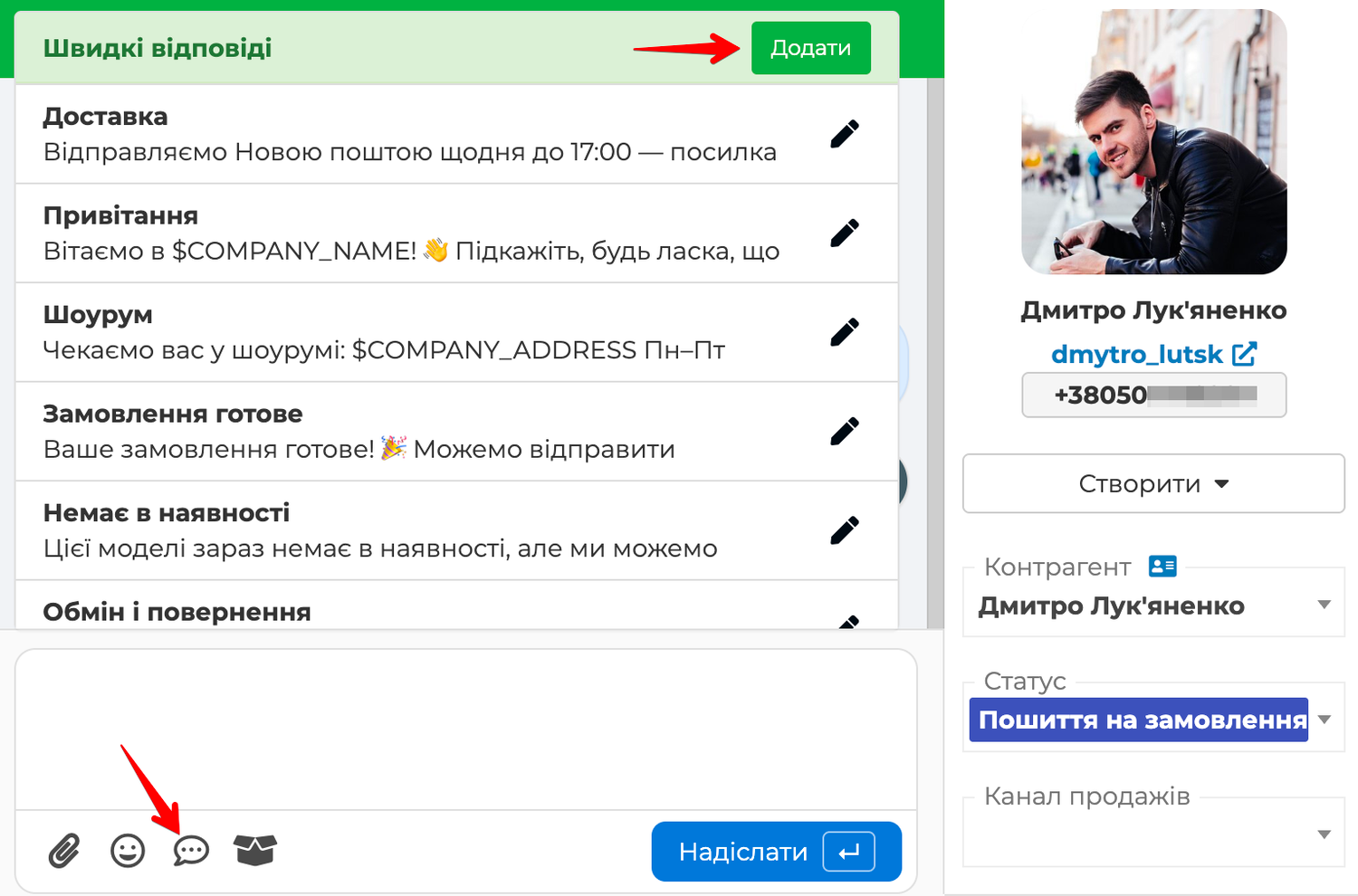
You can create your own quick reply right in this panel:
- Click Add.
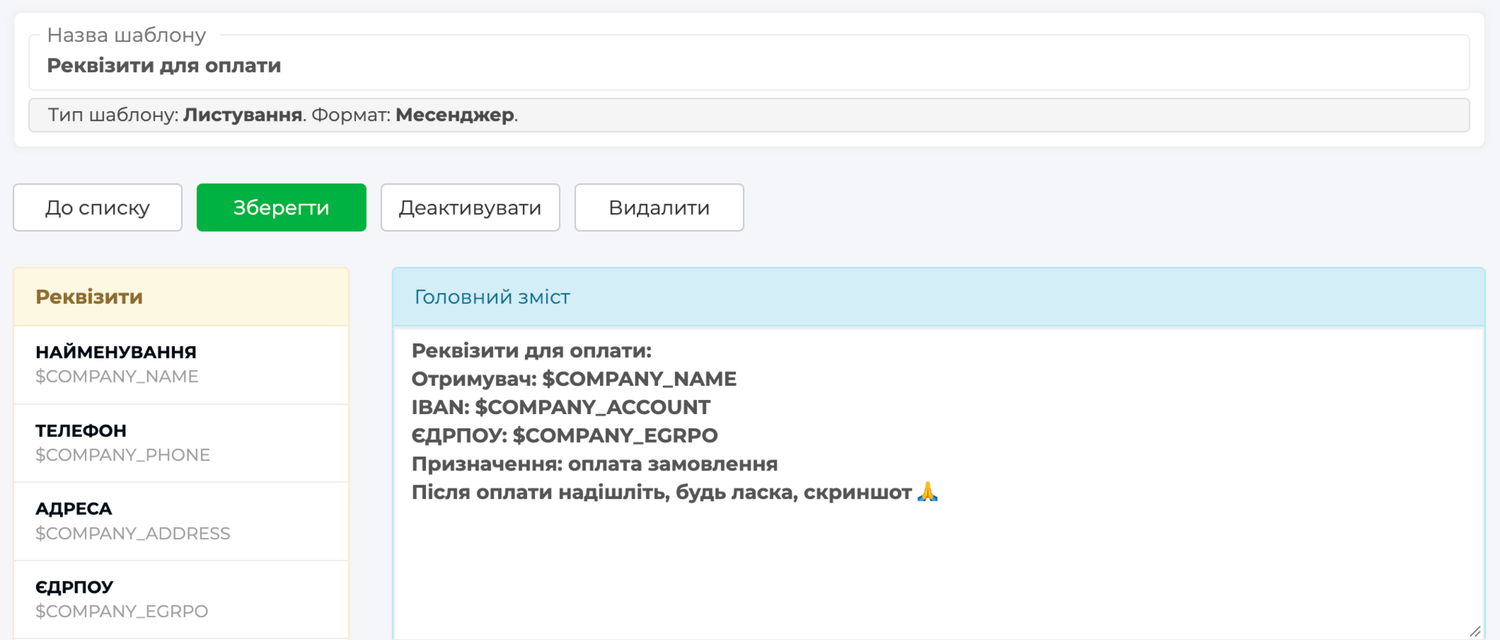
- Enter the template name and click Create — the template editor opens.
- In the Contents block, write the text. For Skynum to fill in the customer's name or the company details on its own, add variables from the editor's list.
- Click Save.
The new reply is immediately available in all conversations. You can edit or deactivate it in Settings → Development → Template Wizard: quick replies there are templates with the Messenger format.
In WhatsApp conversations, the panel also shows templates approved by Meta — they are marked with the channel icon. Only these templates can be used to write to a customer who has been silent for more than a day: the channel does not accept plain text then. How to create these templates is described in the article WhatsApp.
A Product from the Catalog in a Conversation
A customer asks about a product — the manager sends it from the catalog without leaving the conversation. There is no need to copy the name from the product card, look for a photo on the computer or remember the price.
- Click the box button next to the reply field.
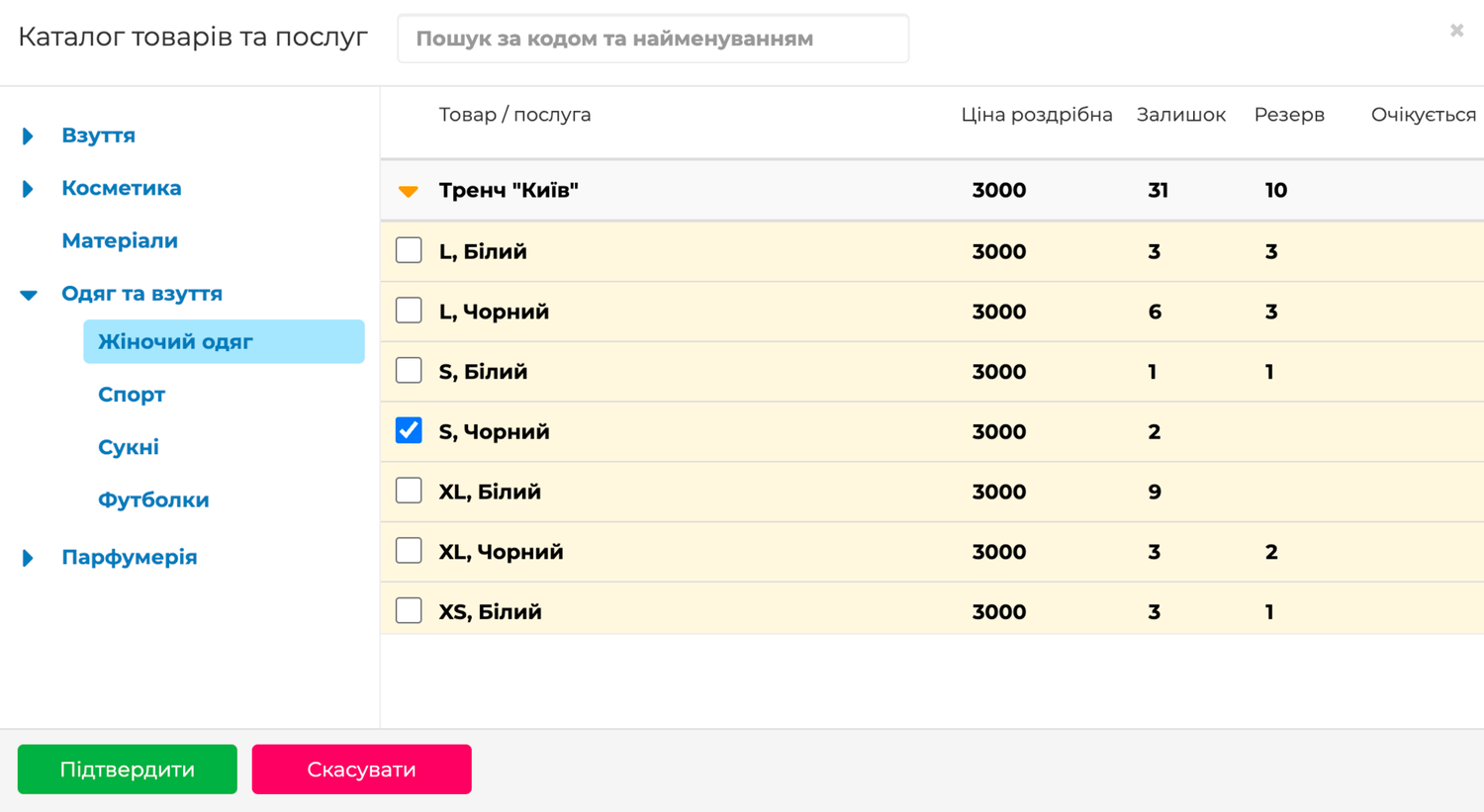
- In the Catalog of goods and services window, find the product by name or code, or in a category. Each product shows its price and stock balance, so the manager does not offer what is out of stock.
- Select the product (or the modification you need, if the product has modifications) and click Confirm.
Skynum puts the product name with the modification, its features and the price by the integration's pricing type into the reply field, and attaches the photo of the modification or the product to the message. If you run a Skynum online store and the product is shown there, a link to it is added to the text. Finish the message to the customer and send it.
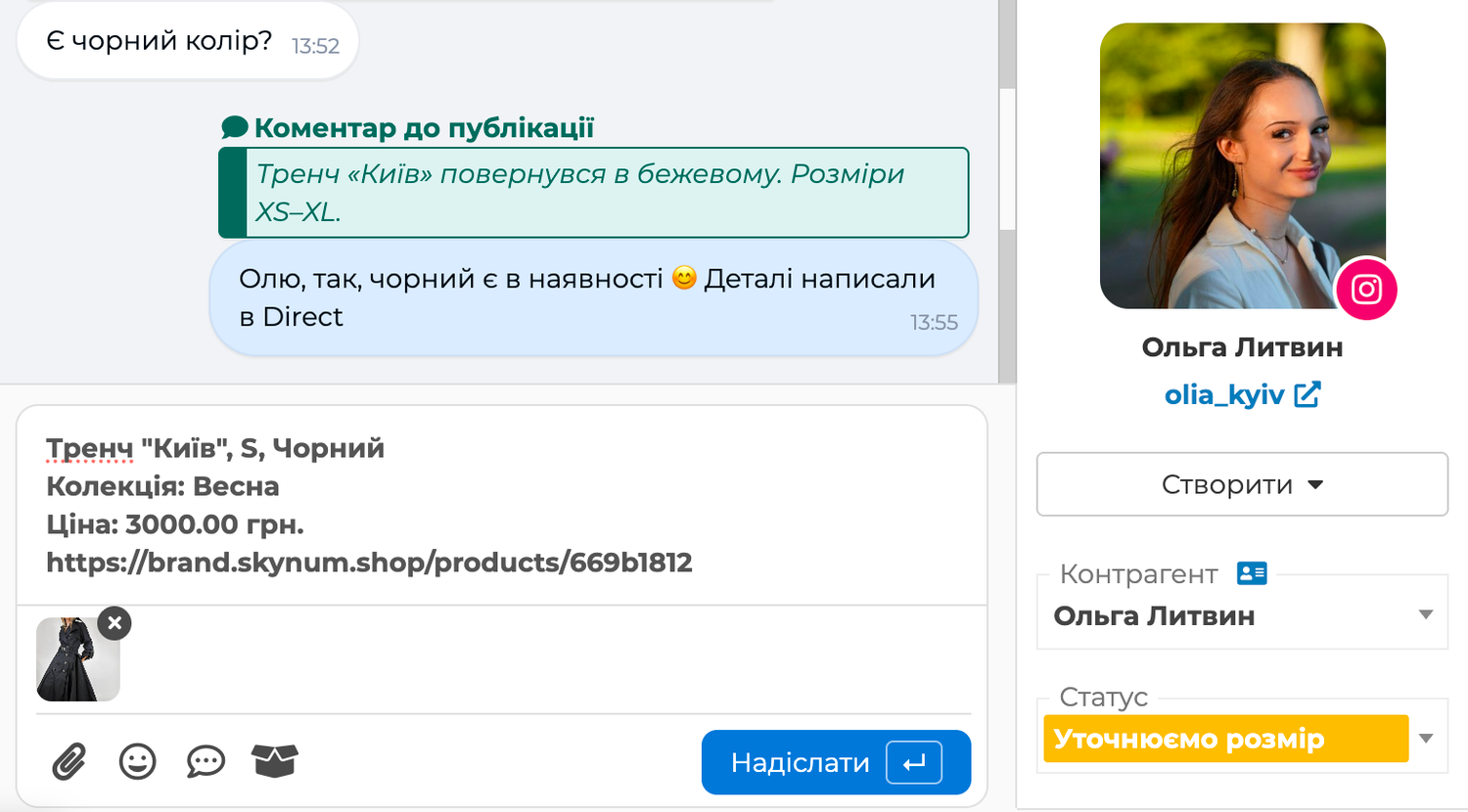
The price in the message and the price in the order from this conversation are the same: both come from the integration's Pricing Type field. The customer gets the price they were quoted.
Search and Filters
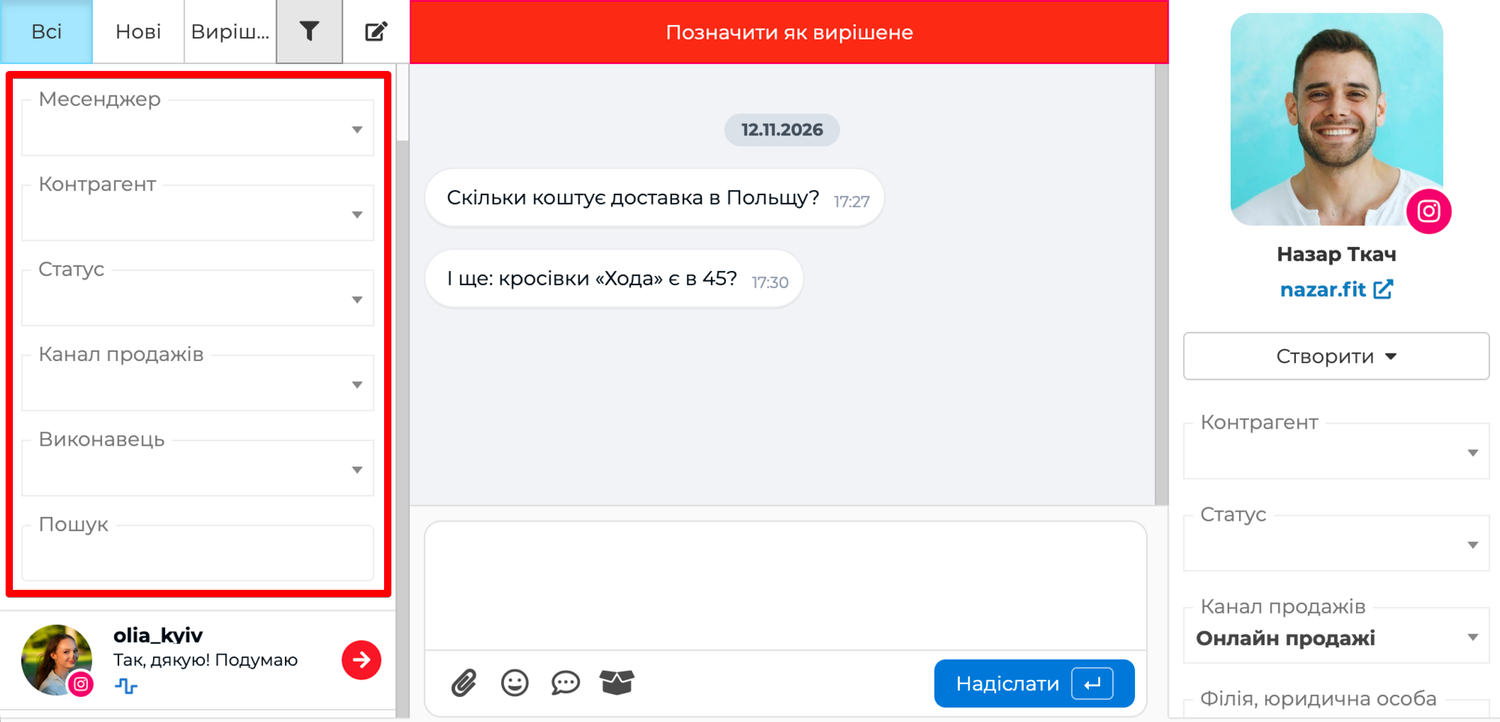
Above the conversation list, next to the All, New and Resolved tabs, there is a funnel button. It opens the filters:
- Messenger — conversations from one channel, for example only Instagram.
- Counterparty — all conversations with one customer.
- Status — inquiries at one stage.
- Sales Channel — conversations from one sales source.
- Executor — conversations of one manager.
- Search — text from messages: an order number, a product name, an address. The list keeps the conversations where it occurs.
Filters combine with tabs and with each other: the New tab with the Executor filter is one manager's queue. While a filter is set, the funnel button is highlighted, so you can see that the list is narrowed. The cross on it resets all filters.
A Customer's Chats, Calls and SMS in One Feed
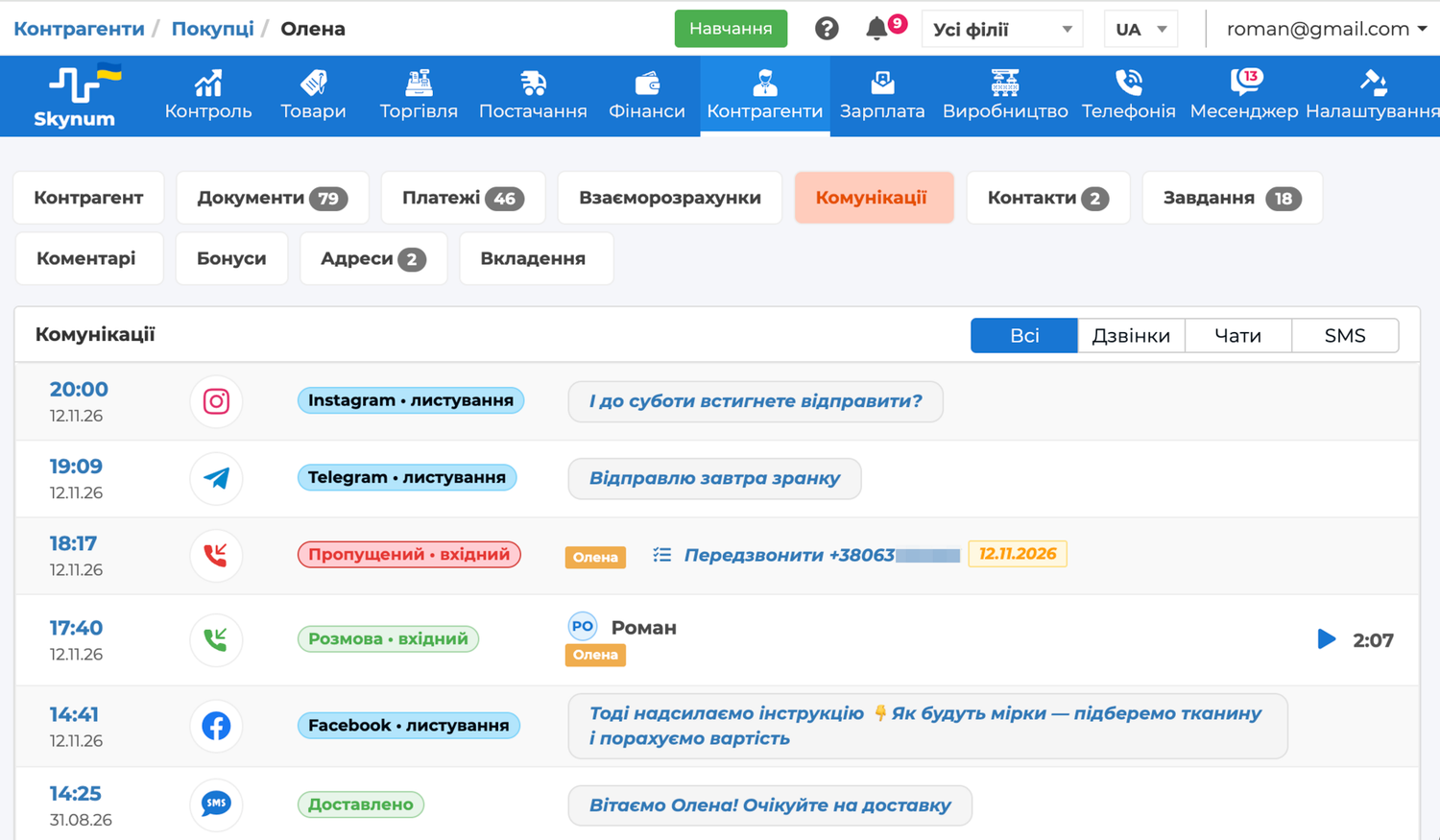
Today a customer writes on Instagram, tomorrow they call, and the day after they receive an SMS about the shipment. In Skynum, all these conversations are in one place — in the counterparty card, on the Communications tab. Calls, conversations from all channels and SMS appear here in time order. With the Calls, Chats and SMS switches, you can leave just one of them in the feed; All brings everything back. A call recording plays right from the call row, and a conversation row opens the conversation in the messenger.
Call from a conversation. If the channel passed the customer's number, it is shown in the right panel of the conversation. Click it — a menu opens: Call, Copy, Telegram and Viber. Call appears when telephony with one-click calling is connected: the manager calls the customer without dialing the number, and the call goes into the same feed. Telegram and Viber open this number in the corresponding messenger.
Write from a call or a document. The Write action is in the menu next to the customer: in the counterparty card, in a document, in a payment and in a call from the call log, if the number is found in your database. It opens the messenger with this customer's conversations, and if there are no conversations yet, it opens the New conversation window with the customer already selected.
Inquiry Stage and Notes
The conversation status shows the stage of the inquiry: for example, "Awaiting payment" or "Checking availability". You create the statuses yourself to fit your process: Settings → Statuses, the Conversation list. Then choose a status in the Status field of the right panel. It is visible in the conversation list, and the status filter shows all inquiries at one stage — say, everyone you are waiting on for payment.
Add notes in the right panel is for what the team needs to know about the customer: an agreed discount, delivery preferences. The customer does not see the note.
Write to the Customer First
Usually the customer starts the conversation. But sometimes you need to write first: the customer left a request on the website, the order is ready, and you could not reach them by phone. For this, there is a New conversation button above the conversation list — it appears when a company number in Viber, Telegram or WhatsApp is connected.
- Click New conversation.
- In the Messenger field, choose which company number and which messenger to write from.
- On the Contragent tab, find the customer and choose their phone number — or switch to the Any number tab and enter the number.
- Type the message and click Submit.
The message goes to the customer, and the conversation with them opens — from there everything works as usual. In WhatsApp, the first message is an approved template: instead of a text field, you choose a template and fill in its variables.
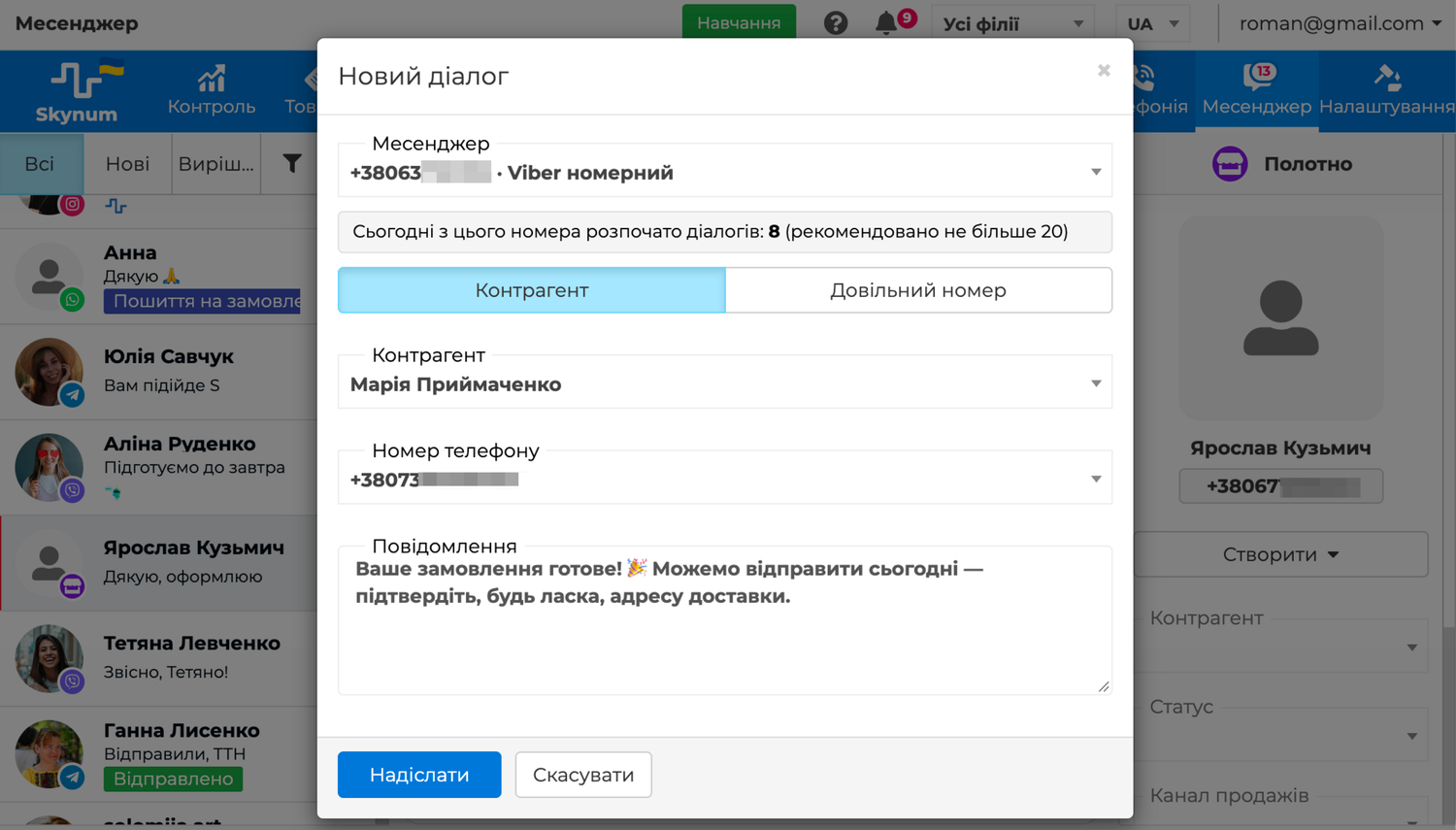
The window shows how many new dialogs have already been started from this number today. Messengers make sure numbers are not used for spam and can block a number that writes to too many new contacts in a day. The counter helps you stay within the limit. Write first to those who are expecting your message, and send mass mailings through SMS messaging.
In bots, Instagram and Facebook, the customer always writes first — that is how these channels work.
Who on the Team Replies
Every new conversation immediately gets an executor — the one specified in the integration. You can change the executor of a specific conversation in the right panel: for example, hand the customer over to a colleague who handles their order. The Executor filter shows one manager's conversations: this way everyone sees their own chats, and the head of the team sees the team's work.
Which conversations a user sees is set by their role: the Communications tab, the Messenger row. The All level opens all conversations, the Owner and Owner and executor levels open only those where the user is the executor, and No closes the messenger. If the company has several branches, the user sees conversations of their own branches only.
How It Works in Real Life
A Question in a Comment Becomes an Order
Under an Instagram post, a customer asks whether the item is available in her size. The comment appears in the New tab with the Comment on the post label. The manager replies to her privately in Direct, so not every reader sees the size and the price. With the box button, he sends the dress in the right size from the catalog — with a photo, the price and a link to the store. The customer confirms, and the manager creates her card in the Counterparty field, clicks Create → Order and adds the product. The order appears in the sales report under the sales channel set in the Instagram integration, and the conversation appears in the customer's card.
A Customer Calls: "I Wrote to You"
A customer calls and says that yesterday he wrote on Viber about a discount but does not remember who he talked to. While he explains, the manager opens his card and the Communications tab: yesterday's conversation is right next to today's call. It shows that a colleague promised a discount on the next order. The manager confirms this over the phone, and after the call opens this call in the call log, clicks Write and sends the invoice to the same conversation.
A Customer Asks Whether Their Item Is Ready
A customer ordered a table made to his size, and production was launched from the order. A week later he writes on Instagram: "When will my table be ready?". The manager opens the conversation and, in the Orders list of the right panel, clicks the customer's order. On the Outgoing Documents tab, he opens the production: status "Painting", due date — Friday. The manager replies: the table is being painted and will be ready on Friday. There is no need to open another program: the order, the production and the conversation are in one system.
A Marketplace Buyer Asks About a Product
A buyer on Rozetka asks a question about a product. Within a minute, the question appears in the Skynum messenger with a line showing which product it is about. The manager replies from the same window where he works with all other customers, and the reply reaches the buyer on Rozetka, in the conversation about this product.
The Order Is Ready, and the Manager Writes First
The customer's order is packed, but he does not answer the phone. In the order, the manager opens the menu next to the counterparty and clicks Write. There are no conversations with the customer yet, so the new conversation window opens with the customer and his number already selected. The manager chooses the company number in Viber and writes that the order is ready. The customer replies — the conversation is already linked to him and is in New.
A Website Visitor Asks About Delivery
The Skynum chat runs on the store's website. A visitor clicks the chat button in the corner of the page, leaves his name and phone number in the form and asks whether the store delivers to his city. In Skynum, the conversation is named after him, and the right panel shows the website page he is writing from. The number is already in the database, so the conversation is linked to the counterparty, and the manager sees his previous orders.
A Manager on Vacation
The manager who handles Instagram goes on vacation. In the Instagram integration, the head of the team changes the Default Executor, and new inquiries go to a colleague. The head of the team finds the conversations already in progress with the Executor filter and, in the right panel of each one, changes the executor to the colleague.
Before You Start
- Every channel has Sales channel and Default Executor filled in — otherwise it is unclear who replies and where a sale came from.
- Managers' roles have the Messenger row open on the Communications tab.
- Conversation statuses are created, if you handle inquiries by stage.
- Quick replies are ready for the questions customers ask most often.
All fields, labels and rules of each channel are collected in the Messenger section of the help centre.
Summary
The messenger in Skynum is not a separate inbox but part of the system where you keep your accounting: conversations, orders, payments, inventory and production in one place. All channels — from Instagram to your own website chat and marketplaces — are in one queue with an executor and a status. The customer is found in your database automatically, a product from the catalog goes into the chat with the channel's price, an order is created from the conversation in one click, customers' photos and documents do not disappear, and chats, calls and SMS are in one feed in the customer's card. That is why anyone on the team can pick up the conversation where a colleague left off — and no customer gets lost together with a sale.