Skynum connects Telegram in two ways: Telegram bot and Telegram number. We recommend the bot — it is Telegram's official way for businesses. Telegram number is needed when you want to write to a customer first. Both ways are described in this article.
Customers' messages from Telegram arrive in Skynum, and the manager replies to them from a computer. Next to the conversation is your accounting: the manager sees the product's stock balance and price and creates an order right away.
What the Telegram integration gives you — both for the bot and for the Telegram number channel:
- The whole team replies from a computer. Several managers handle customers from Telegram in Skynum at the same time, and nobody has to pass the phone around.
- An order right from the conversation. The customer has decided to buy — the manager creates an order without leaving the chat.
- A product from the Skynum catalog straight into the chat. The manager chooses it in the catalog, sees the stock balance and sends the customer a photo with the price.
- The customer is found automatically. When the customer's number is recorded for one Skynum counterparty, the chat is linked to that counterparty without the manager's involvement.
- Conversations in the customer's history. In the counterparty card, the chat is visible next to their orders, payments and calls.
- Conversations stay in the company. If a manager leaves the job, their conversations with customers remain in Skynum, and the chats can be handed over to a colleague.
- Someone responsible for every chat. The chat is assigned to a manager, so you can see who is handling the conversation with the customer.
- How much Telegram earns. Skynum shows the revenue from sales via Telegram, the cost of goods sold and the profit.
The chats of both channels are handled in the Messenger section — together with chats from Instagram, Facebook, WhatsApp, Viber, the website and the Prom and Rozetka marketplaces. The manager does not need to keep Telegram open on the phone: all customers are in one list.
For working with chats — orders from conversations, reply templates, statuses — read the article Messenger. For Telegram, working with chats is the same as for other channels.
Next — how a Telegram bot differs from the Telegram number channel, how to connect each of them and what is special about conversations in Telegram.
Bot or Telegram Number
Telegram bot — a separate account of your company in Telegram: the customer finds it in Telegram search or by a link and writes to it.
Telegram number — a regular Telegram account registered to the company number: the customer writes to you just like to any of their contacts. The number is connected to Skynum through the E-chat service.
Way |
Advantages |
Disadvantages |
|---|---|---|
Telegram bot |
No risk of being banned: the bot replies only to those who wrote to it themselves. Free. Does not need a phone. Can ask the customer for their phone number with one button. |
You cannot write to a customer first: the customer always starts the conversation. The customer has to find the bot — a link to it needs to be placed on the website and in social networks. |
Telegram number |
You can write to a customer first. Customers write to a familiar number. The customer's number is visible right away, unless they have hidden it. |
Telegram can ban the number for mass messages to people who have not written to you: start no more than 20 new dialogs a day yourself. E-chat is a paid service. |
The bot suits everyday conversations with customers, Telegram number — when you need to write to a customer first. You can connect both — each as a separate integration.
Connecting a Telegram Bot
If the company already has a bot, you do not need to create a new one. Open the chat with @BotFather, send the /mybots command, choose your bot and tap API Token — copy the token and go on to the setup in Skynum. After the connection, the bot's messages will arrive in Skynum, not in the service the bot worked with before.
If you do not have a bot yet, create one. Telegram has an official bot for this, @BotFather, with a blue checkmark next to its name. Find it in Telegram search, open the chat, tap Start and send the /newbot command. BotFather writes in English. It asks for the bot's name, then its username — reply to each question with a separate message:
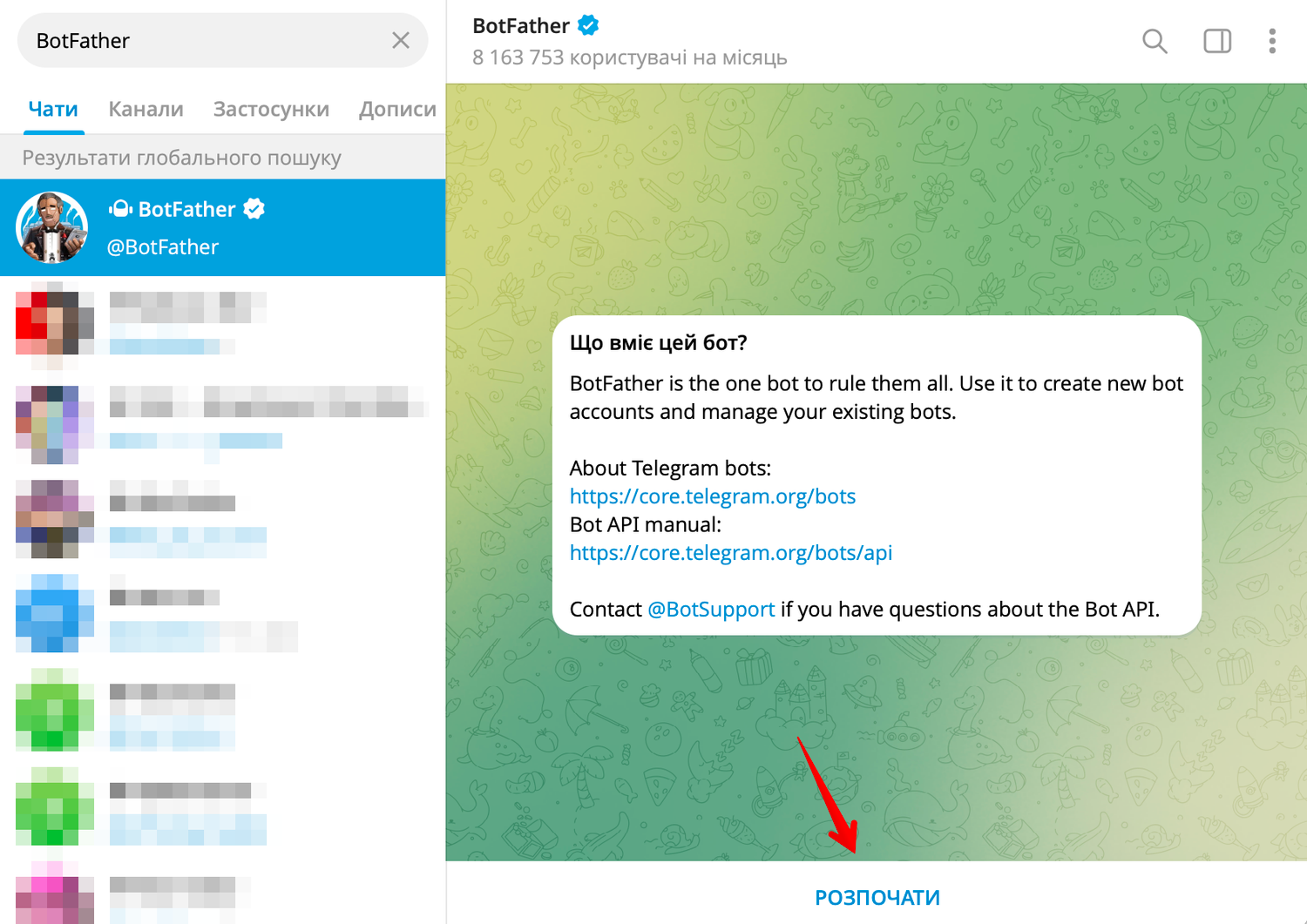
- Bot name — the name the customer sees above the chat. Usually it is the company name.
- Bot username — the bot's address in Telegram, customers find it by this address. The username is written in Latin letters and ends with bot, for example my_shop_bot. If BotFather replied Sorry, this username is already taken, this username is already in use — come up with another one.
After that, BotFather sends a message with the token. The token is under the line Use this token to access the HTTP API. It is a long string: digits, a colon, then letters and digits. Copy the token: Skynum needs it to connect to the bot. Do not forward the token to anyone: whoever has it controls the bot.
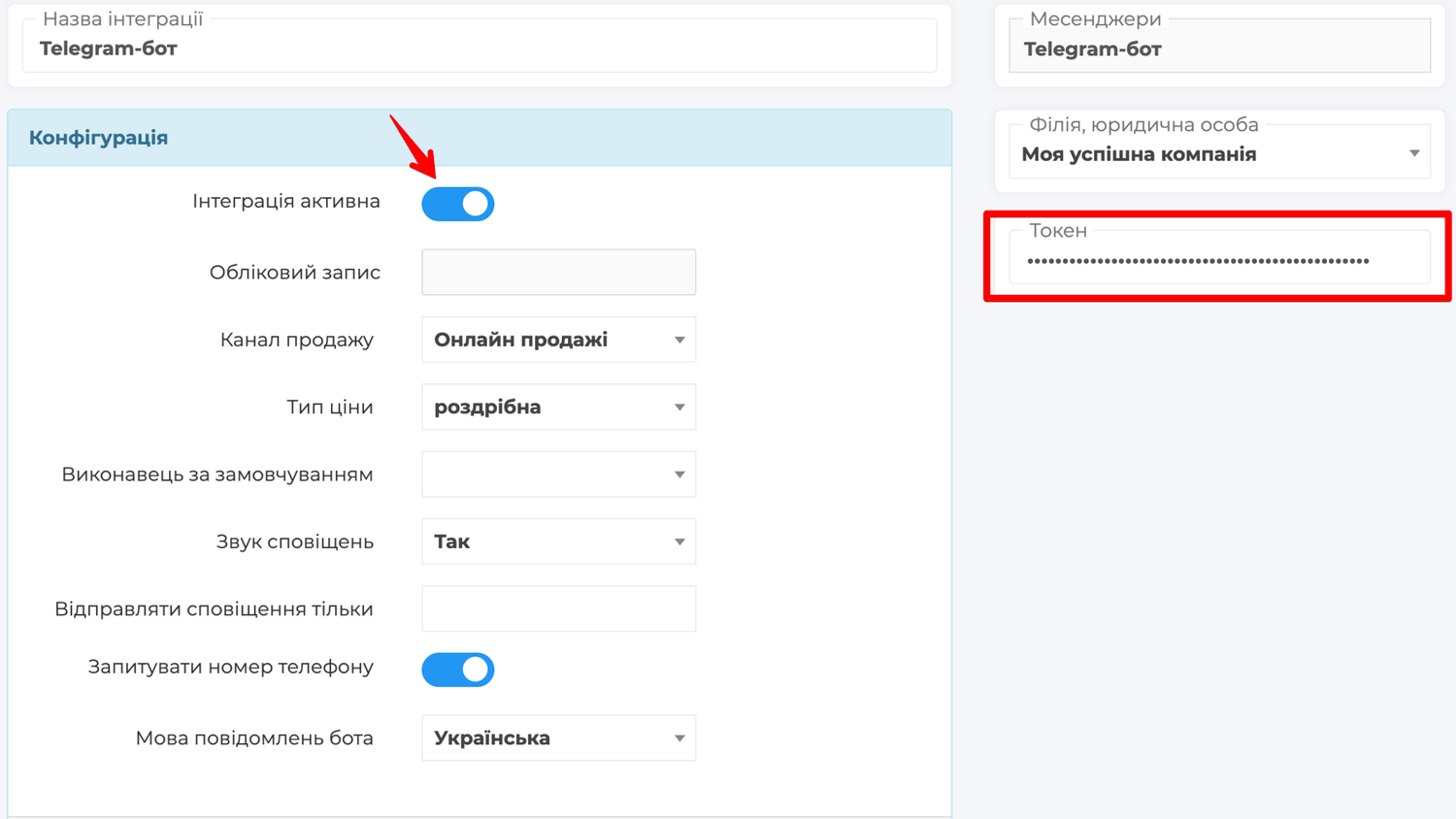
The bot is ready — now go to Skynum. In the platform, open Settings → Integrations → Messengers, click Add Integration and choose Telegram bot in the list.
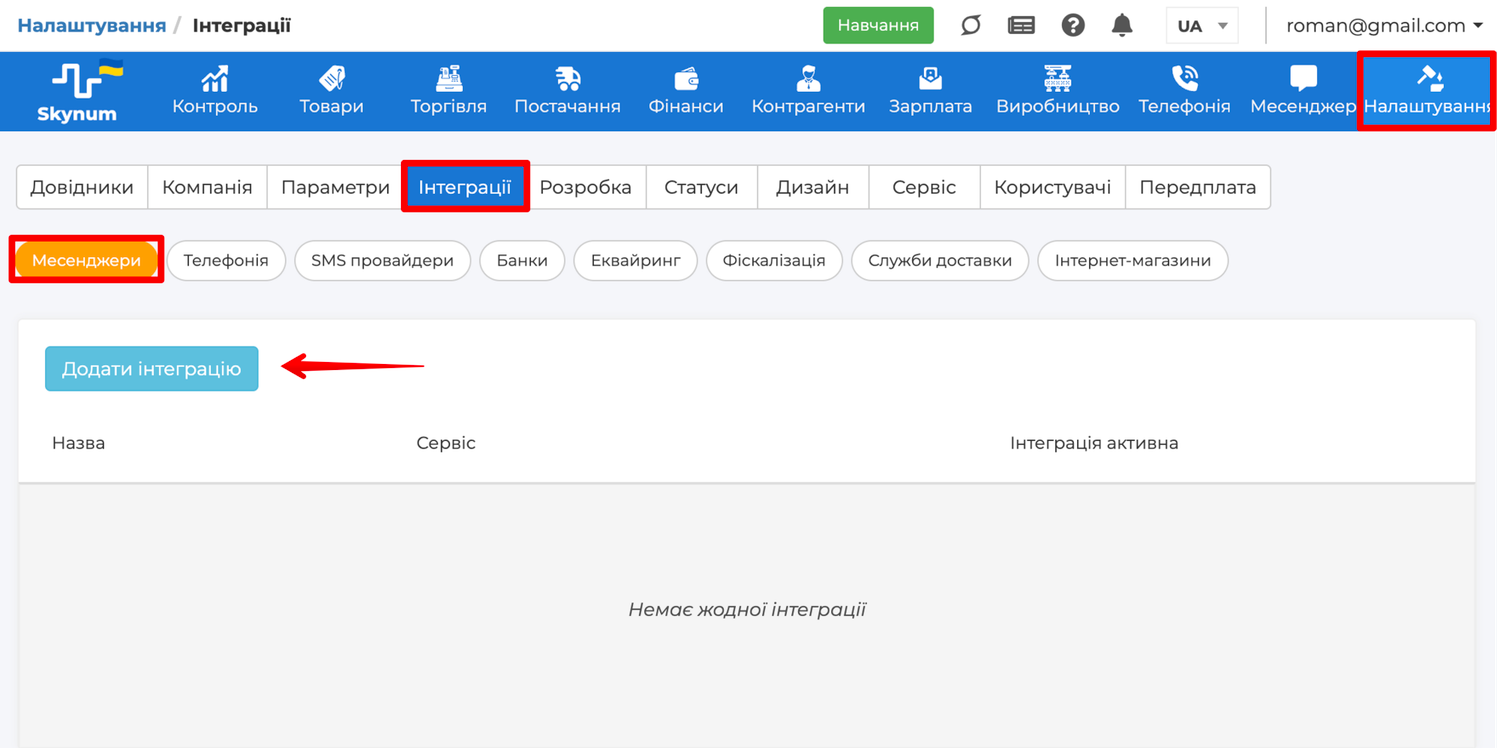
The form for a new integration opens. Fill in the fields:
- Integration name — the name under which you will see the integration in the list of integrations and in the chats of the Messenger section.
- Integration Active — turn it on: while the switch is off, customers' messages do not arrive in Skynum.
- Sales channel — choose the channel that the bot's chats and the orders from them belong to. This way reports show how much Telegram has brought in.
- Pricing Type — the customer sees a product in the chat at the price of this type, and the product goes into the order at the same price. In a new integration, the company's main pricing type is already set here.
- Default Executor — (optional) whom Skynum assigns as responsible for every new chat of the bot.
- Notification sound — turn it on to hear a signal when a customer writes to the bot.
- Send notifications only to — (optional) the employees who will receive notifications when a customer writes to the bot. If the field is empty, everyone who sees the chats of this integration receives notifications.
- Request the phone number — turn it on for the bot to ask the customer for their number; see details below, in the subsection "The Bot Asks the Customer for a Number".
- Bot messages language — the language in which the bot asks for the number.
- Legal entity, branch — choose the branch or legal entity that the bot's chats belong to; employees with access to it see these chats.
- Token — paste the token from BotFather.
Leave the Account field empty: Skynum fills it in by itself.
Click Save. The bot's username appears in the Account field, and its name in the Name field: the bot is connected. If the bot's username did not appear, copy the token in BotFather again — in full, including the colon — paste it into the Token field and click Save.
To make sure everything works, write to the bot as a regular customer. In Telegram, on your personal account, find the bot in search by its username. Or open the t.me/ link with the bot's username, for example t.me/my_shop_bot. Tap Start and send a message. In a few seconds, the chat appears in Skynum, in the Messenger section.
Place the link to the bot on your website and in your Instagram profile: the customer follows it and can write to you right away.
The Bot Asks the Customer for a Number
Telegram does not pass the customer's number to the bot, but the bot can ask for it. To do this, turn on Request the phone number in the bot integration, and in the Bot messages language field choose the language in which the bot addresses customers: Українська, Русский or English.
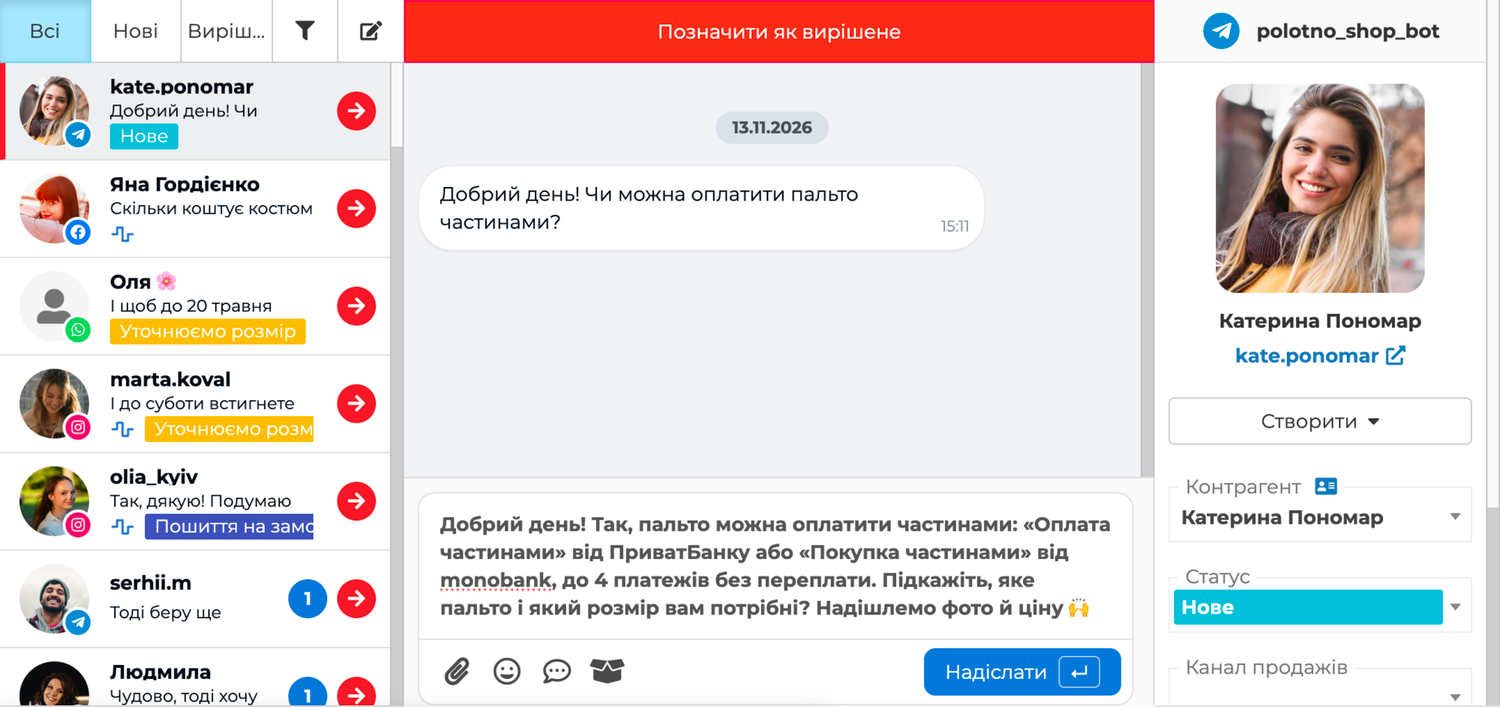
As soon as the customer starts a conversation, the bot asks them to tap the Share phone number button. When the number belongs to one counterparty or their contact person, Skynum links the chat to them on its own. If the customer has not shared the number or is not in Skynum yet, the manager chooses or creates a counterparty in the Counterparty field next to the conversation.
Connecting the Telegram Number Channel
To connect a number, you will need an E-chat account and a phone where Telegram is logged in with the company number. If you do not have an account yet, sign up for E-chat.
Connect the number the company uses for working with customers.
Add the Number in E-chat
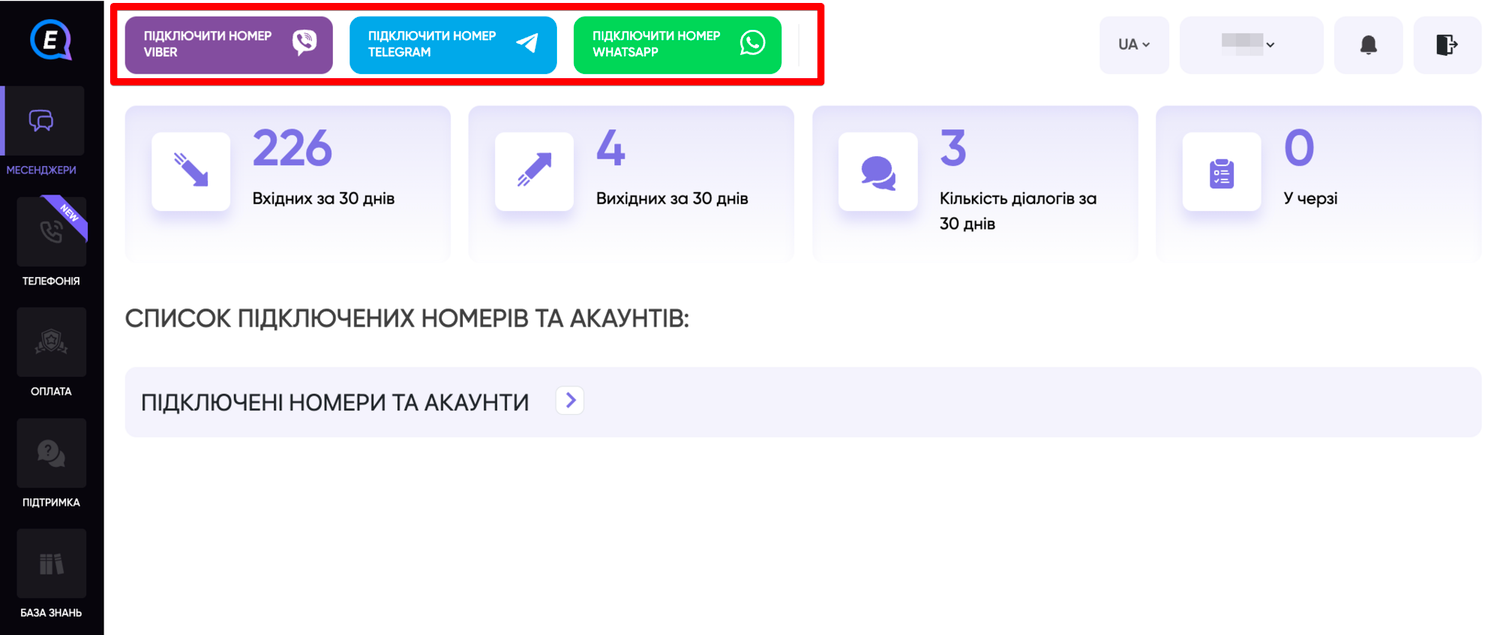
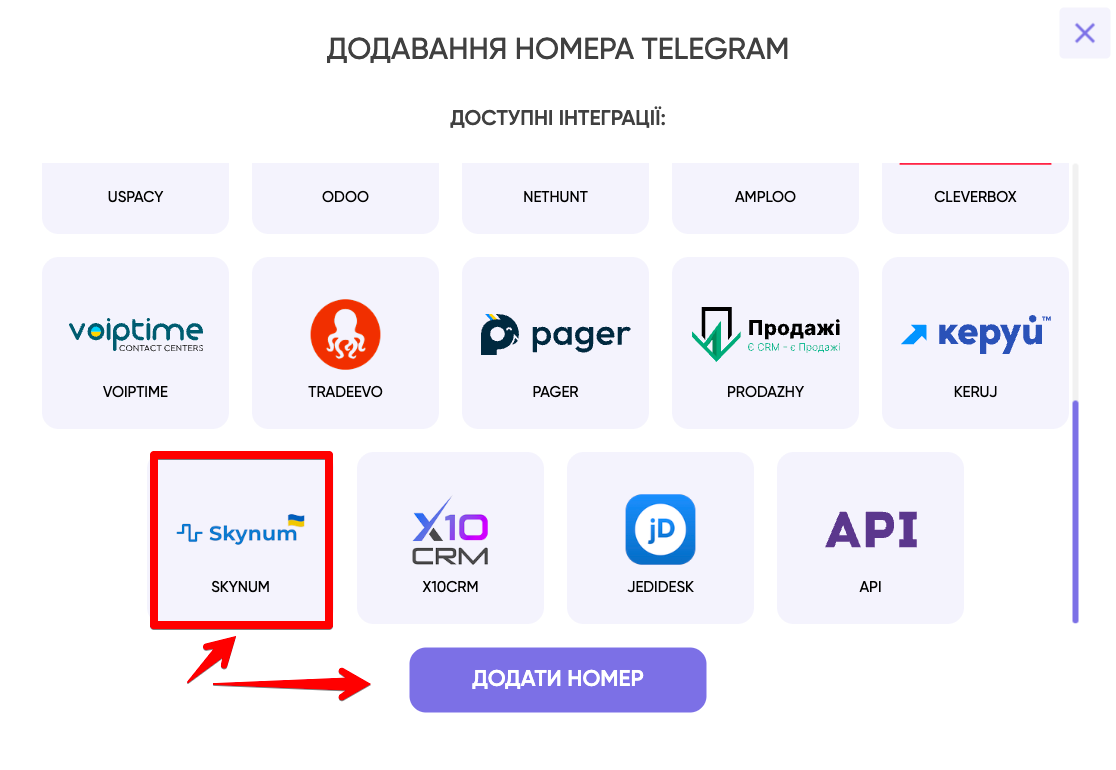
In your E-chat account, click Connect Telegram number. In the window that opens, choose the Skynum integration and click Add number.
E-chat shows a QR code. Scan it in Telegram on the phone with this number — the same way you log in to Telegram on a computer. How to scan the code step by step is shown in the E-chat help. Telegram on the phone keeps working as before.
Important. In Telegram on the phone, E-chat appears in the list of connected devices. Do not terminate this session, otherwise customers' messages to this number will stop arriving in Skynum.
After scanning, expand the Connected numbers and accounts block in your E-chat account — the number appears among the Telegram numbers. Copy the API key next to the number.
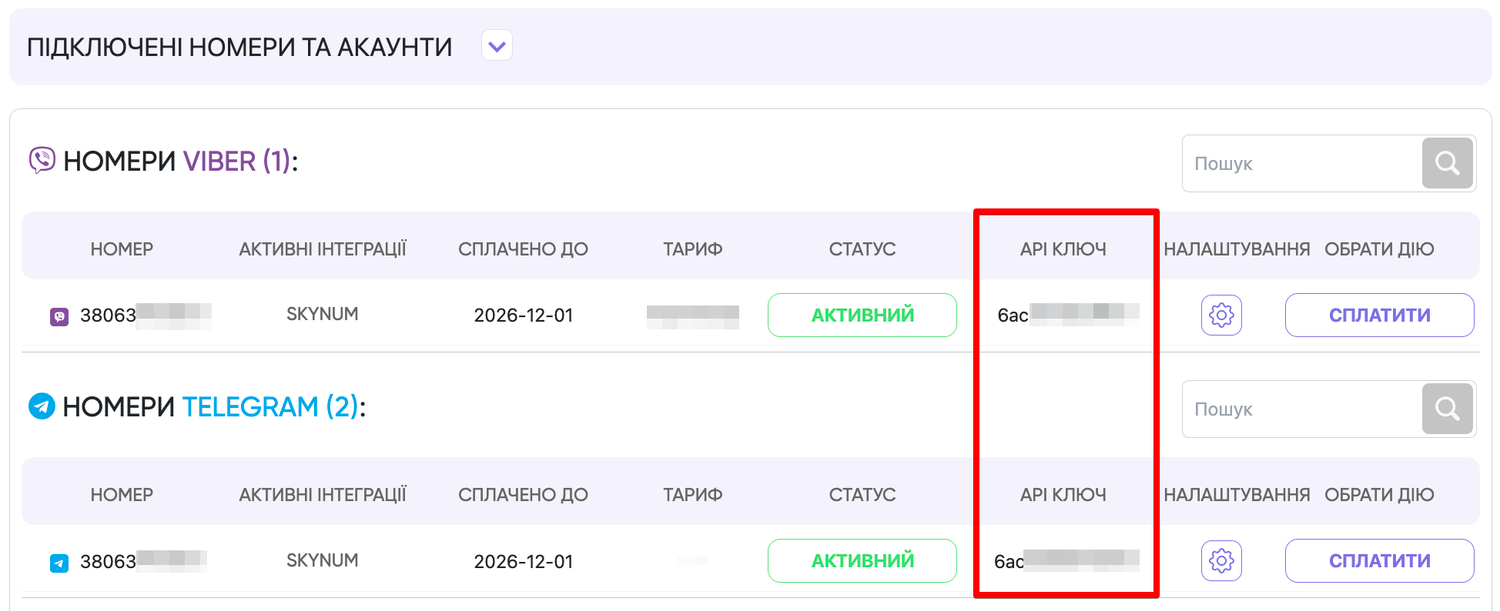
If the number is already connected in E-chat to another CRM, you do not need to add it again. Next to the number, click the gear icon, then Update next to the API key field and copy the new key — the old CRM will stop receiving your customers' messages.
Connect the Number in Skynum
The number is ready — now go to Skynum. In the platform, open Settings → Integrations → Messengers, click Add Integration and choose Telegram number in the list.
The form for a new integration opens. Fill in the fields:
- Integration name — for example "Company Telegram". Under this name you will see the integration in the list of integrations and in the chats of the Messenger section.
- Integration Active — turn it on: while the switch is off, customers' messages do not arrive in Skynum.
- Sales channel — choose the channel that the number's chats and the orders from them belong to. This way reports show how much Telegram has brought in.
- Pricing Type — the customer sees a product in the chat at the price of this type, and the product goes into the order at the same price. In a new integration, the company's main pricing type is already set here.
- Default Executor — (optional) whom Skynum assigns as responsible for every new chat of the number.
- Notification sound — turn it on to hear a signal when a customer writes to the number.
- Send notifications only to — (optional) the employees who will receive notifications when a customer writes to the number. If the field is empty, everyone who sees the chats of this integration receives notifications.
- Legal entity, branch — choose the branch or legal entity that the number's chats belong to; employees with access to it see these chats.
- Phone number — the company number, for example +380 67 123 45 67.
- API Key — the key copied in your E-chat account.
Leave the Account field empty: Skynum fills it in by itself.
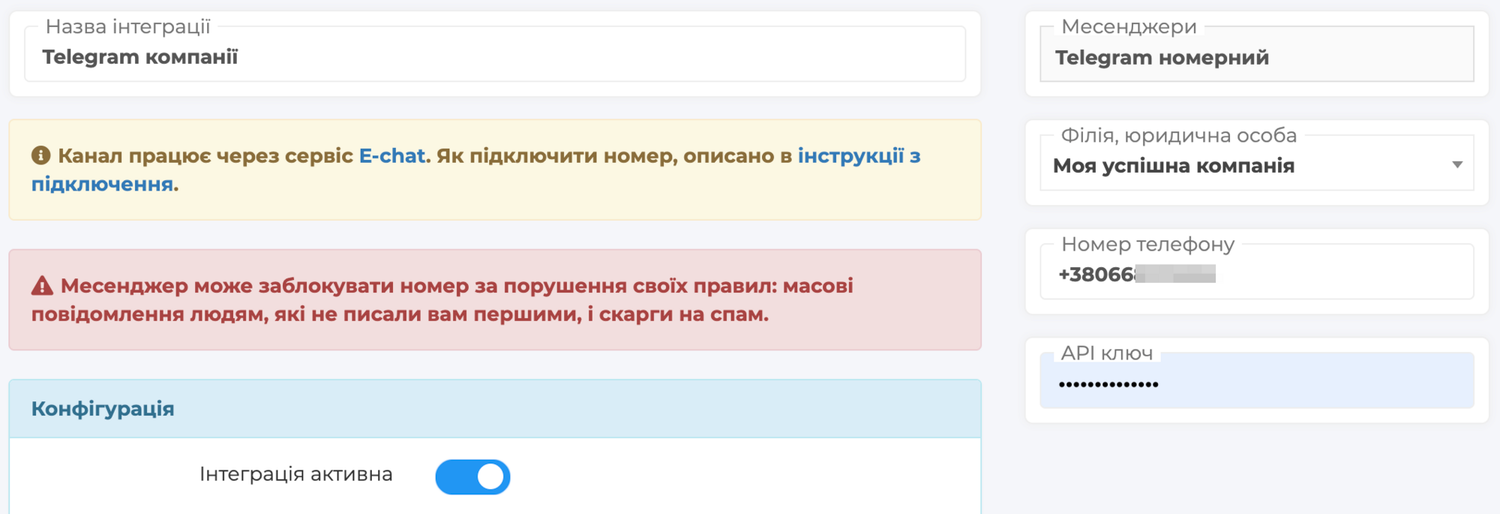
Click Save — the Check Connection button appears in the integration. Click it — Skynum shows the message Connection successfully verified. If the check failed, compare the number and the key with your E-chat account: the key must be next to this very number. Correct them, click Save and check again.
Now write to the company number as a regular customer — from your personal Telegram, not from the company number. In a few seconds, the message appears in the Messenger section.
Conversations in Telegram
In the Messenger section, Telegram chats are in one list with other channels. To the right of the conversation are the counterparty, status and sales channel, and the Create button creates an order or a task without leaving the chat. The manager sends a product from the catalog and a reply from a template right into the conversation. How this works is shown in the article Messenger.
When a customer opens the bot for the first time and taps Start, the chat shows the label The client started the conversation — this way you can see that the customer has just found the bot.
The number's chat also shows messages an employee sent right from the company phone. If the customer does not hide their number in Telegram settings and their number belongs to only one Skynum counterparty or their contact person, the chat is linked to that counterparty automatically.
What Comes from the Customer
- Text, photos, videos, voice messages, documents and stickers.
- A reply quoting your message.
- A reaction — an emoji the customer put under your message. Reactions arrive only in bot chats.
A message edited by the customer is also updated in Skynum — with a pencil icon next to it.
The customer's photos and files open right in the chat. What happens with a large file depends on where the customer wrote:
- In a bot chat — Telegram passes files up to 20 MB to bots. If a file is larger, the chat shows only its name and size — ask the customer to send a link to the file.
- In a number chat — Skynum keeps files up to 20 MB, and they open from the chat at any time. A larger file opens from the chat for 30 days — if you will need it later, save it to your computer within this period.
What You Can Send to the Customer
- Text up to 4096 characters.
- Photos and documents. Text written together with a file reaches the customer as its caption — up to 1024 characters.
- A reply with a quote: hover over the customer's message, click the three-dot button and choose Reply.
- A product from the Skynum catalog: click the button with the box icon and choose a product — the catalog shows how much of it is in stock. The customer receives a photo of the product with the price of the type selected in the integration's Pricing Type field.
To change or delete your message, hover over it, click the three-dot button and choose Edit or Delete. In a bot chat, you can delete a message within 48 hours after sending it.
How to Write to a Customer First
The customer left a request on the website, the order is packed, but you cannot reach them by phone — write to them in Telegram. Above the chat list in the Messenger section, click the pencil button — New conversation.
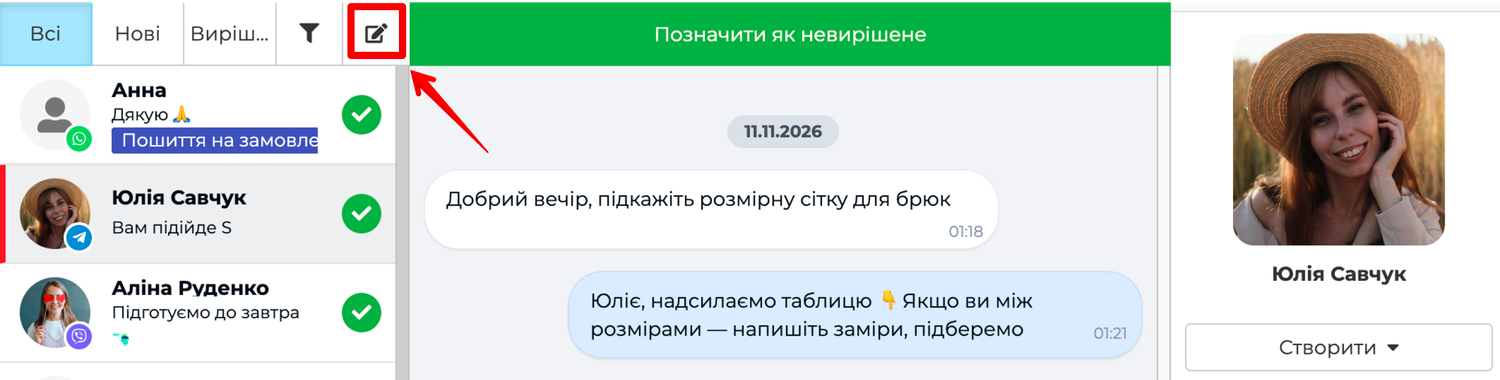
The New conversation window opens. In the Messenger field, choose the company number marked Telegram number. On the Contragent tab, choose the customer and their number, or on the Any number tab, enter the number manually. Type the message and click Submit. A new chat appears in the list, and the customer's reply will arrive in it.
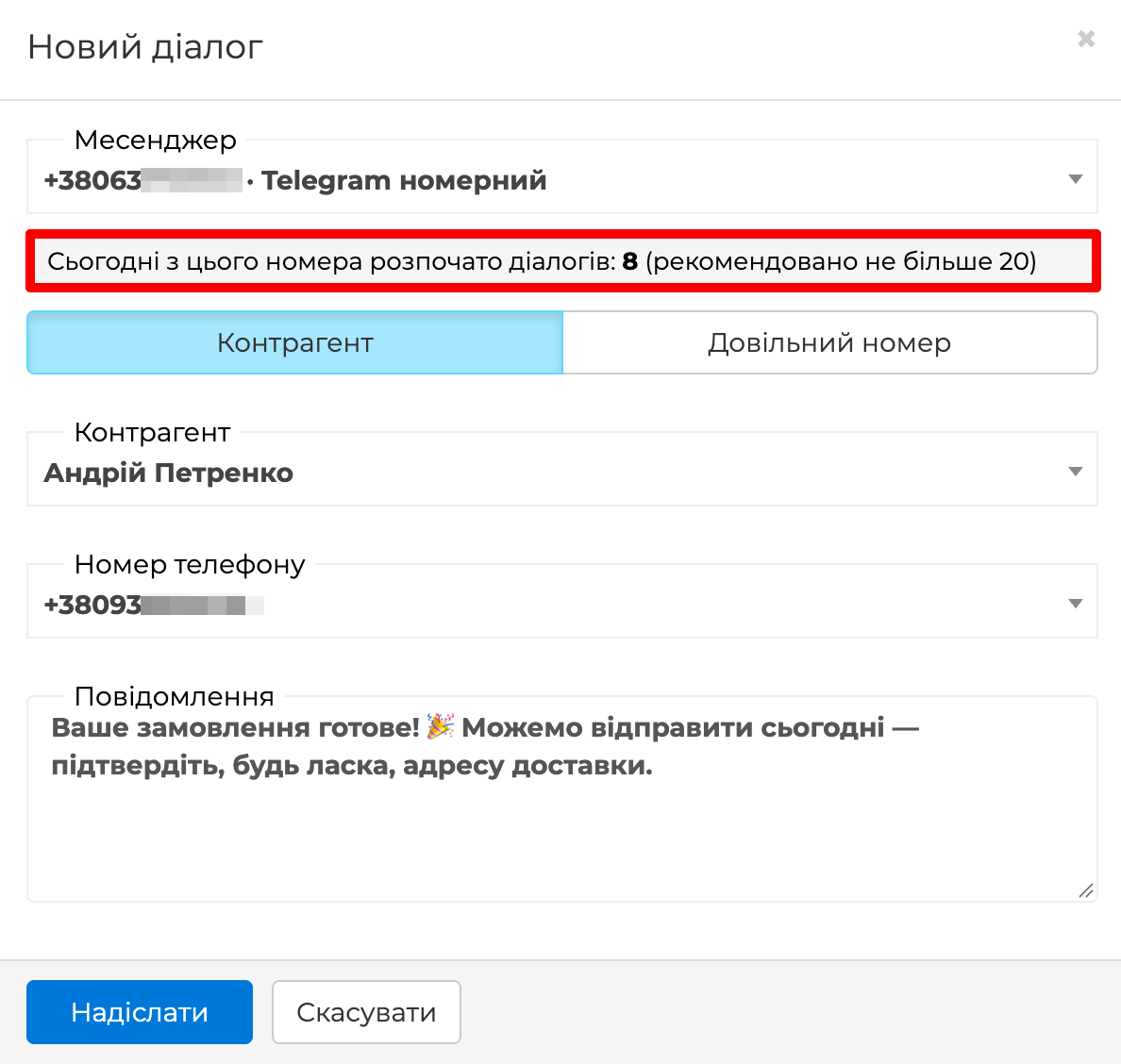
Important. Start no more than 20 new dialogs a day from one number — this is E-chat's recommendation. Telegram considers mass messages to people who have not written to you as spam and can ban the number for it. The New conversation window shows how many dialogs have been started today.
Write first to those who are expecting your message. Tell all customers about promotions at once — through SMS messaging.
Some customers do not allow others to find them in Telegram by phone number. If you write to such a customer first, the message This number has no Telegram account, or its owner hides it appears under your message. You will be able to write to them only after they write to you themselves.
All file formats and solutions to typical situations are collected in the help centre: for the bot — in the Telegram Bot Integration section, for the number — in the E-chat Integration section.
Summary
Telegram is connected: customers write to the bot or to the company number, managers reply to them and create orders in Skynum, and reports show how much Telegram earns. The rest of the work with chats is in the article Messenger.