Rozetka is one of the largest marketplaces in Ukraine. Buyers find products of any category here, and you run your store in the seller account: you add products, process orders and answer buyers' questions.
Once connected, Rozetka works with the same data as your accounting in Skynum. Prices and stock balances get to the marketplace from a price list that Skynum builds from your products. Orders appear in Skynum together with the buyer, delivery and payment, and Rozetka receives the status you change in Skynum together with the waybill number. Buyers' messages also come into Skynum, into the Messenger section, where you can see the stock balances and the buyer's orders right next to them.
What the Rozetka Integration Gives You
- Rozetka shows real availability. A product that has run out gets the "out of stock" status after the next price list update, and after a delivery it goes back on sale without new moderation.
- Product variants in one card. Colors and sizes set up in Skynum as modifications are shown on Rozetka as variants of one product.
- Rozetka orders without manual entry. Skynum loads every order with its products at the price the buyer paid, with the recipient and the carrier's branch.
- The buyer sees that the parcel has been sent. You change the status in Skynum — and Rozetka receives it together with the waybill number.
- Automatic payment and fiscal receipt. When a buyer has paid for an order on Rozetka, Skynum records the payment by itself and issues a fiscal receipt.
- Chat with Rozetka buyers in Skynum. A buyer asks about a product or an order — and you reply from the Messenger section, seeing the stock balances, and in a conversation about an order, also the counterparty with their purchase history.
- How much Rozetka earns. Reports show the revenue from sales on Rozetka, the cost of goods sold and the profit.
- All sales channels in one accounting. Rozetka, Prom, Kasta and a store on Horoshop or WooCommerce sell from the same Skynum stock.
To work, you need a store on Rozetka. If you do not have one yet, register as a seller at seller.rozetka.com.ua. If you already have a store, have the login and password for the seller account ready.
Here is what you need to do to connect Rozetka:
- Connect Rozetka in Skynum.
- Prepare products for Rozetka moderation.
- Set up the price list.
- Check the price list and hand it over to Rozetka.
- Set up order loading.
- Place a test order.
- Connect the Rozetka chat.
Next, let's go through each step: what to open, what to fill in and how to check that everything works.
Rozetka's seller account is available only in Ukrainian. Below, the names of its sections, fields and buttons are given in Ukrainian, as on the Rozetka screens, with an English translation in brackets. The Rozetka statuses that Skynum loads for matching also stay in Ukrainian.
Connecting Rozetka in Skynum
In Skynum, open Settings → Integrations → Online Stores, click Add Integration and choose Rozetka in the list.
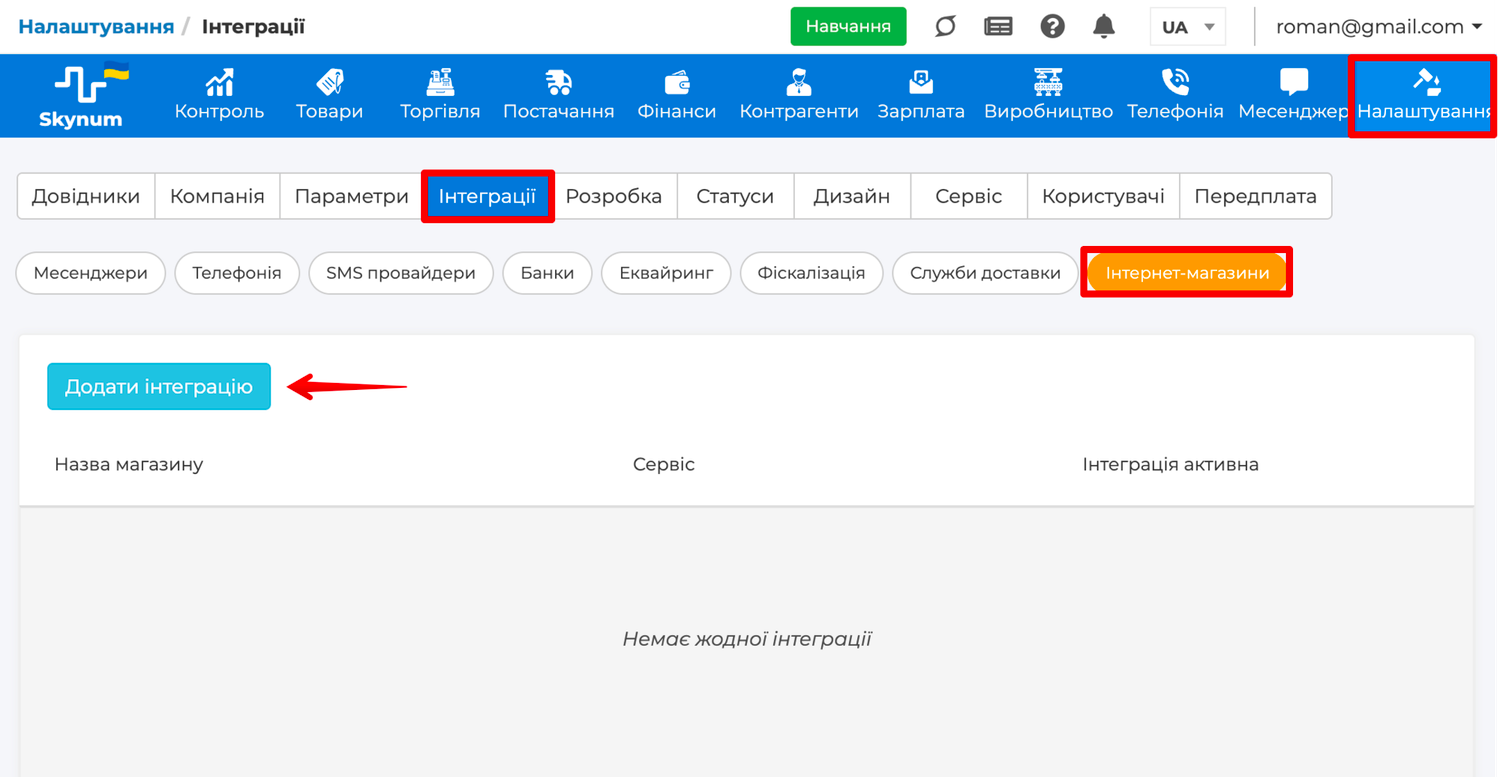
The form for a new integration opens. In the Shop Name field, write what the integration will be called in the list, for example Rozetka. In the Login and Password fields, enter the details you use to log in to the Rozetka seller account.
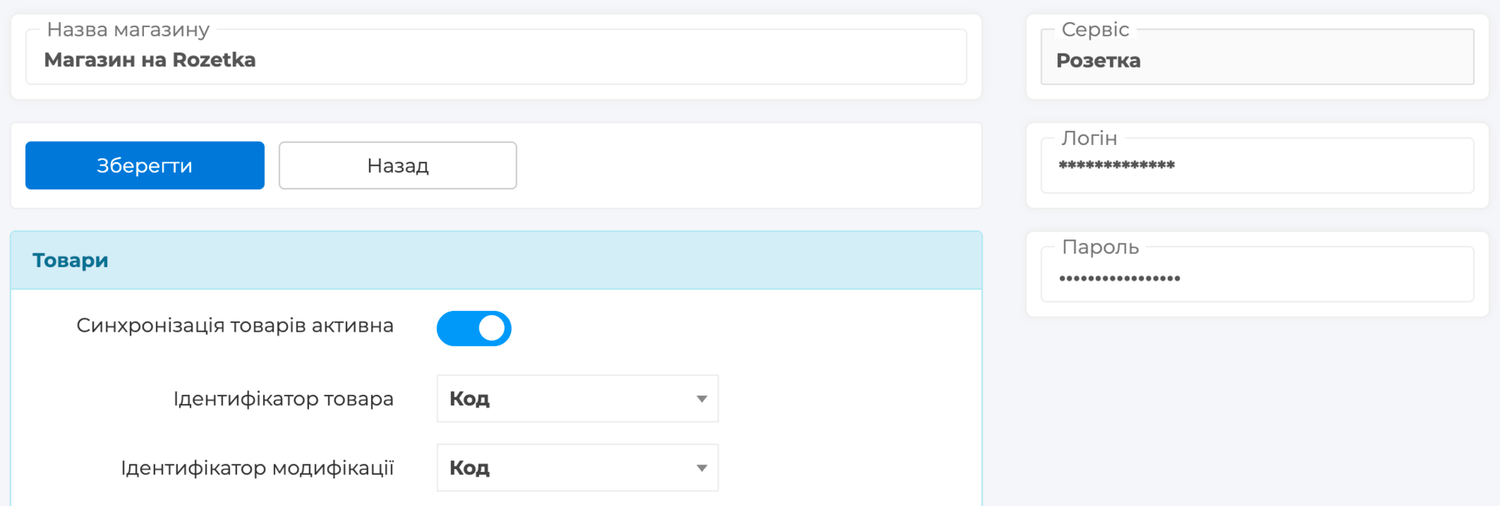
Click Save — the Check Connection button appears in the integration. Click it — Skynum shows the message Connection successfully verified. If an error appears, check the login and password: log in to the Rozetka seller account with them. If you have changed the password, enter the new one in the integration and click Check Connection again.
Preparing Products for Rozetka Moderation
Rozetka checks every product before publication and does not let through an item that lacks data. So before uploading, review in Skynum the cards of the products you will sell on the marketplace:
- Manufacturer — a registered trademark spelled the way it already appears on Rozetka. For a product without a brand, enter the manufacturer «Без бренду» (No brand). Rozetka does not consider a store name, a country or a manufacturing plant a brand.
- Photo — at least one. The first photo becomes the main one in the product card on Rozetka.
- Features — at least three for each product. You will enter the names Rozetka understands when setting up the price list.
- Modifications — set up colors, sizes or volumes of one product as modifications, and in each one fill in the feature it differs by: color, size or volume. Rozetka receives each variant as a separate item and shows them as variants of one product.
- Description — without contacts, links or mentions of other stores. If the main description is written for your website, prepare a separate one for marketplaces: open Settings → Parameters → Record-keeping and turn on Enable marketplace product description — the Marketplace description field appears.
Skynum categories also get into the price list, and during moderation Rozetka matches them with its own catalog. Keep products of one kind in one category and name it the same way as on Rozetka.
Setting Up the Price List
Products get to Rozetka through a price list — a file that Skynum builds from your catalog and updates every hour and after every save of the integration. Rozetka reads this file at a permanent link. Open the Rozetka integration and, in the Goods block, turn on Product Synchronization Active. Then choose which products and data go into the price list:
- Item ID and Modification ID — the number by which Rozetka recognizes an item, and Skynum recognizes the product in an order from Rozetka. In both fields, choose Code: every product and every modification has one. If your products are already sold on Rozetka from another price list, the numbers in the Skynum price list must be the same as in it. Enter these numbers in the External ID field of the products and modifications — manually or by importing from Excel — and choose External ID in both integration fields. The numbers are visible in your current price list.
- Upload Categories — choose By name: Skynum categories go into the price list with their names.
- Product Price Type — the price at which the product is sold on Rozetka. If you have your own prices on the marketplace, set up a separate pricing type for them and choose it here.
- Upload product photos — turn it on: Rozetka does not publish a product without photos.
- Unload goods without residues — turn it on: a sold-out product stays on Rozetka as "out of stock", and after a delivery it is on sale again without repeated moderation.
- Marketplace description — turn it on if you write a separate description for marketplaces: then the text from the Marketplace description field of the product card goes into the price list.
- Name of modifications — Product with modification: each variant gets the product name together with the modification name. This way each variant has its own name with the color or size, and Rozetka does not accept products with identical names.
- Exclude Categories and Only products from the category — (optional) in the first field, choose the categories that must not be on Rozetka; in the second, the only categories that must be there.
- Warehouse balances only — (optional) the warehouses whose stock balances Rozetka buyers see. If the field is empty, Skynum adds up the balances of all warehouses.
- Only products with types — (optional) which types of products go to Rozetka.
- Upload languages — UA. Add RU if you maintain product cards in two languages.
Important. After the first upload, change neither the selected identifier nor the code of a product or modification: Rozetka considers a product with a new number a new one, and it goes to moderation again.
The features are left. Rozetka matches them with its catalog by name, so each Skynum feature needs a name from the Rozetka directory. First, get these names in the Rozetka seller account: open Товари → Управління товарами → Довідники (Products → Product management → Directories), in the Довідники категорій та параметрів (Category and parameter directories) block choose the final category — the deepest one your product belongs to, for example «Кросівки» (Sneakers) rather than «Взуття» (Footwear) — and download the file. It contains the names of this category's features.
Now go back to Skynum and open the API mapping tab in the integration. Features are matched in two blocks. The Features block holds the features of the product itself — material, season, country of manufacture. The Modifications block holds the ones variants differ by: color, size, volume. For each Skynum feature, enter its name from the Rozetka directory, for example Колір (Color), Розмір (Size), Матеріал (Material). A feature without an entered name does not get into the price list. Save the integration.
Connecting the Price List in the Rozetka Account
The price list is set up — now check it in the Rozetka account. First, get the price list link in Skynum: it is in the Commodity Synchronization (XML) File field of the Goods block.

Then, in the seller account, open Товари → Управління товарами → Валідатор (Products → Product management → Validator), paste the link into the Прайс-лист (Price list) field and click Перевірити (Check).
The check result appears in the list: Валідація успішно виконана (Validation completed successfully) or Помилка валідації (Validation error). Click Детальніше (Details) — a report opens where errors are grouped by reason: name, manufacturer, photo, features, price, category. Fix the products in Skynum — add the manufacturer or a photo, fill in the features, rename products with identical names. Then save the integration and run the check again.
When the validator shows Валідація успішно виконана (Validation completed successfully), send Rozetka the price list link: in the seller account, open Допомога (Help), choose the topic Робота з товарами, прайс-лист (Working with products, price list) and ask to connect the price list at this link. If the Skynum price list replaces your previous one, tell Rozetka support about it when you hand over the link. When Rozetka connects the file, you will see it in Товари → Управління товарами → Управління прайс-листами (Products → Product management → Price list management). New products go through moderation first, and until publication they are visible in Товари → На модерації (Products → In moderation).
From then on, prices and availability on Rozetka are updated without your involvement. It is enough to change a price or stock balance in Skynum: Rozetka rereads the price list every hour, and for published products such changes do not need moderation. Products are set up — all that is left is to set up orders.
Loading Orders from Rozetka
Go back to Skynum and open the Rozetka integration. Skynum finds a product in an order by the same number that is in the price list, so turn on order loading after Rozetka has connected the price list. In the Orders block, select Order sync active and fill in the fields:
- Sync Interval — how often, in minutes, Skynum picks up new orders from Rozetka; the smallest value is 5 minutes.
- Ignore orders before date — set the connection day: orders created earlier will not get into Skynum.
- Reserve items after the order is created — turn it on: the products of a new order are reserved in the warehouse right away.
- Set external order number — (optional) the order in Skynum gets the Rozetka number.
- Import Rechanged Orders — turn it on: Skynum loads an order again every time it changes on Rozetka.
- Create a linked payment for the payment amount — turn it on: Skynum records the payment by itself for an order the buyer paid for on Rozetka.
- Auto fiscalize created payment and Fiscal provider for fiscalization — turn it on and choose the software cash register (PRRO) through which Skynum will issue a receipt for this payment.
- Order update method — which data Skynum overwrites in a loaded order. For statuses from Rozetka to come into Skynum, choose Status only.
- Prevent updating orders in the status — (optional) the statuses in which repeated loading no longer changes the order, for example Успішно виконано (Successfully completed) and Скасовано (Cancelled).
- Order Exports — Status only: every status change in Skynum goes to Rozetka together with the waybill number.
- Warehouse of orders — the warehouse from which products of Rozetka orders are reserved and shipped. If the price list takes the balances of one warehouse from the Warehouse balances only field, choose exactly that one here.
- Sales Channel — choose the channel by which reports will count Rozetka sales.
- Counterparty group — the group new Rozetka buyers are added to.
- Default Counterparty — Create Counterparty: then a separate counterparty is created in Skynum for every new Rozetka buyer.
- Notify about new orders — (optional) the users Skynum notifies about every new order.
Then match the statuses, delivery methods and payment methods. On the API mapping tab, click Upload from Rozetka: Skynum loads the Rozetka statuses, as well as the delivery services and payment methods that occur in your store's orders on Rozetka.
Start with the Statuses block: for each Skynum status, choose the corresponding Rozetka status. For example, for the status in which you pick the order — «Комплектується. Дані підтверджені» (Being picked. Details confirmed), for the status of a shipped order — «Передано до служби доставки» (Handed over to the delivery service), for a completed one — «Замовлення виконано» (Order completed), for a cancelled one — «Скасовано покупцем» (Cancelled by the buyer). Each Rozetka status can be chosen for only one Skynum status. Rozetka allows changing the status only according to its own order processing rules, and it accepts «Передано до служби доставки» (Handed over to the delivery service) only with a waybill number — so create the waybill first.
In the Delivery block, match the delivery services from Rozetka (Nova Poshta, Ukrposhta and Meest) with Skynum delivery methods; Skynum recognizes ROZETKA Delivery by itself. In the Payment block, match card payment, Apple Pay and Google Pay with a cashless Skynum payment method, and cash on delivery with the method by which you receive money from the carrier. If a payment method is not matched, a paid order arrives without a payment and a receipt. Save the integration. If your store has had no orders yet, the delivery and payment lists are empty: place a test order (section below), click Upload from Rozetka again and match them.
Test Order
When the products have passed moderation, log in to Rozetka with your personal account and order a product from your own store, as a buyer would. Then in Skynum, in the Rozetka integration, click Upload orders so as not to wait for the interval. Open Trading → Orders: the order is already there, with the product at the price the buyer paid, the counterparty, the recipient and the carrier's branch. If you do not see the order, open the integration's Synchronization log tab: the reason is recorded there.
Check the reverse direction: give the test order in Skynum the status matched with «Комплектується. Дані підтверджені» (Being picked. Details confirmed) and open this order in the seller account. The status there should be the one you matched with this Skynum status.
Rozetka Orders at Work
You process Rozetka orders the same way as any client order: reservation, waybill, shipment, status. Skynum passes matched statuses to Rozetka together with the waybill number — this way the buyer sees in their account that the parcel has been sent. If Rozetka rejects a new status, it stays in Skynum; the reason for the rejection is visible on the integration's Synchronization log tab.
To see only marketplace orders, choose Rozetka in the Source filter of the order list. And to update one order from Rozetka, click Upload in it.
Skynum creates a payment for an order that Rozetka has marked as paid: by card, Apple Pay or Google Pay. Cash on delivery does not have such a mark on Rozetka — the money comes from the carrier, and you record the payment when it has arrived. How Skynum creates payments and issues receipts for all online channels is described in the article automatic fiscalization of online store orders.
Chat with Rozetka Buyers
On Rozetka, a buyer writes to the store on each topic separately: about a product, about an order or with a general question to the seller. Once the chat is connected, all these conversations appear in Skynum, in the Messenger section. You reply from there too, and right next to them you can see the stock balances and the buyer's orders.
Connecting the Rozetka Chat
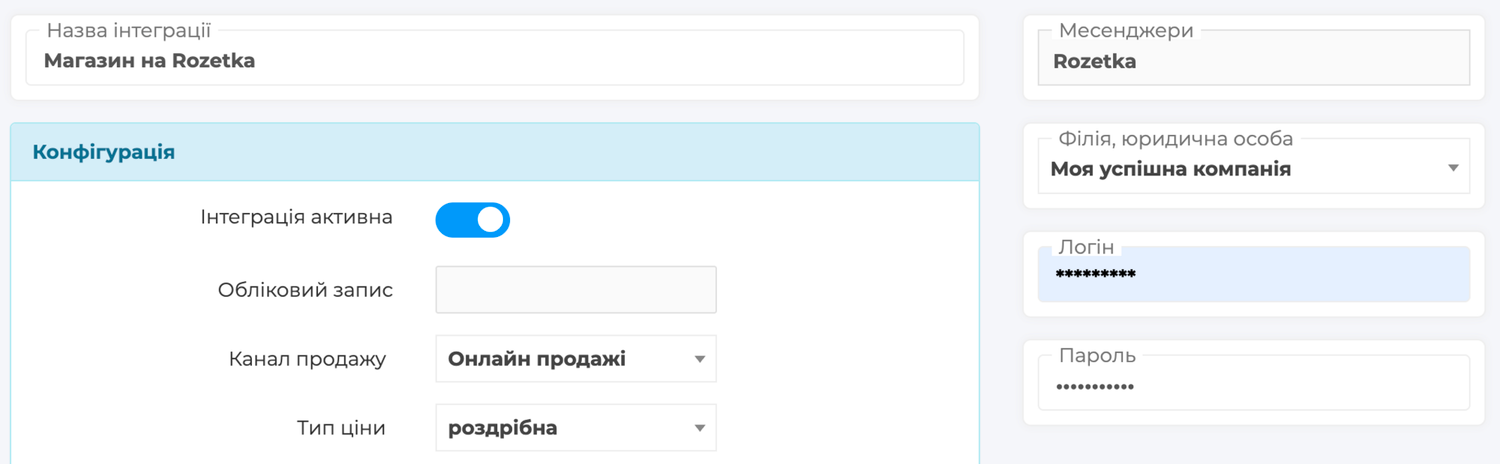
The chat needs a separate integration. It does not depend on the products and orders integration. In Skynum, open Settings → Integrations → Messengers, click Add Integration and choose Rozetka in the list. Fill in the fields:
- Integration name — the name under which the integration is shown among other integrations and in the Messenger section.
- Integration Active — turn it on so that buyers' messages arrive in Skynum.
- Sales channel — the channel from the Sales Channel field of the Rozetka integration: this way marketplace sales are not split into two channels in reports.
- Pricing Type — choose the same price as in the Product Price Type field of the Rozetka integration: the buyer sees a product in the chat at the Rozetka price.
- Default Executor — (optional) the employee responsible for every new Rozetka chat.
- Notification sound — Yes, to hear a signal about a new message from a buyer.
- Send notifications only to — (optional) who receives notifications about new messages. If the field is empty, notifications go to everyone who has access to the chats of this integration.
- Legal entity, branch — the branch that Rozetka chats belong to: employees of this branch see them.
- Login and Password — the same details for logging in to the Rozetka seller account.
Click Save — the name of your store on Rozetka appears in the Account field. Click Check Connection — Skynum shows the message Connection successfully verified.
Now write to the store as a buyer: log in to Rozetka with your personal account, open the page of your product and ask a question. Within a minute it appears in the Messenger section. Reply — the reply appears in the conversations of your personal account on Rozetka.
Important. If you change the password in the seller account, the chat stops working. Enter the new password in the chat integration, turn on Integration Active again and save. The new password is also needed in the Rozetka integration in the Online Stores section.
Conversations with Rozetka Buyers
Skynum receives every conversation in which a new message has appeared after the chat was connected, together with the previous messages — so you can see what it is about. The conversation is always started by the buyer.
All conversations of one buyer are collected in Skynum in one chat, and above each message there is a label showing where it came from:
- Order #… — opens this order in Skynum if it has already been loaded.
- Question about the product with the product name — opens the product page on Rozetka.
- Question to the seller — a general question to the store.
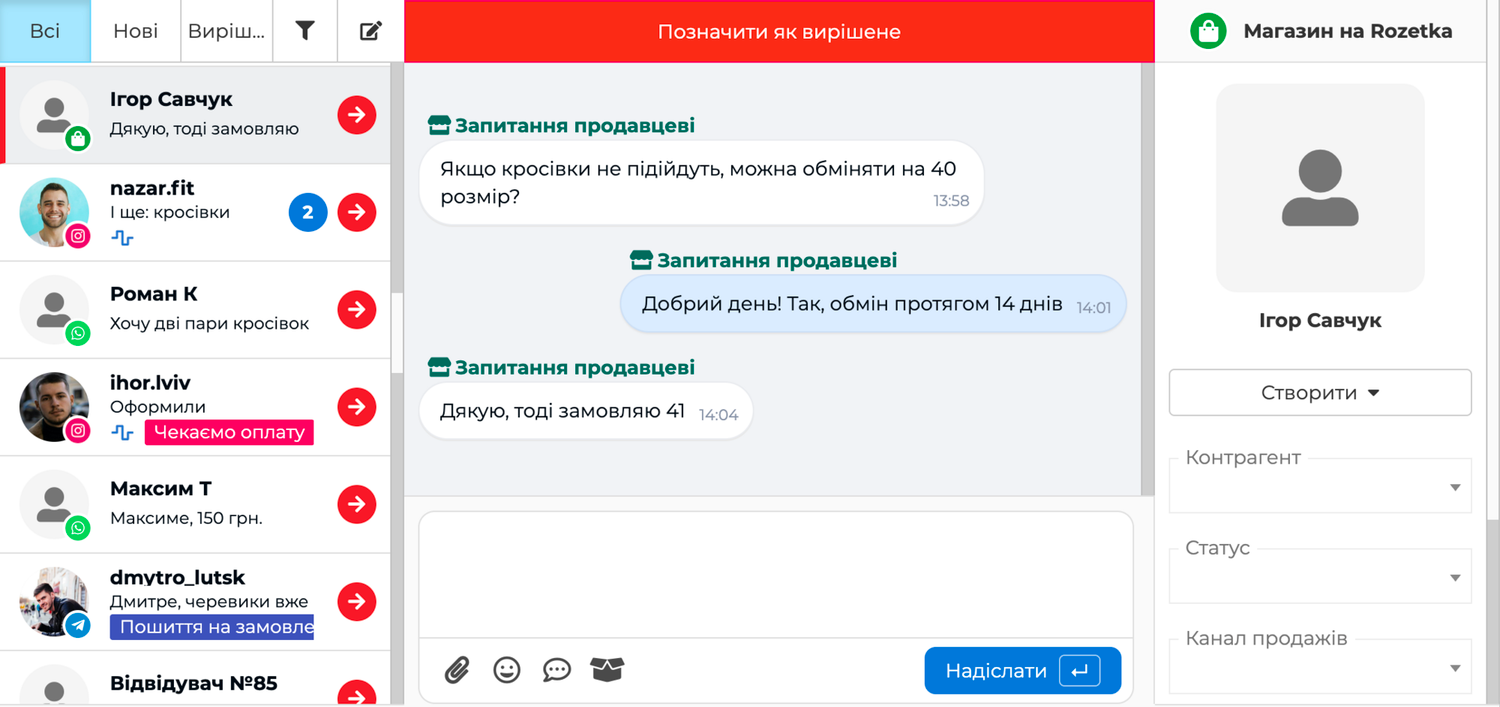
Your reply goes to the conversation from which the last message in the chat came. If a buyer writes about an order and about a product at the same time, open the menu of their message from the conversation you need and click Reply — the reply goes exactly there.
A buyer can send text, photos and files. You send text, photos, PDF, Word, Excel and TXT documents, as well as a product from the Skynum catalog. Send a photo or file together with text: Rozetka does not accept a file without text.
In a conversation about an order, Rozetka passes the buyer's phone number. Skynum shows this number next to the chat and links the chat to the counterparty who has this number recorded.
Rozetka chats are handled in the Messenger section — together with chats from Instagram, Facebook, WhatsApp, Telegram, Viber, the website and Prom. There you also see the counterparty card and their orders, and reply to typical questions with templates — all of this is described in the article Messenger.
How It Works in Real Life
A Product Has Run Out in the Store
In a retail store, the cashier sells the last backpack of a model that is also on Rozetka. The stock balance in Skynum becomes zero, and after the next price list update Rozetka shows the product as "out of stock". When a delivery arrives and the product is received into the warehouse, the item goes back on sale — without new moderation and without any actions in the Rozetka account.
A Buyer Asks About a Size in the Chat
On a sneakers page, a buyer asks whether size 42 is available. The seller replies from the Messenger section: the Skynum catalog shows that this size is in the warehouse, and the seller sends the buyer the product with a photo and price. The buyer places an order on Rozetka, and with the next loading it appears in Skynum.
An Order Paid on Rozetka
A buyer pays for headphones with Apple Pay and chooses delivery by Nova Poshta. The order arrives in Skynum with the product in reserve, the buyer among the counterparties, the branch and the recipient's phone number. Rozetka marks the order as paid, so Skynum creates a payment and issues a receipt. The seller confirms the order with the status matched with «Комплектується. Дані підтверджені» (Being picked. Details confirmed), creates a waybill and sets the status matched with «Передано до служби доставки» (Handed over to the delivery service) — Rozetka receives the status together with the waybill number.
New Colors in the Catalog
A merchandiser adds modifications in a new color and several sizes to the sneakers, with photos and the «Колір» (Color) and «Розмір» (Size) features. After the next price list update, Rozetka receives the new items with names that include the color and size, checks them in moderation and shows them as variants of the same sneakers.
A Buyer Cancelled an Order
A buyer cancels an order on Rozetka. With the next loading, Skynum moves the order to the matched cancellation status, the reservation is released, and the product is available again for other sales channels.
All price list settings and the rules for identifiers, features and statuses are collected in the Rozetka Integration section of the help centre, and connecting the chat — in the Rozetka Chat section.
Summary
Buyers find you on Rozetka, and everything that happens to the order next is handled by Skynum. A CRM knows only that an order from the marketplace was placed. In Skynum, it is linked to the warehouse reservation, the waybill, the payment with a fiscal receipt and the conversation with the buyer. That is why Skynum shows your real result on Rozetka — revenue, cost of goods sold and profit — and lets you compare it with other sales channels.