With the WhatsApp integration, your company number works right in Skynum. Customers keep writing to the familiar number, and managers reply to them from a computer: they send photos, invoices and products from the Skynum catalog, assign a counterparty and a responsible person to each chat, and create orders without leaving the conversation. When needed, the manager writes to the customer first with an approved template. And next to the conversation is everything your accounting knows about the customer: their orders, payments and whether the product is in stock.
What the WhatsApp integration gives you:
- An official connection from Meta. Skynum is an official Meta Tech Provider, so the number is connected to WhatsApp Business without third-party services or separate subscriptions. You pay only Meta for messages, at its rates.
- The phone keeps working. The number stays in the WhatsApp Business app: you can reply both from the phone and from Skynum — the conversation is the same in both places.
- The customer is found automatically. WhatsApp passes the customer's number. If this number is in your database, Skynum links the chat to the counterparty — together with their purchases, debts, calls and SMS.
- You write to customers first. The order is packed, the payment has not arrived, the customer does not answer calls — write to them first with an approved template.
- Call the customer from the chat. If telephony is connected, the manager calls the customer with one click on the number in the chat.
- Products from Skynum straight into the chat. The catalog shows whether a product is in stock, and the customer receives its photo and price.
- Invoices and photos from customers do not get lost. Skynum keeps files from WhatsApp on its side — they can be opened even several months later.
- How much WhatsApp earns. Skynum shows how much money WhatsApp has brought you: revenue, cost of goods sold and profit.
WhatsApp works in the Messenger section together with Instagram, Facebook, Telegram, Viber, the website chat and the Prom and Rozetka marketplaces. The manager replies to customers from all channels in one window.
How to work with chats every day is described in the article Messenger. It covers quick replies, statuses and filters, orders and tasks from a chat, the mini messenger and other features common to all channels. This article is about connecting WhatsApp and how it differs from other channels.
Next, we will go through how an official connection differs from an unofficial one, how to prepare the number, connect it to Skynum and pay for conversations, and the specifics of WhatsApp: the 24-hour rule and message templates.
Why WhatsApp Should Only Be Connected Officially
Some CRM systems connect a personal WhatsApp unofficially: the CRM joins the number as a linked device — the same way you open WhatsApp on a computer.
What an unofficial connection means for a business:
- The number can be banned. WhatsApp rules prohibit unofficial connections. WhatsApp bans numbers for them — for several days or permanently. While the number is banned, customers cannot write to you.
- A third-party service reads your conversations. A linked device sees all chats of the number. Customers' messages and files go through a third-party service that WhatsApp has not reviewed.
- Writing first is limited. To keep the number from being banned, a CRM with such a connection lets you write first to about 20 new customers a day. Every customer you did not manage to tell about a promotion or a new arrival is a lost sale.
Important. If a CRM lets you write first to any customer with any text, it is connected to WhatsApp unofficially. These are exactly the messages WhatsApp bans numbers for.
Skynum connects WhatsApp officially — through Meta, the company that owns WhatsApp. What this gives you:
- The connection puts the number at no risk. Meta has reviewed Skynum and given it access to WhatsApp — numbers are not banned for such a connection.
- Conversations go directly. Customers' messages come from WhatsApp straight to Skynum, without third-party services.
- You can write first to thousands of customers a day. A new business on Meta starts with 250 customers per day. After business verification, the limit grows to 2,000, and then WhatsApp raises it on its own to 10,000, 100,000 and unlimited. You pay Meta for each template and write to as many customers as your business needs.
With an unofficial connection, a business risks its number, hands its conversations to a third-party service and loses sales every day because of the limits. The official Skynum connection does not put the number at risk, does not pass conversations to third-party services and lets you write first to as many customers as your business needs.
What to Prepare
Important. To connect, you will need the company number in the WhatsApp Business app and the Facebook account of an admin of the company's business portfolio in Meta. Keep the phone with WhatsApp Business at hand: you will confirm the connection on it.
If you do not have a business portfolio in Meta yet, you can create one right during the connection.
Where to start depends on where your number works now:
- In the WhatsApp Business app — the number is ready, go straight to setting up the integration.
- In personal WhatsApp — move the number to WhatsApp Business as described below. Conversations, contacts and photos move with it.
- Not in WhatsApp at all yet — there are two ways, described below.
A number that is not in WhatsApp yet can be connected in two ways.
First register the number in WhatsApp Business, and then connect it to Skynum. Then the number works both in the app on the phone and in Skynum.
Connect the number to Skynum right away. It is verified with a code from an SMS or a call, and it works only in Skynum: you can chat with customers only here, and the WhatsApp app on the phone will not work with this number. This way suits you when the number is needed only for managers working in Skynum.
Moving the Number from Personal WhatsApp
First save your chats: in WhatsApp, open Settings → Chats → Chat backup. Then download WhatsApp Business from the App Store or Google Play.
On first launch, the app recognizes your number by itself and offers to use it — tap Use +380 ….
On the transfer screen, tap Start transfer. When Transfer complete appears — chats, media and settings have been moved — tap Next.
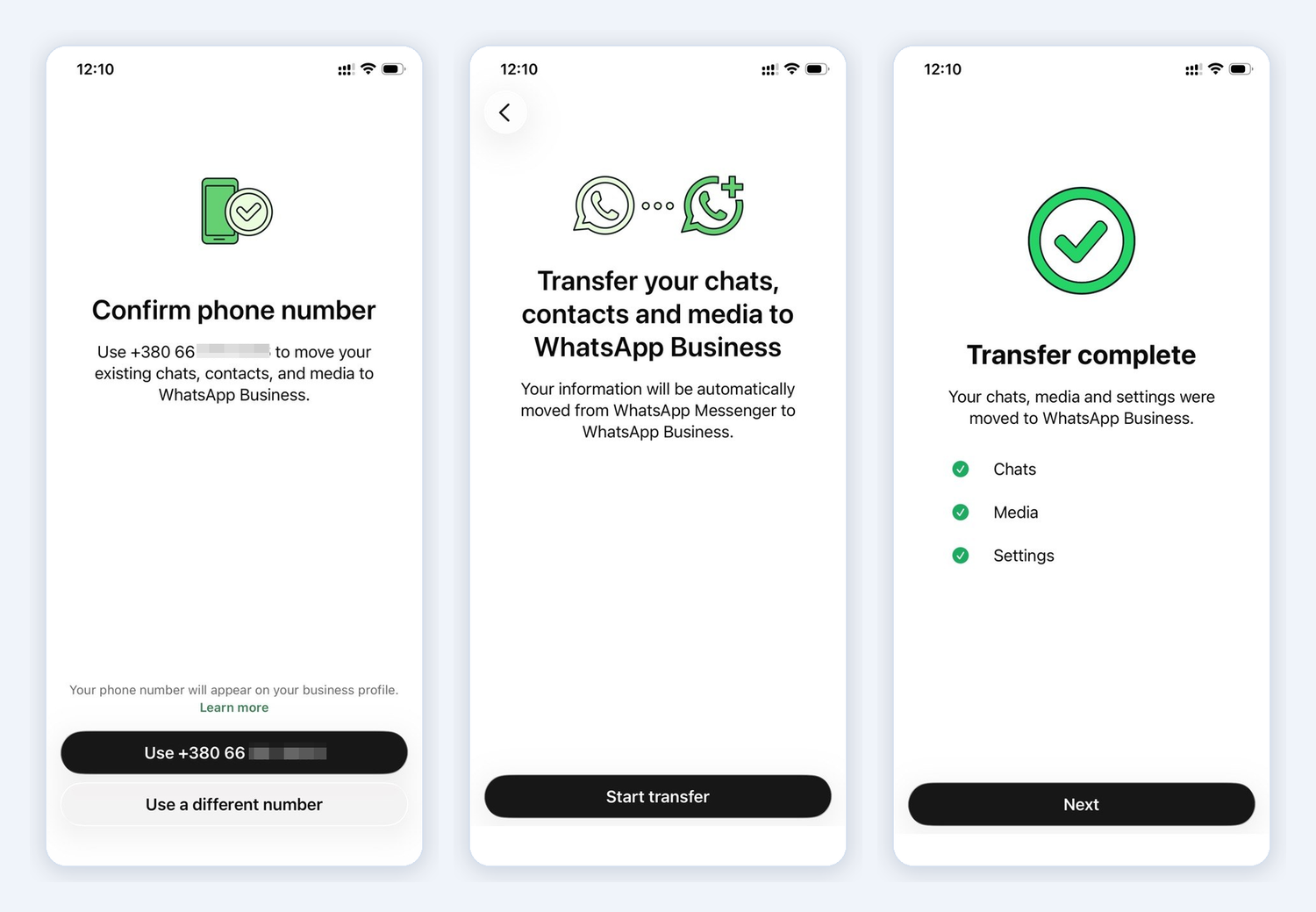
All that is left is to fill in the business profile: name, category and opening hours. Customers will see the name as the sender's name.
Nothing changes for customers: the number and the chats are the same. From now on, the number works in WhatsApp Business, not in personal WhatsApp.
Setting Up the WhatsApp Integration
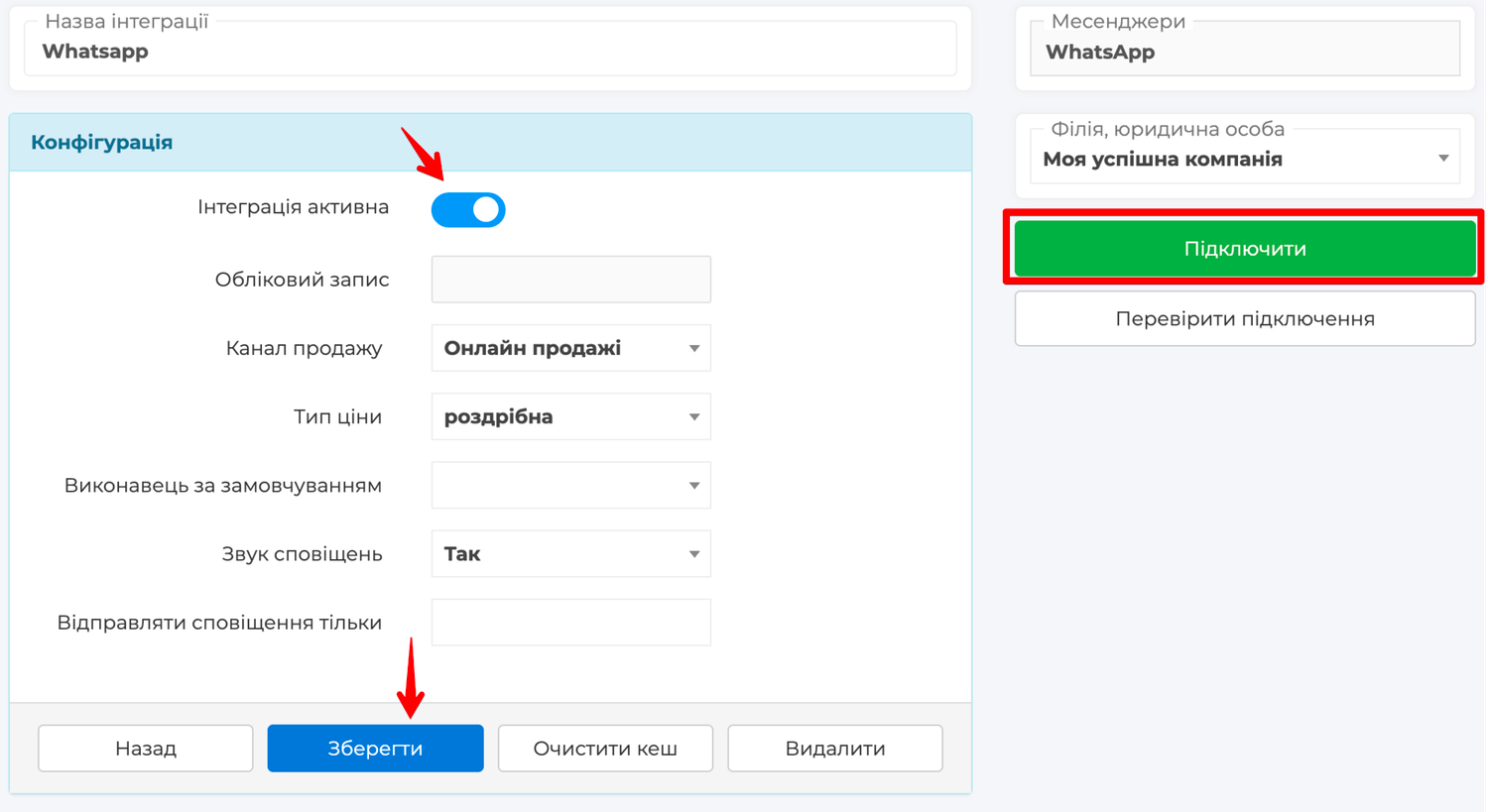
The number is ready — now go to Skynum. In the platform, open Settings → Integrations → Messengers, click Add Integration and choose WhatsApp in the list.
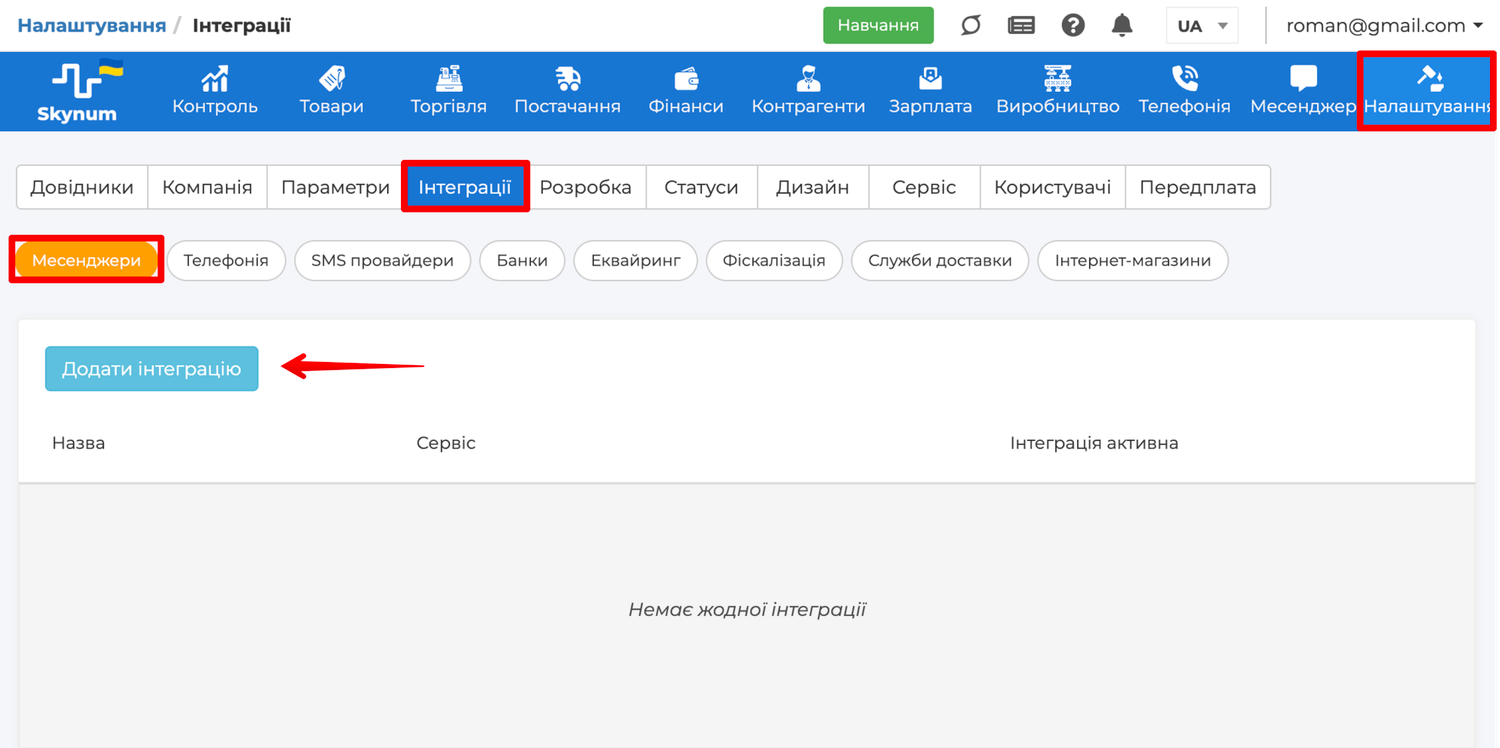
The form for a new integration opens. Above the fields, the form reminds you of the 24-hour rule — it is explained below. Fill in the fields:
- Integration name — what the channel will be called in Skynum, for example WhatsApp or the store name.
- Integration Active — turn it on so that messages start arriving as soon as the number is connected.
- Sales channel — with it, every chat of this number and every order from such a chat appear in reports. This shows what WhatsApp has sold and how much you have earned from it.
- Pricing Type — the price at which products from the Skynum catalog go to the customer in the chat and into the order. In a new integration, the pricing type the company works with is already selected here.
- Default Executor — (optional) the manager Skynum assigns as responsible for every new conversation.
- Notification sound — whether a sound plays when a customer writes.
- Send notifications only to — (optional) which users receive notifications. If the field is empty, everyone who can see this number's chats receives them.
- Legal entity, branch — which branch this number's chats belong to.
The Account field stays empty — Skynum fills it in when the number is connected.
Click Save. The Connect button appears in the integration.
Connecting the Number in the Meta Window
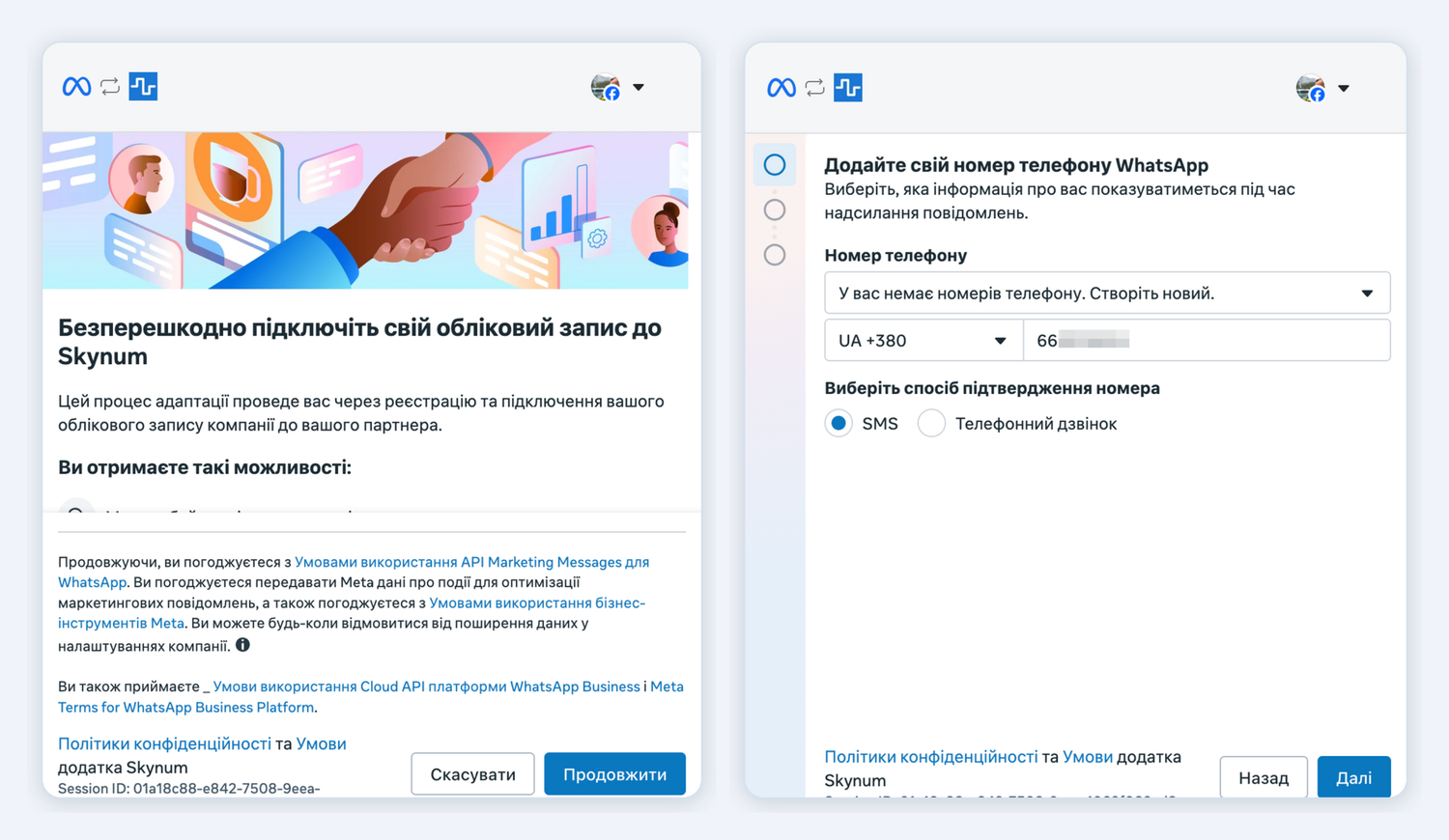
Click Connect — the Meta window opens. In it, you log in to Facebook and give Skynum access to the number. The Facebook password is entered in the Meta window: Skynum neither sees nor stores it.
Log in to Facebook with the account of the business portfolio admin. The window shows what the connection will give — click Continue.
Next, the window asks for the number. The list of numbers says You don't have any phone numbers. Create a new one. — this is how it should be when the number is connected for the first time. Enter the company number in the field under the list and click Next — you do not need to change the verification method.
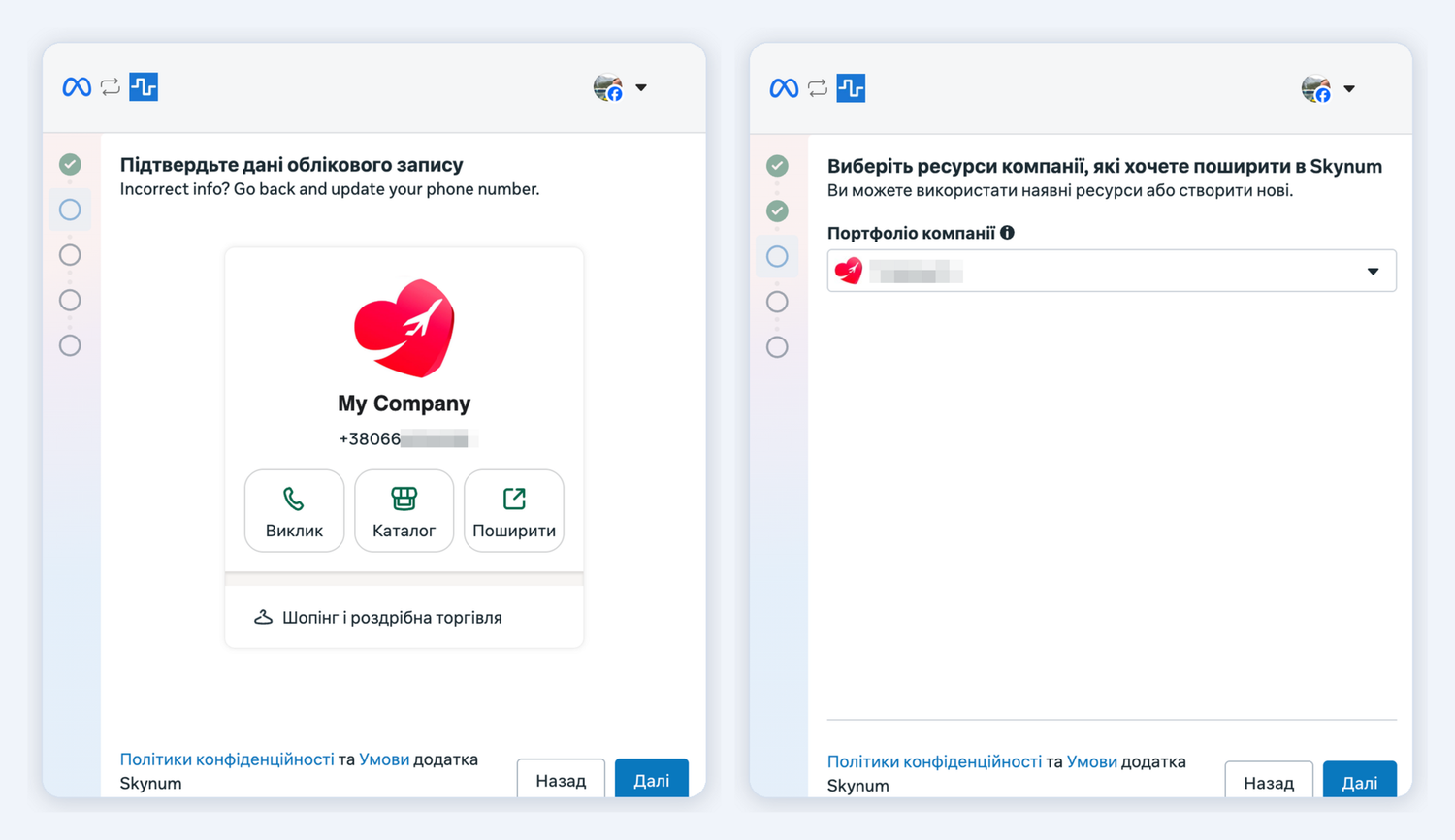
The window recognizes the number from the app and shows its profile — name, number and category. You do not need to wait for an SMS with a code — click Next, choose the business portfolio (or create a new one) on the next screen and click Next again.
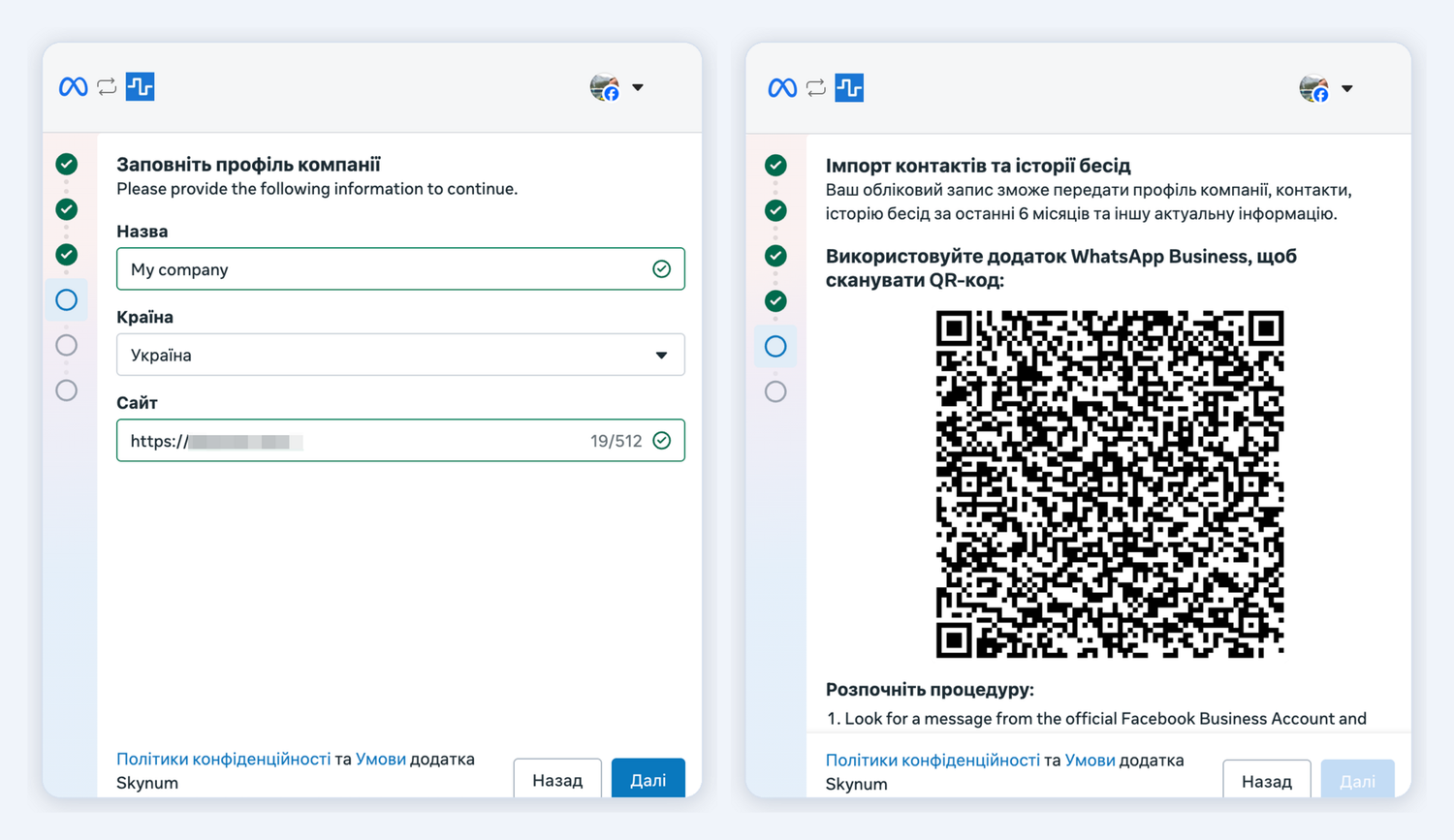
If the number has not been in WhatsApp before, the window sends a code to it by SMS or calls it. Enter the code and go on to the access screen: such a number does not need the QR code or the phone.
Fill in the business profile — name, country, website — and click Next. The window shows a QR code, and the Next button becomes inactive until you confirm the connection from the phone.
Take the phone with WhatsApp Business:
- Open Settings → Account → Business Platform.
- Tap the Connect to the Business Platform button.
- Scan the QR code from the Meta window with the camera.
- When You're connected to Skynum appears on the phone, tap OK.
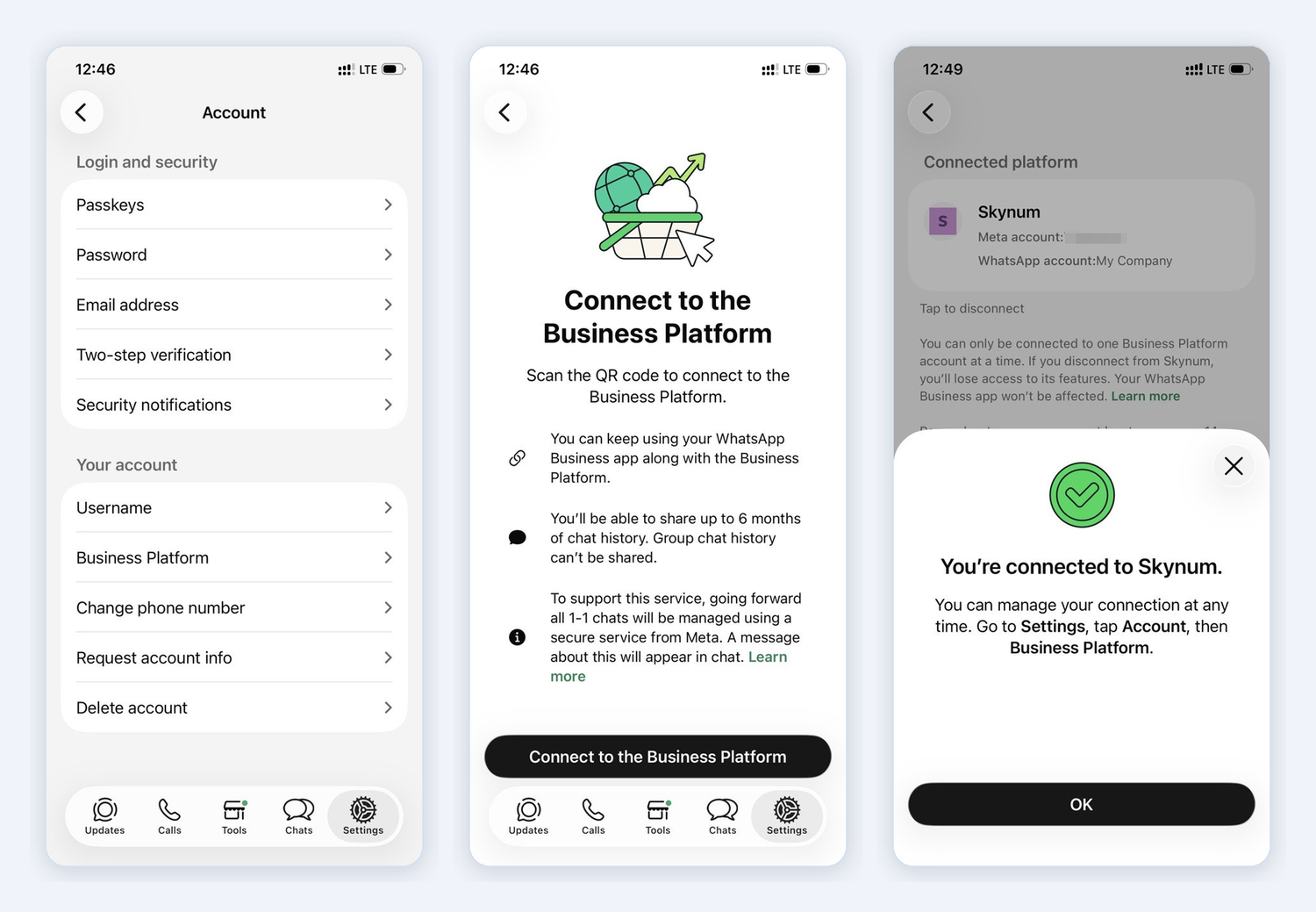
Important. The code must be scanned from the Business Platform section. The scanner icon at the top of the app's settings does not work for this: the connection will not be completed with it.
When the phone has confirmed the connection, return to the Meta window on the computer and click Next. The account name is already filled in from the app profile — check the time zone and click Next. The window shows what Skynum gets access to: the company and the WhatsApp account. Click Confirm and wait a few minutes while Meta connects the number.
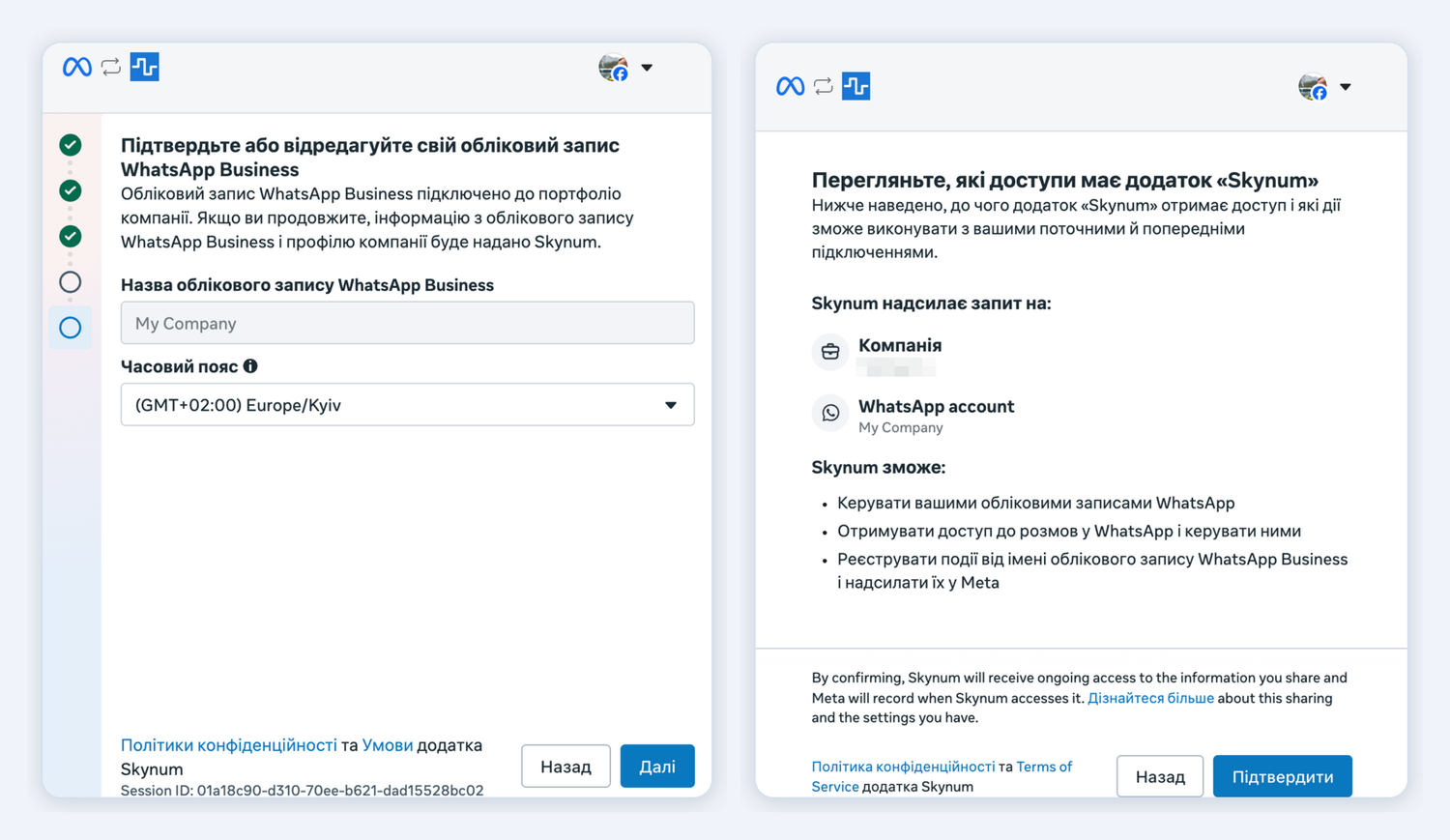
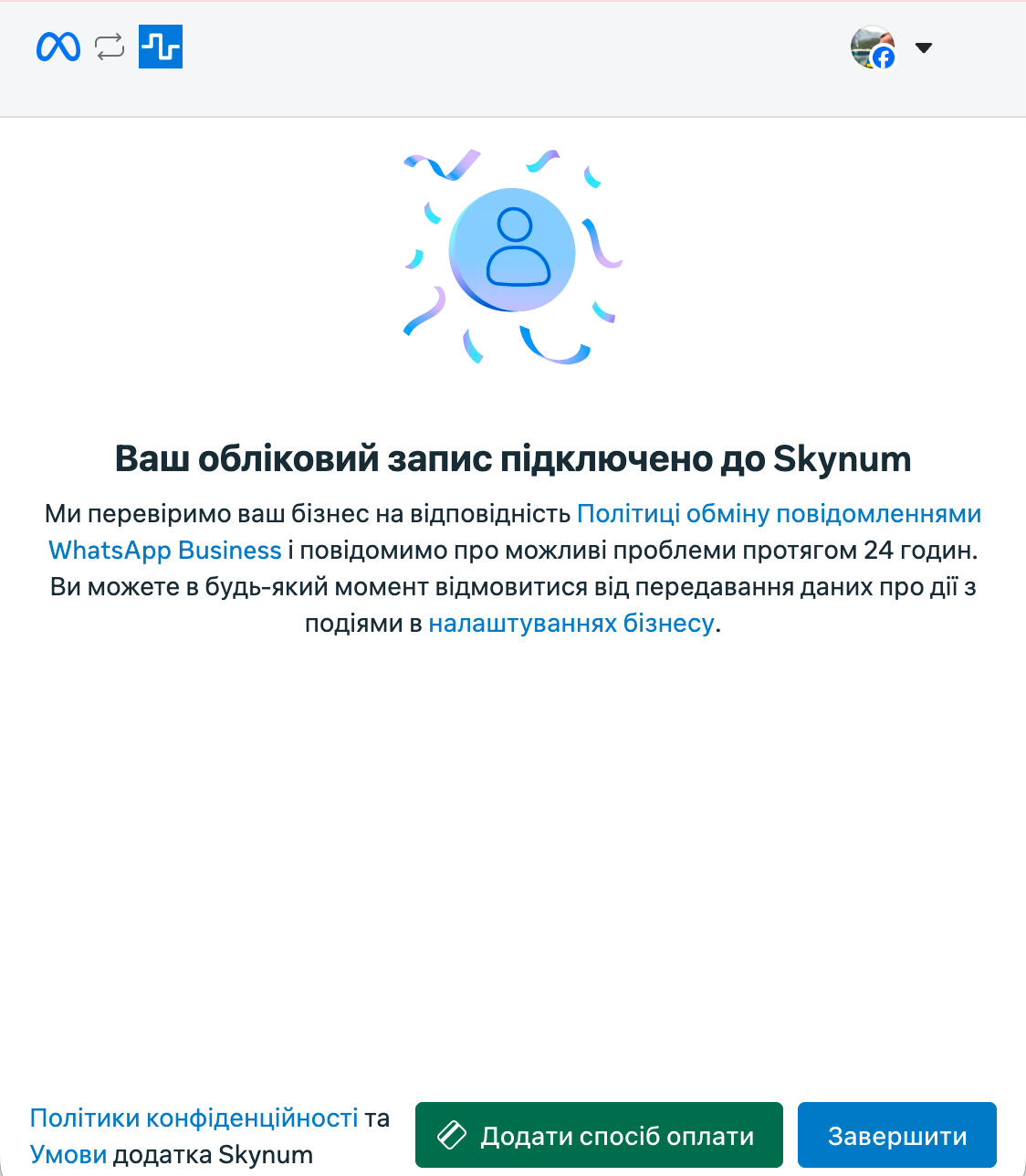
On the Your account is connected to Skynum screen, click Finish. There is also an Add payment method button here — you can set up payment now or later, there is a section about it below.
The window closes, and the integration shows Service connected successfully. Now the Account field shows the company number and its ID, the Name field shows how the number is labeled in WhatsApp, and the Connect button is replaced by Reconnect.
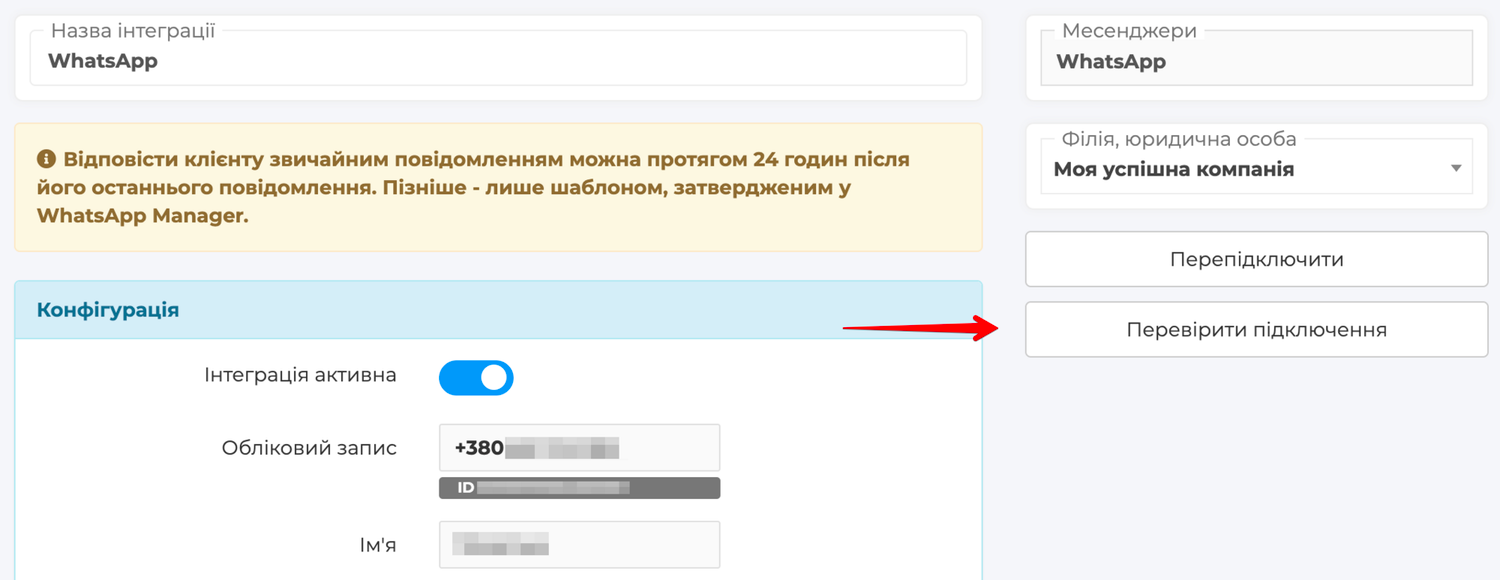
Click Check Connection — Skynum shows Connection successfully verified. To be sure, send a message to the company number from your own phone — it appears in the Messenger section.
After the connection, link WhatsApp Web and other additional devices to the number again. The history in Skynum starts with the first message after the connection, and earlier chats stay in the app on the phone.
Each company number gets its own integration.
The number is connected — you can work with customers. Replies, chat statuses, responsible managers, orders from conversations — all of this is in the article Messenger.
Paying for Conversations
The WhatsApp Business Platform is a paid Meta service, and Meta issues the invoices itself. Money is charged for the templates the company sends; the price depends on the template type and on the customer's country. Regular replies within 24 hours after the customer's message are free, and so are utility templates during this time.
The payment card is added in WhatsApp Manager — to the account whose ID is shown in the integration. Without it, paid templates will not be sent.
Conversations in WhatsApp
In WhatsApp, a conversation is started by the customer when they write to the company number, or by you — with a template. The customer's messages appear in Skynum right away, and your replies reach them in WhatsApp.
The Phone and Skynum Together
The phone and Skynum work with the number at the same time. If a colleague replied to the customer from the app, the reply also appears in the Skynum chat. Changes come through the same way: if a message is edited or deleted on the phone, this is also visible in Skynum. Private chats with customers work in the app as before. Group chats do not get into Skynum.
Important. Open WhatsApp Business on the phone at least once every 13 days. If the app has not been opened for longer, Meta disconnects the number from Skynum, and the number has to be connected again.
What Comes from the Customer
- Text, photos, videos, voice messages, documents and stickers.
- Location — a point on a map that opens with one click.
- Contact — the name and phone numbers the customer sent.
- A reply quoting your message and the customer's reactions to your messages.
If the customer edited a message, the chat shows the new text and a pencil icon; if they deleted it, the message stays, but crossed out. If the customer changes their number in WhatsApp, Skynum notes it in the chat, and the conversation continues in the same place.
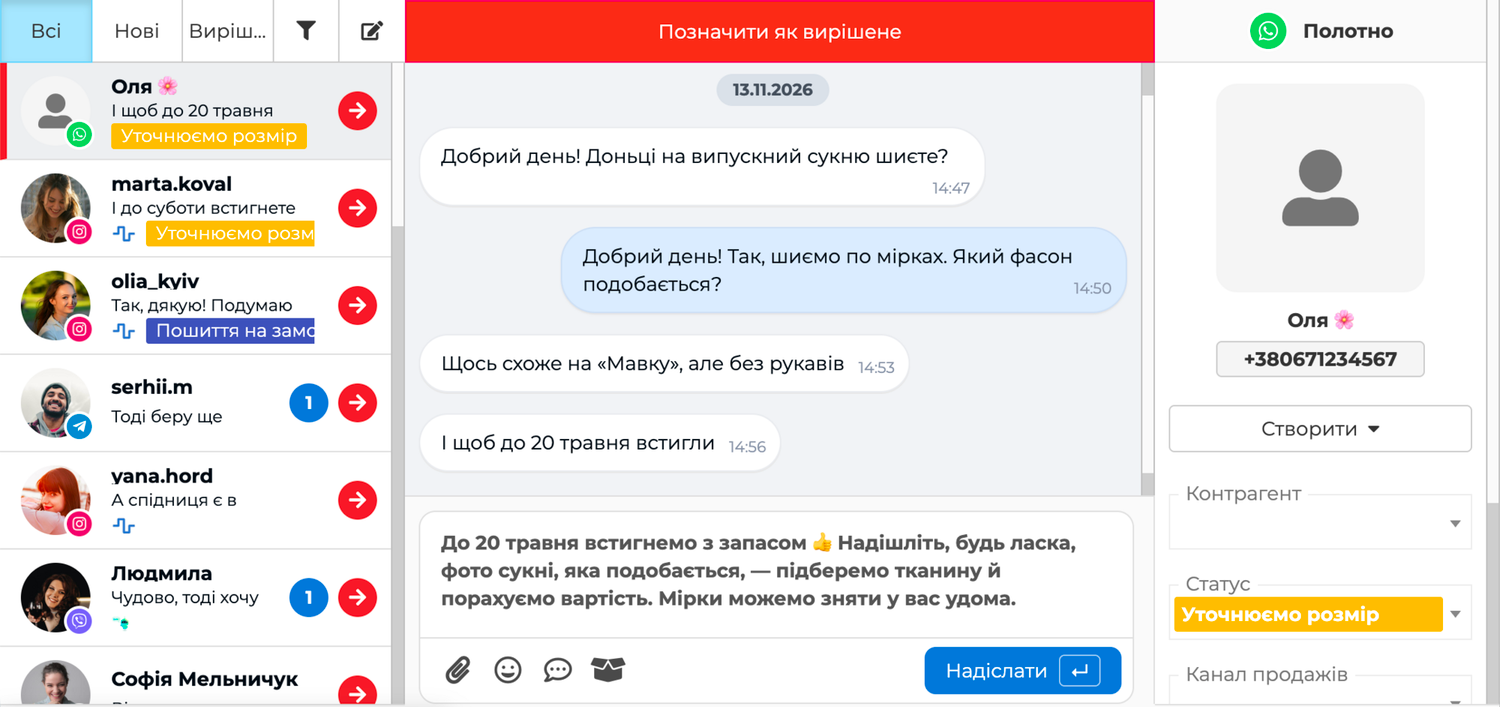
Invoices and photos from customers will not disappear. As soon as a file arrives in the chat, Skynum makes a copy of it on its side — for files up to 20 MB. A payment receipt the customer sent in spring, the manager will open in autumn with one click.
The customer's number is shown in the chat panel. A customer can hide the number behind their WhatsApp username — then the panel shows that name, and the manager chooses the counterparty manually. When the number belongs to a counterparty or their contact person in your database, Skynum links the chat to them on its own. If not, the manager chooses the customer in the Counterparty field or creates a new counterparty right from the chat. And if telephony is connected, you can call the customer by clicking the number.
What You Can Send to the Customer
- Text up to 4096 characters.
- A photo with a caption under it of up to 1024 characters — the customer receives them together.
- A file up to 20 MB: PDF, Word, Excel, PowerPoint or TXT, an MP4 video, an MP3, M4A or OGG audio file. A caption for a document or video goes together with the file, and for audio, send the text as the next message.
- A product from the Skynum catalog: click the box button, and the customer receives the photo and the price by the integration's pricing type.
- A ❤️ reaction — double-click the customer's text; another double-click removes it.
The status under your message shows where it is now: Sent — it has left Skynum, Delivered — it is already on the customer's phone, Seen — the customer has opened it.
The customer has decided to buy — the order is created right from the chat, and it already has the counterparty, the sales channel and the prices from the conversation. Then the usual path: reserving the goods, payment, shipment. The sale is recorded under the WhatsApp channel, so reports show the revenue, cost and profit this channel has brought.
The 24-Hour Rule
WhatsApp has a 24-hour rule. You can reply to a customer with regular messages — text, photos, files, reactions — within 24 hours after they last wrote. As soon as the customer sends a new message, the countdown starts over.
Important. If more than 24 hours have passed since the customer's last message, or the customer has not written to you yet, WhatsApp lets only a template through. A regular message will not be delivered: an error with an explanation appears under it in the chat.
That is why it is better to reply to WhatsApp messages on the same day. And if the customer has gone quiet but you have something to tell them — the order is packed, the payment has not arrived — write with a template.
Messages an employee writes from the phone do not open the 24 hours: only the customer's messages do.
Message Templates and the First Message to a Customer
A template is a text prepared in advance that WhatsApp has reviewed and approved. It is with a template that the company writes to a customer first or comes back to a conversation after 24 hours have passed. A template can contain variables: the customer's name, the order number, the amount. For example: "Hello, [name]! Your order No. [number] is ready to ship" — the manager fills in the name and number before sending.
How to Create a Template
Templates are written and submitted for review in WhatsApp Manager, Meta's account dashboard. Open the account there with the same ID as in the integration and create templates in it. For Skynum, prepare text templates — with variables for the name, order number or amount. As soon as WhatsApp approves a template, it appears in Skynum.
How to Send a Template from the Chat
In the reply field, click the quick replies button. Below your quick replies come the WhatsApp templates: each has the WhatsApp icon, a name and a language.
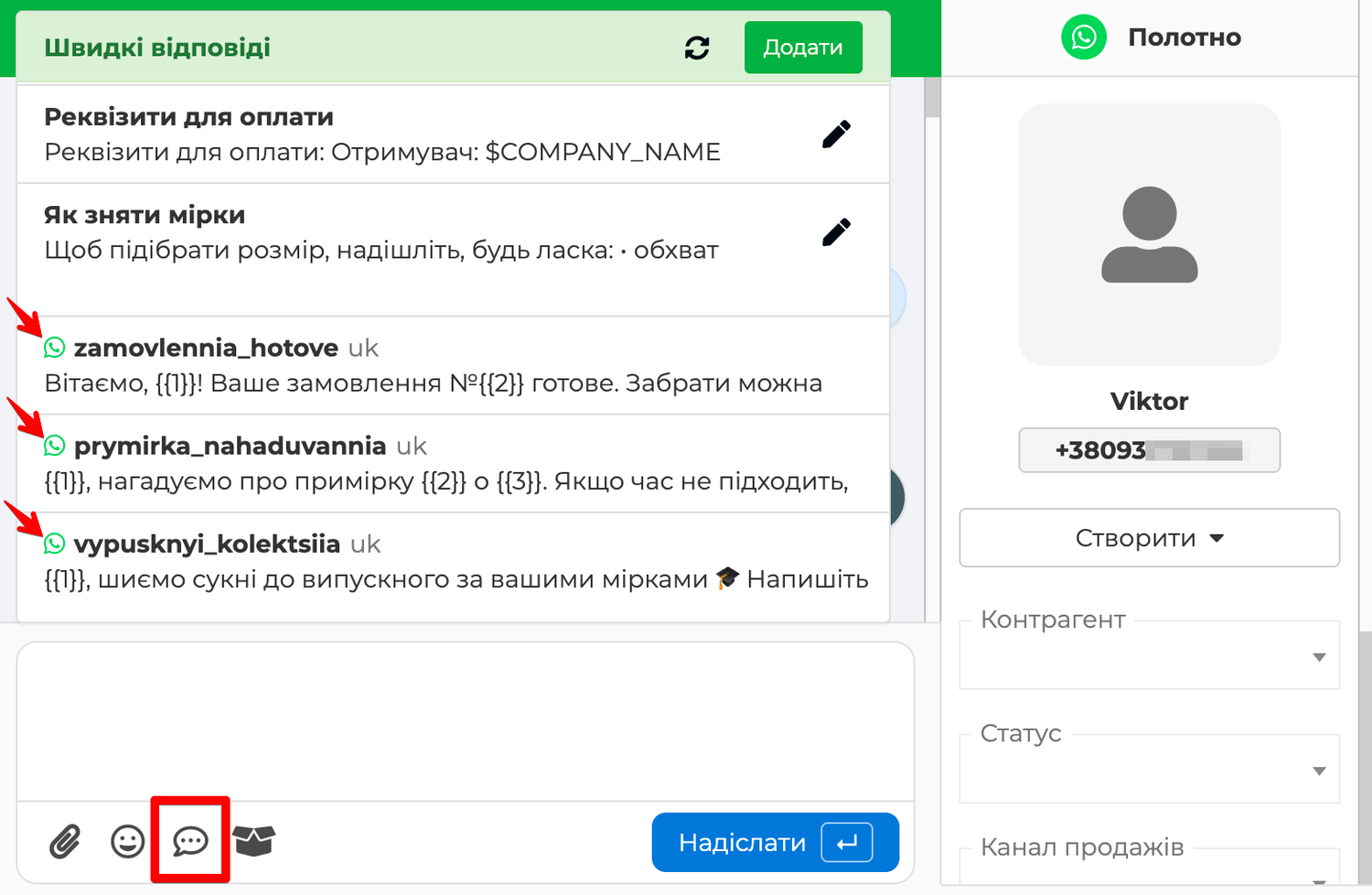
Choose the one you need and enter the values of the variables — the block labeled The client gets shows exactly what the message will look like. Click Submit.
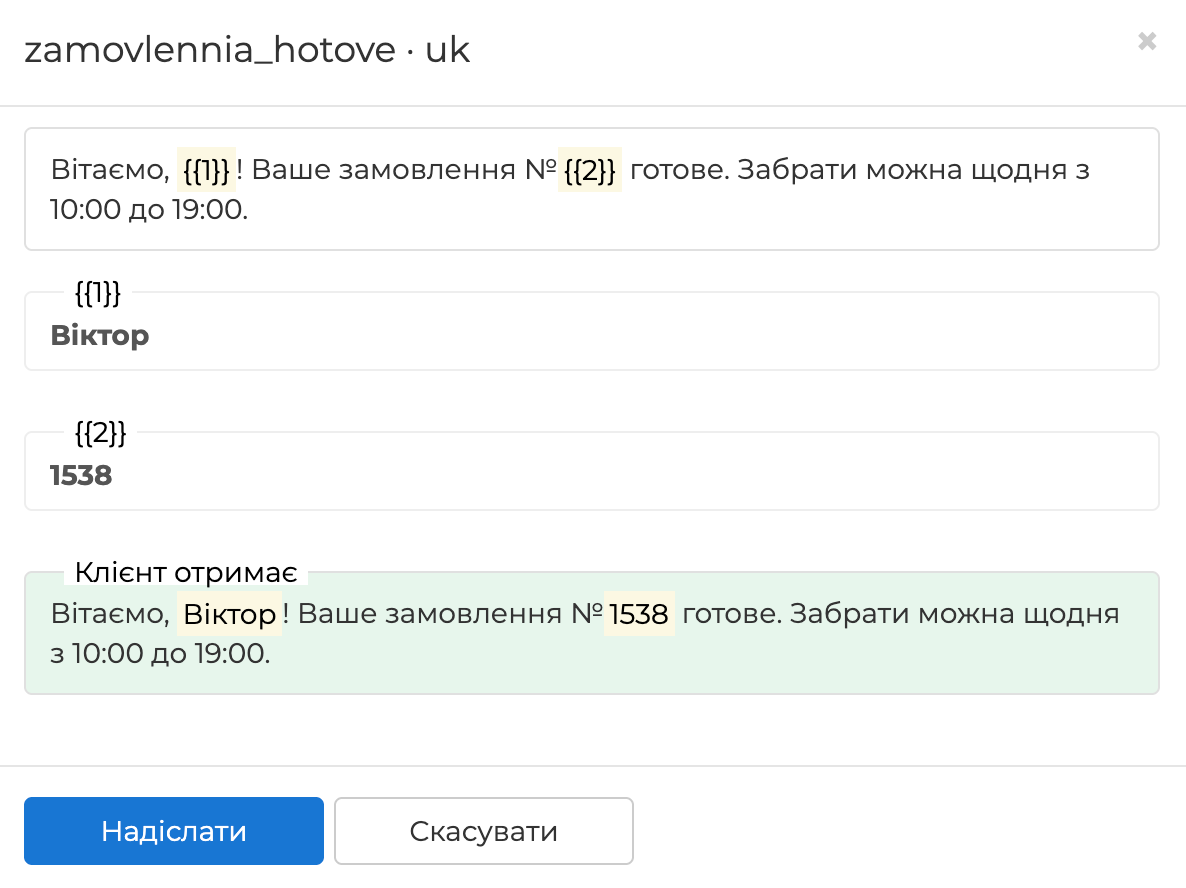
The template reaches the customer as a regular message from the company. If you have just created a template in WhatsApp Manager and it is not in the list yet, click Refresh in the panel header.
How to Write to a Customer First
Above the chat list in the Messenger section, click the pencil button — New conversation. Choose the WhatsApp integration, then who you are writing to — a counterparty or any number — and the template. Enter the variables and click Submit — a new chat with the customer appears in the list.
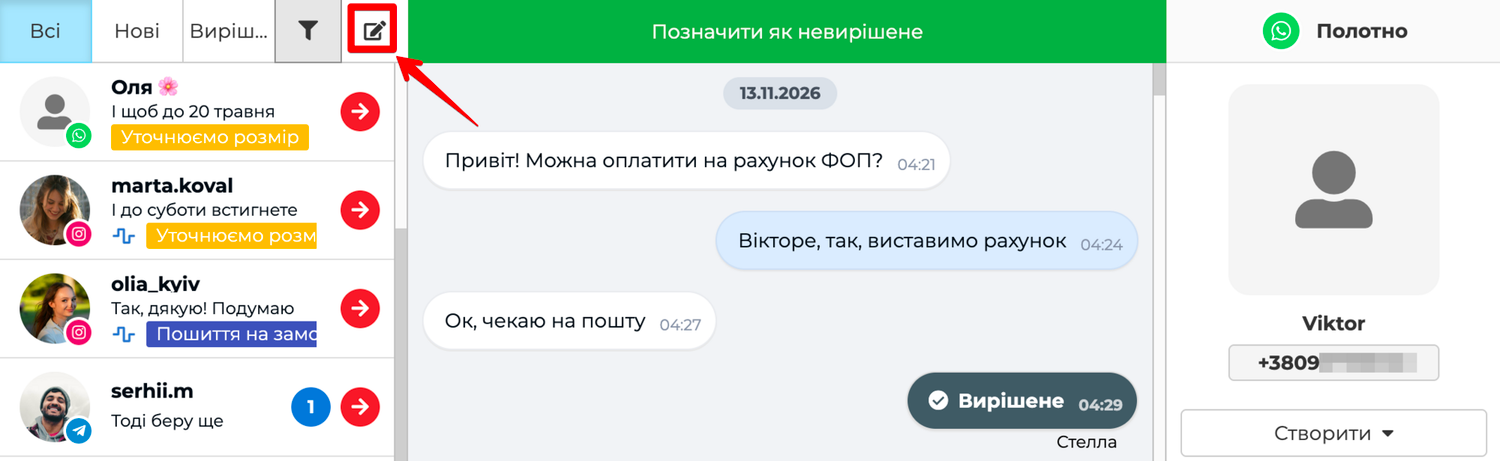
Under the Messenger field, the window shows how many dialogs you have already started today and the limit WhatsApp has set for your business. The limit grows when customers willingly reply to your messages and when the business has passed verification in Meta.
The full list of labels, file formats and answers to frequent questions is in the WhatsApp Integration section of the help centre.
Summary
We have gone through connecting a WhatsApp number to Skynum. The number is connected officially through Meta, so it is not banned for the connection. You can write first to thousands of customers a day. The app on the phone keeps working, and customers from WhatsApp get into the same messenger as the other channels. Skynum finds the customer in your database by number on its own and keeps their files, and when 24 hours have already passed or the customer has not written yet, you reach out to them first with a template. Daily work with chats is described in the article Messenger. And most importantly: conversations from WhatsApp are handled next to orders, payments and stock balances, so you can see how much money this channel brings to your business.