The Skynum platform has an Instagram integration that lets you use the built-in messenger to manage communication with customers. You will be able to receive and reply to Direct messages, as well as reply to comments under posts and to stories, send customers products from the Skynum catalog, leave notes on chats, mark conversations as resolved, create orders from a chat, and assign each chat its counterparty and responsible employee. And all of this happens in the same system where you keep your accounting: the customer's orders and payments and your stock balances are right next to the conversation.
The Instagram integration solves a wide range of tasks:
- Managing communication with customers. Your conversations become organized and structured.
- Assigning a manager or operator to each chat. Every conversation has someone responsible for it.
- A counterparty in the system is linked to the customer from Instagram. You immediately see the whole history of your relationship with the customer — purchases, debts, orders, calls and SMS.
- The sales chain from the first message to shipment. You can trace the history from the first contact and the order to payment and delivery of the goods.
- Comments and stories in the chat with the customer. The post is shown above a comment, and the story itself above a reply to a story. You can reply to a comment privately in Direct.
- Products from the Skynum catalog straight into the chat. The manager sees the stock balance and sends the customer a product with a photo and price without leaving the chat.
- Control over conversations with customers. Even if a customer deletes a message in Instagram, it stays in the system crossed out, and photos and files from the conversation do not disappear.
- Missed orders are a thing of the past. Every conversation has to be marked as resolved, so all unfinished chats can be found at once.
- How much Instagram earns. Skynum shows how much money Instagram has brought you: revenue, cost of goods sold and profit.
Instagram chats are handled in the Messenger section — in the same place as conversations from Facebook, WhatsApp, Telegram, Viber, the website chat and the Prom and Rozetka marketplaces. The manager replies to all customers in one window and does not switch between apps.
This article is about connecting Instagram. Everything the messenger can do — quick replies, filters and statuses, orders and tasks from a chat, products from the Skynum catalog, the mini messenger on any page, the customer's calls and SMS next to the chat — is described in a separate article, Messenger. Read it after connecting.
Next, we will go through setting up and connecting the Instagram integration, importing existing chats, and the specifics of Instagram conversations: stories, comments and replies to them.
Important. You can connect only a professional or business Instagram account. If you have a regular account, switch it to a professional one in the Instagram app: Settings and activity → Account type and tools.
Setting Up the Instagram Integration
Go to Settings → Integrations → Messengers, click Add Integration and choose Instagram.
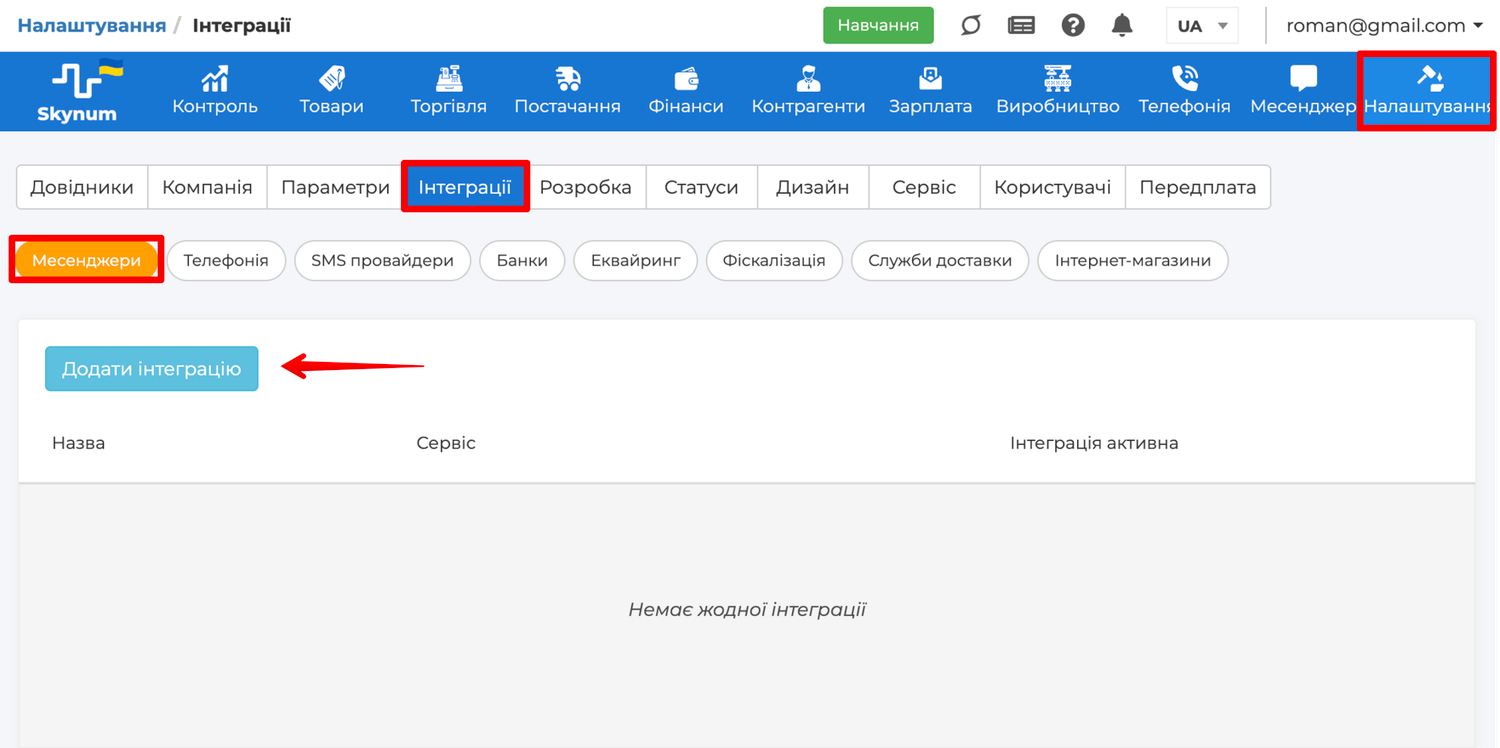
The form for a new integration opens. Fill in the fields:
- Integration name — enter any name, for example Instagram or the account's username.
- Integration Active — turn it on for the integration to work.
- Sales channel — Skynum sets it in every Instagram chat and in orders from these chats. Reports show sales and profit from Instagram by this channel.
- Pricing Type — the price at which the manager sends products from the Skynum catalog and creates orders from the chat. By default, it is the pricing type the company sells at.
- Default Executor — (optional) the user who is automatically assigned as responsible for every new conversation.
- Notification sound — turns on a sound signal for a new customer message.
- Send notifications only to — (optional) which users receive notifications about new messages. When the field is empty, everyone with access to this account's chats sees the notifications.
- Synchronization start date — the date from which the system imports existing chats from Instagram. Chats with no messages after this date will not be imported. The date cannot be earlier than a month ago, and in a new integration it is already set to one month back.
- Legal entity, branch — the branch the account's chats are assigned to.
The Account field stays empty for now — Instagram fills it in during the connection.
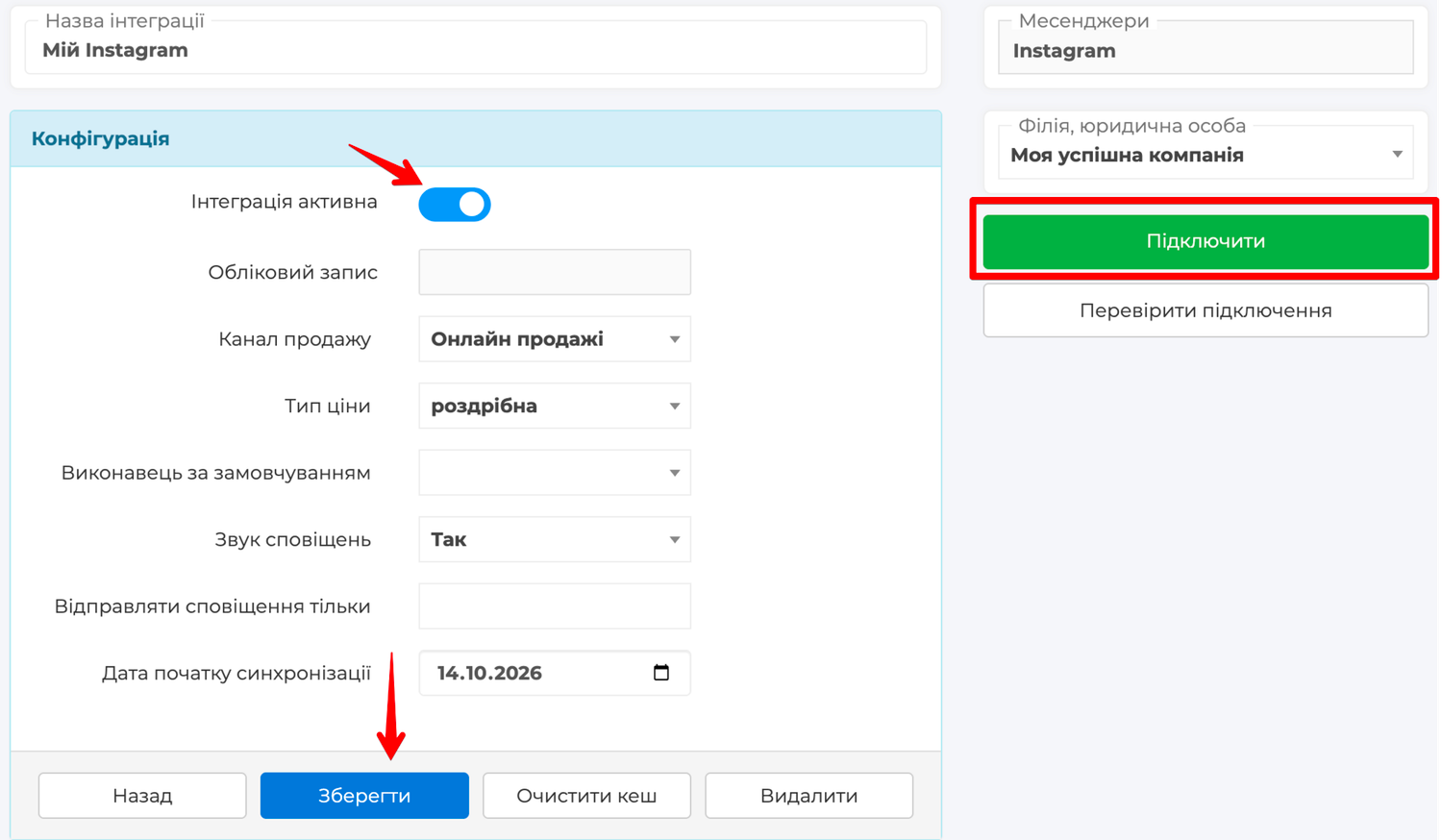
Be sure to save the form with the Save button.
Now connect your Instagram account to the platform. Click Connect — the system redirects you to the Instagram website, where you need to log in to the account.
The login and password are entered on the Instagram website, so Skynum neither sees nor stores them. After you log in, Instagram gives the platform access to the messages and comments of your account.
On the Instagram website, log in to your professional account.

After you log in, Instagram asks you to grant access permissions to the Skynum platform. Click Allow to connect the integration.

Important. Grant all the access that Instagram requests and do not turn off any switch. Without access to messages, Direct messages will not reach Skynum; without access to comments, comments under posts will not reach it.
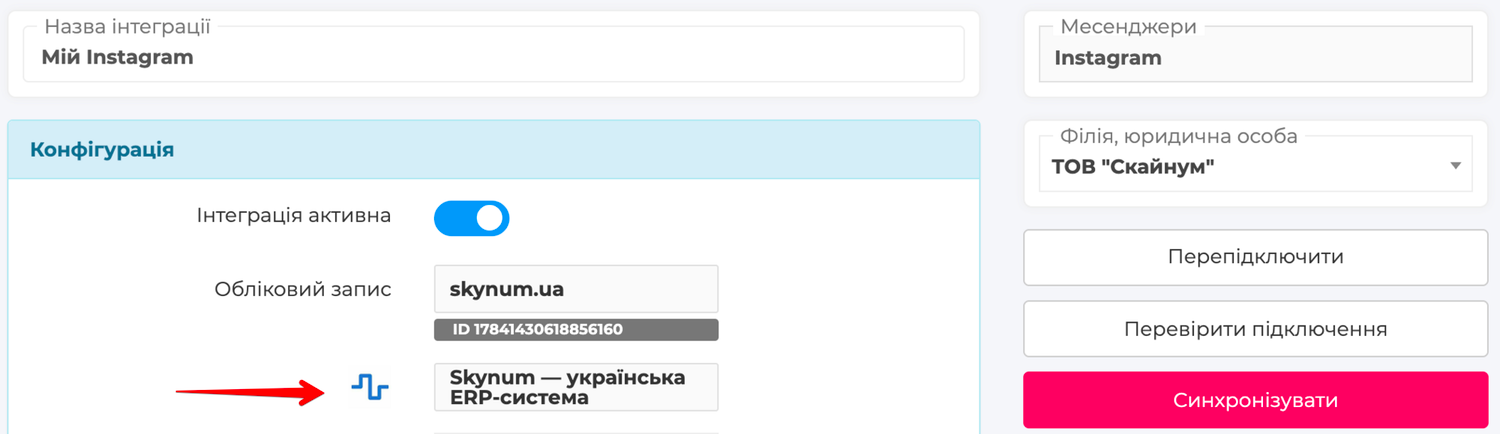
After that, Instagram returns you to the integration page in Skynum. The integration now shows the name and photo of your Instagram profile — this means the connection was successful. The integration also has the Reconnect, Check Connection and Synchro buttons.
If Instagram says that the account does not meet the requirements for messaging, open Settings and activity → Messages and story replies → Message controls → Connected tools in the Instagram app, turn on Allow access to messages and click Connect again.
To connect another company account, create a separate integration for it. Each Instagram account is connected to one Skynum company — the one where the conversations are handled.
Importing Existing Chats
You can also import existing conversations from Instagram into the Skynum platform. To do this, click Synchro. The import can take a long time, depending on the number of conversations.
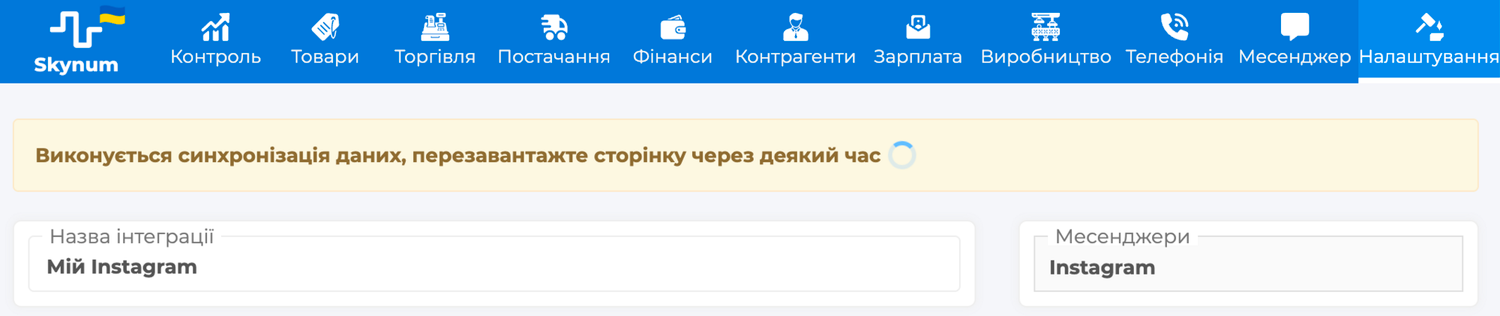
All chats after the date set in the Synchronization start date field will be imported, so be sure to choose the right date before starting the import. The system imports only the last 25 messages of each conversation. Imported chats go to the Resolved tab and do not get in the way of new inquiries. When the import is finished, the Synchro button disappears from the integration.
New messages arrive in Skynum immediately, they do not need an import.
After the connection, Instagram chats appear in the Messenger section of the main menu together with the chats of other channels. You can start working. How to reply to customers, mark chats as resolved, assign responsible employees and create orders from a chat is described in the article Messenger.
Conversations in Instagram
In Instagram, the customer starts the conversation: they write in Direct, reply to your story or comment on a post. All of this appears in Skynum right away, and your replies from Skynum reach the customer in Instagram. Messages that someone on the team wrote from the Instagram app on their phone also get into the chat — among the company's messages.
What Comes from the Customer
- Text message — text and emojis.
- Media message — photos, videos and voice messages.
- Shared post — a post the customer shared with you in Direct, with its caption and link.
- Reply to a story and comment under a post — there are separate sections about them below.
If the customer edited a message, the chat shows the new text with a pencil mark. A message deleted by the customer stays in the chat crossed out.
Photos and files from Direct do not get lost. As soon as a message arrives, Skynum saves a copy of the photo, video or file on its side. A picture the customer sent several months ago opens in the chat just as it did on the day it was sent.
The customer panel shows their name, username with a link to the profile, and photo. Instagram does not pass the phone number, so the manager picks the customer from the Skynum counterparties in the Counterparty field — or creates a new counterparty right there. From then on, the conversation is visible in the counterparty card together with their orders, calls and SMS.
What You Can Send to the Customer
- Text up to 2000 characters.
- A photo — the customer sees it as a regular image.
- Files up to 20 MB: a document in PDF format, a video in MP4 or MOV format, audio in M4A or WAV format.
- A product from the Skynum catalog — with the box button next to the reply field: with a photo and the price by the integration's pricing type.
- A ❤️ reaction to the customer's message — double-click its text.
If you send a file with a caption, the customer receives two messages: first the file, then the text.
When the customer is ready to buy, the manager creates an order right from the chat. The counterparty, the sales channel and the prices the customer saw in the conversation are already in the order. Then the order is handled as usual: the goods are reserved, the payment is received and the order is shipped, and the sale appears in reports under the Instagram channel — with revenue, cost and profit.
Replies to Stories
Stories are one of the main ways to show customers new arrivals and promotions, and customers often reply to them: "Do you have it in black?", "How much is it?". Such a reply arrives in Skynum in the chat with the customer. Above the message there is the Reaction to the story label and the story itself — the manager immediately sees which product they are asking about and does not have to ask again.
If the customer simply reacted to a story with an emoji, this also arrives in the chat together with the story.
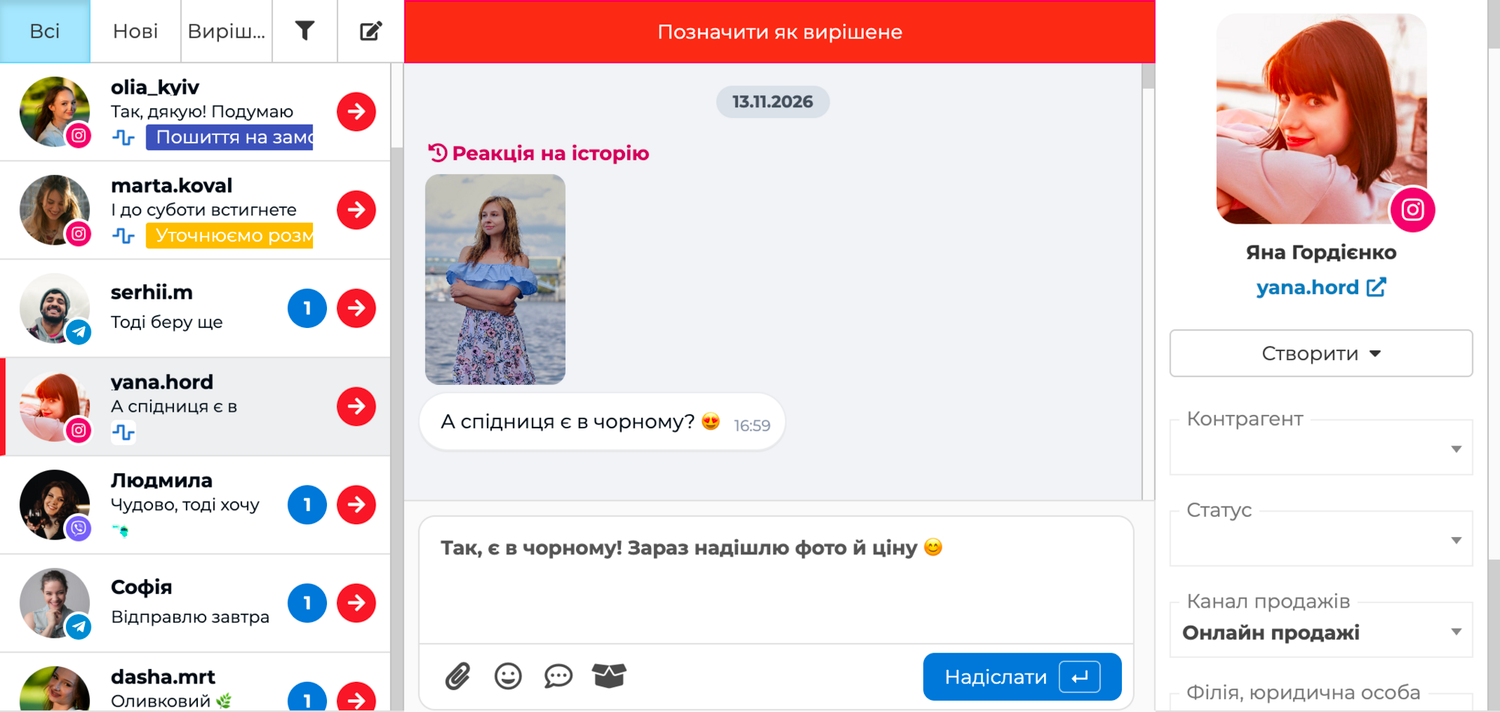
Reply to the customer with a regular message in the chat — it reaches them in Direct. It is convenient to send the product from the story straight away from the Skynum catalog: the customer gets a photo and price, and the manager sees in the catalog how much of the product is left.
A story disappears from Instagram after a day, but stays in Skynum. Skynum saves the story the customer replied to, so even a month later the chat shows what they were asking about.
Comments Under Posts
Under a post, customers ask about the price, size or delivery — and such questions are easy to lose among hundreds of comments. In Skynum, every comment arrives in the chat with its author. Above the comment there is the Comment on the post label, the beginning of the post's caption and a link to the post. If the customer has already written to you in Direct, the comment appears in the same chat — the whole conversation with them is in one place.
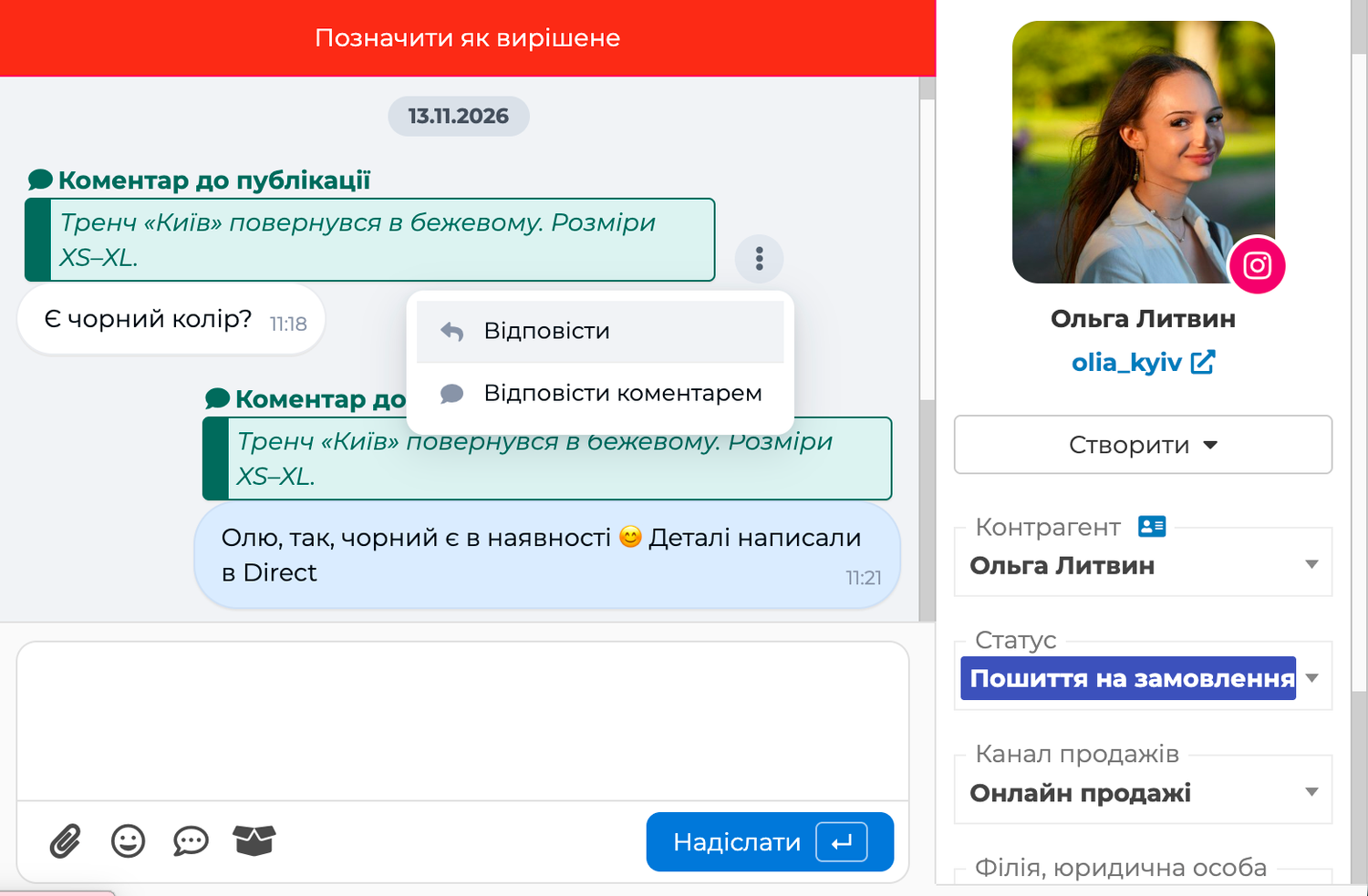
You can reply to a comment in two ways: privately in Direct or publicly under the post. Both are in the comment menu (three dots).
Privately in Direct. Choose Reply in the menu and write a message. The customer receives it in Direct together with a link to the post they commented on. This way you can write even to someone who has never written to you in Direct: a comment under a post opens a conversation with them.
Important. You can reply privately to a comment within 7 days after the customer left it. This time limit is set by Instagram.
Publicly under the post. Choose Reply with a comment in the menu and write the text. The reply appears under the customer's comment in Instagram, and in Skynum — in the same chat. Everyone who opens the post will see it, so this is a convenient way to answer general questions: about delivery, sizes or availability. Write a price for a specific customer, an order number or a phone number privately. A public reply can only be text.
Combining both ways works well: reply briefly under the post with "We've sent you a Direct message", and in Direct send the customer the product with its price and create an order. This way other readers see that the store replies, and the personal offer stays between you and the customer.
All chat labels, file formats and solutions to typical situations are collected in the Instagram Integration section of the help centre.
Summary
We have gone through creating an Instagram integration and connecting your account to the Skynum platform. A few minutes of setup — and Direct messages, story replies and customer comments arrive in the Skynum messenger together with other channels. Stories and customers' photos stay in the chats, you can reply to a comment privately, and a product from the Skynum catalog goes to the customer with its price and stock balance. How to handle chats every day is described in the article Messenger. And since conversations are handled in the same system as orders, payments and stock balances, you can see right next to them how much money Instagram has brought you.