Many websites have a round button in the corner of the screen: you click it, and a small window opens where you can write to the store right away. This is an online chat. Website chat is such a chat from Skynum for your website. You do not need to buy anything: the chat is included in every Skynum plan, including Start.
In most CRMs, an online chat is a separate paid service with its own account that knows nothing about inventory and orders: the manager replies in one window and looks up the price and stock in another. In Skynum, the chat is part of the ERP. A visitor writes from the website, and in the same window the manager sees which page the question came from, checks the stock balance, shows the customer a product with its price and creates an order right there. And later, reports show how much money the chat has brought.
What the website chat gives you:
- You can see where the question came from. The address of the page the visitor wrote from is shown next to the conversation. The manager understands which product it is about and opens this page in one click.
- The visitor's contacts even before the first message. The chat can ask for a name, number and email. When this number is recorded for only one counterparty, Skynum links the chat to them — and the manager sees this customer's orders.
- An order from the same chat. As soon as the visitor is ready to buy, the manager creates an order right there, in the chat.
- A product from the Skynum catalog right in the chat. The manager sees the stock balance in the catalog, and the visitor receives a photo of the product with its price.
- A chat in the style of your website. You set the button color, the title in the window and the greeting yourself.
- The website does not slow down. Only the button loads on the page, and the chat window itself loads only after it is clicked.
- Conversations do not get lost. The visitor goes to other pages, closes the tab, comes back the next day in the same browser — and sees the whole conversation and new replies.
- How much the website chat earns. Reports show the revenue from sales that started in the chat, the cost of goods sold and the profit.
Chats from the website are handled in the Messenger section — together with chats from Instagram, Facebook, WhatsApp, Telegram, Viber and the Prom and Rozetka marketplaces.
Orders from a chat, reply templates and chat statuses are described in the article Messenger. For the website chat, all of this works the same way as for other channels.
Below — how to create the chat in Skynum, how to add it to your website and what the conversation looks like on both sides.
Create the Chat in Skynum
To connect it, you need access to the website settings where custom code is added, or the developer who maintains the website.
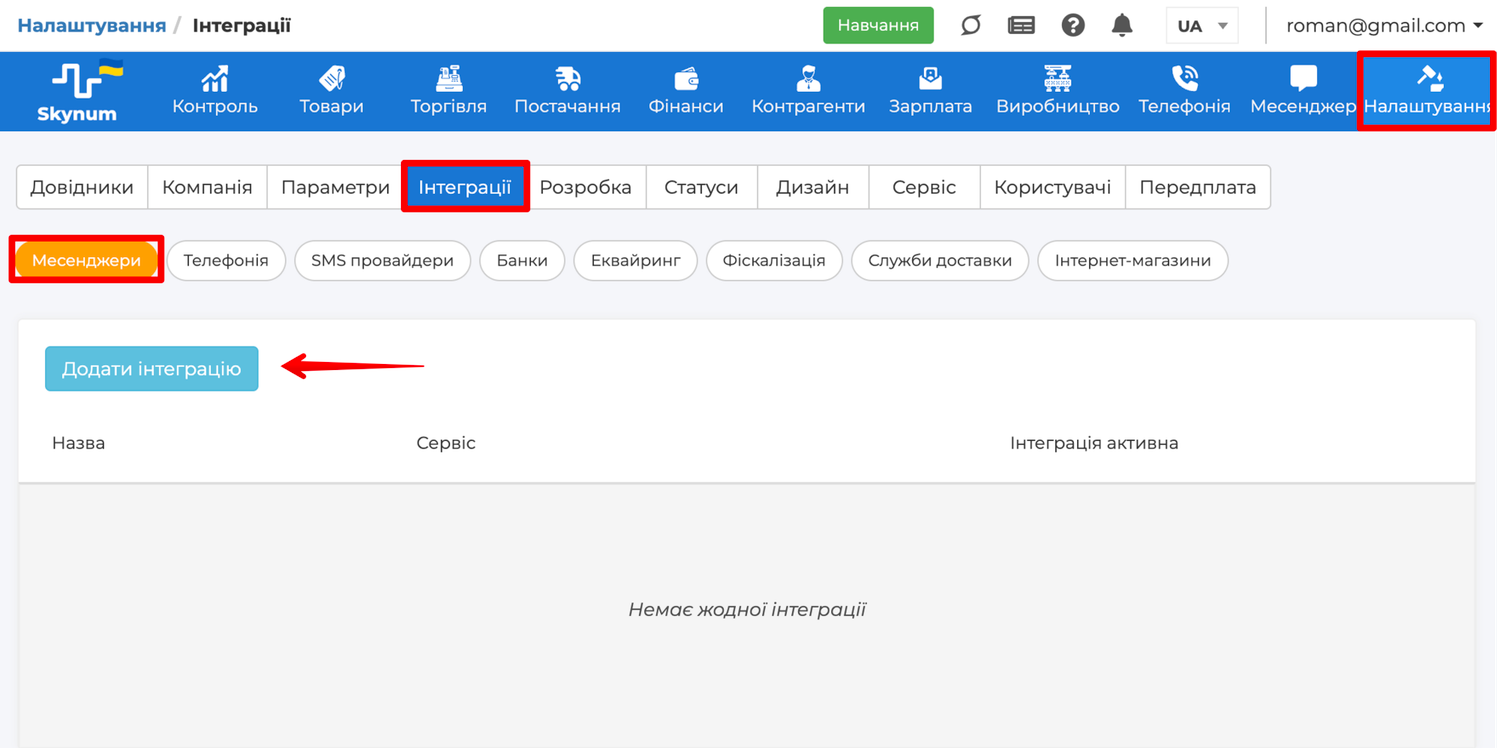
In Skynum, open Settings → Integrations → Messengers, click Add Integration and choose Website chat in the list.
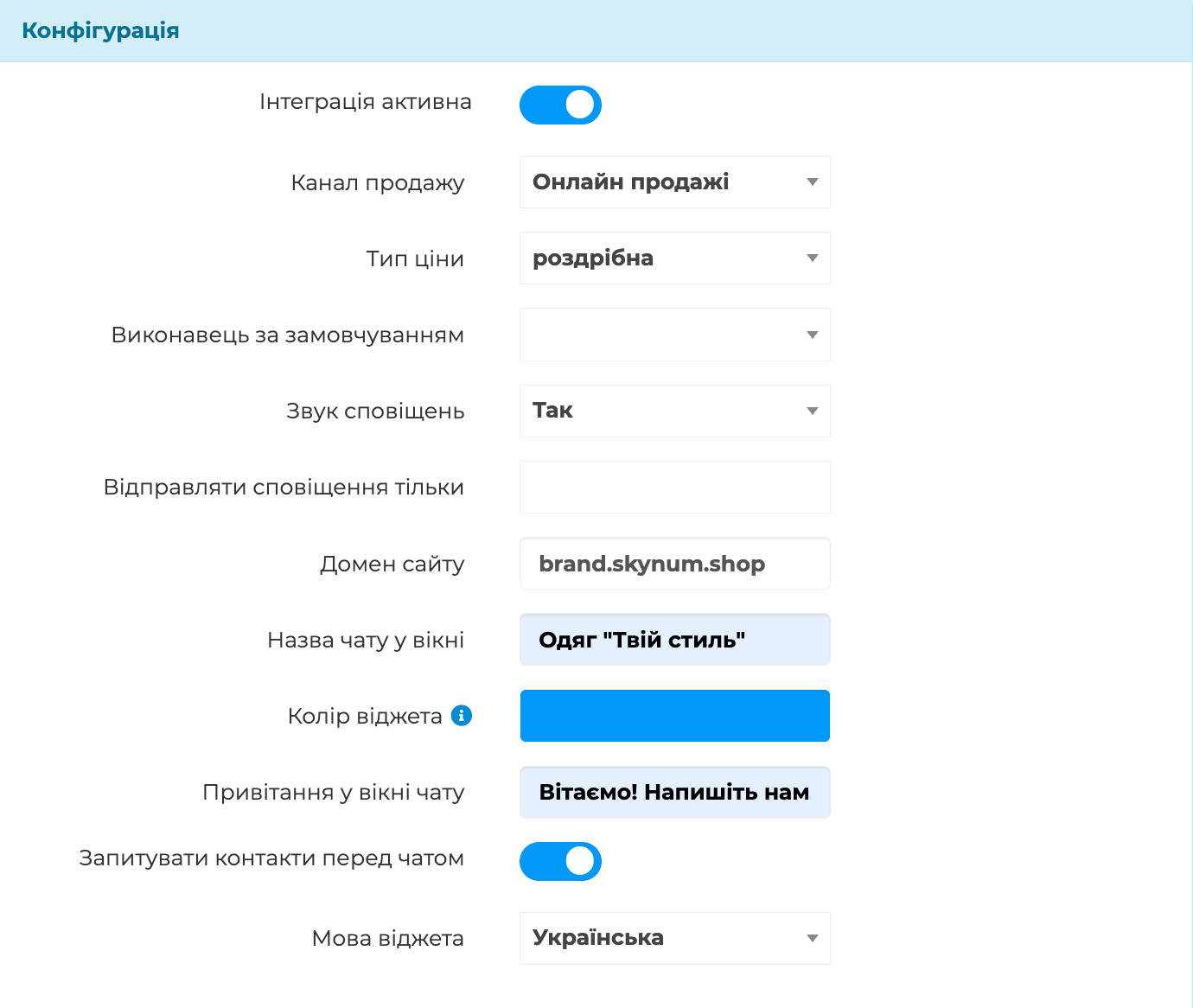
The form for a new integration opens. Fill in the fields:
- Integration name — how the chat is labeled in the list of integrations and in the Messenger section; the visitor does not see it.
- Integration Active — turn it on: without it, there will be no chat button on the website. If you turn it off, the button disappears from the website within 15 minutes, and you do not have to remove the embed code.
- Sales channel — the channel Skynum assigns chats from the website and the orders created from them to; reports count sales from the chat by this channel.
- Pricing Type — the price the visitor sees next to a product in the chat; the product goes into the order at the same price. By default, it is the company's main pricing type.
- Default Executor — (optional) who becomes responsible for every new chat from the website.
- Notification sound — choose Yes, and you will hear every new message from the website.
- Send notifications only to — (optional) the employees who receive notifications about messages from the website. If the field is empty, the notifications are seen by everyone who has access to the chats of this integration.
-
Website domain — the website address, for example
shop.ua. You can paste the address from the browser bar: Skynum keeps only the domain. The chat also works on subdomains, for example onwww.shop.ua. - Chat title in the window — what is written at the top of the chat window for the visitor, for example the name of your store.
- Widget color — the color of the chat button, the visitor's messages and the buttons in the window. A new color appears on the website within 15 minutes.
- Greeting in the chat window — (optional) the text the window greets the visitor with.
- Ask for contacts before the chat — turn it on so that before the first message the visitor sees a form with fields for the name, number and email.
- Widget language — the language of the buttons and fields in the window: Українська, Русский or English.
- Legal entity, branch — the branch or legal entity that chats from the website belong to; they are handled by those with access to this branch.
Click Save — the Embed code appears at the bottom of the integration. This code needs to be added to your website.

Add the Chat to Your Website
How to add the chat depends on what your website is built on:
-
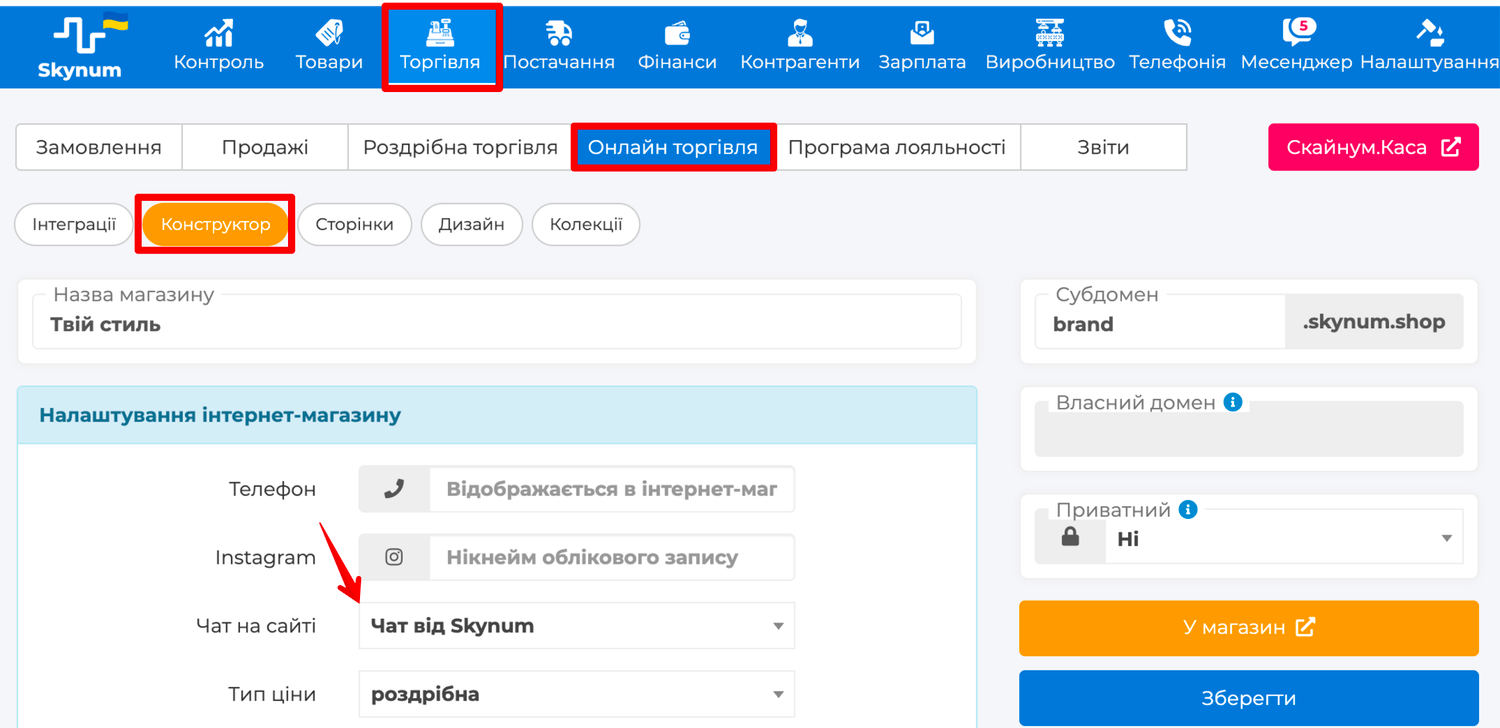
Skynum online store — you do not need to insert any code. Open Trading → E-commerce → Builder, choose the integration in the Website chat field and click Save. The integration's Website domain field must contain the store address, for example
myshop.skynum.shopor your own domain. - Horoshop — in the Horoshop control panel, open Settings → General settings → Scripts, paste the Embed code from the integration into the Scripts before the </body> tag field and click Save.
-
Another website management system — find a field for custom scripts or code before
</body>in its settings and paste the Embed code there. -
A developer maintains the website — send them the Embed code: they will add it to the template of all pages before
</body>.
Open any page of the website — a round chat button in the color you chose appears on it. Click it and write a test message — a new chat appears in Skynum, in the Messenger section.
If the button is there but the window does not open, check the Website domain field in the integration: it must contain the same domain as the browser bar.
What the Visitor Sees
The button opens a window above it: the chat title is in the header, with the greeting under it. On a phone, the window takes up the whole screen.
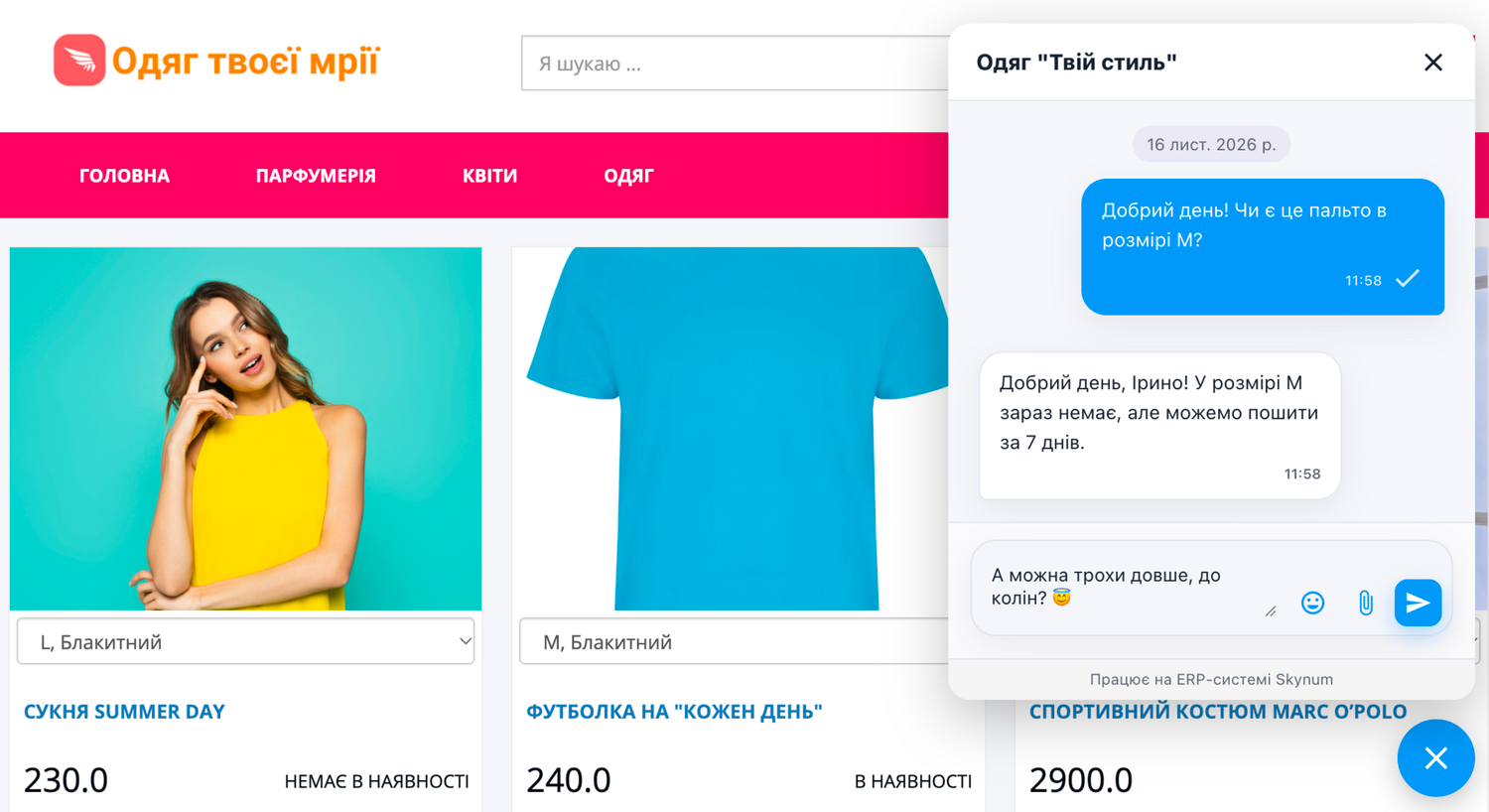
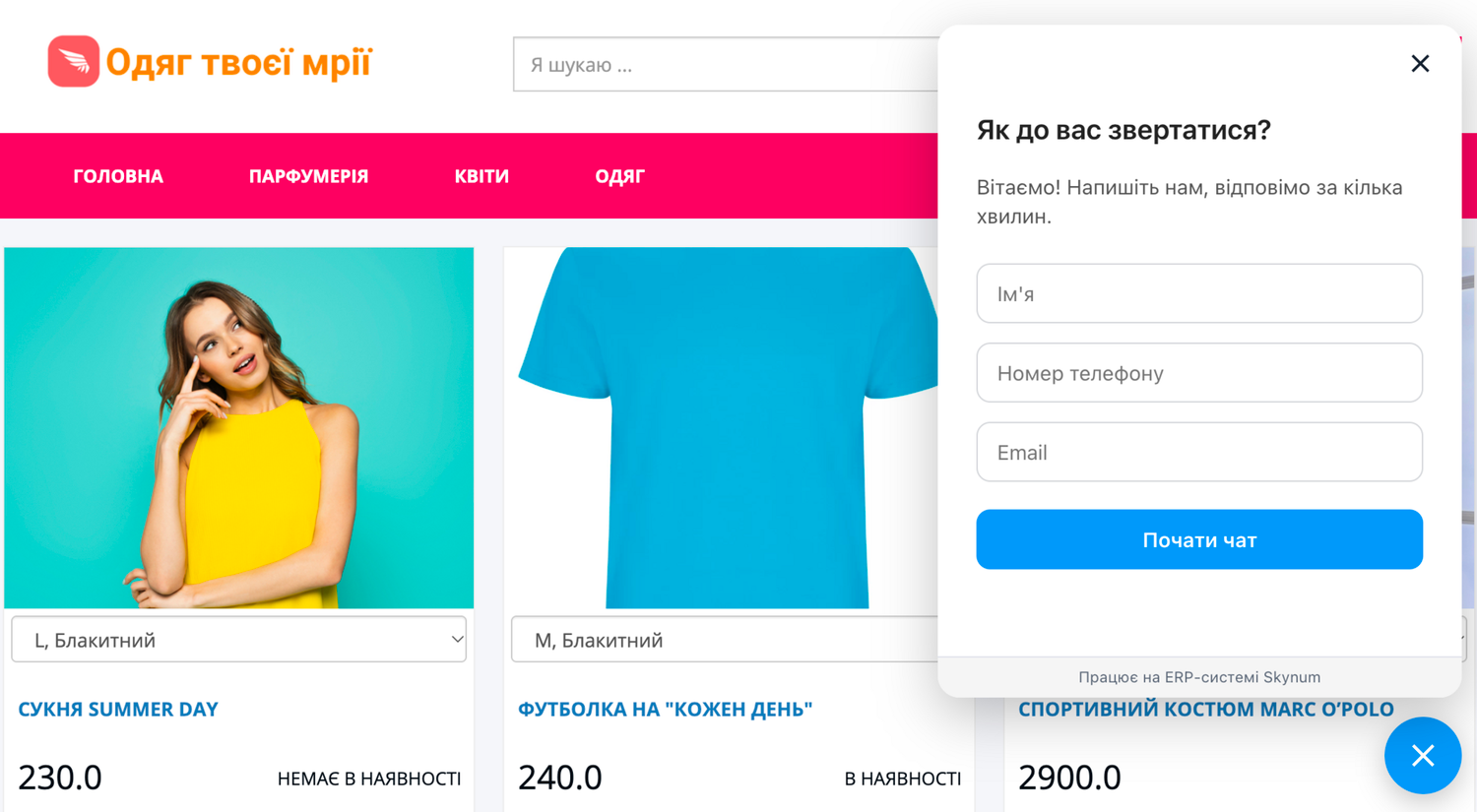
If Ask for contacts before the chat is turned on, the visitor first sees a form with the Name, Phone number and Email fields. None of the fields is required: you can click Start chat and write right away. Then a Leave contacts button appears under the window header.
The visitor can add emojis, attach photos and documents up to 20 MB and quote the manager's messages. The manager's replies come on behalf of the company — with the chat title in the window.
Conversations in Skynum
The visitor's first message creates a new chat in the Messenger section. The chat is named after the name from the contact form, and if the visitor did not give a name, it is called Visitor #….
Next to the conversation, under the visitor's name, you can see their number, email and the address of the page they sent the last message from. If the visitor's number is recorded for one counterparty, Skynum links the chat to them on its own; otherwise the manager chooses the counterparty in the Counterparty field. With the Create button next to the conversation, the manager creates an order right away. How to work with chats and orders from them is described in the article Messenger.
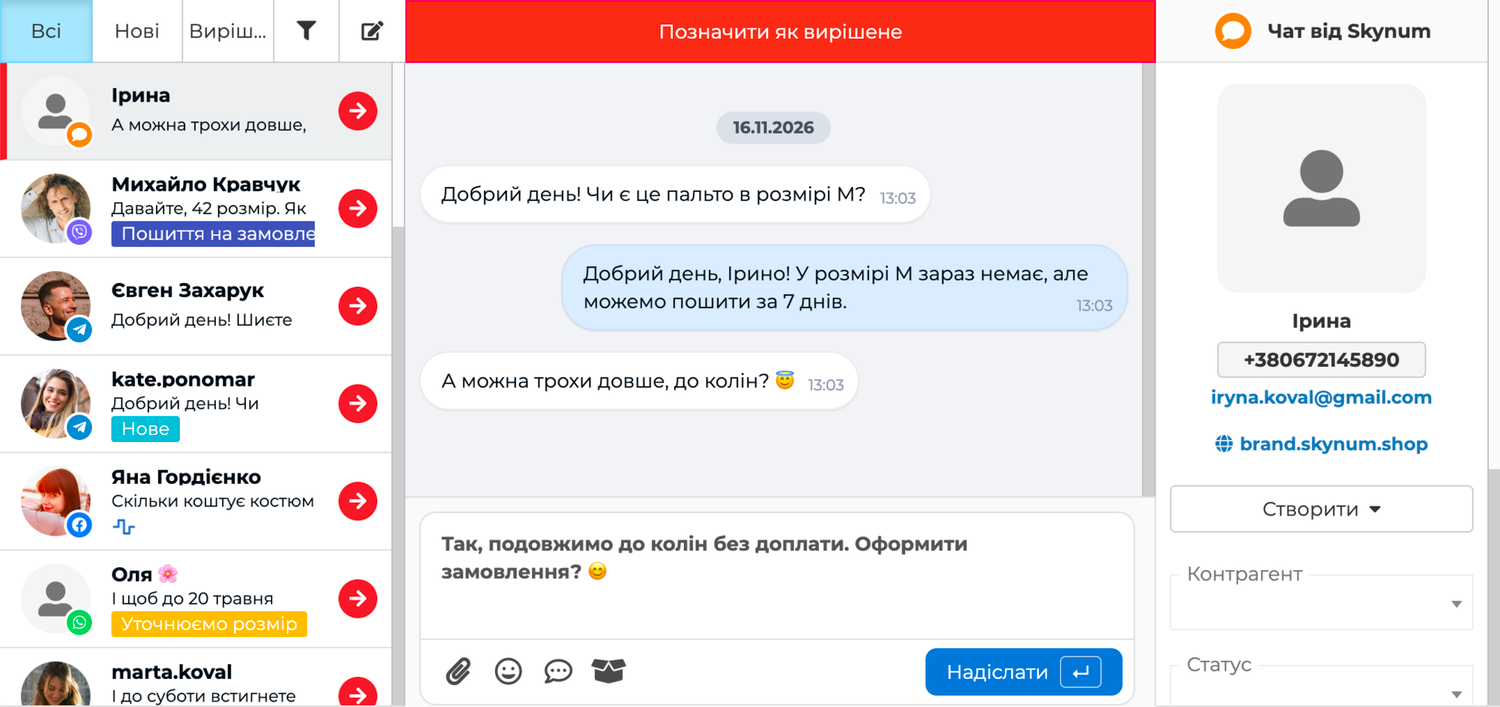
The manager replies with text, photos and files, quotes the visitor's messages and sends products from the Skynum catalog. Each of the manager's messages has a status under it: Sent — the message has left Skynum; Delivered — it has reached the chat window on the website; Seen — the visitor has opened the window with it.
If the visitor has already closed the website, the reply waits for them: when they come back in the same browser and open the chat, they will see it together with the whole conversation. A new chat starts from another device or browser.
All file formats and solutions to typical situations are collected in the Website Chat section of the help centre.
Summary
Now your website has its own Skynum chat — without a separate subscription and without a third-party service. Visitors write from any page, and in the same window managers see stock balances, send products with prices and create orders. The website chat becomes one more sales channel, and reports show how much it earns. Read about other chat features in the article Messenger.